DECAN_F2_Service(Eng_Ver1).pdf - 第409页
16-15 Recovery 16.4. Checking the Device Manager 16.4.1. How to check the Device Manager 1) Boot the W indows. It takes 2~3 minutes to boot the W indow initially due to the installation of the driver . 2) Reboot the W in…
16-14
Fast & Flexible Chip Shooter DECAN F2 Service Manual
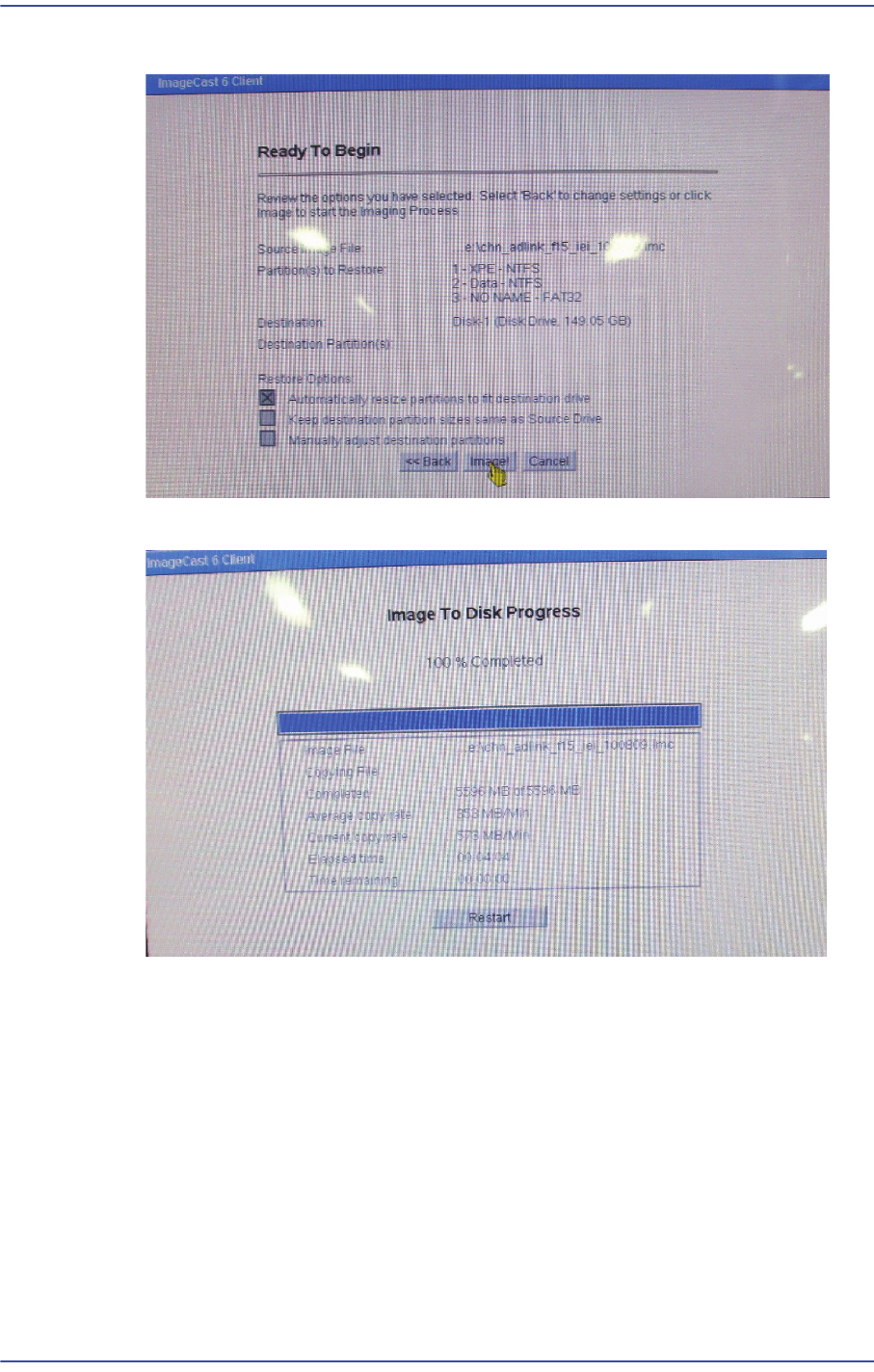
11) Click the Image and proceed with recovery.
12) Once installation is completed, click the <Restart> button to reboot the PC.
16-15
Recovery
16.4. Checking the Device Manager
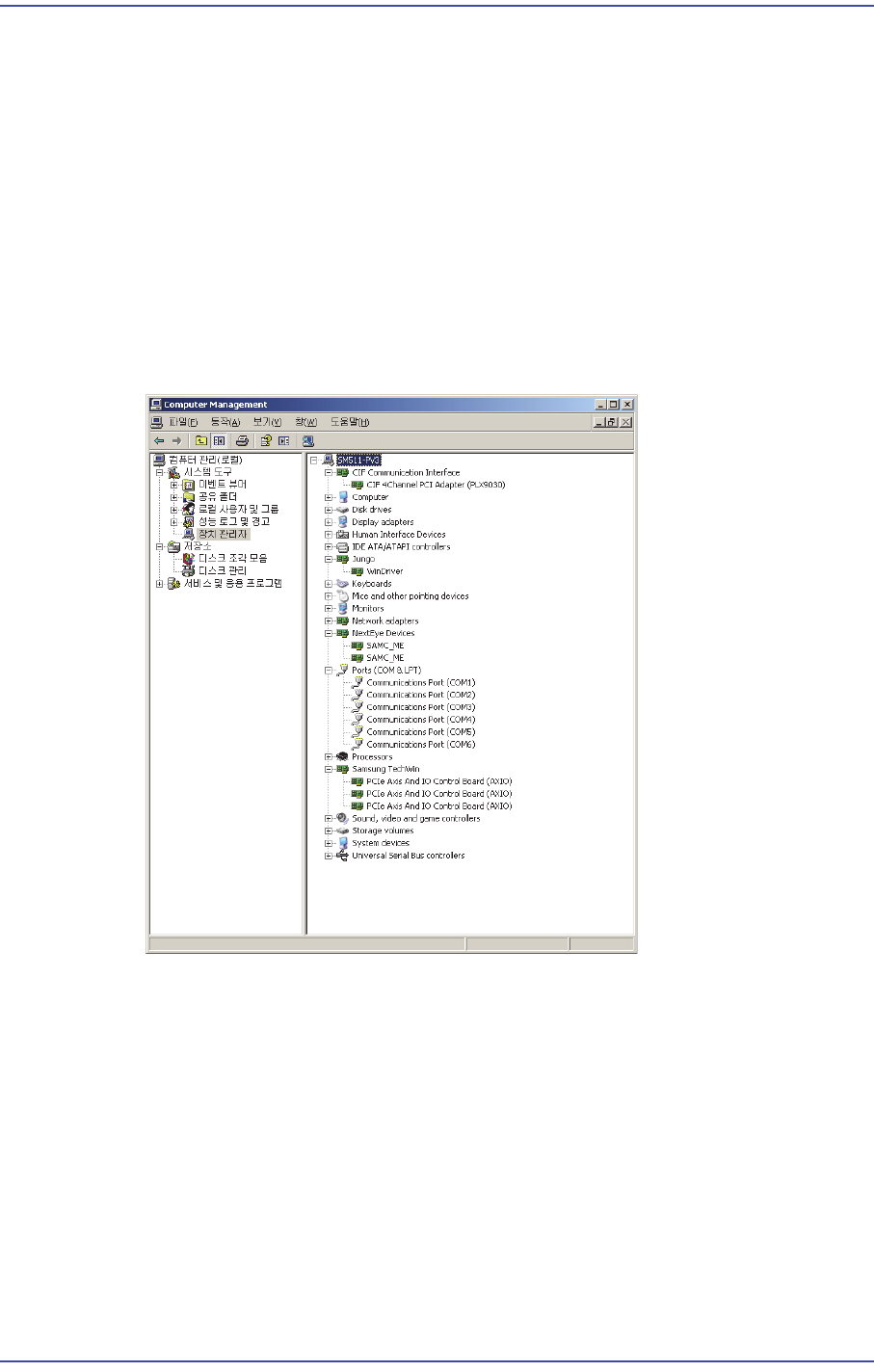
16.4.1. How to check the Device Manager
1) Boot the Windows. It takes 2~3 minutes to boot the Window initially due to the
installation of the driver.
2) Reboot the Windows and check that the Windows is booted without any problems.
During rebooting, stop, delay and error must not occur.
3) After checking the installation status of the Device Manager, close the Window. (Right
click the "MY COMPUTER" icon on the desktop -> Click "Property" at the bottom ->
Move to "Hardware" menu -> Select Device Manager)
4) Check points for the installation of the Device Manager
5) Exit the Windows and check whether the Exit dialog is displayed. Then turn on and off
the power supply to the CPU to check Windows booting and perform the exit test
again.
16-16
Fast & Flexible Chip Shooter DECAN F2 Service Manual
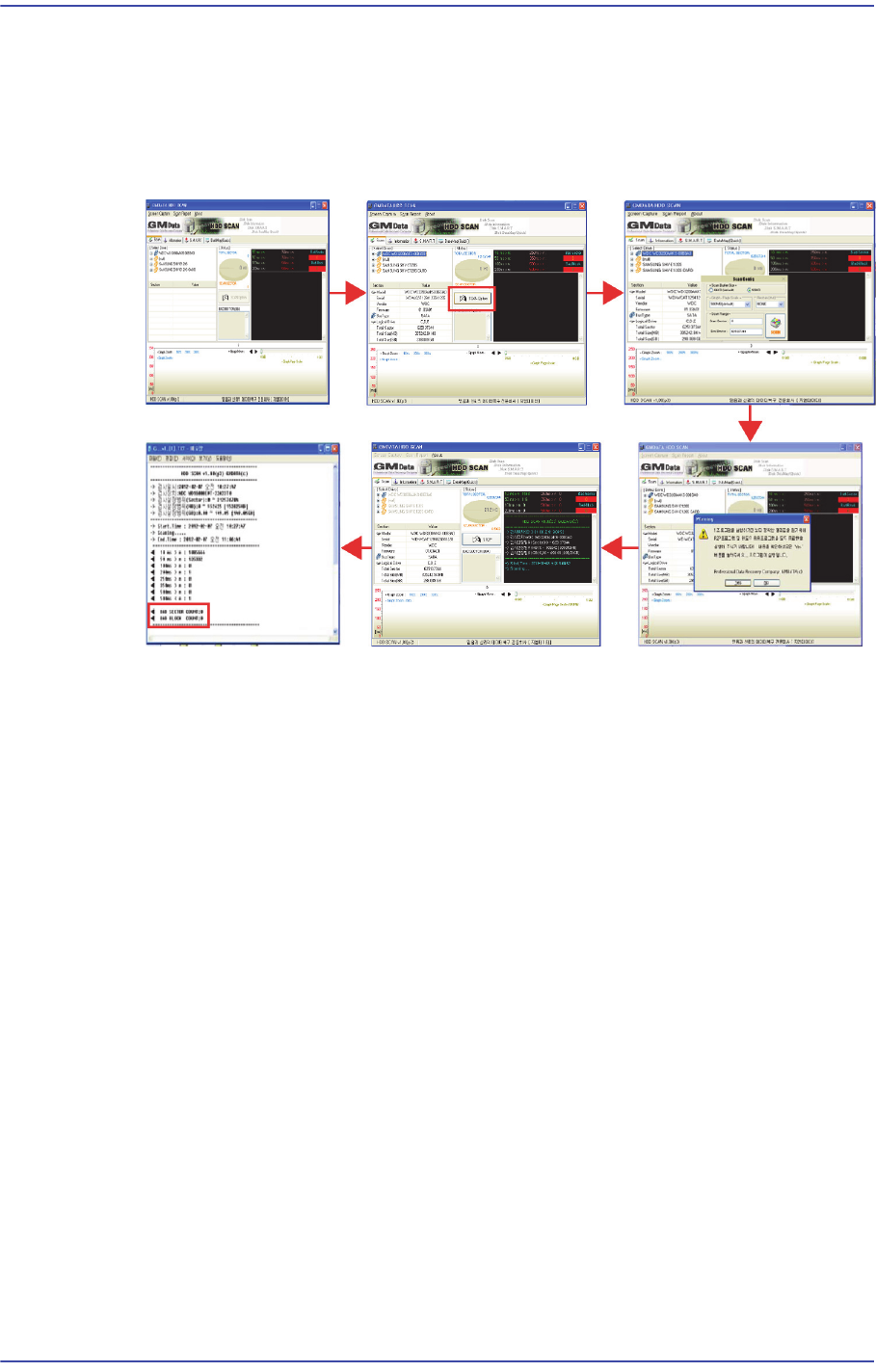
6) Connect the HDD SCAN USB to copy the "HDD SCAN" program to the desktop and
inspect the bad sector disc. Check that the inspection result shows "Bad Sector
COUNT: 0" and save the result.
For the *.HDDSCAN program, use HDDSCAN V1.8 or higher version, a public
program of GMDATA.
COUNT : 0 : “??” ??
7) Exit the Windows, turn off the power supply to the CPU and disconnect the cables.
8) Check the tightening status of the panel bolts again. If there are no problems with the
bolt tightening, store the panel in the designated place.