00195982-03_SM_SWS_EN.pdf - 第102页
5 Basic frame – X/Y unit 5.3 Replacing parts 102 Service Manual SIPLACE Wafer System (SWS) 11/2018 5.3.4 Replacing the X axis sensors The two proximity switches monitor the front and back end position stops for the X axi…
5 Basic frame – X/Y unit
5.3 Replacing parts
Service Manual SIPLACE Wafer System (SWS) 11/2018 101
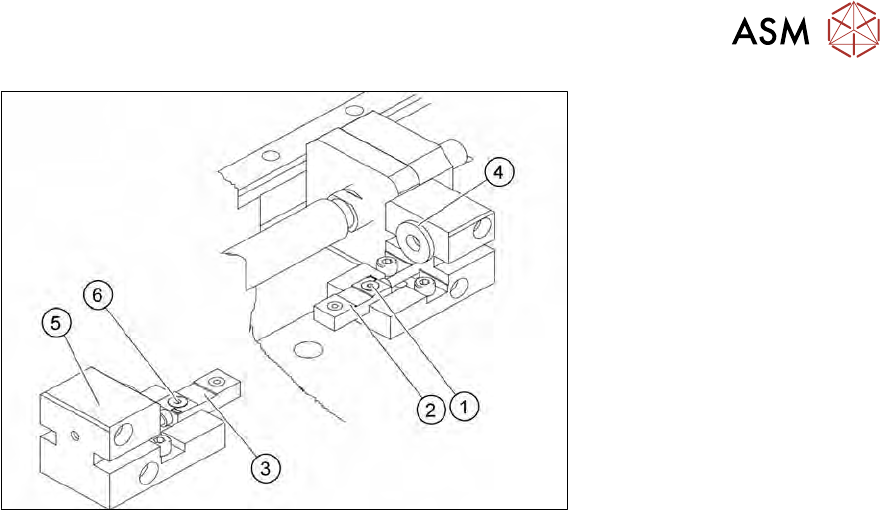
Fig.105:
► Remove the screw (1) or (6) fastening the relevant proximity switch:
– (2) Reverse limit (RL2)
– (3) Forward limit (FL2)
► Unthread the connection cable as far as the wafer table adapter board.
► Use the circuit diagram folder for help and mark the cables connected, if not already marked.
► Unplug all connections from the terminal strip.
► Fit the new proximity switch to the relevant end stop (4) or (5).
► Run the connection cable as far as the wafer table adapter board.
► Connect the connection cable to the relevant terminal strip.
► Fix and gather the cables together with cable ties, where necessary. Make sure that the
cables do not rub against any part or get trapped.
5.3.3.1 Checking the proximity switch
► Switch on the SWS and check the input signals for the proximity switch.
► Enable the proximity switch with a screwdriver.
► Go to the toolbar and select the button Service Settings => Motor settings.
► Select the button GallilMotion_axis1 and then the tab Axis status.
ð The displays shine:
– Forward Limit active
– Reverse Limit active
► Move the axis in both directions. Before the axis moves into the relevant end stop, the proxim-
ity switch must trigger and the relevant display light up.
5 Basic frame – X/Y unit
5.3 Replacing parts
102 Service Manual SIPLACE Wafer System (SWS) 11/2018
5.3.4 Replacing the X axis sensors
The two proximity switches monitor the front and back end position stops for the X axis of the wafer
table. The cable for the relevant proximity switch is connected to the wafer table adapter board.
Fig.106:
1. Proximity switch for Forward Limit (FL1)
2. Proximity switch for Reverse Limit (RL1)
For information about wiring, see section 5.2.3 "Overview of sensors" [}70].
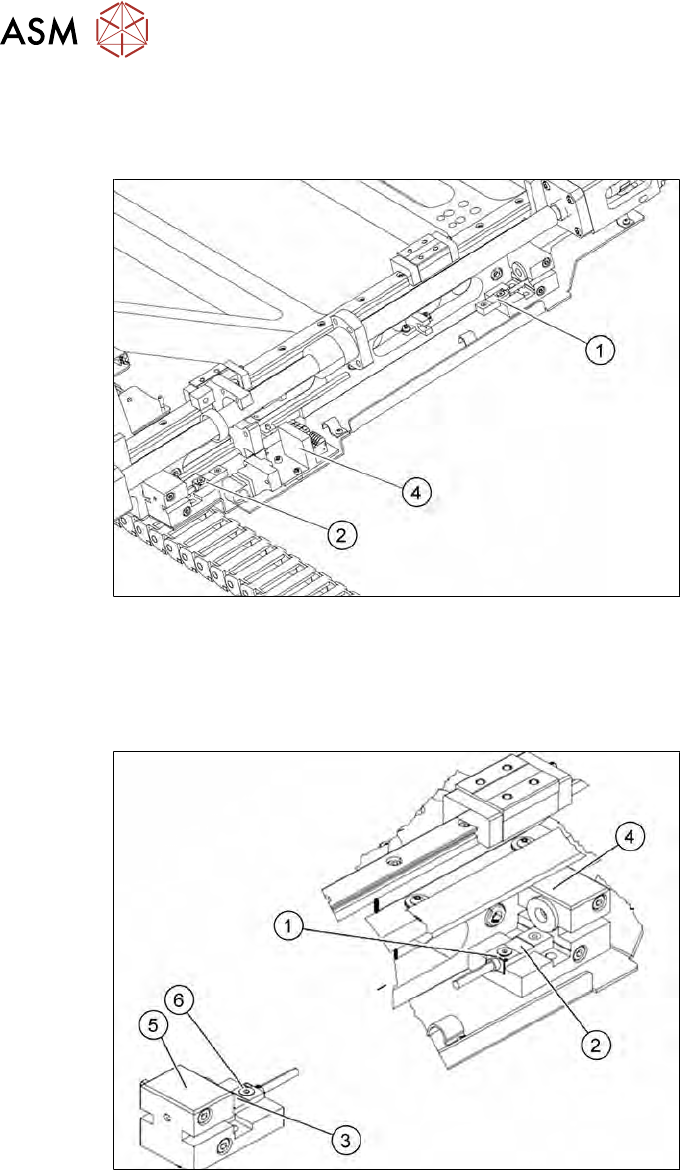
► Remove the cover (4) from the wafer table adapter board.
Fig.107:
► Remove the screw (1) or (6) fastening the relevant proximity switch:
– (2) Forward Limit (FL1)
– (3) Reverse Limit (RL1)
► Unthread the connection cable as far as the wafer table adapter board.
► Use the circuit diagram folder for help and mark the cables connected, if not already marked (see).
► Unplug all connections from the terminal strip.
► Fit the new proximity switch to the relevant end stop (4) or (5).
► Run the connection cable as far as the wafer table adapter board.
► Connect the connection cable to the relevant terminal strip.
► Fix and gather the cables together with cable ties, where necessary. Make sure that the
cables do not rub against any part or get trapped.
5 Basic frame – X/Y unit
5.3 Replacing parts
Service Manual SIPLACE Wafer System (SWS) 11/2018 103
5.3.4.1 Checking the proximity switch
► Enable the proximity switch with a screwdriver.
► Go to the toolbar and select the button Service Settings => Motor settings.
► Select the button GallilMotion_axis0 and the tab Axis status.
► The displays shine:
– Forward Limit active
– Reverse Limit active
► Move the axis in both directions. Before the axis moves into the relevant end stop, the proxim-
ity switch must trigger and the relevant display light up.
5.3.5 Replacing the fork light barriers home position HO1 and HO2
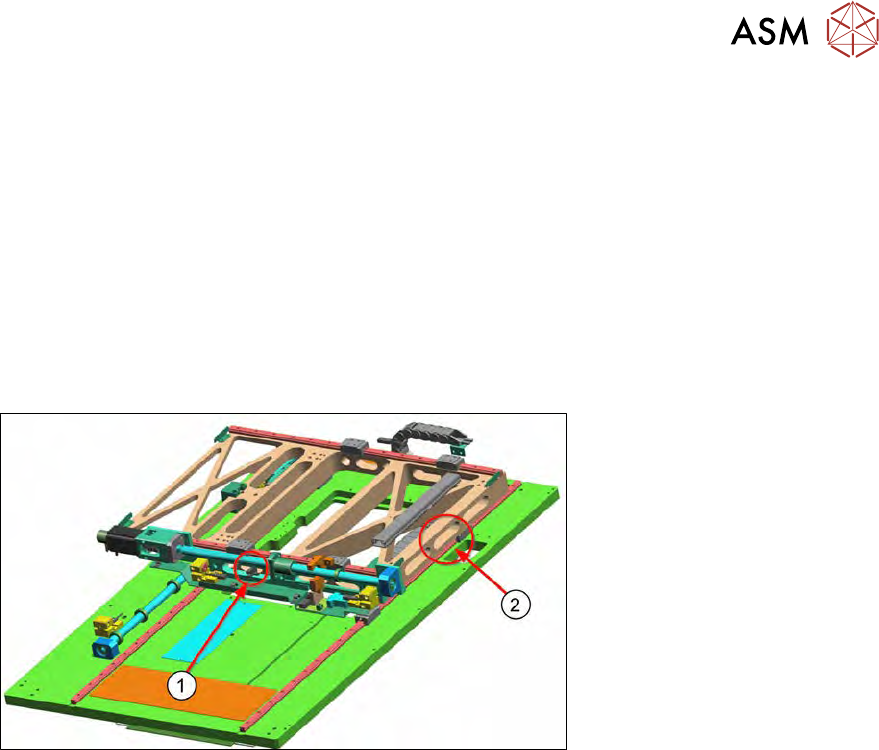
Fig.108:
1. Position of fork light barrier H01 for X axis
2. Position of fork light barrier H02 for Y axis
The fork light barrier HO1 (1) determines the basic position (home position) of the X axis. The cable
for the fork light barrier is connected to the adapter board for the wafer table.
The fork light barrier HO2 (2) determines the basic position (home position) of the Y axis. The cable
for the fork light barrier is connected to the adapter board for the wafer table.