00195982-03_SM_SWS_EN.pdf - 第431页
16 Software 16.2 Installation of operating system Service Manual SIPLACE Wafer System (SWS) 11/2018 431 Fig.644: ► Press the ESC key 3x. ð The following message will appear: Fig.645: ► Select Yes and press Enter . ► Re…
16 Software
16.2 Installation of operating system
430 Service Manual SIPLACE Wafer System (SWS) 11/2018
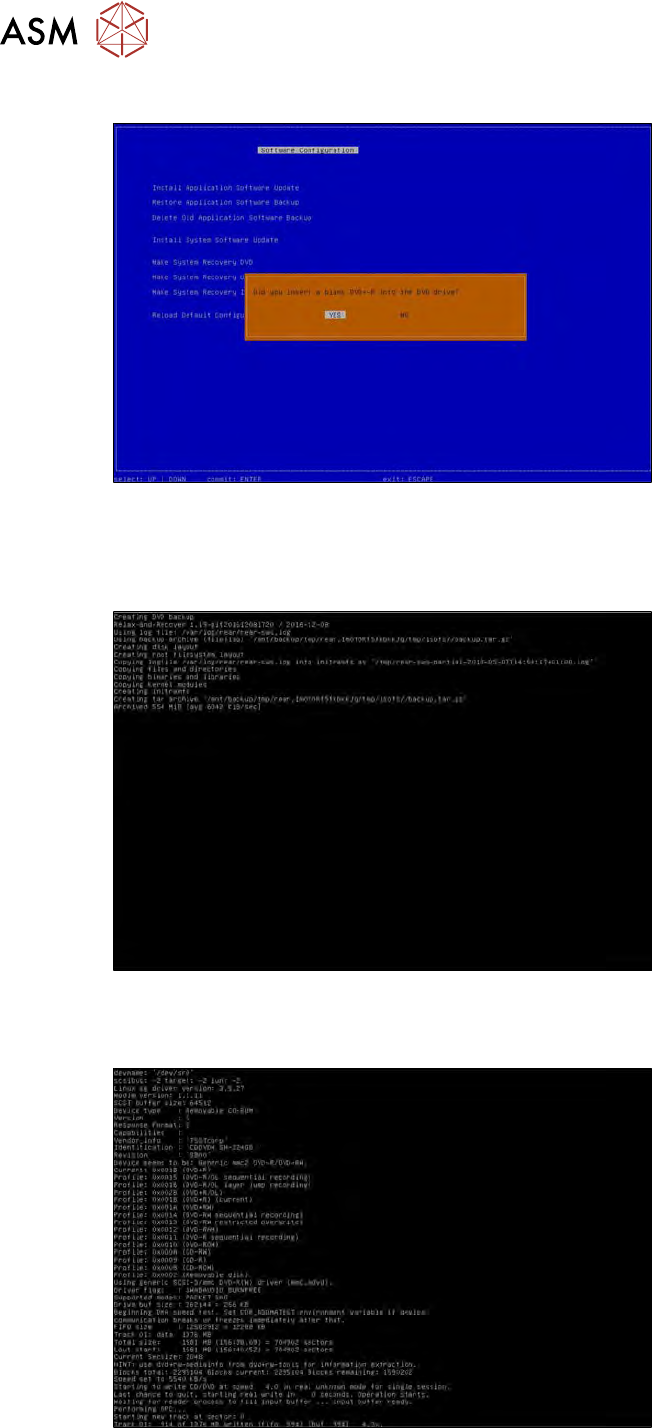
► In the following window, select Yes and press Enter.
Fig.641:
It takes about 10 minutes to create a recovery DVD.
Firstly, the data for creating the archive are gathered. During this procedure, the Archived xxx MB
value in the last line of the screen shown below should continue to change.
Fig.642:
After this, the archive generated is written on the DVD. The progress can be followed in the last line
of the screen shown below.
Fig.643:
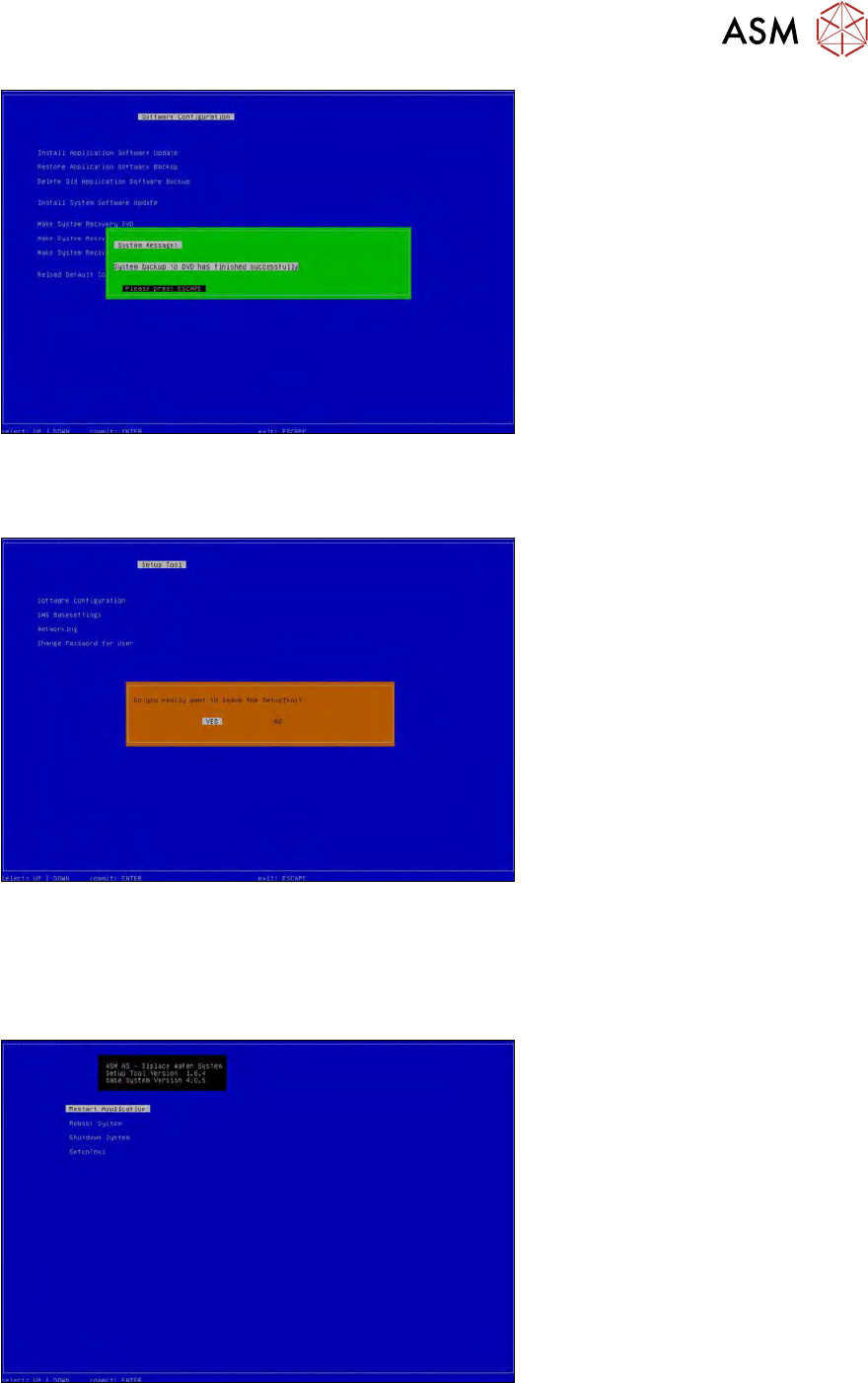
After completion of the recovery data backup, the following window will appear.
16 Software
16.2 Installation of operating system
Service Manual SIPLACE Wafer System (SWS) 11/2018 431
Fig.644:
► Press the ESC key 3x.
ð The following message will appear:
Fig.645:
► Select Yes and press Enter.
► Remove the written DVD from the BoxPC of the SWS and label it with the SWS serial number
and the date of creation.
ð You should now be back in the start menu of the setup tool (see below).
Fig.646:
► Select Restart Application and press Enter, to restart the GUI or Shutdown to shut down
the system.
16 Software
16.2 Installation of operating system
432 Service Manual SIPLACE Wafer System (SWS) 11/2018
16.2.1.8 Restoring the system with the recovery DVD
If there are problems installing the new operating system, you can restore the system as follows
using the recovery DVD:
► Open the bottom lift door and swing the entire lift to the side.
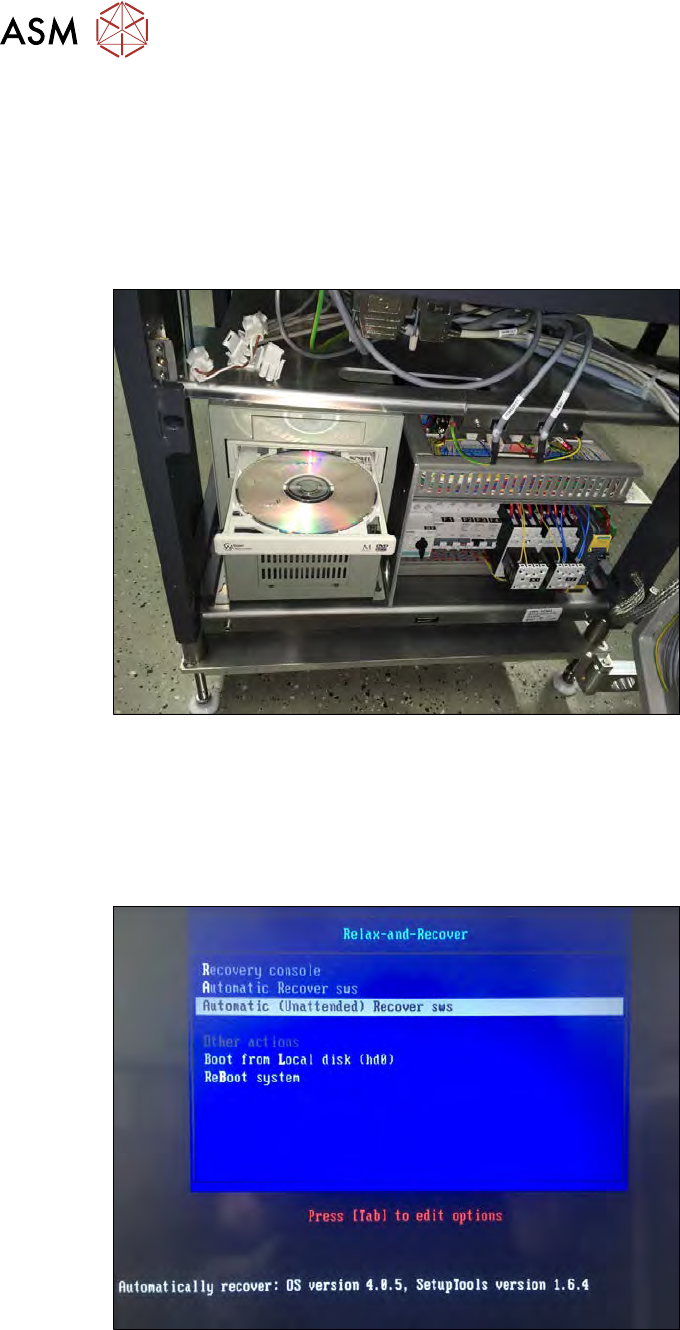
► Place the recovery DVD in the BoxPC of the SWS. Check the label of the DVD (SWS serial
number) to make sure that the DVD belongs to the SWS for which you want to restore the
system. Make sure that you are using the most recent recovery DVD.
Fig.647:
► Restart the SWS system. During booting, press the Del button to access the BIOS menu.
► Make sure that the CD/DVD drive is in first place in the order of booting.
► Continue the boot procedure.
ð The system should start from the recovery DVD and the following start screen should be
shown.
Fig.648:
► Select Automatic (Unattended) Recover sws and press Enter.
ð The restoring process will now start. This will take some minutes.
ð After successfully restoring the system, the following message will be shown: