00195982-03_SM_SWS_EN.pdf - 第427页
16 Software 16.2 Installation of operating system Service Manual SIPLACE Wafer System (SWS) 11/2018 427 Fig.634: ► After copying has been competed, use the Back button to return to the previous view. ► Select Exit if yo…
16 Software
16.2 Installation of operating system
426 Service Manual SIPLACE Wafer System (SWS) 11/2018
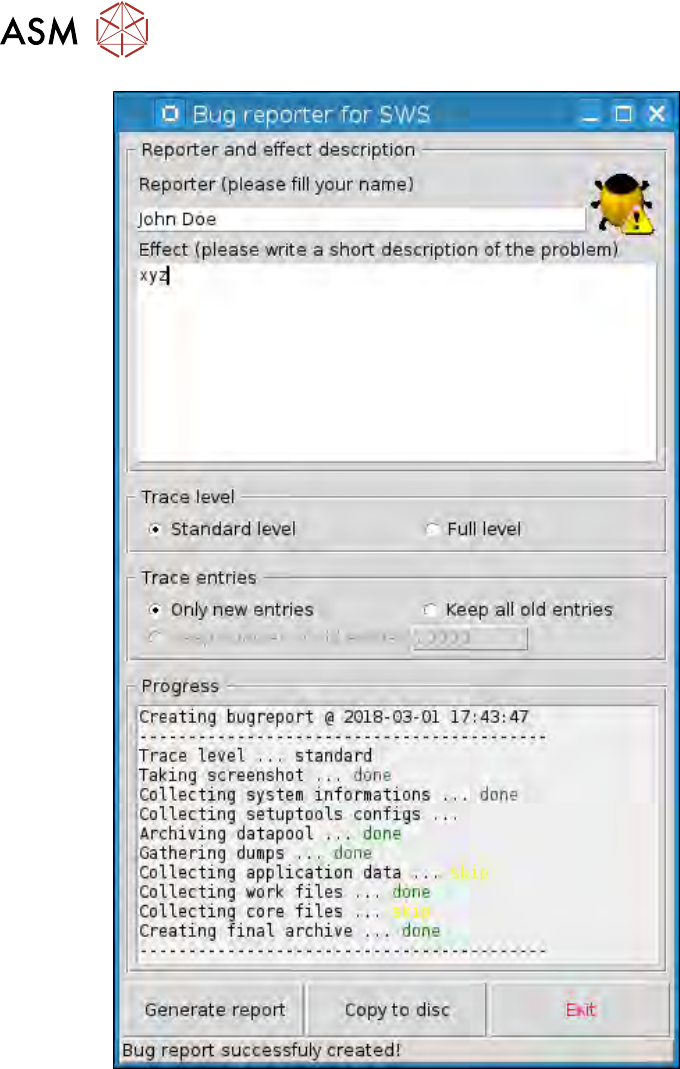
Fig.633:
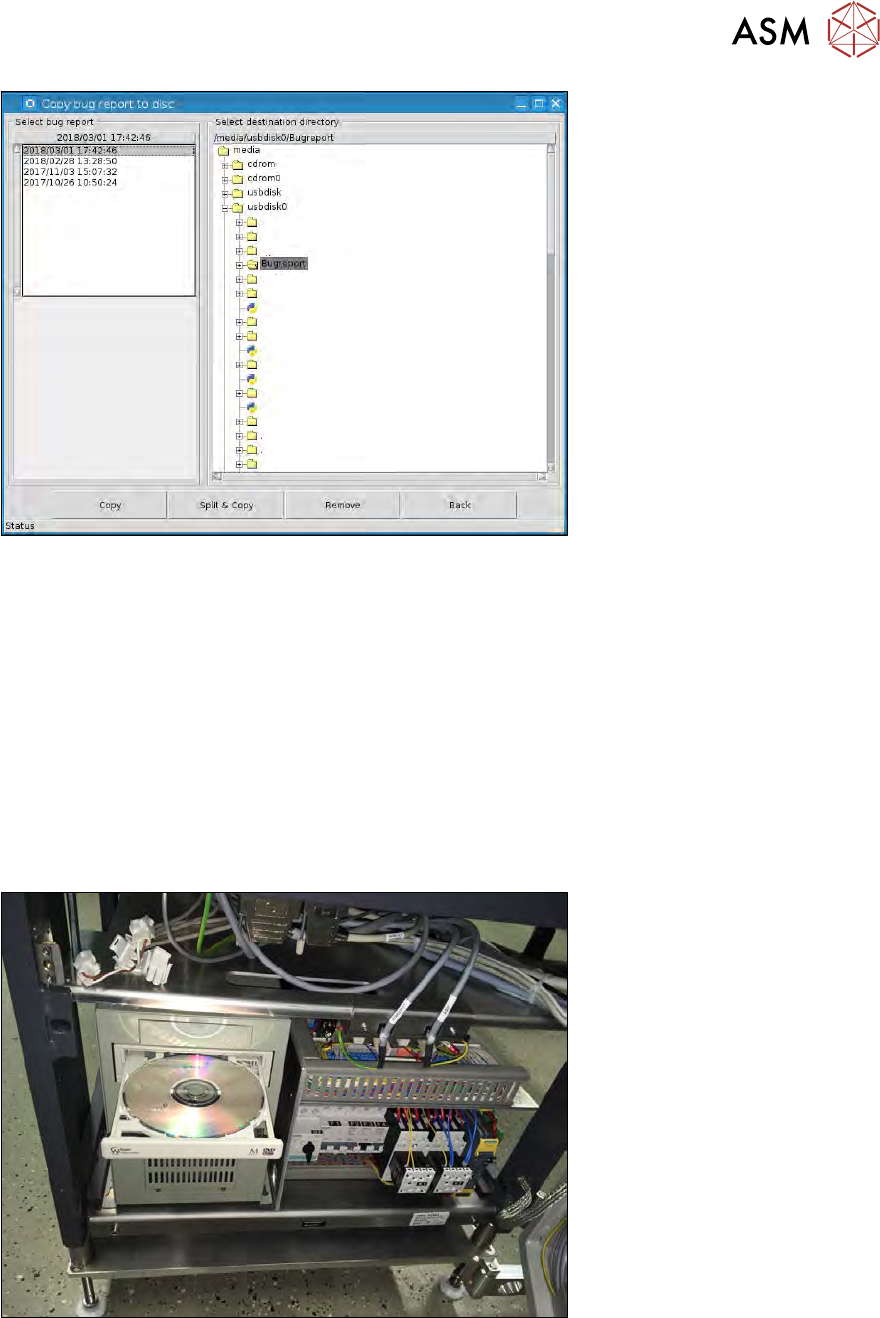
The Copy bug report to disc window will open (see below).
► Select the bug report to be saved in the left section, at Select bug report.
► Insert a USB stick into the USB port behind the SWS keyboard.
► In the righthand section of the window, you can select the target drive/folder at Select destin-
ation directory.
Go to /media and select the usbdisk0 drive.
The contents of the connected USB stick can be found here.
► Select the target folder on the USB stick and then select the Copy button.
If you do not have a memory medium available, the bug report can also be saved later on, even if
the SWS has been switched off in the meantime.
After restarting the bug reporter and selecting Copy to disc, the copy window will open, showing
the bug reports still available in the left section, where they can be copied, as described above.
► To delete a bug report which has been marked in the left section, select the Remove button.
16 Software
16.2 Installation of operating system
Service Manual SIPLACE Wafer System (SWS) 11/2018 427
Fig.634:
► After copying has been competed, use the Back button to return to the previous view.
► Select Exit if you want to leave the bug reporter.
The bug reports generated stay saved on the SWS unless they are manually deleted ( Remove
button).
16.2.1.7 Creating a recovery DVD for restoring the system
We highly recommend that you create a recovery DVD before installing the operating system, so
that you can restore the current software status of your PC in the event of any problems occurring.
The procedure for this is described below:
► Open the bottom lift door and swing the entire lift to the side.
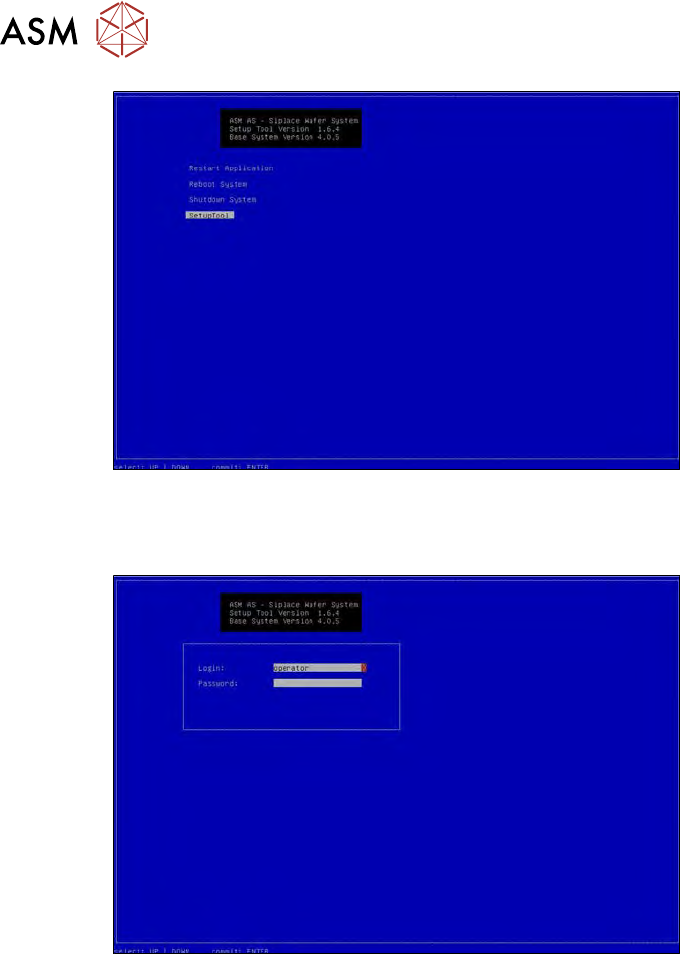
► Place an empty DVD into the BoxPC of the SWS.
Fig.635:
► Select Ctr+Alt+Q to switch over to the SetupTool start menu. The following menu will be
shown.
16 Software
16.2 Installation of operating system
428 Service Manual SIPLACE Wafer System (SWS) 11/2018
Fig.636:
► Use the cursor keys to select Setup Tool and then press Enter.
ð The following login box will appear.
Fig.637:
► To log in as administrator, press and hold the Ctrl+Shift keys and enter the character string
capwd (stands for CA password).
► Use the cursor keys to select the password line and enter the following character string as
password: wafer4GOD
ð The login line should now look like this: