00195982-03_SM_SWS_EN.pdf - 第414页
16 Software 16.2 Installation of operating system 414 Service Manual SIPLACE Wafer System (SWS) 11/2018 Archiving the calibration data Fig.606: ► Insert the USB stick into the USB port. ► Select the Archive machine data…
16 Software
16.2 Installation of operating system
Service Manual SIPLACE Wafer System (SWS) 11/2018 413
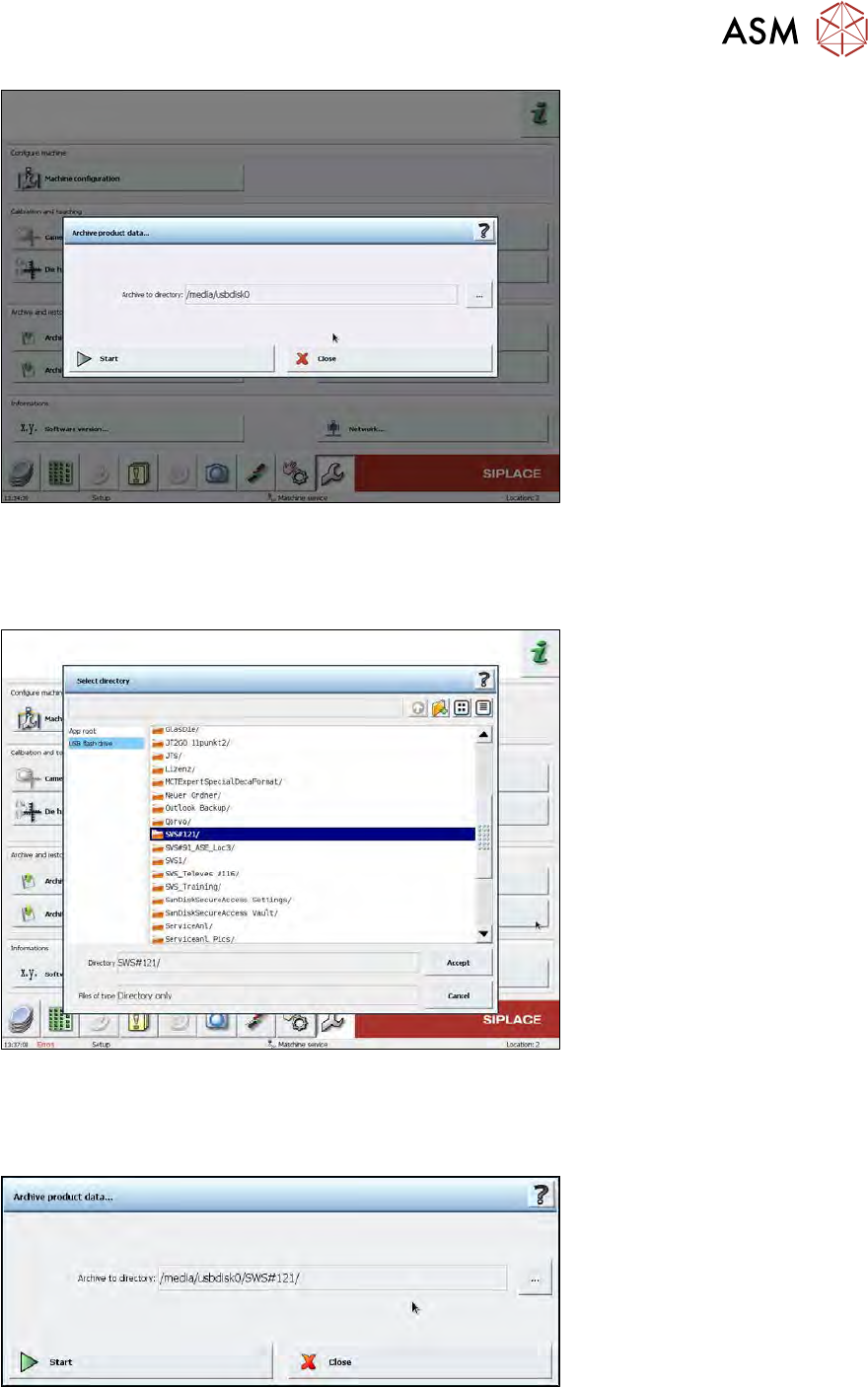
Fig.603:
► Select the … button, next to the Archive to directory line, to open the target directory.
► In the window shown below, select USB flash drive. This then shows the contents of the USB
stick. Select the folder in which you want to save the product data backup.
Fig.604:
► The selected folder will be shown as below. Once the required folder has been chosen, select
Start.
ð The product data will be saved.
Fig.605:
16 Software
16.2 Installation of operating system
414 Service Manual SIPLACE Wafer System (SWS) 11/2018
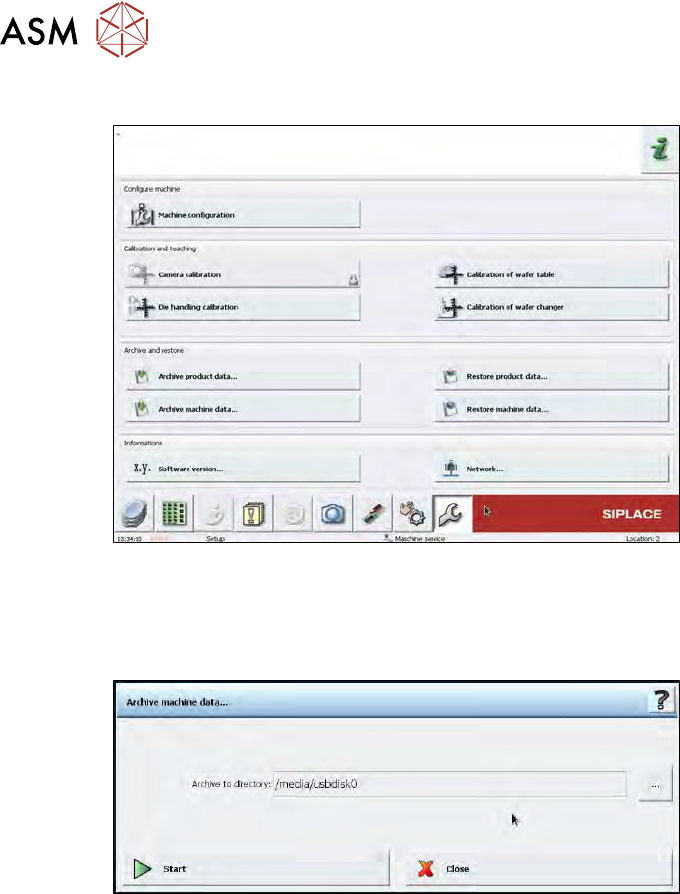
Archiving the calibration data
Fig.606:
► Insert the USB stick into the USB port.
► Select the Archive machine data button.
ð The following window will open:
Fig.607:
► Select the … button, next to the Archive to directory line, to open the target directory.
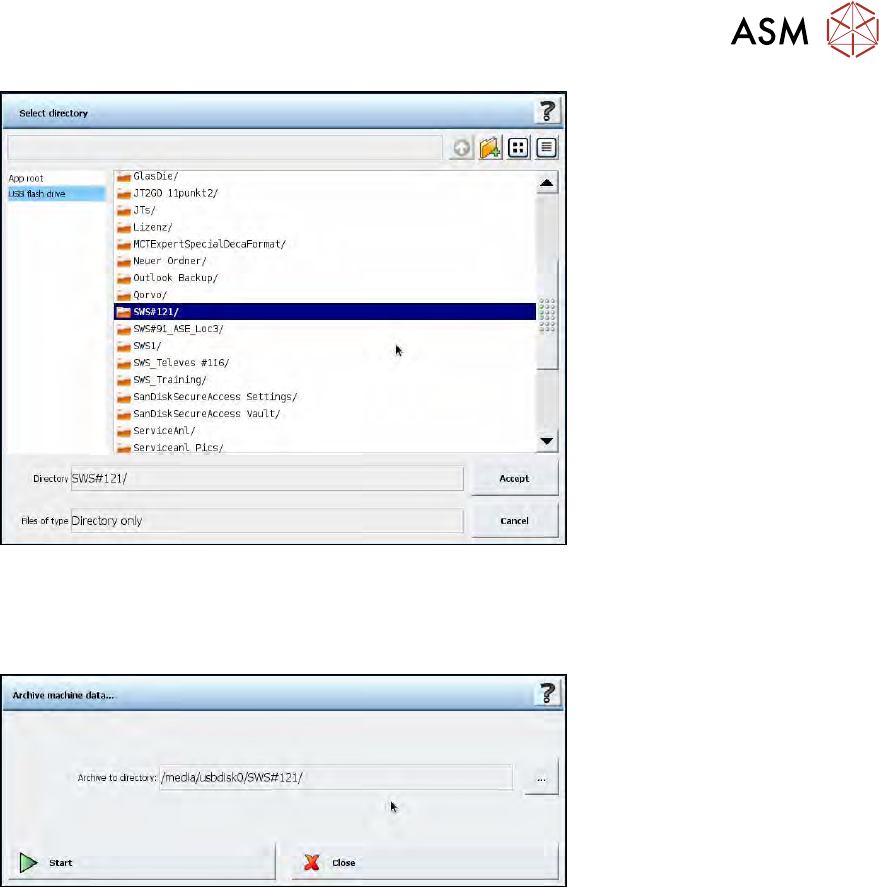
► In the window shown below, select USB flash drive. This then shows the contents of the USB
stick. Select the folder in which you want to save the calibration data backup.
16 Software
16.2 Installation of operating system
Service Manual SIPLACE Wafer System (SWS) 11/2018 415
Fig.608:
► The selected folder will be shown as below. Once the required folder has been chosen, select
Start.
ð The calibration data will be saved.
Fig.609:
► If it is not possible to run a backup via the GUI e.g. because the latest SWS software version
can not be installed due to an older operating system version, select one of the following
backup options.