00195982-03_SM_SWS_EN.pdf - 第446页
16 Software 16.2 Installation of operating system 446 Service Manual SIPLACE Wafer System (SWS) 11/2018 Fig.675: Number of location set The location number has been set. ► To leave the setup tool, press 2x ESC . Fig.67…
16 Software
16.2 Installation of operating system
Service Manual SIPLACE Wafer System (SWS) 11/2018 445
Setting the location in the setup tool.
This is only required if the location was incorrectly set during the GUI installation and a resetting of
the location in the GUI is not possible (see last chapter).
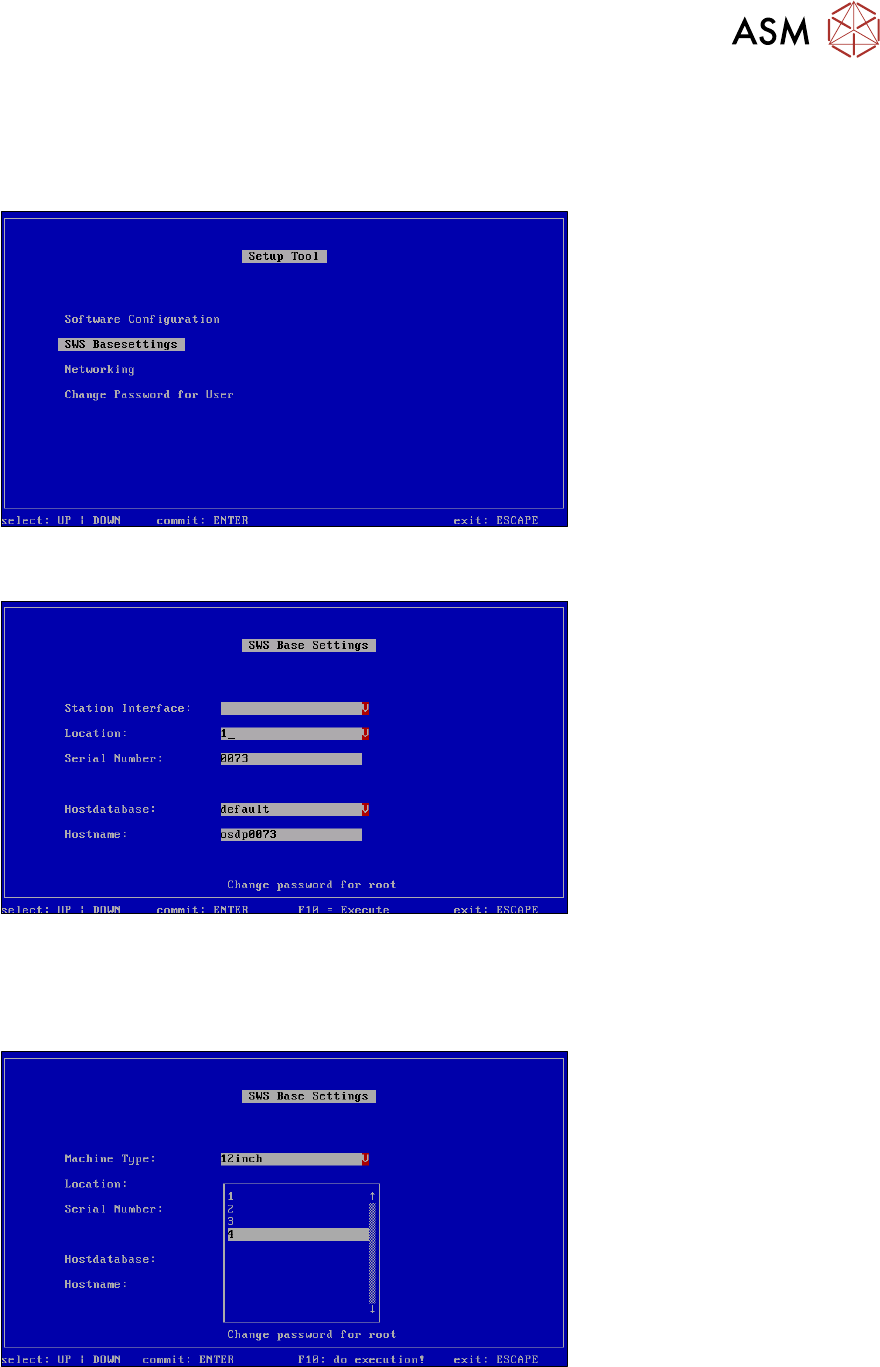
► Go to the setup tool start menu and select "SWS Basesettings".
Fig.672: Setup tool menu - SWS base settings
► Confirm your selection of SWS Basesettings with Enter.
Fig.673: Location number
► Select Location.
► Confirm with Enter.
► The serial number of the SWS can also be altered in the above menu, if needed.
Fig.674: Setting the location number
► Go to Location and select the number of the relevant location (1-4).
In our example, the SWS is at location 4.
► Confirm with Enter.
16 Software
16.2 Installation of operating system
446 Service Manual SIPLACE Wafer System (SWS) 11/2018
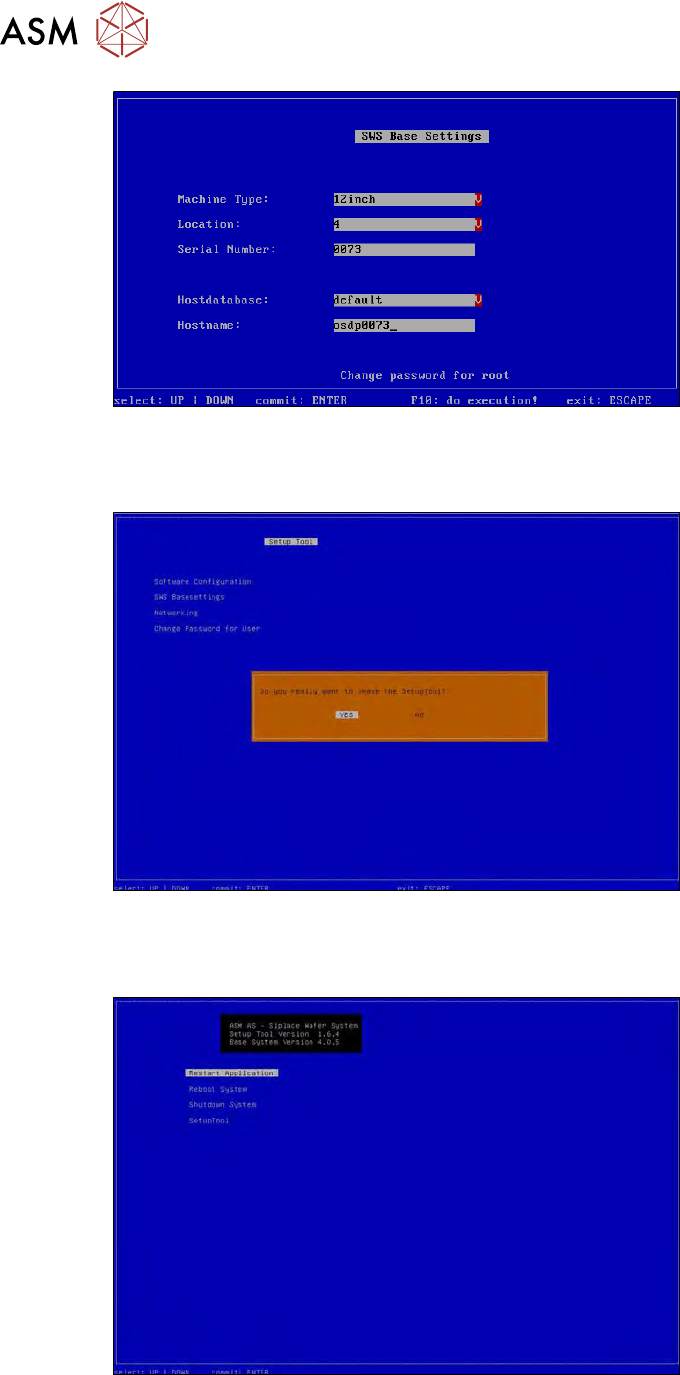
Fig.675: Number of location set
The location number has been set.
► To leave the setup tool, press 2x ESC.
Fig.676:
► Confirm that you want to exit the setup tool with YES.
► Click Restart Applicationto start the GUI.
Fig.677:
16 Software
16.2 Installation of operating system
Service Manual SIPLACE Wafer System (SWS) 11/2018 447
16.2.3.3 Restoring the network addresses
The installation of the operating system resets the network address to the default addresses.
For this reason, you usually only need to restore the addresses for the eth0 interface (customer
network interface).
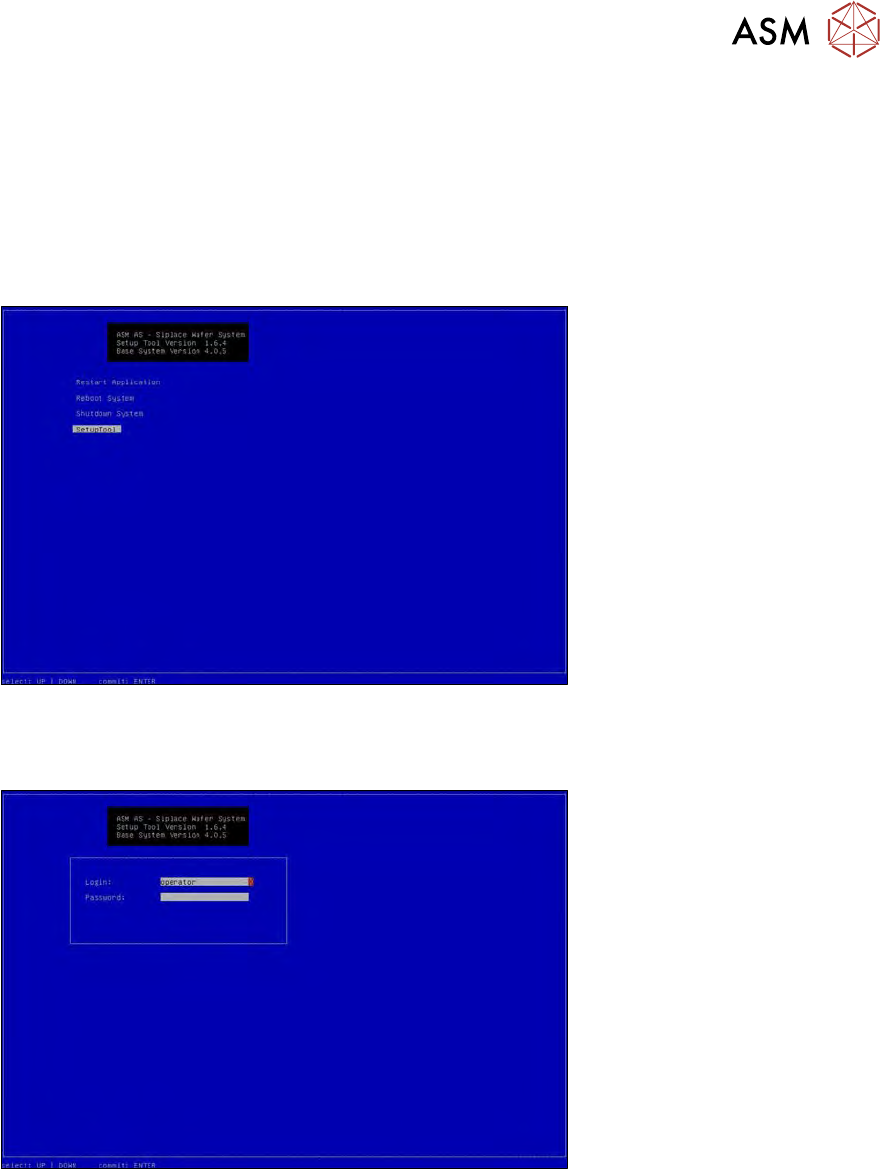
► Open the "Networking" menu in the setup tools as follows:
► Start the setup tool with Ctrl+Alt+Q.
ð The start screen will appear.
Fig.678:
► Select "SetupTool" and press "Enter".
ð The following login box will appear.
Fig.679:
► To log in as administrator, press and hold the Ctrl+Shift keys and enter the character string
capwd (stands for CA password).
► Use the cursor keys to select the password line and enter the following character string as
password: wafer4GOD
ð The login line should now look like this: