00195982-03_SM_SWS_EN.pdf - 第429页
16 Software 16.2 Installation of operating system Service Manual SIPLACE Wafer System (SWS) 11/2018 429 Fig.638: ► Press Enter . ð The setup tool start window will be shown. Fig.639: ► Select Software Configuration and…
16 Software
16.2 Installation of operating system
428 Service Manual SIPLACE Wafer System (SWS) 11/2018
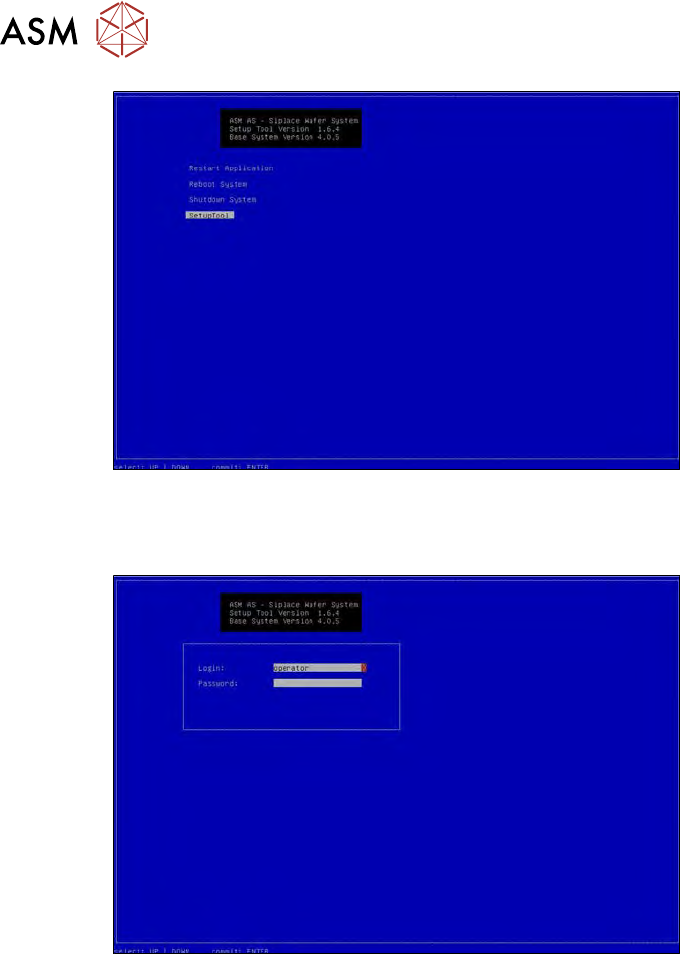
Fig.636:
► Use the cursor keys to select Setup Tool and then press Enter.
ð The following login box will appear.
Fig.637:
► To log in as administrator, press and hold the Ctrl+Shift keys and enter the character string
capwd (stands for CA password).
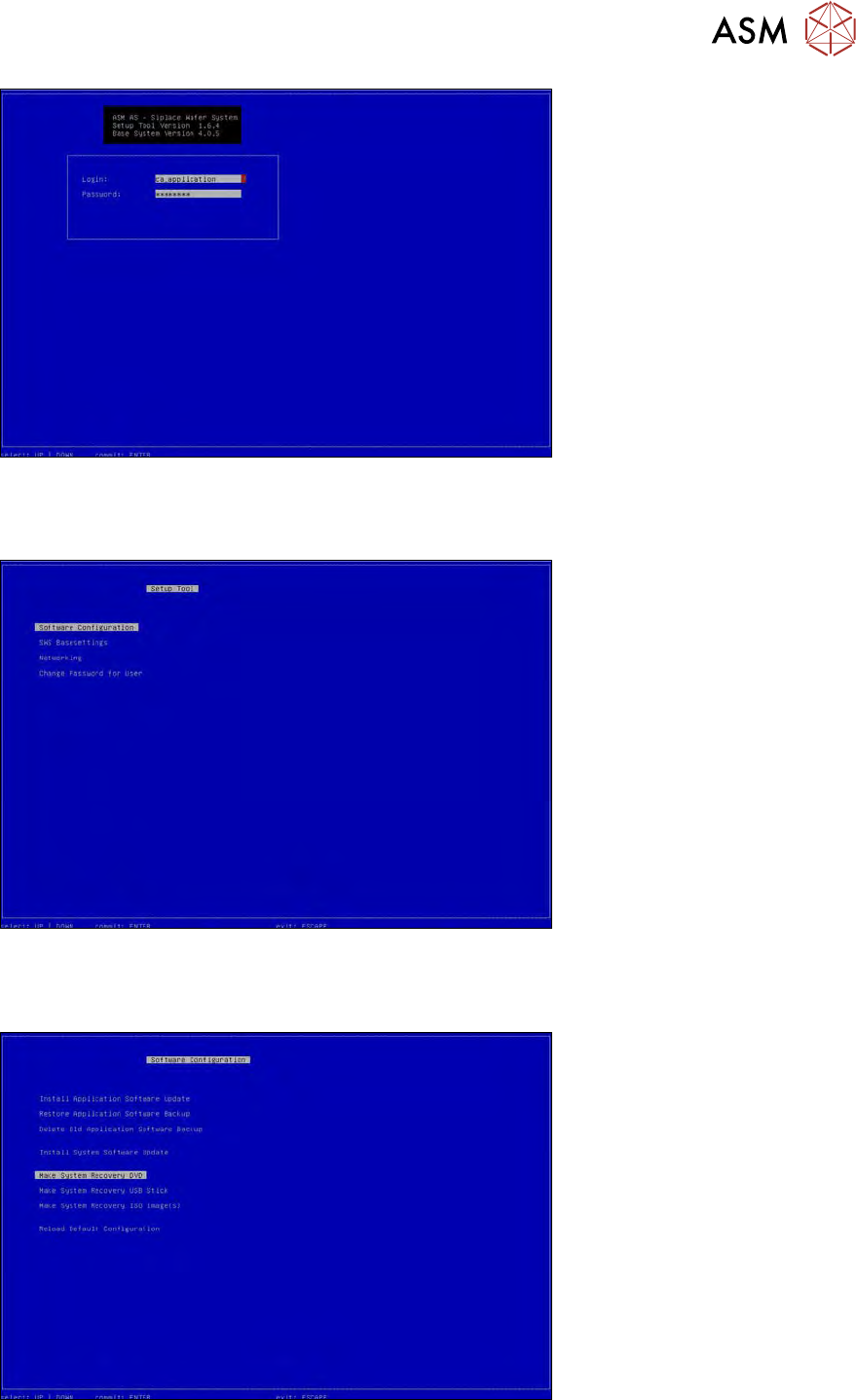
► Use the cursor keys to select the password line and enter the following character string as
password: wafer4GOD
ð The login line should now look like this:
16 Software
16.2 Installation of operating system
Service Manual SIPLACE Wafer System (SWS) 11/2018 429
Fig.638:
► Press Enter.
ð The setup tool start window will be shown.
Fig.639:
► Select Software Configuration and press Enter.
► Use the cursor keys to select the function Make System Recovery DVD and press Enter.
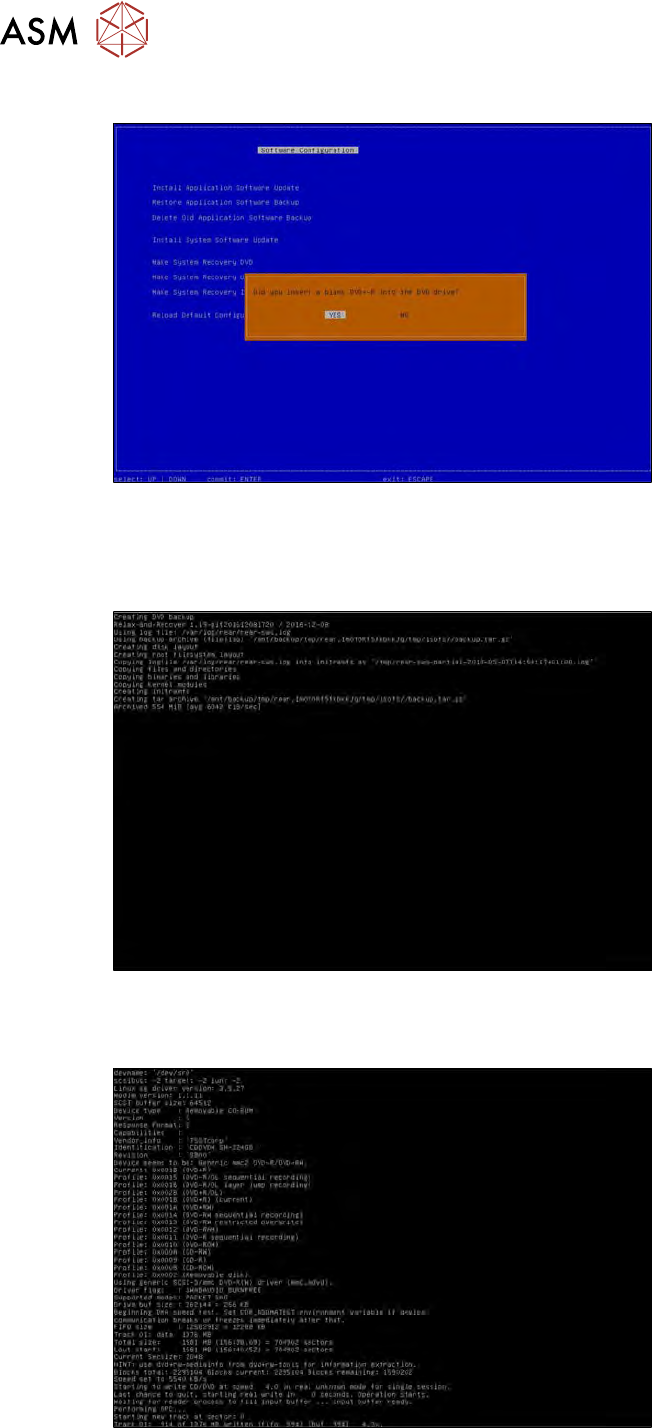
Fig.640:
The following window will open. Make sure that there is an empty DVD in the SWS PC.
16 Software
16.2 Installation of operating system
430 Service Manual SIPLACE Wafer System (SWS) 11/2018
► In the following window, select Yes and press Enter.
Fig.641:
It takes about 10 minutes to create a recovery DVD.
Firstly, the data for creating the archive are gathered. During this procedure, the Archived xxx MB
value in the last line of the screen shown below should continue to change.
Fig.642:
After this, the archive generated is written on the DVD. The progress can be followed in the last line
of the screen shown below.
Fig.643:
After completion of the recovery data backup, the following window will appear.