00195982-03_SM_SWS_EN.pdf - 第442页
16 Software 16.2 Installation of operating system 442 Service Manual SIPLACE Wafer System (SWS) 11/2018 Fig.666: CAUTION ► Press the emergency STOP button on the SWS or at the station, to prevent initializa- tion of the…
16 Software
16.2 Installation of operating system
Service Manual SIPLACE Wafer System (SWS) 11/2018 441
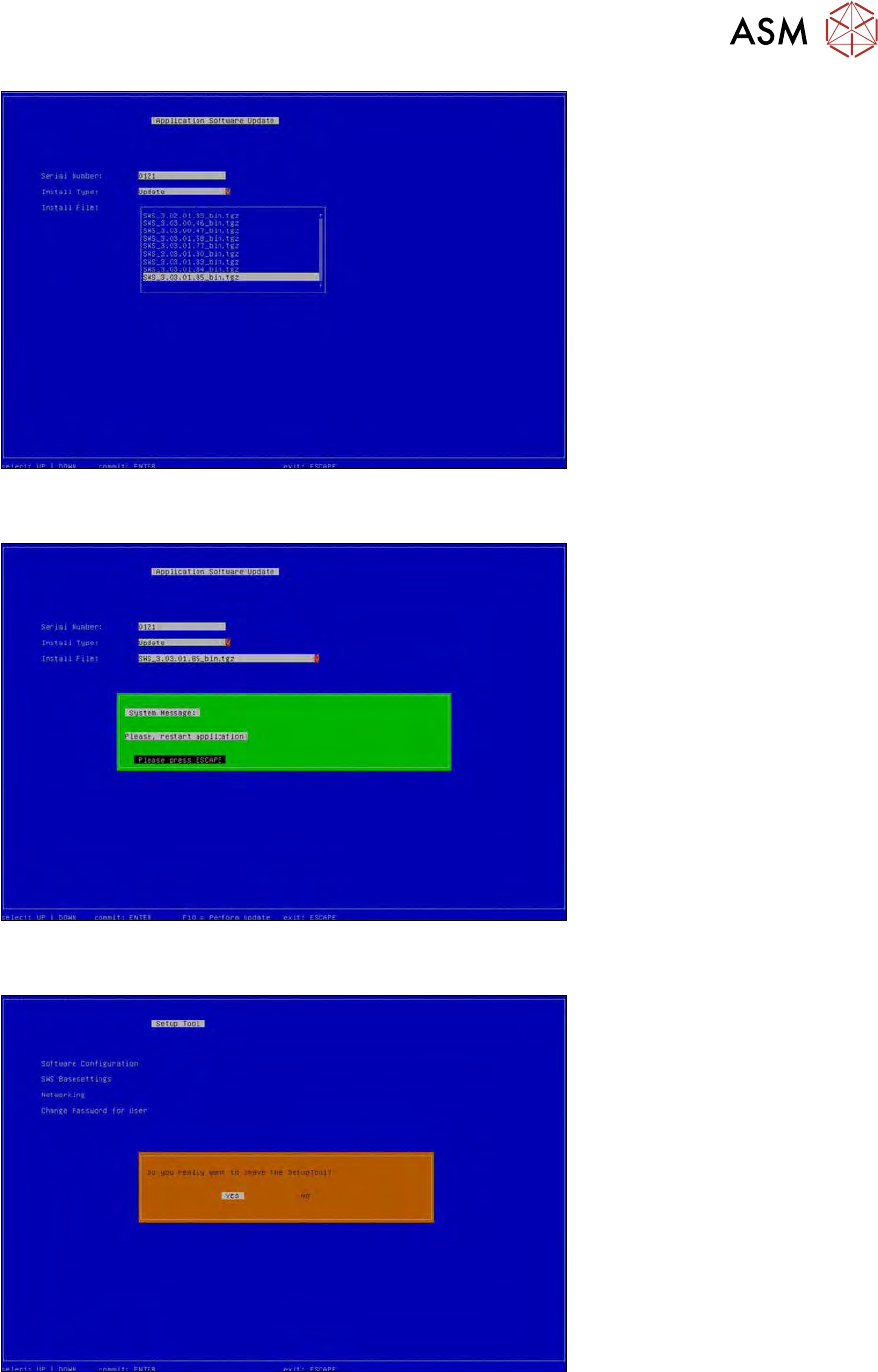
Fig.663:
After successful installation (takes max. 1 minute), the following view will appear:
Fig.664:
► Press the ESC key 4x. The following view will appear.
Fig.665:
► Confirm that you want to exit the setup tool with YES.
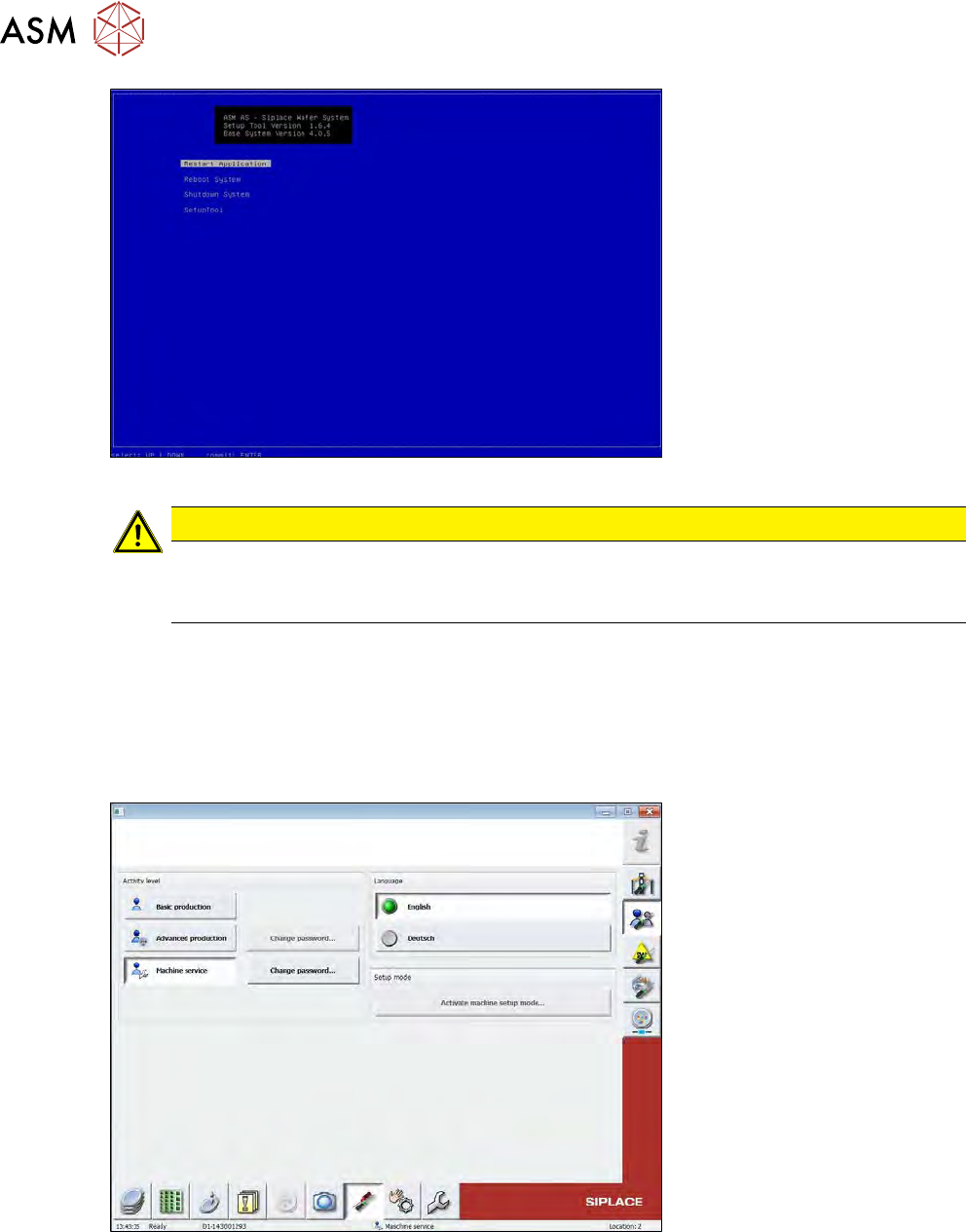
► Select Restart Applicationto start the GUI.
16 Software
16.2 Installation of operating system
442 Service Manual SIPLACE Wafer System (SWS) 11/2018
Fig.666:
CAUTION
► Press the emergency STOP button on the SWS or at the station, to prevent initializa-
tion of the SWS.
► The calibration data must always be imported before initializing the SWS.
16.2.3 Restoring the data
16.2.3.1 Restoring the Halcon license
► Switch over to the page "Settings -> User Settings" and select the activity level "Machine
service".
The password is: service1
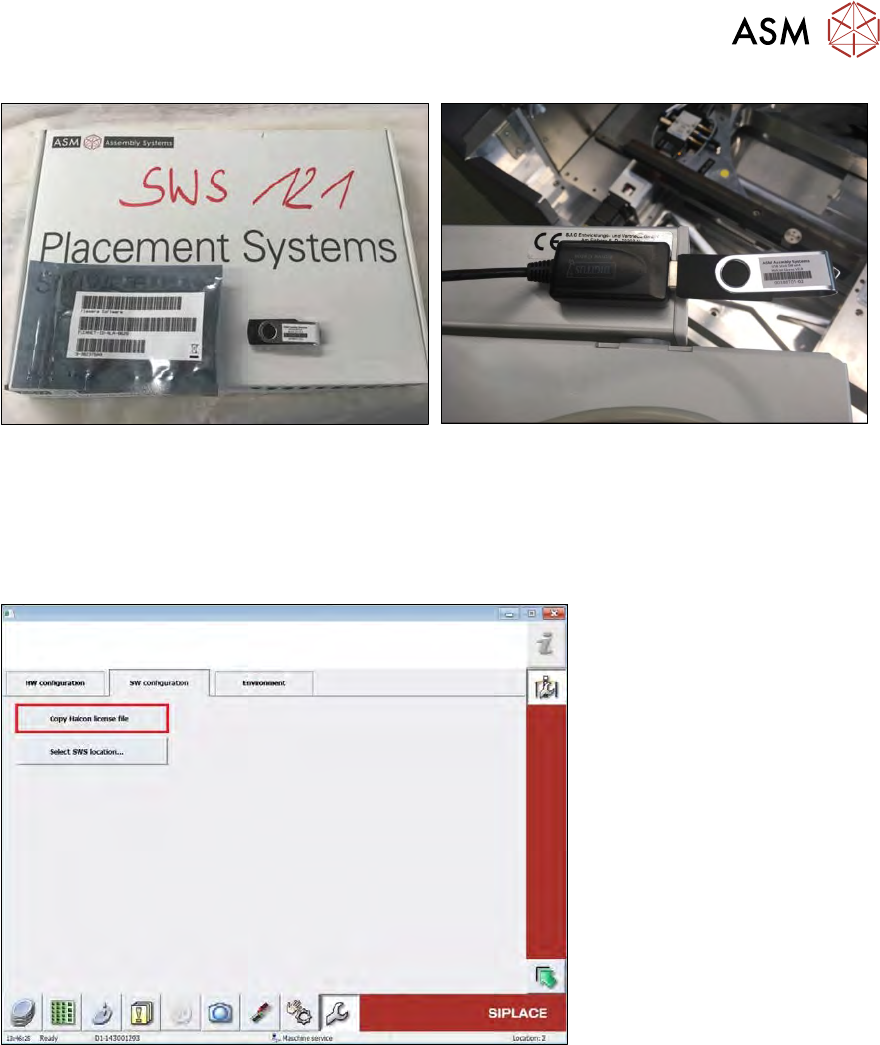
Fig.667:
► If available, insert the USB stick with the Halcon license from the SWS software package into
the USB port behind the SWS keyboard (see below).
16 Software
16.2 Installation of operating system
Service Manual SIPLACE Wafer System (SWS) 11/2018 443
Fig.668:
► If you have saved the Halcon file on a USB stick because the software package was not yet
available, insert this USB stick into the USB port behind the SWS keyboard (see above).
It does not matter in which folder on the USB stick the license was saved.
► Switch over to the page Service -> Machine configuration -> SW configuration and select
"Copy Halcon license".
Fig.669:
The license will now be searched for in all folders on the inserted USB stick and then automatically
copied into the license folder on the SWS BoxPC.
► Restart the SWS, to activate the Halcon license and use the Vision system.