00195982-03_SM_SWS_EN.pdf - 第106页
5 Basic frame – X/Y unit 5.3 Replacing parts 106 Service Manual SIPLACE Wafer System (SWS) 11/2018 5.3.7 Replacing the X axis motor board This motor board supplies the X motor with voltages and receives the signals from …
5 Basic frame – X/Y unit
5.3 Replacing parts
Service Manual SIPLACE Wafer System (SWS) 11/2018 105
5.3.6 Replacing the Y axis motor board
This motor board supplies the Y motor with voltages and receives the signals from the encoder.
For information about wiring, see section 5.3.1 "Replacing the Y motor with coupling" [}73].
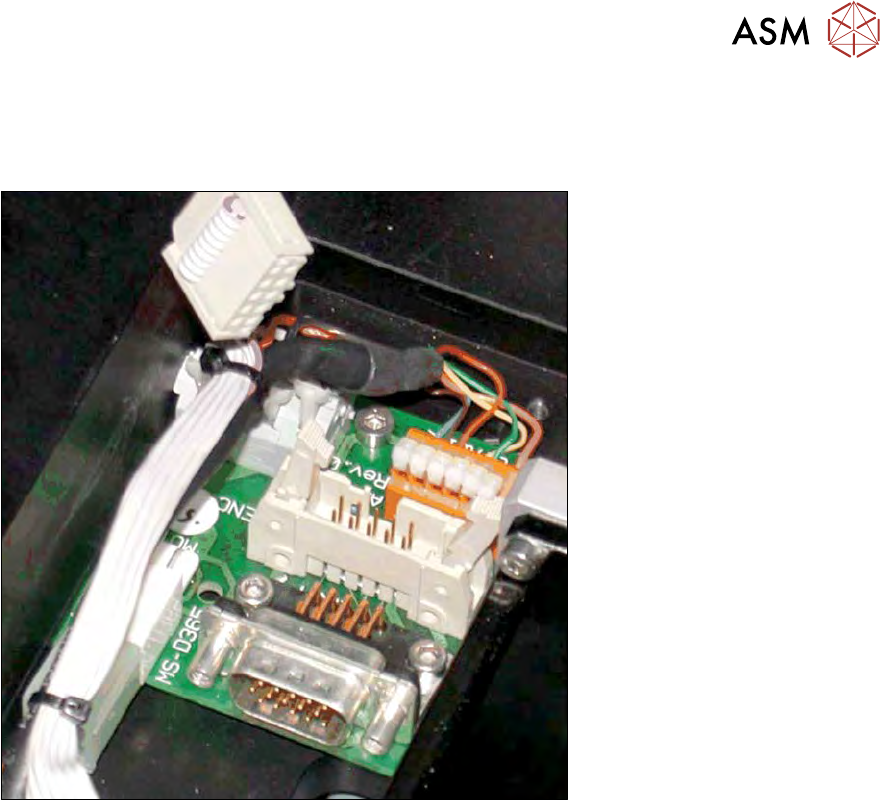
Fig.110:
► Remove the cover from the motor board.
► Use the circuit diagram folder for help and mark the cables connected, if not already marked
(see 5.3.1 "Replacing the Y motor with coupling" [}73]).
► Unplug the electrical connections and cable.
► Remove the three fastening screws and then remove the motor board.
► Fit the new motor board.
► Reconnect to the electricity supply.
► Fix and gather the cables together with cable ties, where necessary. Make sure that the
cables do not rub against any part or get trapped.
► Fit the cover on the motor board.
5 Basic frame – X/Y unit
5.3 Replacing parts
106 Service Manual SIPLACE Wafer System (SWS) 11/2018
5.3.7 Replacing the X axis motor board
This motor board supplies the X motor with voltages and receives the signals from the encoder.
For information about wiring, see section 5.3.1 "Replacing the Y motor with coupling" [}73].
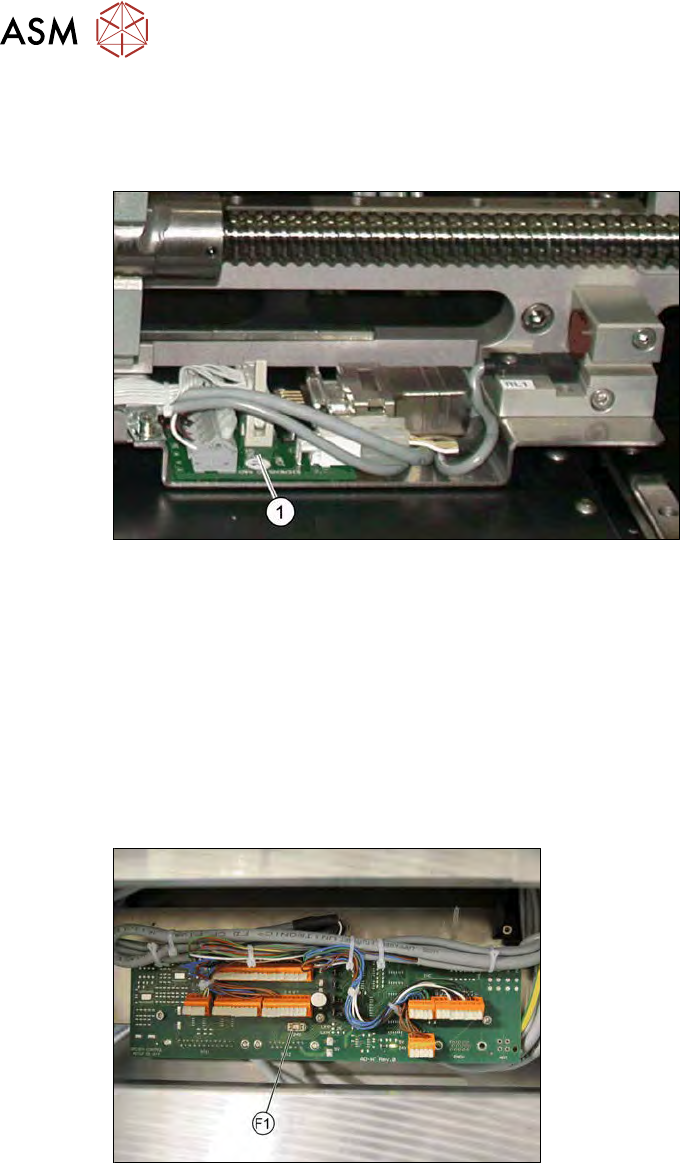
Fig.111: Motor board using the example SWS 1/3.
► Use the circuit diagram folder for help and mark the cables connected, if not already marked.
► Unplug the electrical connections and cable.
► Remove the fastening screws and then remove the motor board(1).
► Fit the new motor board.
► Reconnect to the electricity supply.
► Fix and gather the cables together with cable ties, where necessary. Make sure that the
cables do not rub against any part or get trapped.
5.3.8 Microfuse F1 on adapter board for wafer table AD-WT Rev.0 [00379046-xx]
Fig.112: Microfuse F1
If the message "Unable to load USB-IO
firmware" appears, this could indicate that the
microfuse F1 is defective.
6 Supply unit
6.1 Overview of spare parts
Service Manual SIPLACE Wafer System (SWS) 11/2018 107
6 Supply unit
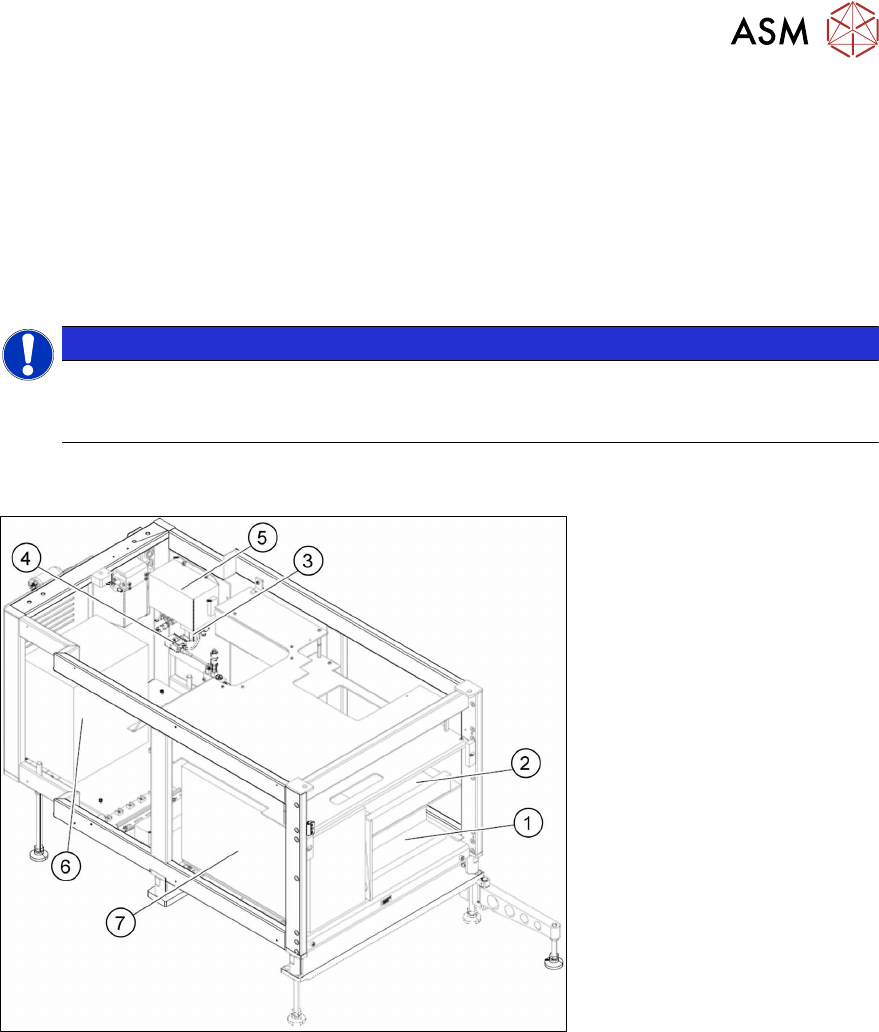
According to the location there are two different variants that only differ in their mirrored arrange-
ment of the modules.
●
Supply unit SWS12 (1,3) - [03096039-xx]
●
Supply unit SWS12 (2,4) - [03096139-xx]
The supply unit is located in the bottom part of the SWS. This also houses the supply unit and the
main electrical components.
NOTICE
Observe the circuit diagrams.
Details of the electrical assemblies in the supply unit can be found in the circuit diagrams
[00195960‑xx].
6.1 Overview of spare parts
Fig.113: Supply unit from the front