00195982-03_SM_SWS_EN.pdf - 第450页
16 Software 16.2 Installation of operating system 450 Service Manual SIPLACE Wafer System (SWS) 11/2018 Fig.685: Network interfaces menu ► Confirm the SWS & Station Network Interface with Enter . Fig.686: SWS &…
16 Software
16.2 Installation of operating system
Service Manual SIPLACE Wafer System (SWS) 11/2018 449
Setting the network addresses for the eth1 interface (connection to SWS station)
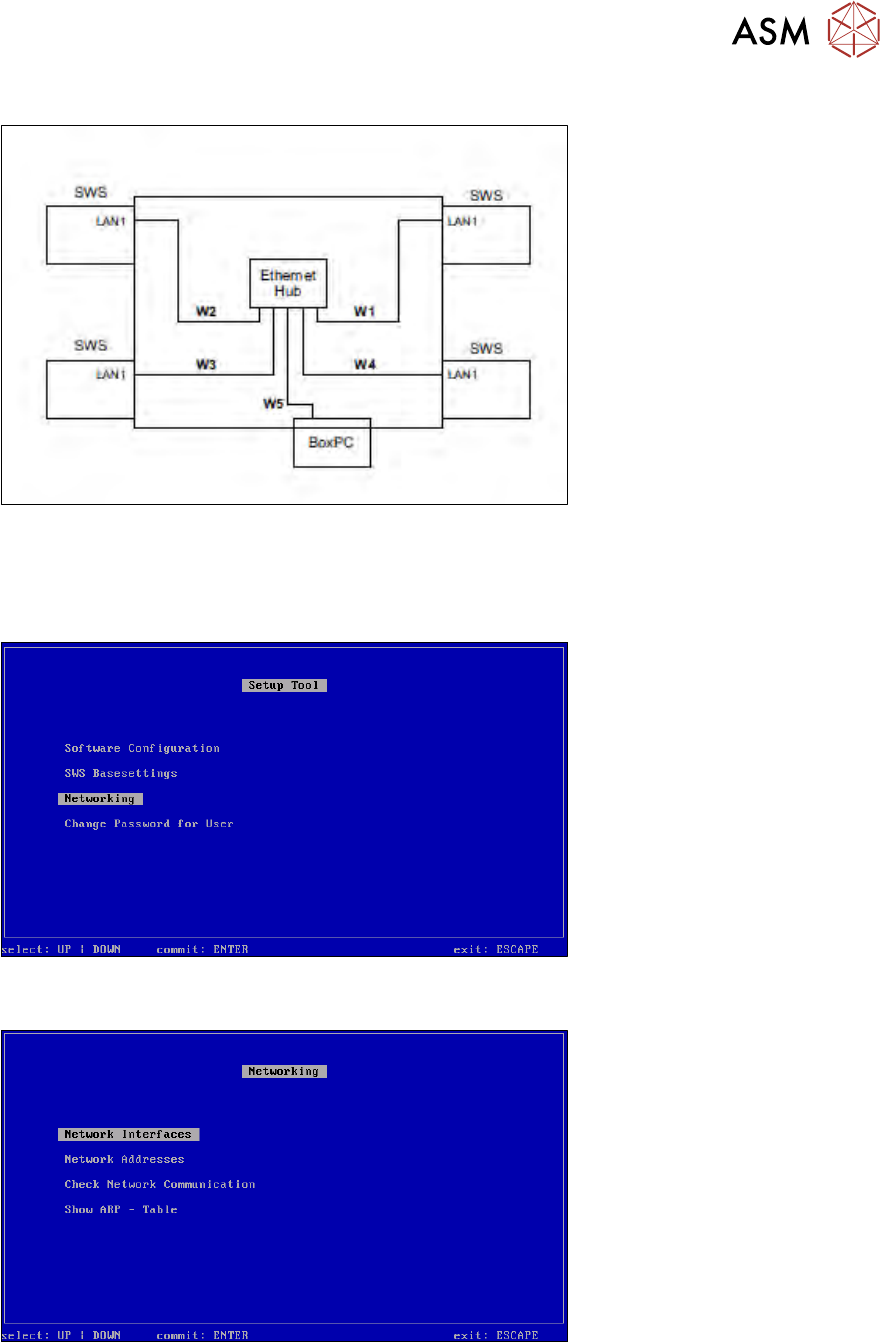
Fig.682: Network overview and IP addresses for SWS to station
The networks SWS => wafer map server and SWS =>station each have their own ethernet hub.
The LAN1 port can be found at the top.
► Select "Networking".
Fig.683: Setup tool menu
► Confirm Networking with Enter.
Fig.684: Networking menu
► Confirm Network Interfaces with Enter.
16 Software
16.2 Installation of operating system
450 Service Manual SIPLACE Wafer System (SWS) 11/2018
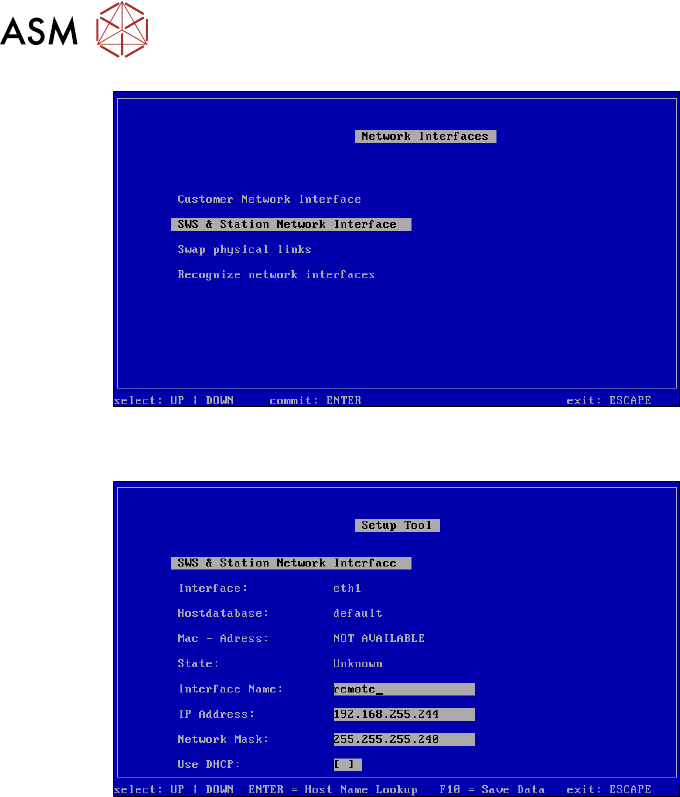
Fig.685: Network interfaces menu
► Confirm the SWS & Station Network Interface with Enter.
Fig.686: SWS & station network interface
► Define the settings for the connection between the SWS and the station.
As a default, the following addresses are defined for the relevant locations during installation of the
operating system.
●
SWS at location 1 – IP address 192.168.255.241
●
SWS at location 2 – IP address 192.168.255.242
●
SWS at location 3 – IP address 192.168.255.243
●
SWS at location 4 – IP address 192.168.255.244
► Save any changes with F10.
16 Software
16.2 Installation of operating system
Service Manual SIPLACE Wafer System (SWS) 11/2018 451
Applying the settings
NOTICE
The settings are applied in a later step at Recognize Network Interfaces or after a reboot
of the computer.
► Press ESC.
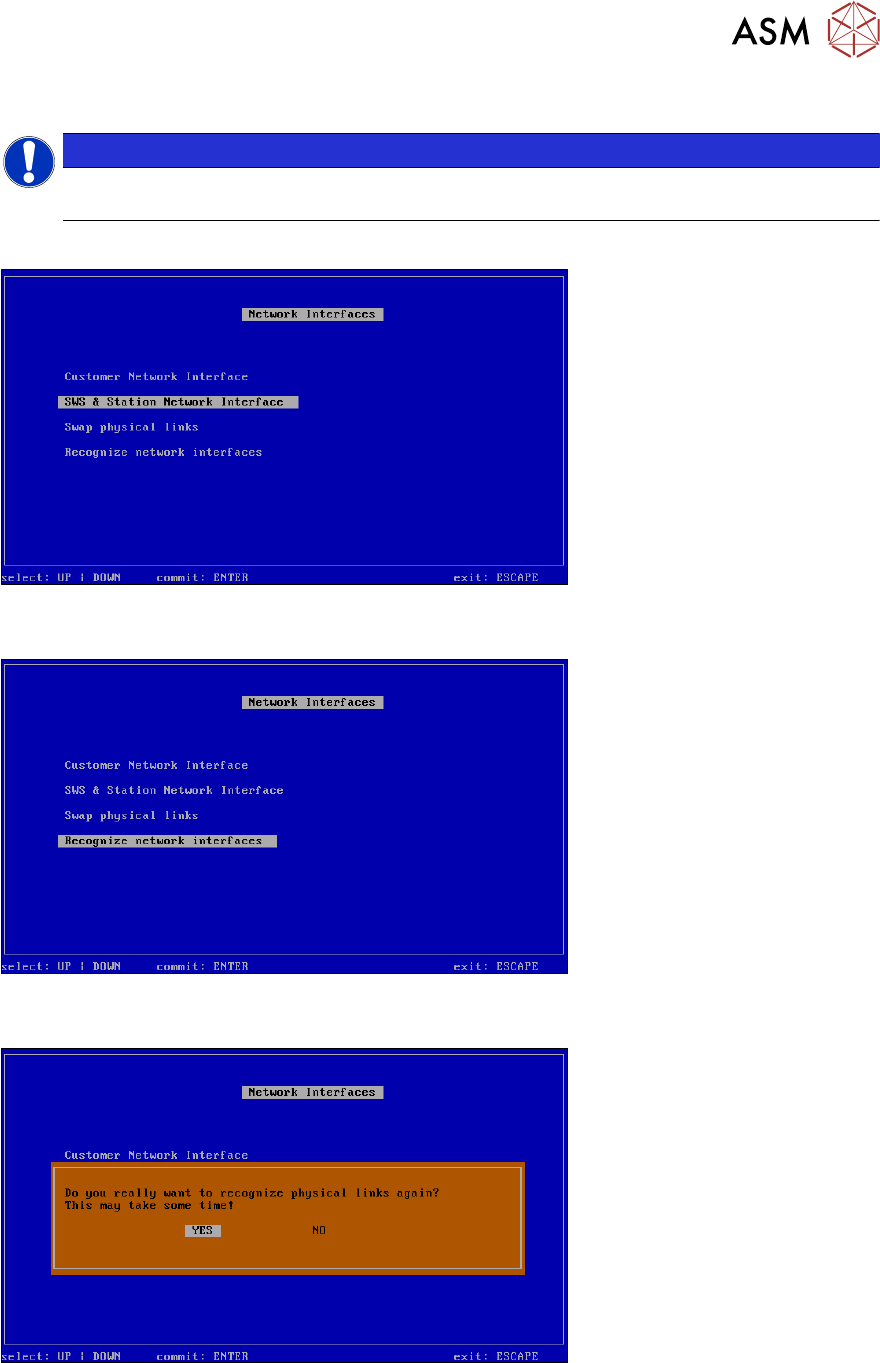
Fig.687: Network interfaces menu
► Select Recognize network interfaces and confirm with Enter.
Fig.688: Recognize network interfaces menu
► ConfirmRecognize network interfaces with Enter.
Fig.689: Recognize network interfaces - message menu
► Select YES and confirm with Enter.