00195982-03_SM_SWS_EN.pdf - 第454页
16 Software 16.2 Installation of operating system 454 Service Manual SIPLACE Wafer System (SWS) 11/2018 The customer interface is needed, for example, for connecting to a wafer map server (Kynesis ALPS). To restore the a…
16 Software
16.2 Installation of operating system
Service Manual SIPLACE Wafer System (SWS) 11/2018 453
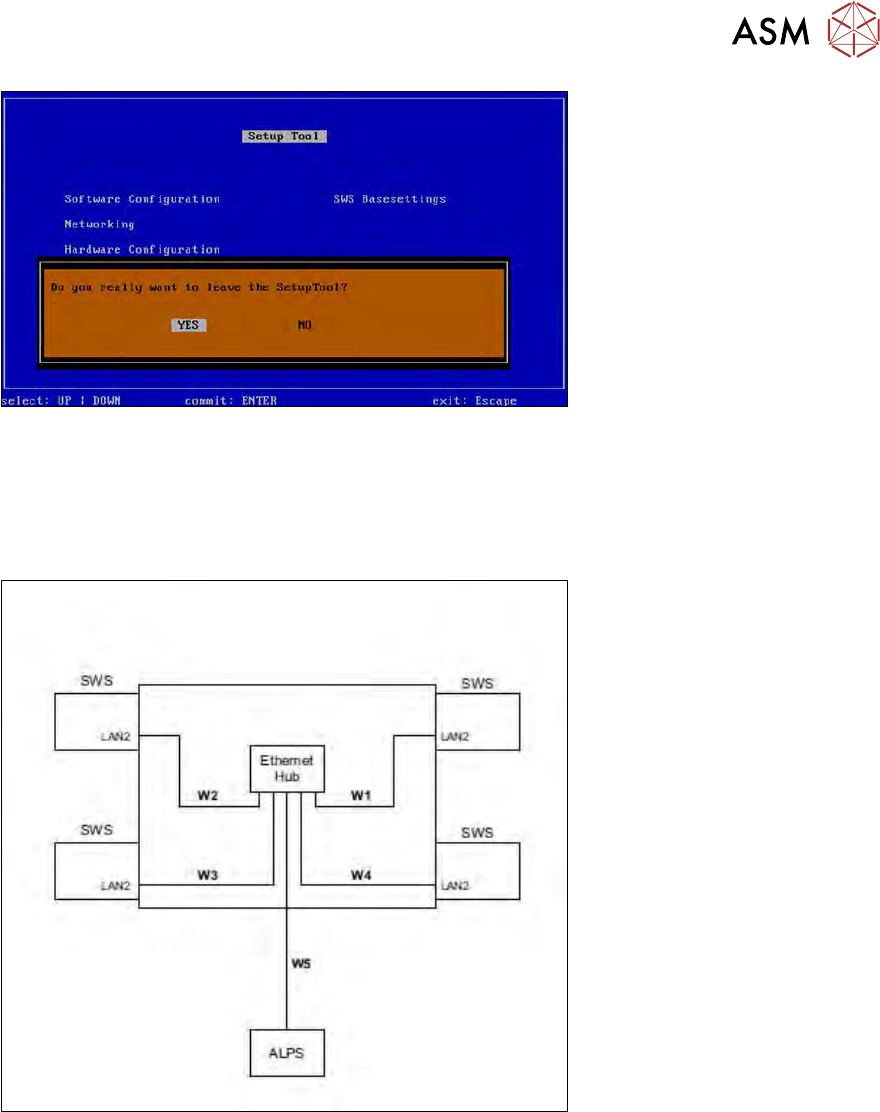
Fig.693: Message: exiting the setup tool
► Confirm YES with Enter.
► Restart the application.
Setting the network addresses for the eth0 interface (connection SWS-wafer map
server)
Fig.694: Network overview SWS to wafer map server
The networks SWS => wafer map server and SWS =>station each have their own ethernet hub.
The LAN2 port can be found at the bottom.
16 Software
16.2 Installation of operating system
454 Service Manual SIPLACE Wafer System (SWS) 11/2018
The customer interface is needed, for example, for connecting to a wafer map
server (Kynesis ALPS).
To restore the addresses which were reset during installation of the operating system, proceed as
follows:
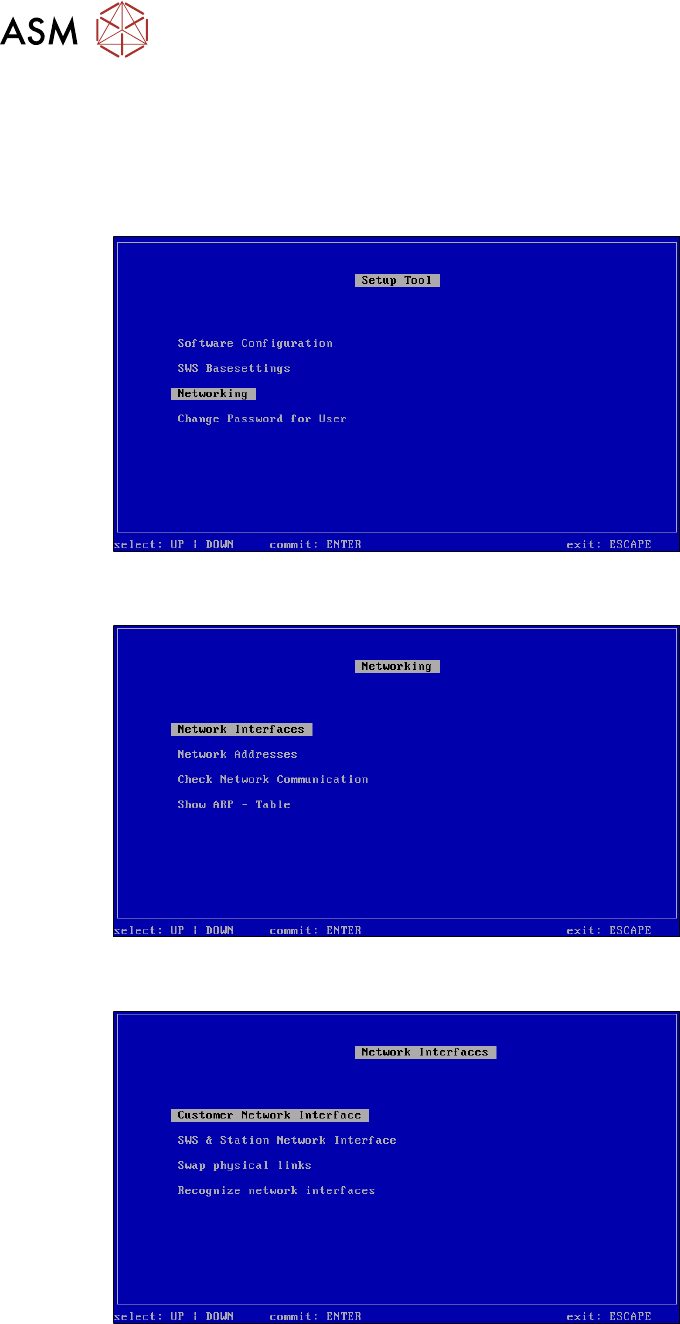
► Select "Networking".
Fig.695: Setup tool menu
► Confirm Networking with Enter.
Fig.696: Networking menu
► Confirm Network Interfaces with Enter.
Fig.697: Customer network interface menu
► Confirm Customer Network Interface with Enter.
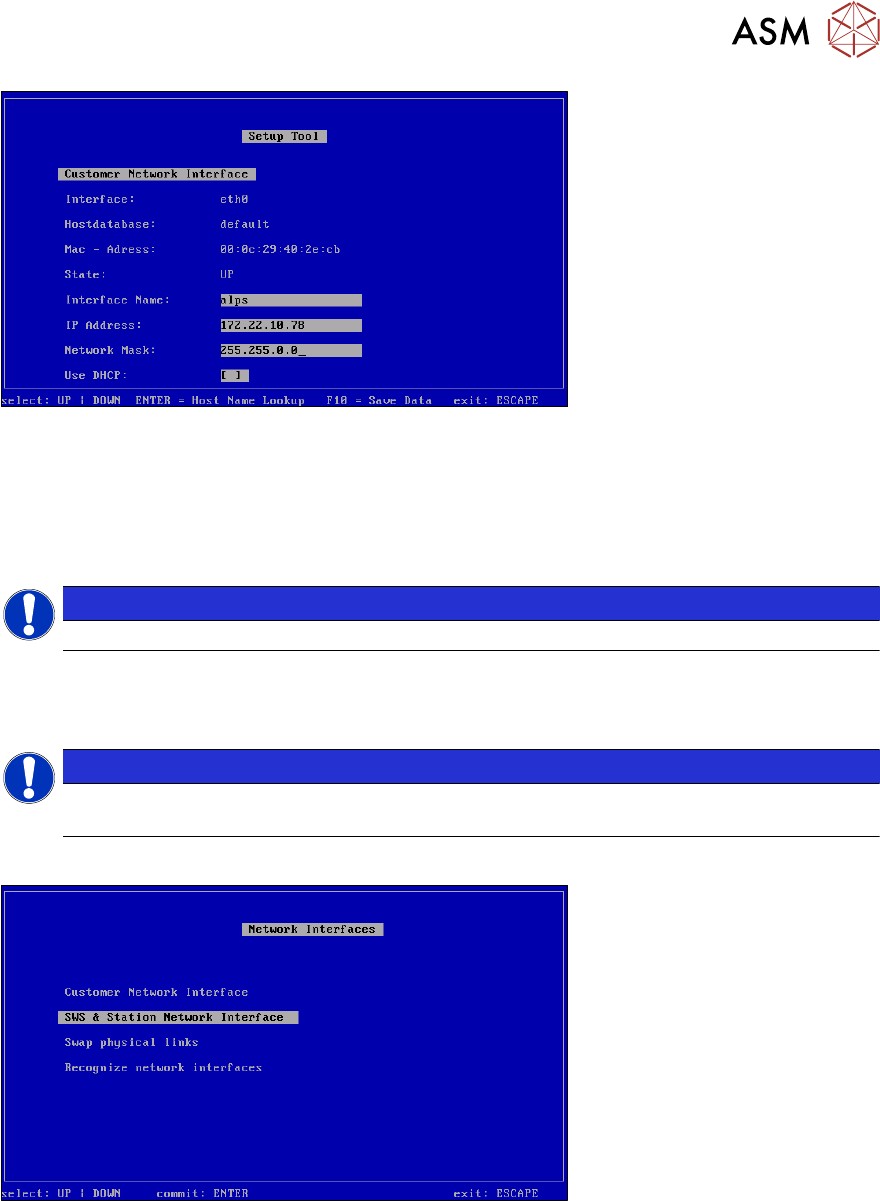
Enter the addresses you noted before installation of the operating system or ask your admin-
istrator for these.
16 Software
16.2 Installation of operating system
Service Manual SIPLACE Wafer System (SWS) 11/2018 455
Fig.698: Customer network interface
► Define the settings for the connection to the wafer map server.
Ask your administrator for the wafer map settings.
► Save your entries with F10.
Applying the settings
NOTICE
The settings will be applied in a later step, at Recognize Network Interfaces .
► Press ESC.
Applying the settings
NOTICE
The settings are applied in a later step at Recognize Network Interfaces or after a reboot
of the computer.
► Press ESC.
Fig.699: Network interfaces menu
► Select Recognize network interfaces and confirm with Enter.