00195982-03_SM_SWS_EN.pdf - 第183页
8 Flip unit 8.4 Calibration – flip unit Service Manual SIPLACE Wafer System (SWS) 11/2018 183 8.4 Calibration – flip unit 8.4.1 Tools and equipment required Fig.237: Tools and equipment required 1. Fork wrench, 5 mm 2. …
8 Flip unit
8.3 Replacing spare parts
182 Service Manual SIPLACE Wafer System (SWS) 11/2018
8.3.4.2 Replacing the dark field illumination board
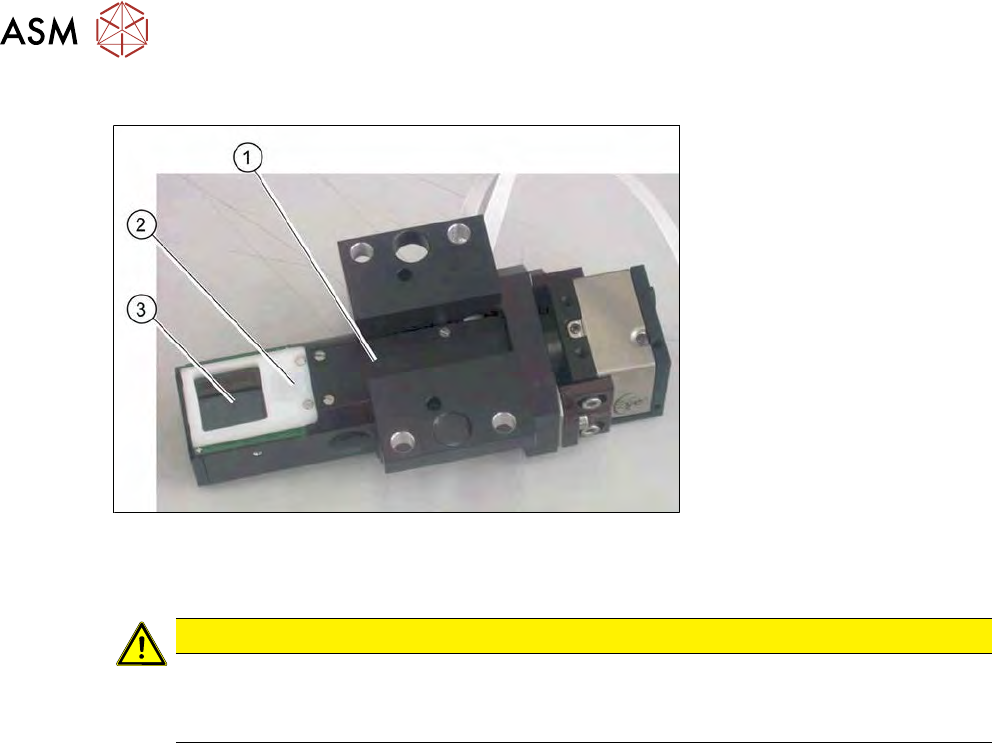
Fig.236: Replacing the dark field illumination board
► Dismantle the wafer camera so you can place it down when turned over (see8.3.4 "Removing
the wafer camera on the flip unit" [}180]).
CAUTION
Do not touch the prism mirror
The prism mirror (3) should not be touched.
► If the prism mirror is dirty, clean it with a lint-free cloth.
► Remove the four screws on the cover plate (1).
► Remove the two screws fastening the dispersion plate (2) and then lift off the dispersion plate.
► Remove the two screws on the board.
► Pull the flat ribbon cable off the board.
► Fit the new board.
8 Flip unit
8.4 Calibration – flip unit
Service Manual SIPLACE Wafer System (SWS) 11/2018 183
8.4 Calibration – flip unit
8.4.1 Tools and equipment required
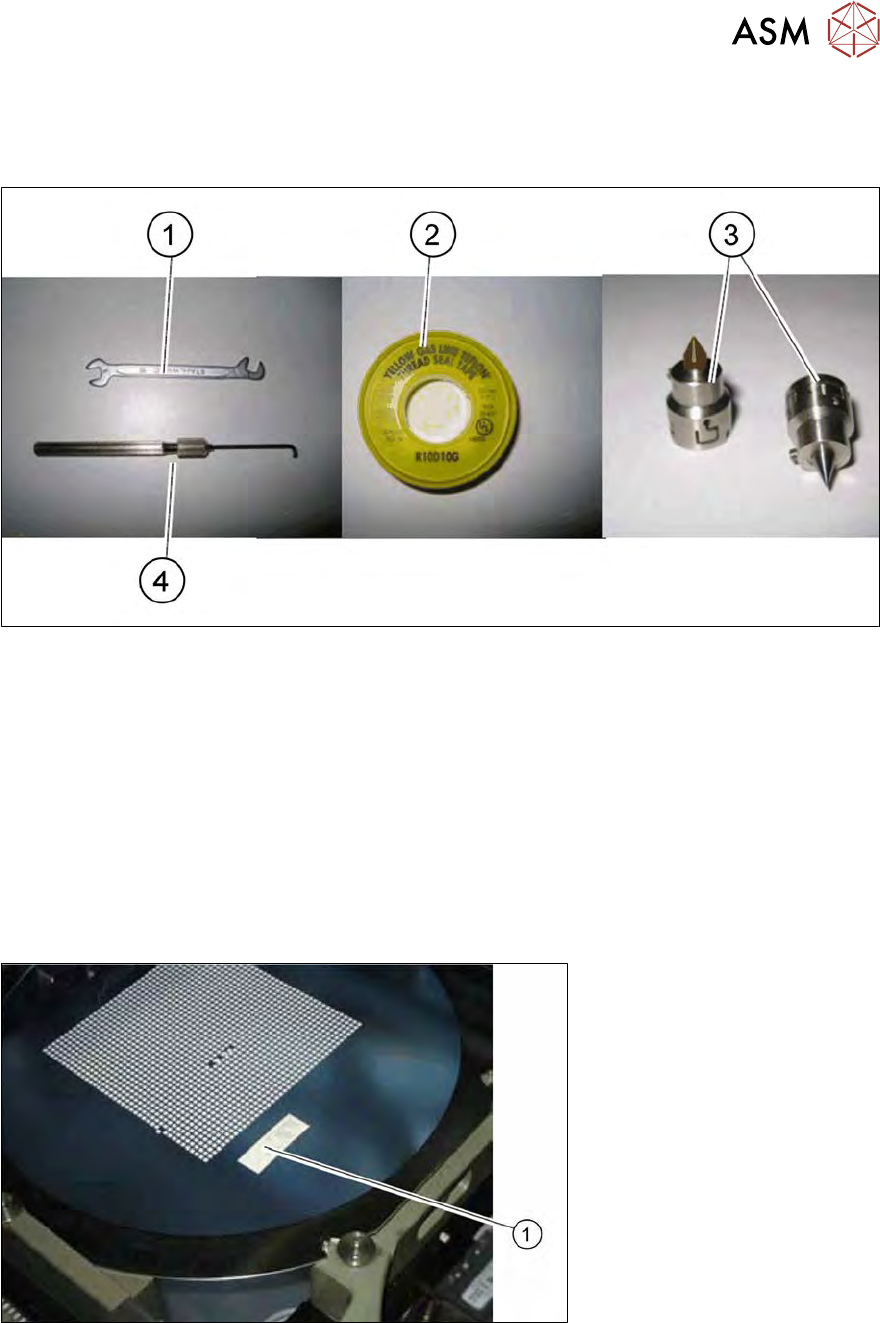
Fig.237: Tools and equipment required
1. Fork wrench, 5 mm
2. Teflon tape
3. Calibration nozzle, 905 or 906 nozzle
4. Allen key 1.5 mm, shortened
8.4.2 Preparation
► Place a calibration nozzle on each of the two segments. Alternatively, you can use a very
pointed standard nozzle (e.g. 905, 906).
► Load a wafer on the wafer table.
► Move the table into the wafer change position.
Fig.238: Teflon tape on wafer foil
► Stick a piece of Teflon tape (1) onto the wafer foil.
8 Flip unit
8.4 Calibration – flip unit
184 Service Manual SIPLACE Wafer System (SWS) 11/2018
8.4.3 Setting the segment offsets
► Select the menu Service => Die handling calibration.
► Select the Segments offset calibrationtab .
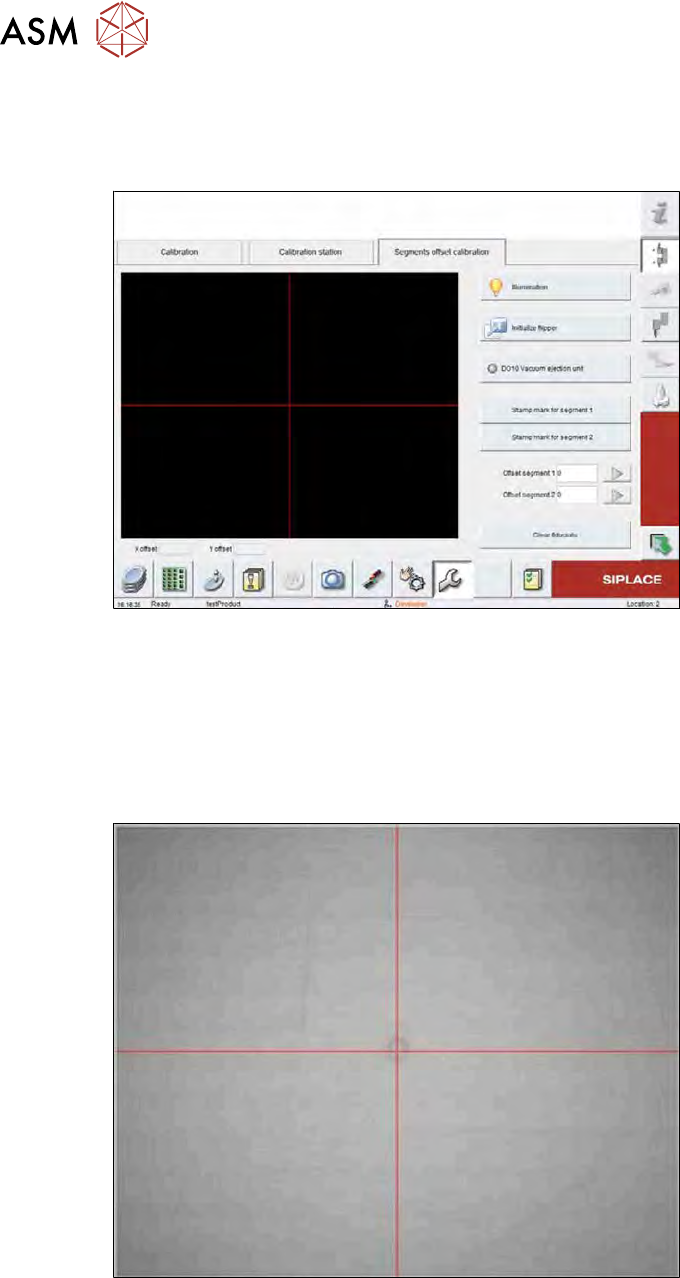
Fig.239: Die handling calibration => Segments offset calibration
► Select the Illumination button and set the lighting so that the wafer content is recognizable
with as much contrast as possible.
► Then close the illumination window.
► Position the Teflon tape under the wafer camera.
► Click on the Stamp mark for segment 1 button for segment 1 or the Stamp mark for seg-
ment 2 button for segment 2.
Fig.240: Nozzle print on Teflon tape
The relevant segment moves down onto the Teflon tape and creates a print. In an ideal case, the
center point of the print corresponds to the camera center point (red cross in the Vision view). If
you are unable to recognize the print, you may need to adjust the illumination.
If the print deviates from the camera center, you can correct the segment offset in the X and Y dir-
ection.