00195982-03_SM_SWS_EN.pdf - 第422页
16 Software 16.2 Installation of operating system 422 Service Manual SIPLACE Wafer System (SWS) 11/2018 Fig.625: Entry of launch and password (launch) ► Enter cd /asm to switch over to the system folder of the SWS softw…
16 Software
16.2 Installation of operating system
Service Manual SIPLACE Wafer System (SWS) 11/2018 421
16.2.1.5 Backup of installed SWS software via Linux console
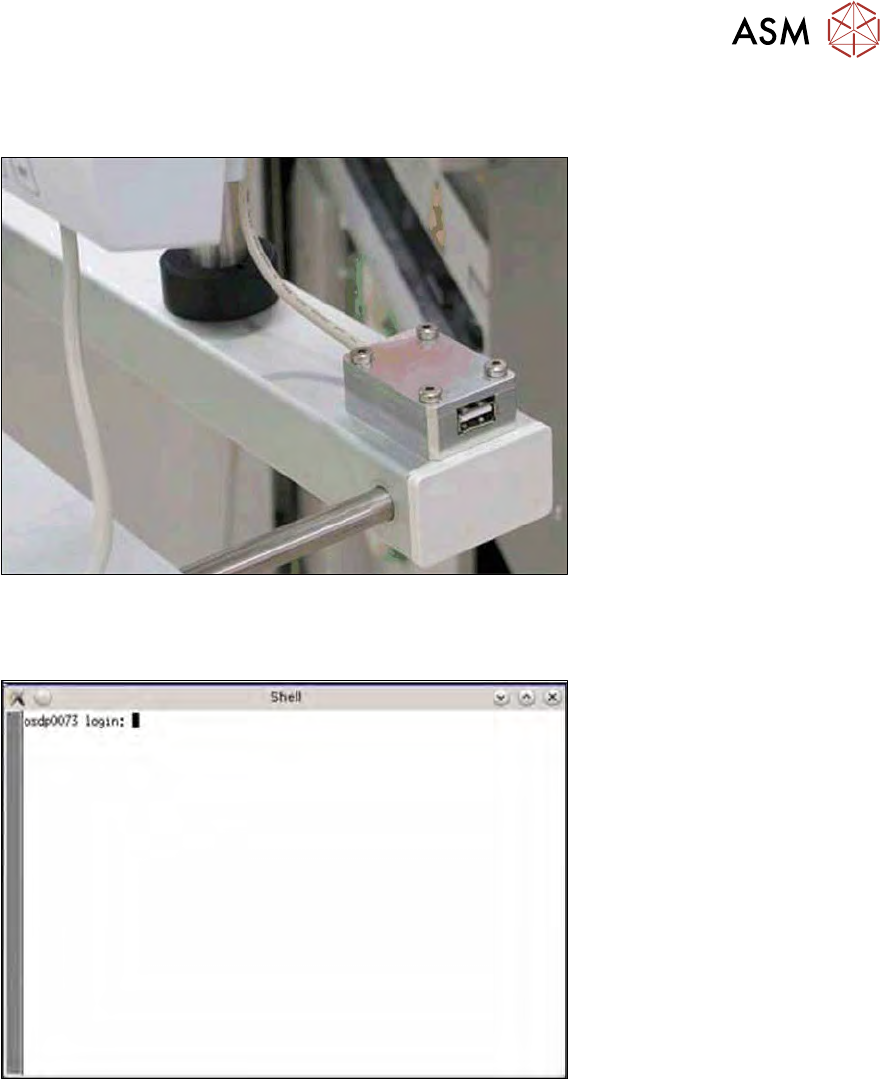
► Connect a USB stick to the port provided on the computer.
Fig.623: USB port on the SWS monitor
► To create the required effect, confirm each entry with Enter.
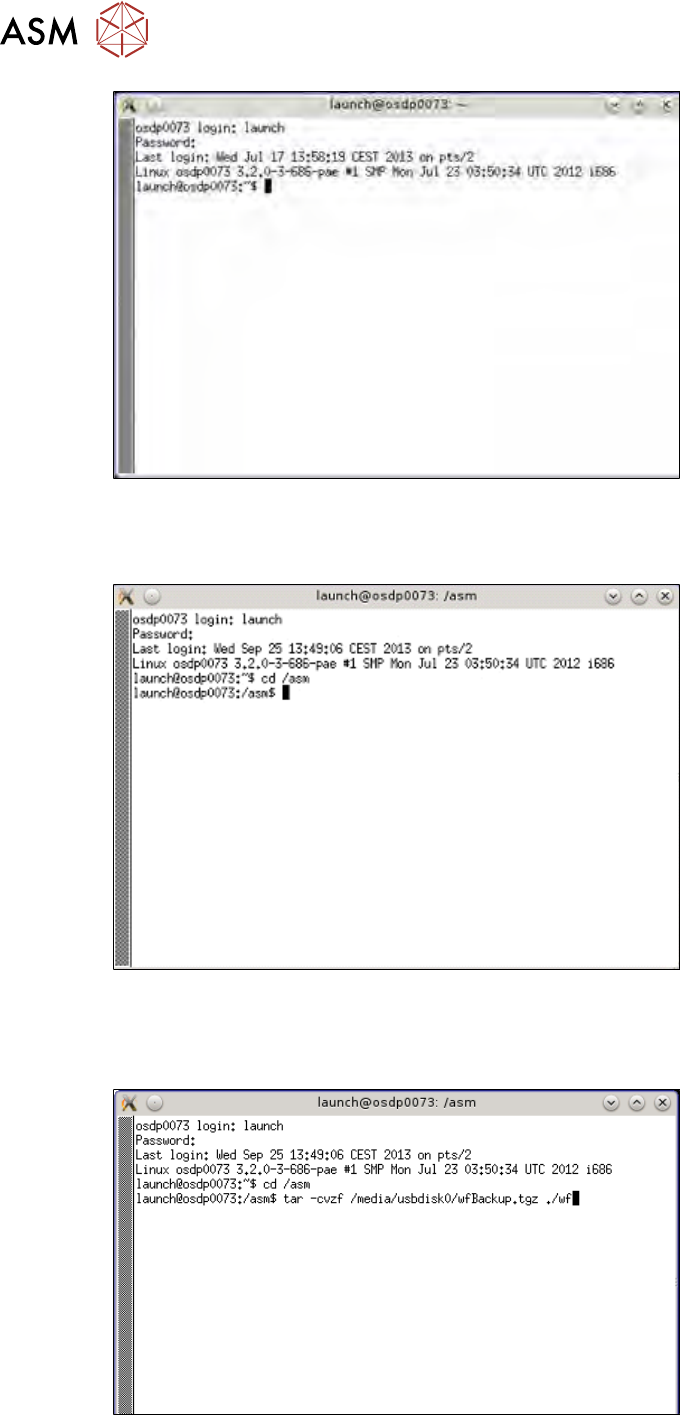
► Open the terminal with CTRL + ALT + X.
Fig.624: Open terminal
► Enter the following in the terminal: launch.
► Enter your password: launch.
16 Software
16.2 Installation of operating system
422 Service Manual SIPLACE Wafer System (SWS) 11/2018
Fig.625: Entry of launch and password (launch)
► Enter cd /asm to switch over to the system folder of the SWS software.
► Enter the following: ls /media/usbdisk0
Fig.626: Entry of cd/ asm and ls /media/usbdisk0
► The contents of the USB stick will be shown. To save the wafer feeder SW packages on the
USB stick, enter the following:
tar -cvzf /media/usbdisk0/wfBackup.tgz ./wf
Fig.627: Entry of tar -cvzf /media/usbdisk0/wfBackup.tgz ./wf
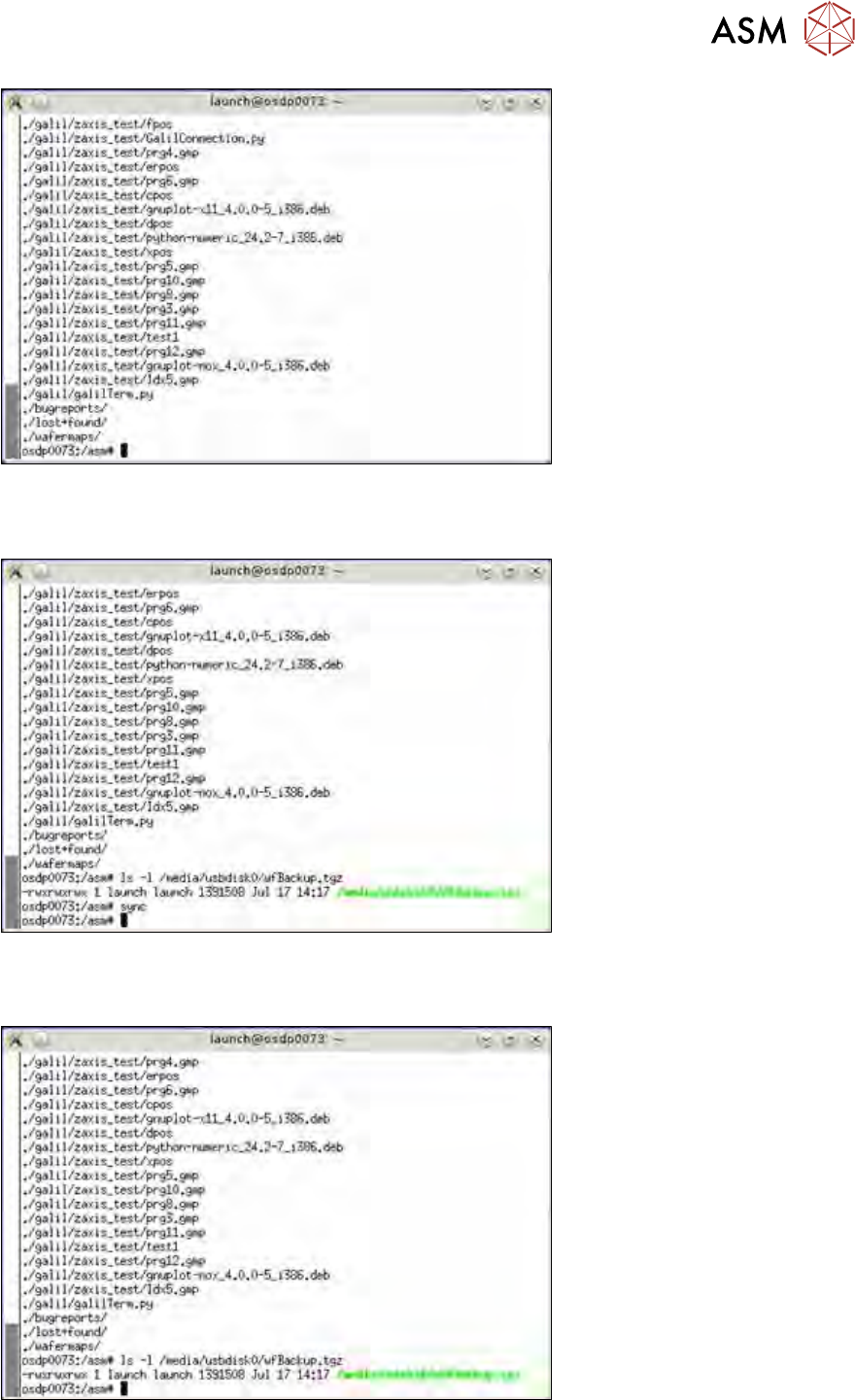
After the process has been completed, the following will appear on your screen:
16 Software
16.2 Installation of operating system
Service Manual SIPLACE Wafer System (SWS) 11/2018 423
Fig.628: Screen after completion of process
► To prepare the USB stick for ejection, enter the following: sync
This is essential for saving the data on the USB stick!
Fig.629: Entry of sync
► To test whether the backup was really generated, enter the following:
ls -l /media/usbdisk0/wfBackup.tgz
Fig.630: Entry of ls -l /media/usbdisk/wfBackup.tgz