00195982-03_SM_SWS_EN.pdf - 第413页
16 Software 16.2 Installation of operating system Service Manual SIPLACE Wafer System (SWS) 11/2018 413 Fig.603: ► Select the … button, next to the Archive to directory line, to open the target directory. ► In the windo…
16 Software
16.2 Installation of operating system
412 Service Manual SIPLACE Wafer System (SWS) 11/2018
16.2 Installation of operating system
When updating the GUI (SWS software package), the old version is kept and can be quickly re-
stored if needed (see 16.4 "Restoring an old software version (GUI)" [}466]).
When installing the operating system, all data (product, calibration and Halcon license) will be lost!
Make sure that you back up all data before running the installation. There are various options for
this, which are described below:
16.2.1 Backup of installed software
16.2.1.1 Backup of calibration and product data via GUI
Before installing the OS, the GUI should be updated to the latest version:
► For more information, read section 16.2.2 "Installation of operating system" [}436].
The calibration and machine data can then be backed up via the GUI.
This update to the latest version is necessary, as the backup files for older GUI versions may not
be compatible with the latest version and would therefore be of no use! The update to the latest
GUI version can usually be conducted with older OS versions, although the GUI online help func-
tion is missing in versions < 4.0.5.
The calibration and machine data can then be backed up via the GUI.
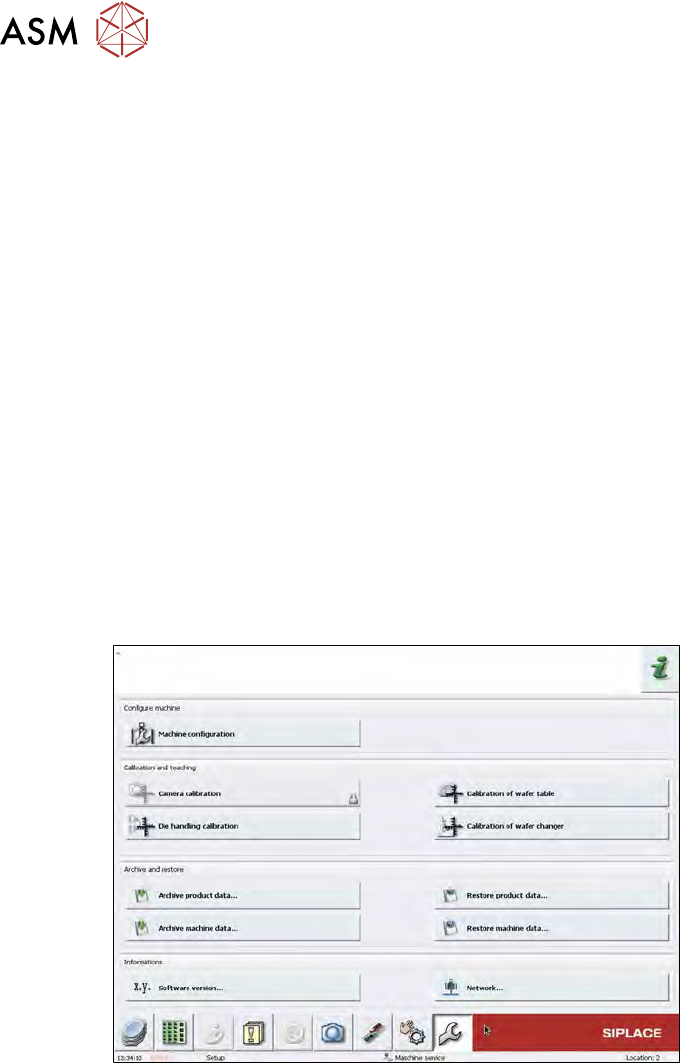
Archiving the product data
Fig.602:
► Insert the USB stick into the USB port.
► Select the Archive product data button.
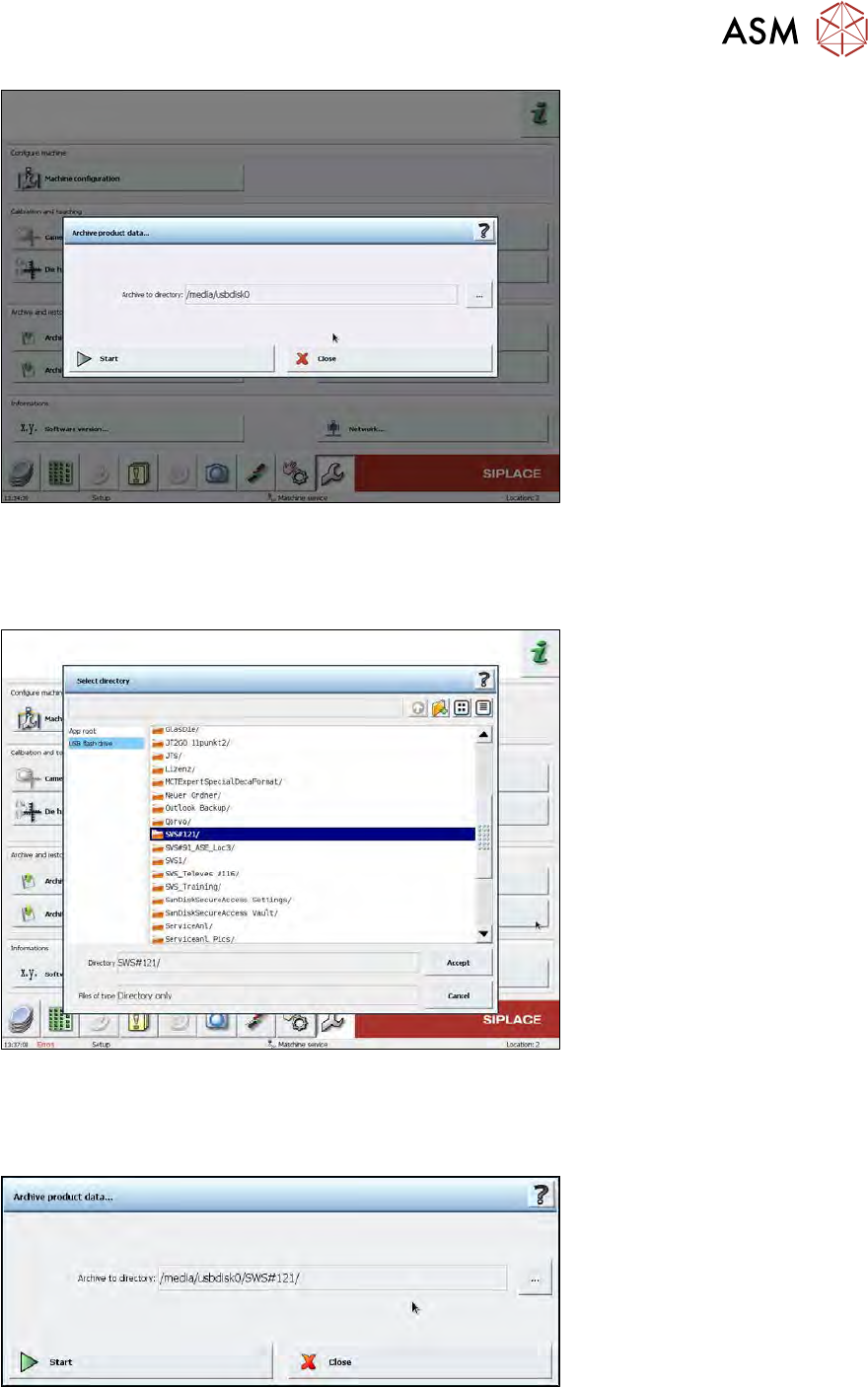
ð The following window will open:
16 Software
16.2 Installation of operating system
Service Manual SIPLACE Wafer System (SWS) 11/2018 413
Fig.603:
► Select the … button, next to the Archive to directory line, to open the target directory.
► In the window shown below, select USB flash drive. This then shows the contents of the USB
stick. Select the folder in which you want to save the product data backup.
Fig.604:
► The selected folder will be shown as below. Once the required folder has been chosen, select
Start.
ð The product data will be saved.
Fig.605:
16 Software
16.2 Installation of operating system
414 Service Manual SIPLACE Wafer System (SWS) 11/2018
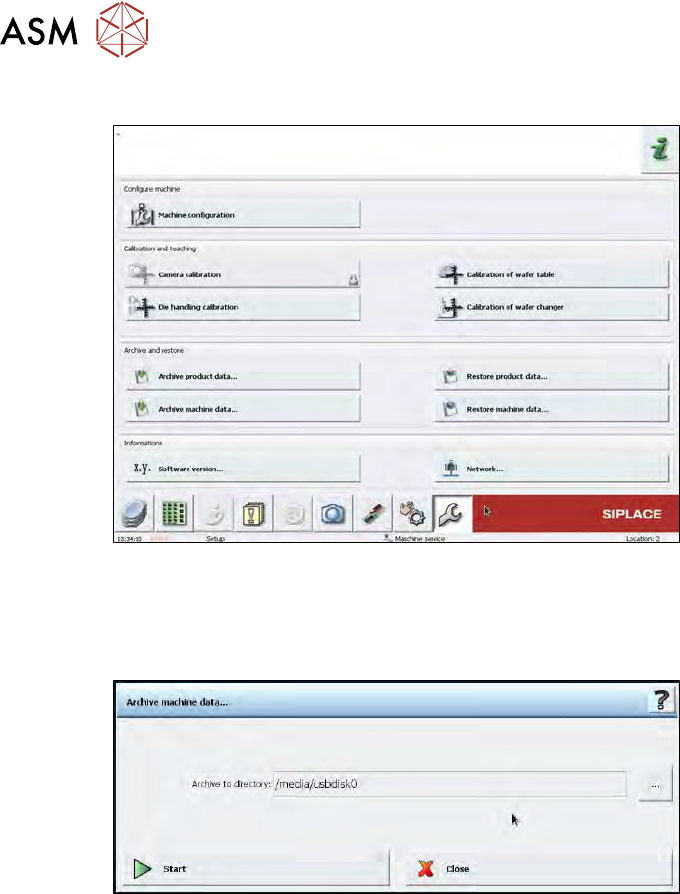
Archiving the calibration data
Fig.606:
► Insert the USB stick into the USB port.
► Select the Archive machine data button.
ð The following window will open:
Fig.607:
► Select the … button, next to the Archive to directory line, to open the target directory.
► In the window shown below, select USB flash drive. This then shows the contents of the USB
stick. Select the folder in which you want to save the calibration data backup.