00195982-03_SM_SWS_EN.pdf - 第257页
11 Extension groups 11.1 Wafer supports Service Manual SIPLACE Wafer System (SWS) 11/2018 257 11.1.3 Replacing spare parts The wafer support can remain installed when spare parts on it are replaced. You can fit either a …
11 Extension groups
11.1 Wafer supports
256 Service Manual SIPLACE Wafer System (SWS) 11/2018
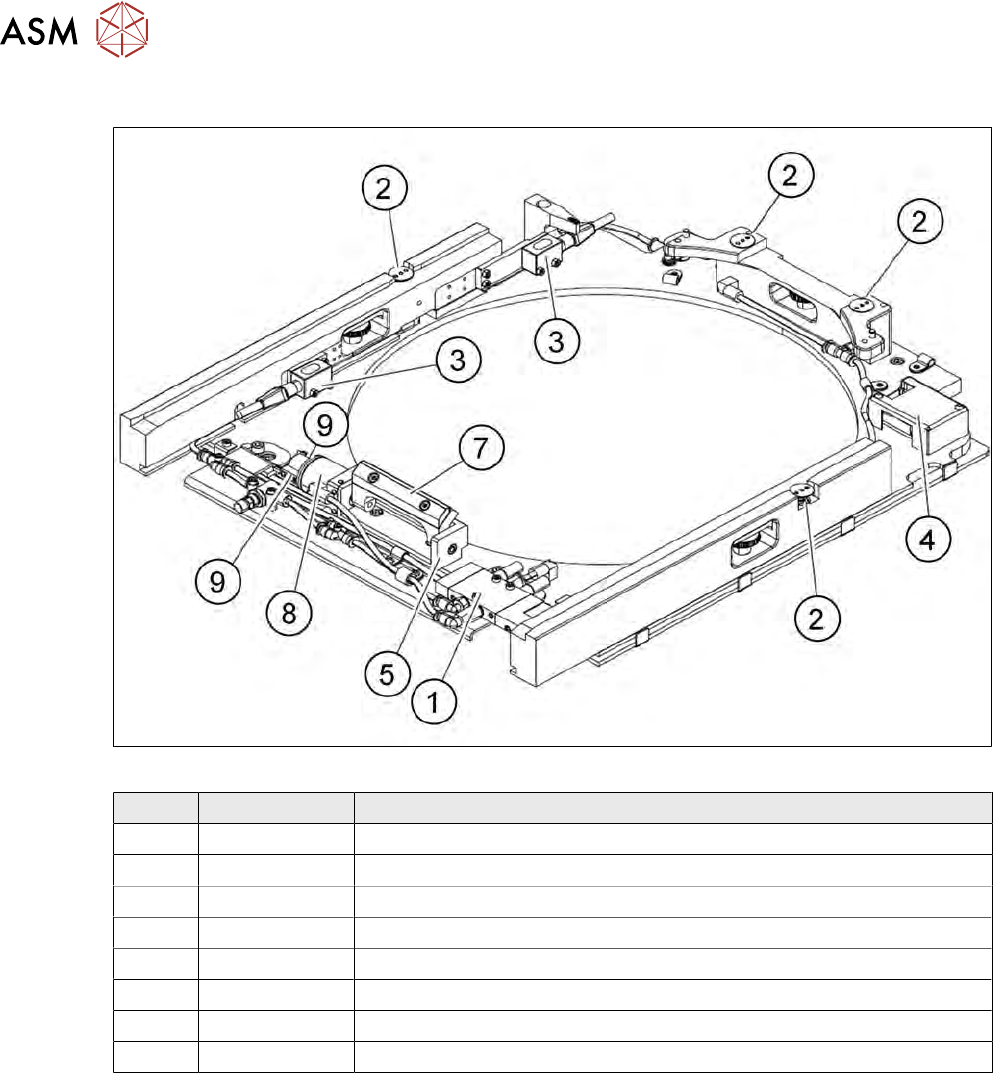
11.1.2 Overview of spare parts
Fig.349: Spare parts on the wafer support (example for 12")
Item Item no. Designation
1 03066721-xx Solenoid valve CPE10-M1BH-5L-M7
2 00385357-xx Screw-in cylinder EGZ-6-5
3 03066505-xx Diffuse mode sensor
4 00386142-xx AD board 12-pin connector pin strip 55x35mm MS-E543
5 00386209-xx Clamp
6 00386560-xx Driver
7 00386242-xx Swivel cylinder DSM-6-180-P-A-FF
8 03063134-xx Proximity switch SME-10-KL-LED-24
11 Extension groups
11.1 Wafer supports
Service Manual SIPLACE Wafer System (SWS) 11/2018 257
11.1.3 Replacing spare parts
The wafer support can remain installed when spare parts on it are replaced. You can fit either a
wafer support for 12" or for 8" wafer frames.
11.1.3.1 Replacing the complete wafer support
► Move the wafer table to the wafer change position.
► If an LDU is fitted, you will need to remove it.
► Shut down the SWS GUI and switch the machine off.
CAUTION
Disconnect the SWS from the compressed air supply.
► Switch off the compressed air supply.
► Disconnect the SWS from the compressed air supply.
► Open the cable clamps and unplug the connection and ground cables.
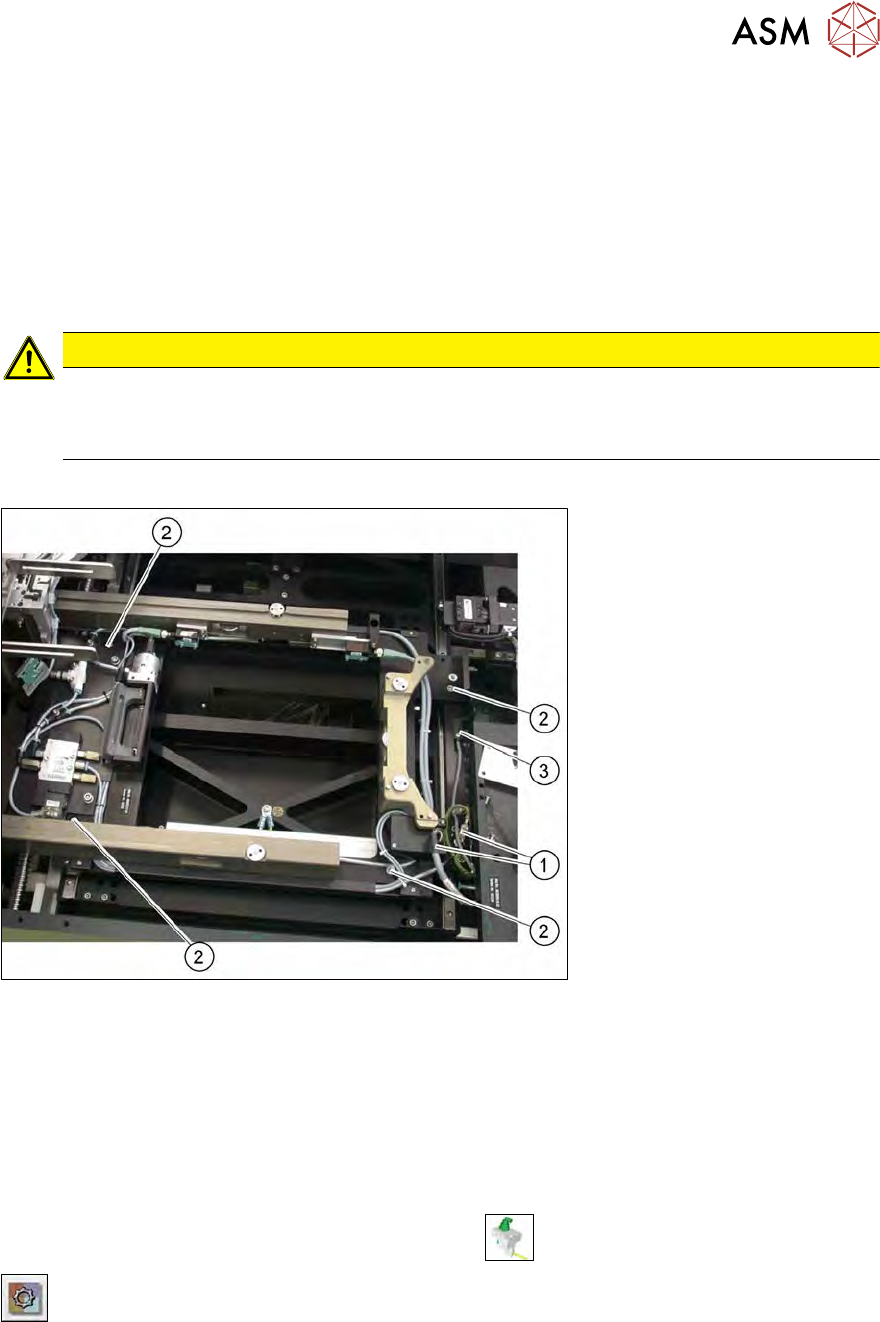
Fig.350: Replacing the complete wafer support
► Remove the four fastening screws (2) and lift the wafer support out of the locating pins.
► Pay attention to the black O-rings under the wafer support rails. The O-rings must stay in the
openings and may not be lost. Replace with new ones, if necessary.
12" sensor monitor
The sensor (3) monitors whether there is a 12" or 8" wafer support fitted.
► Check the input signals of the proximity switch.
► In the toolbar, select the button Manual Settings
.
► Go to the Manual Settings view and select the button Manual Subsystems and then select
IOs (see 14.2 "Manual settings" [}358]).
► Select the Wafertabletab.
ð The displays will shine:
DI11 12" adapter
The connection cable is clamped to the large wafer table adapter board.
11 Extension groups
11.1 Wafer supports
258 Service Manual SIPLACE Wafer System (SWS) 11/2018
11.1.3.2 Turning the wafer locking strip by 180 degrees (option for 8" wafer support)
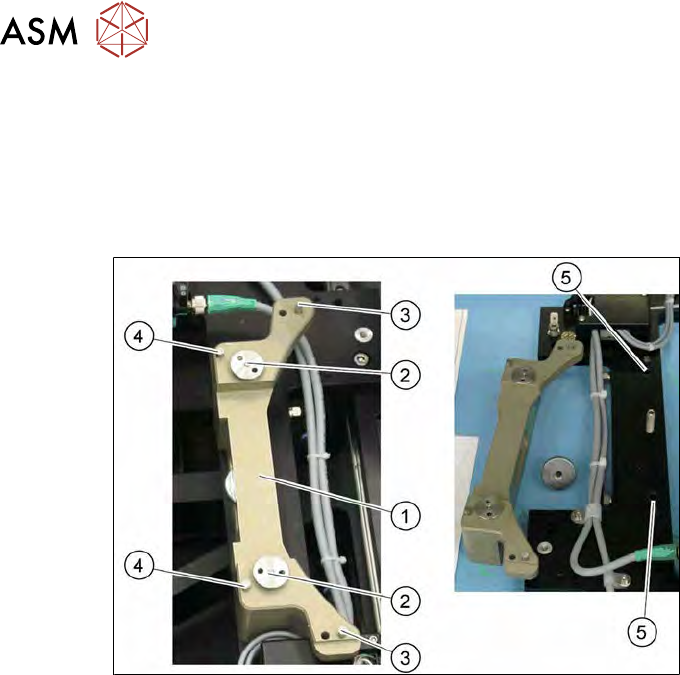
There are two versions of the wafer locking strip (1). The wafer locking strip for the 12" wafer sup-
port can not be turned. The wafer locking strip for the 8" can be rotated by 180 degrees and then
fitted.
This makes it possible to process wafer frames with different locking positions and rotation posi-
tions(3) or(4) .
Fig.351: Turning the wafer locking strip
► Unscrew the two knurled screws (2) holding the wafer locking strip (1).
► Carefully lift off the wafer locking strip, rotate by 180degrees and fit again.
► Pay attention to the black O-rings (5) under the wafer locking strip. The O-rings must stay in
the openings and may not be lost. Replace with new ones, if necessary.