00195982-03_SM_SWS_EN.pdf - 第184页
8 Flip unit 8.4 Calibration – flip unit 184 Service Manual SIPLACE Wafer System (SWS) 11/2018 8.4.3 Setting the segment offsets ► Select the menu Service => Die handling calibration . ► Select the Segments offset cali…
8 Flip unit
8.4 Calibration – flip unit
Service Manual SIPLACE Wafer System (SWS) 11/2018 183
8.4 Calibration – flip unit
8.4.1 Tools and equipment required
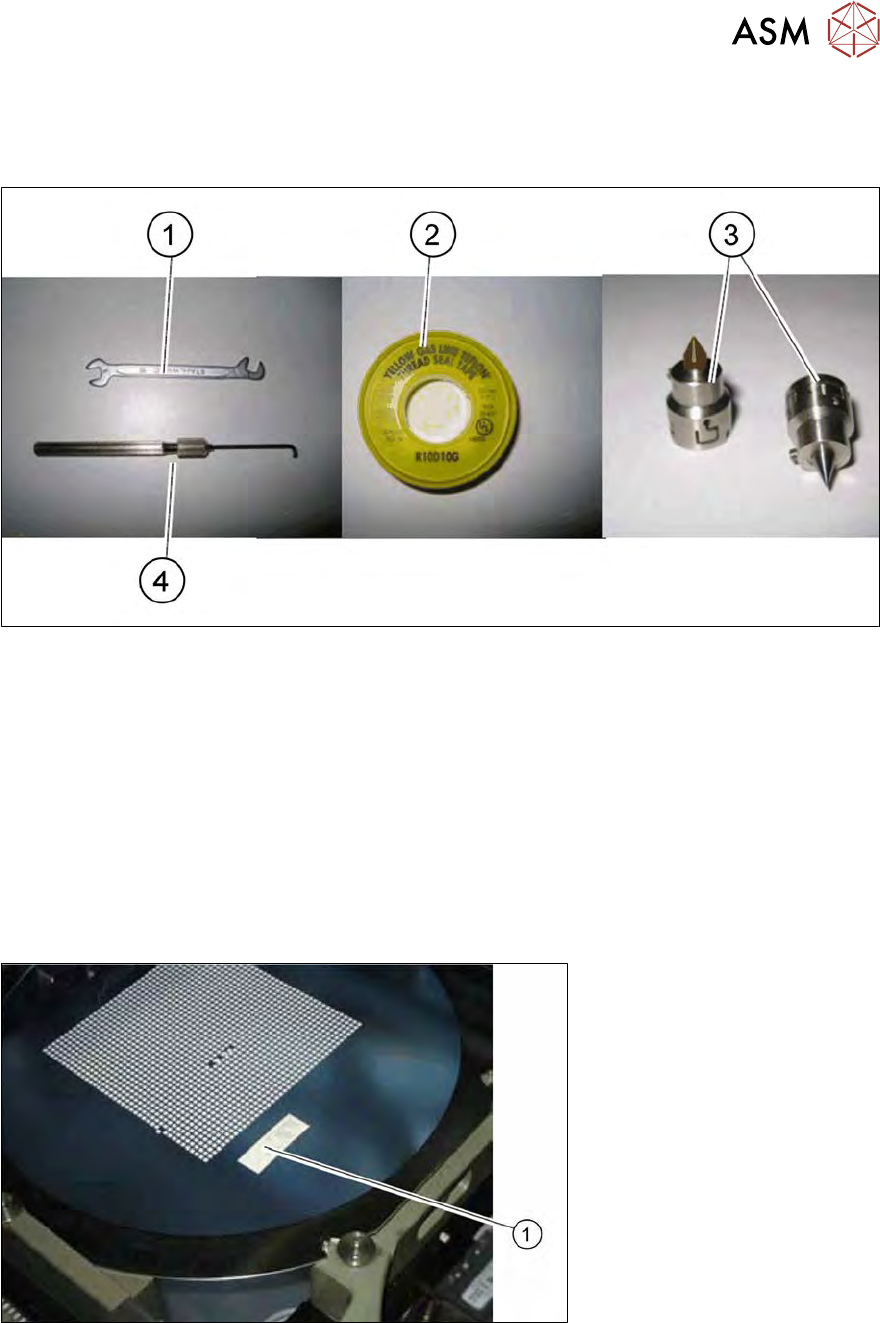
Fig.237: Tools and equipment required
1. Fork wrench, 5 mm
2. Teflon tape
3. Calibration nozzle, 905 or 906 nozzle
4. Allen key 1.5 mm, shortened
8.4.2 Preparation
► Place a calibration nozzle on each of the two segments. Alternatively, you can use a very
pointed standard nozzle (e.g. 905, 906).
► Load a wafer on the wafer table.
► Move the table into the wafer change position.
Fig.238: Teflon tape on wafer foil
► Stick a piece of Teflon tape (1) onto the wafer foil.
8 Flip unit
8.4 Calibration – flip unit
184 Service Manual SIPLACE Wafer System (SWS) 11/2018
8.4.3 Setting the segment offsets
► Select the menu Service => Die handling calibration.
► Select the Segments offset calibrationtab .
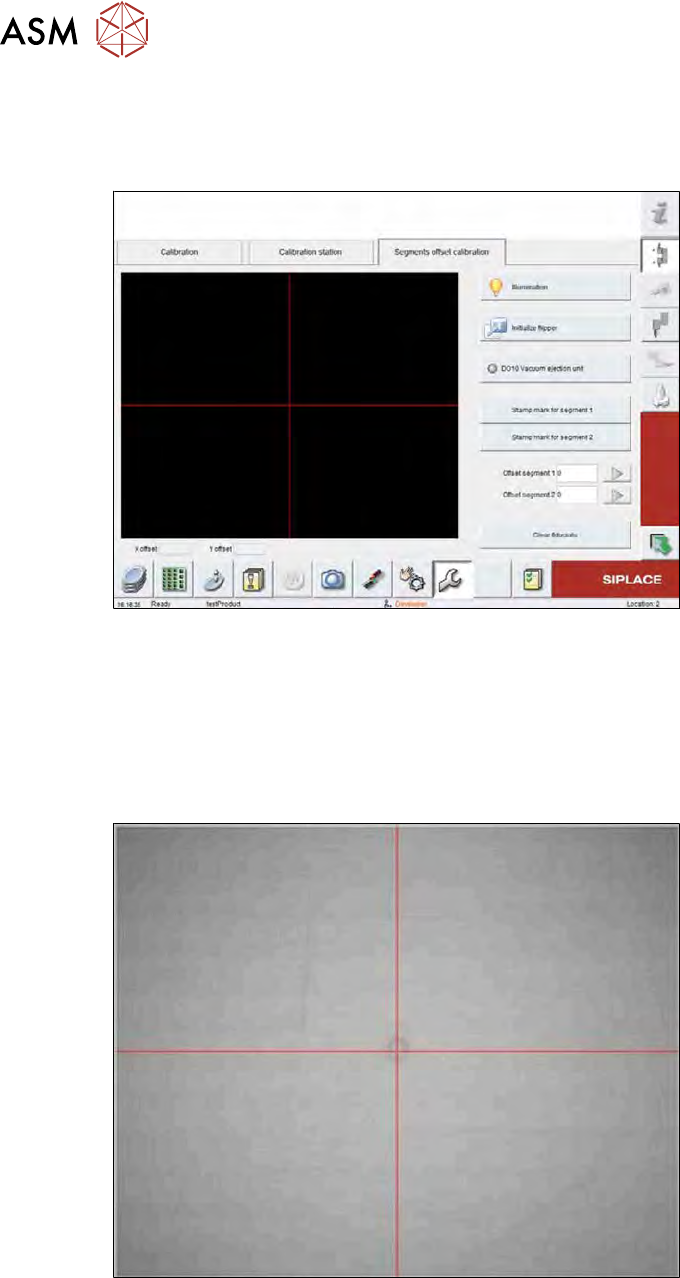
Fig.239: Die handling calibration => Segments offset calibration
► Select the Illumination button and set the lighting so that the wafer content is recognizable
with as much contrast as possible.
► Then close the illumination window.
► Position the Teflon tape under the wafer camera.
► Click on the Stamp mark for segment 1 button for segment 1 or the Stamp mark for seg-
ment 2 button for segment 2.
Fig.240: Nozzle print on Teflon tape
The relevant segment moves down onto the Teflon tape and creates a print. In an ideal case, the
center point of the print corresponds to the camera center point (red cross in the Vision view). If
you are unable to recognize the print, you may need to adjust the illumination.
If the print deviates from the camera center, you can correct the segment offset in the X and Y dir-
ection.
8 Flip unit
8.4 Calibration – flip unit
Service Manual SIPLACE Wafer System (SWS) 11/2018 185
8.4.4 Correcting the segment offsets
The offsets for segments 1 and 2 can be corrected with the parameter Offset segment 1 or Offset
segment 2 (see15.3.2.4 "Calibration – segment offset calibration in X direction" [}379]).
Alternatively:
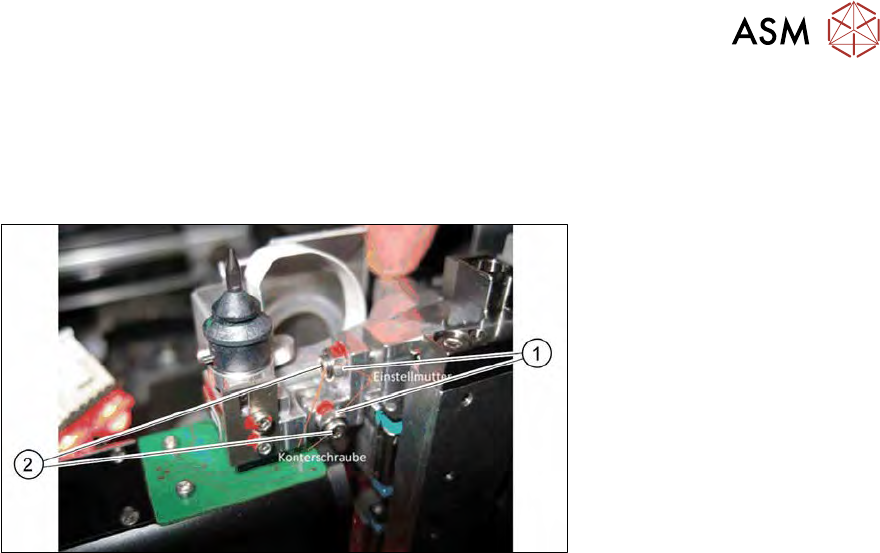
Fig.241: Adjusting nut and counternut for mechanical X and Y setting
Alternatively, the setting can be mechanically set via the adjusting nuts (1) and counternuts (2) at
the segments.