00195982-03_SM_SWS_EN.pdf - 第463页
16 Software 16.2 Installation of operating system Service Manual SIPLACE Wafer System (SWS) 11/2018 463 Fig.717: Enter launch and password ► To change the folder for the USB stick, enter: cd /asm ► Enter the following: …
16 Software
16.2 Installation of operating system
462 Service Manual SIPLACE Wafer System (SWS) 11/2018
16.2.3.6 Restoring the backup via the Linux console
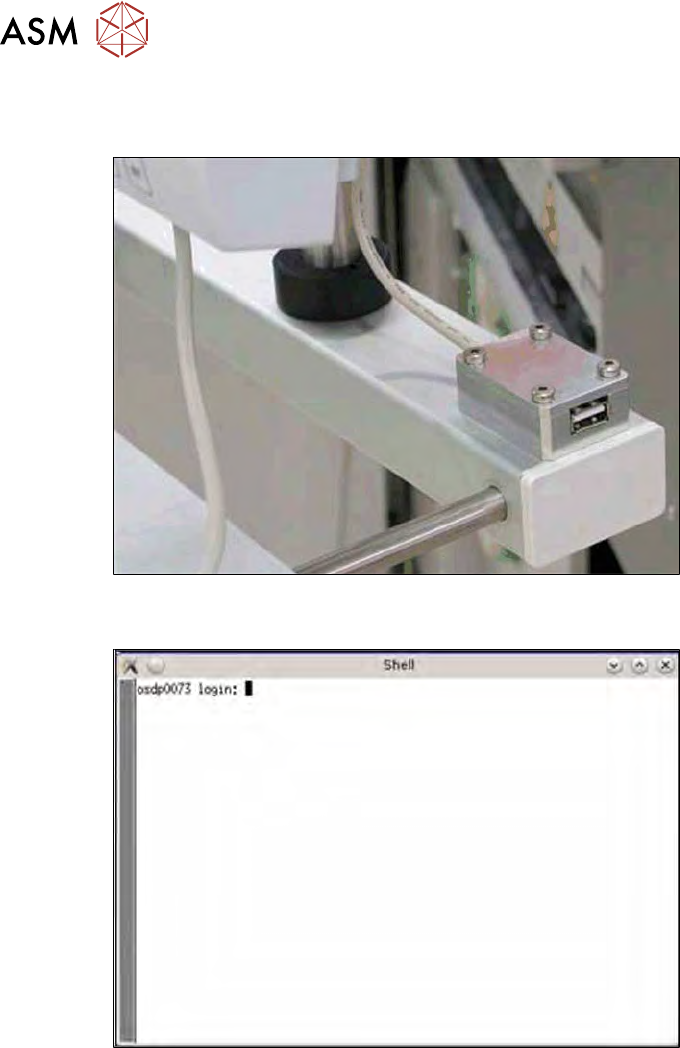
► Connect a USB stick to the port provided on the computer.
Fig.715: USB port on the SWS monitor
► Open the terminal with CTRL + ALT + X.
Fig.716: Open terminal
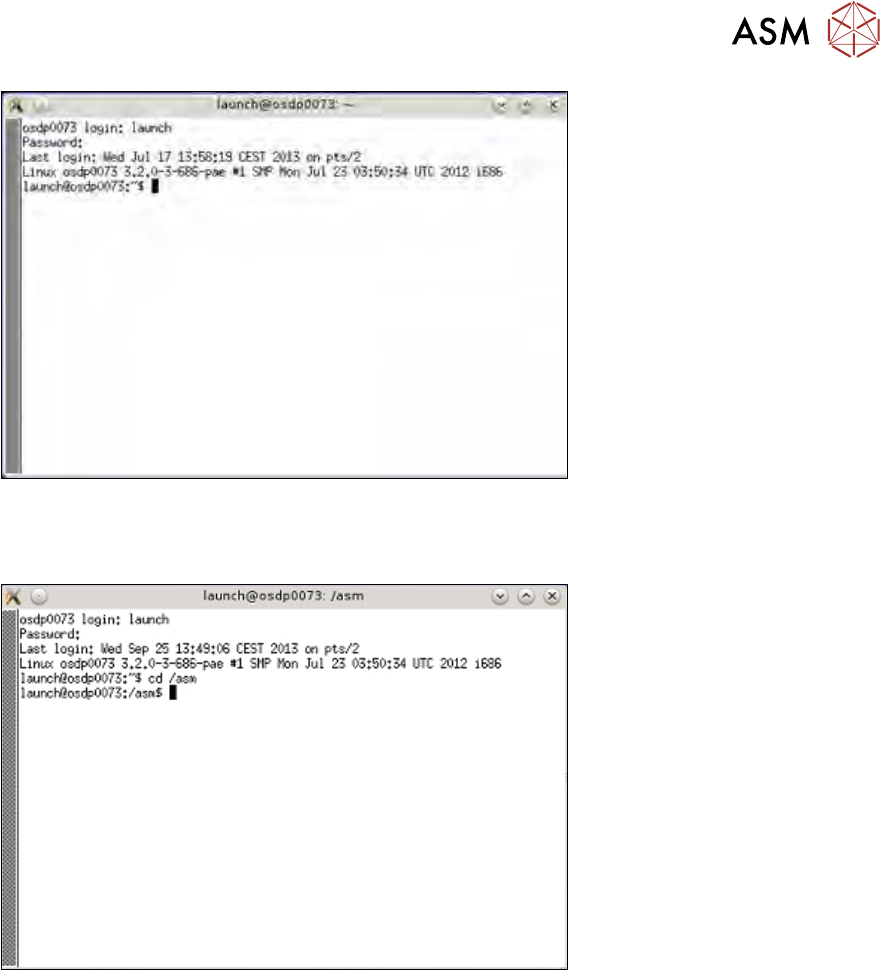
► Enter the following in the terminal: launch.
► Enter your password: launch.
16 Software
16.2 Installation of operating system
Service Manual SIPLACE Wafer System (SWS) 11/2018 463
Fig.717: Enter launch and password
► To change the folder for the USB stick, enter: cd /asm
► Enter the following: ls /media/usbdisk0
Fig.718: Entry of cd/ asm and ls /media/usbdisk0
The contents of the USB stick will be shown.
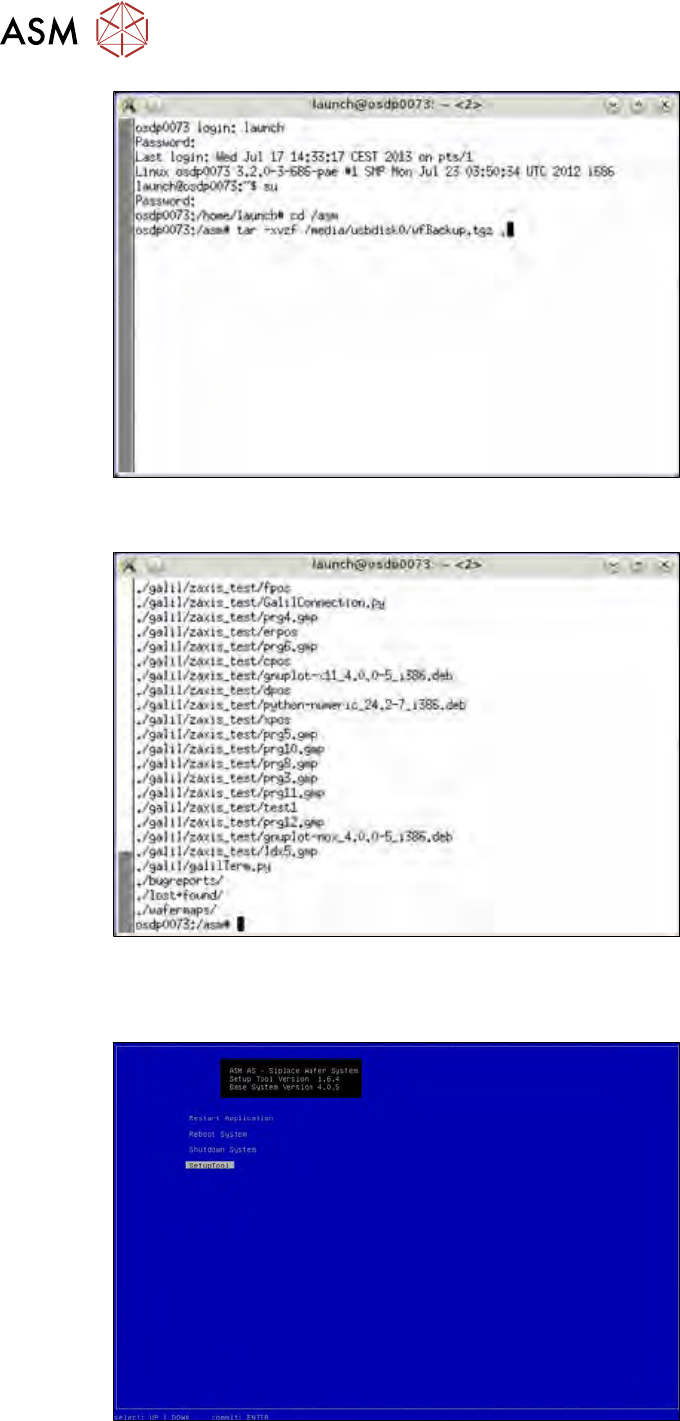
► Then enter the following:
tar -xvzf /media/usbdisk0/wfBackup.tgz .
16 Software
16.2 Installation of operating system
464 Service Manual SIPLACE Wafer System (SWS) 11/2018
Fig.719: Entry of tar -xvzf /media/usbdisk0/wfBackup.tgz .
After the process has been completed, the following will appear on your screen:
Fig.720: Screen after completion of process
► Press the following keys at the same time Ctrl+Alt+Q.
ð This takes you to the setup tool start window.
Fig.721: Start window
► Start the SWS software with the function Restart Application.