00195982-03_SM_SWS_EN.pdf - 第461页
16 Software 16.2 Installation of operating system Service Manual SIPLACE Wafer System (SWS) 11/2018 461 Fig.713: The following window will then open. Fig.714: ► Click on the " Start " button, to start the dat…
16 Software
16.2 Installation of operating system
460 Service Manual SIPLACE Wafer System (SWS) 11/2018
16.2.3.5 Restoring the calibration data via the GUI
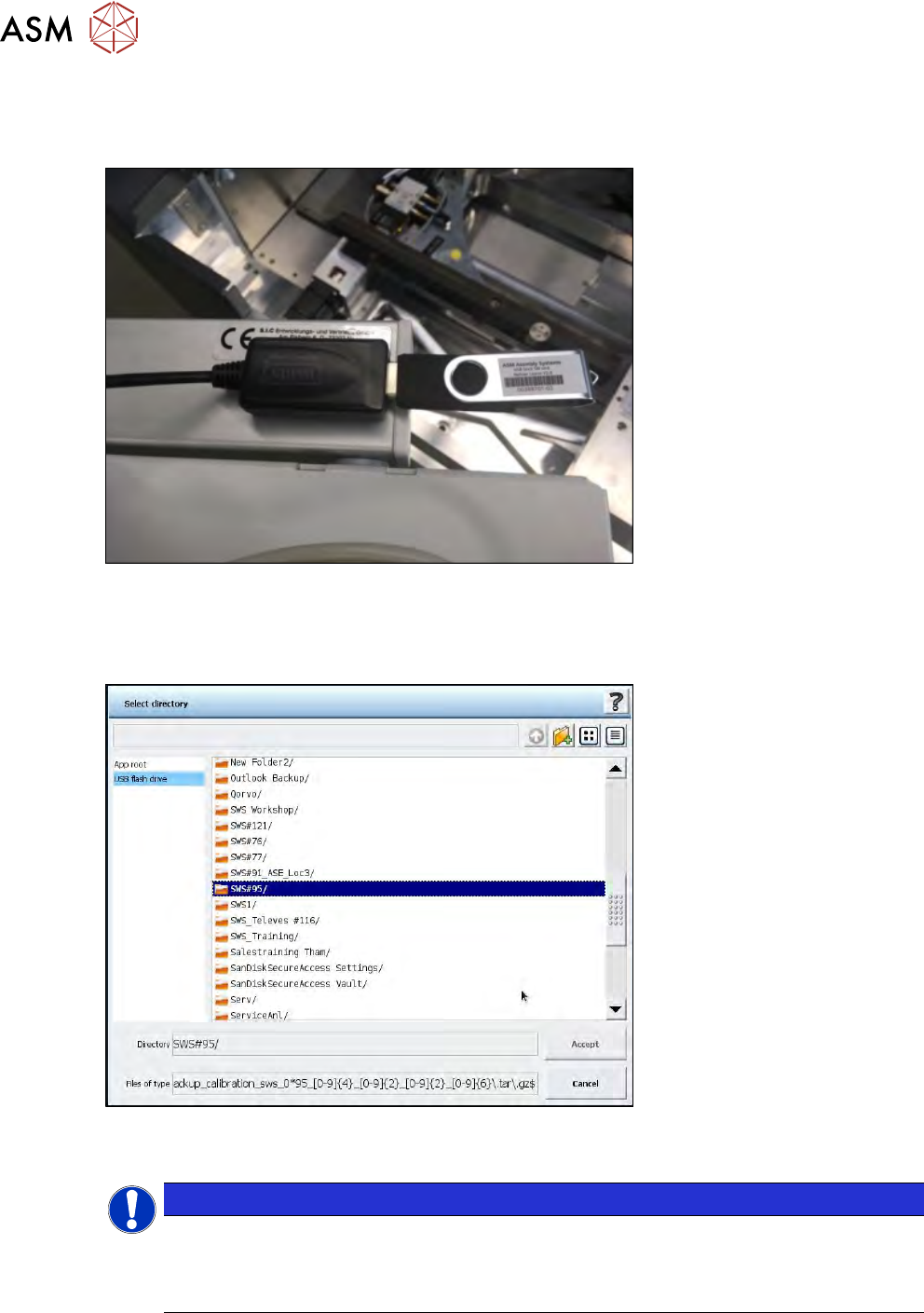
► Insert the USB stick on which the calibration data are saved into the USB port behind the
SWS keyboard.
Fig.711:
► To restore the calibration data, switch over to the service menu and select the "Restore
machine data" button.
► Select "USB flash drive" and then select the folder in which the data is stored (see below).
Fig.712:
► In the folder, select the product data to be restored and confirm with "Accept".
NOTICE
In contrast to the product data, only the calibration data which belong to the current SWS
will be shown. This should prevent the wrong calibration data being loaded by another
SWS.
Product data can be loaded by another SWS.
16 Software
16.2 Installation of operating system
Service Manual SIPLACE Wafer System (SWS) 11/2018 461
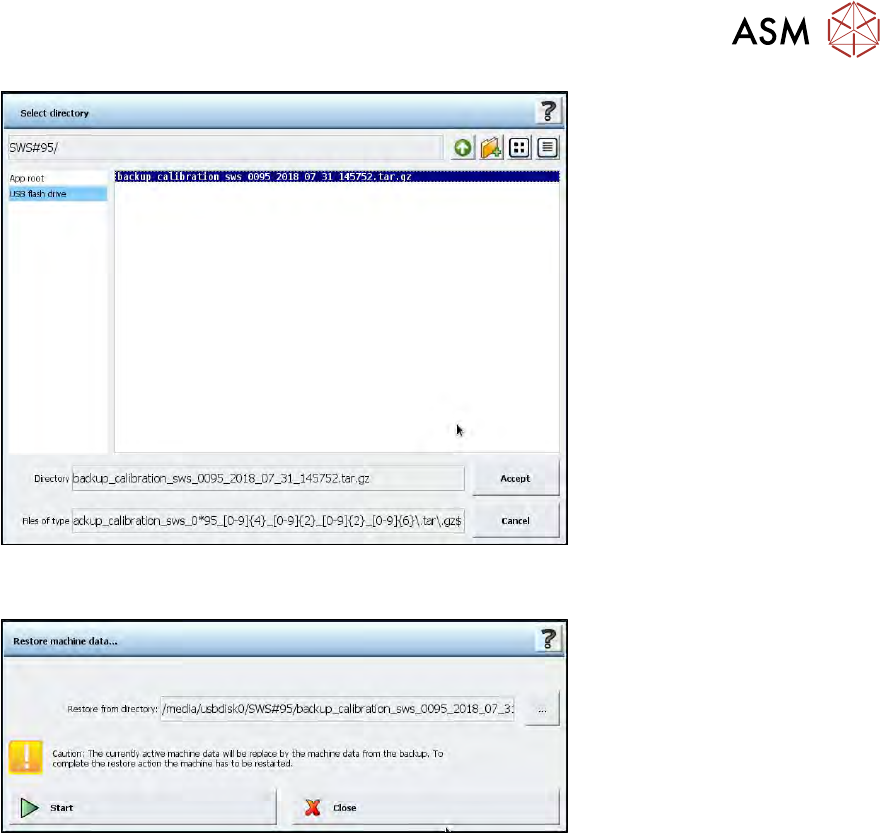
Fig.713:
The following window will then open.
Fig.714:
► Click on the "Start" button, to start the data restore process.
16 Software
16.2 Installation of operating system
462 Service Manual SIPLACE Wafer System (SWS) 11/2018
16.2.3.6 Restoring the backup via the Linux console
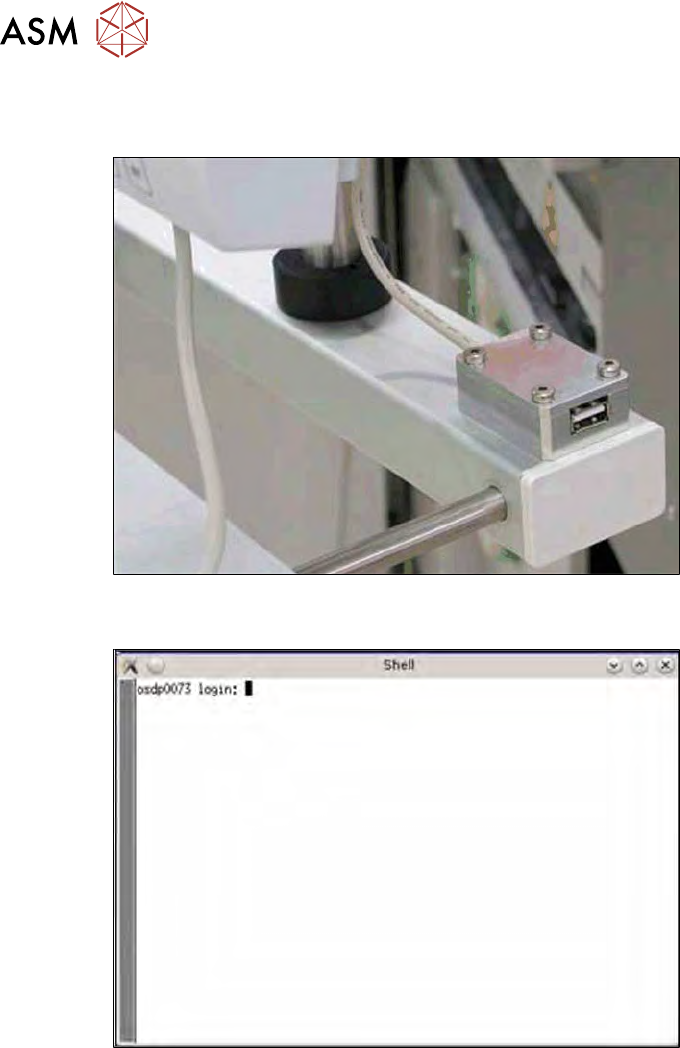
► Connect a USB stick to the port provided on the computer.
Fig.715: USB port on the SWS monitor
► Open the terminal with CTRL + ALT + X.
Fig.716: Open terminal
► Enter the following in the terminal: launch.
► Enter your password: launch.