00195982-03_SM_SWS_EN.pdf - 第441页
16 Software 16.2 Installation of operating system Service Manual SIPLACE Wafer System (SWS) 11/2018 441 Fig.663: After successful installation (takes max. 1 minute), the following view will appear: Fig.664: ► Press the…
16 Software
16.2 Installation of operating system
440 Service Manual SIPLACE Wafer System (SWS) 11/2018
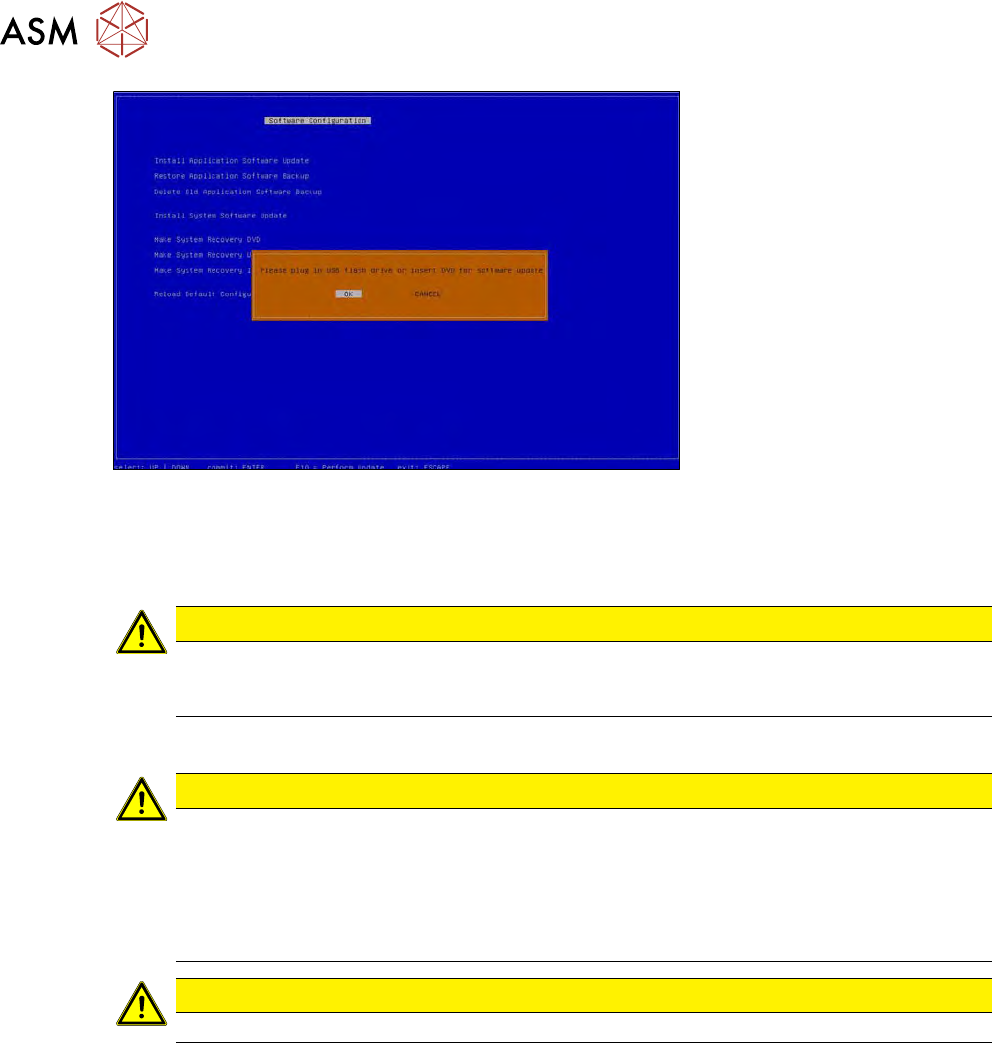
Fig.662:
► Insert the USB stick into the USB port behind the SWS keyboard and select OK.
► Enter the serial number of the SWS. The serial number can be found on the typeplate inside
the magazine lift.
CAUTION
If the wrong serial number is entered, you will not be able to load the backup file with the
calibration data. While importing the calibration data, only those files with the serial number
of the SWS will be shown!
► After installing the operating system, go to Install type and select the type Install.
CAUTION
► After installing the operating system, go to Install type and select the type Install. Any
existing calibration data will be reset to default values and any product data will be de-
leted.
► For this reason, if you only want to install a more recent version of the GUI, select Up-
date.
The option Update keeps the calibration and product data.
CAUTION
The installation files must be in the main folder on the USB stick.
► Go to Install file, select the version from the list and press F10.
► Acknowledge the message Are you really sure? with Yes.
ð The installation will now begin. Ignore any error messages which may appear.
16 Software
16.2 Installation of operating system
Service Manual SIPLACE Wafer System (SWS) 11/2018 441
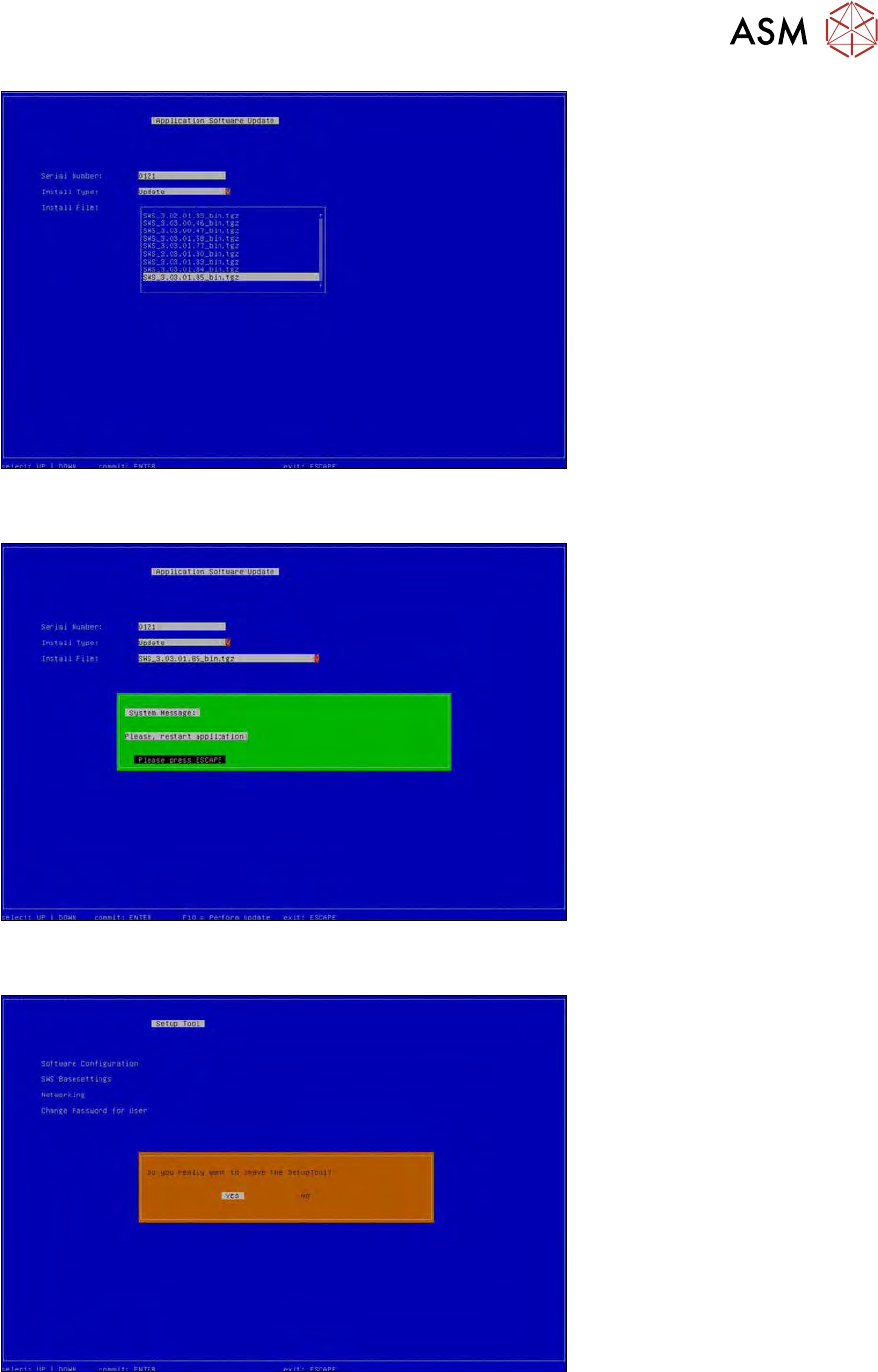
Fig.663:
After successful installation (takes max. 1 minute), the following view will appear:
Fig.664:
► Press the ESC key 4x. The following view will appear.
Fig.665:
► Confirm that you want to exit the setup tool with YES.
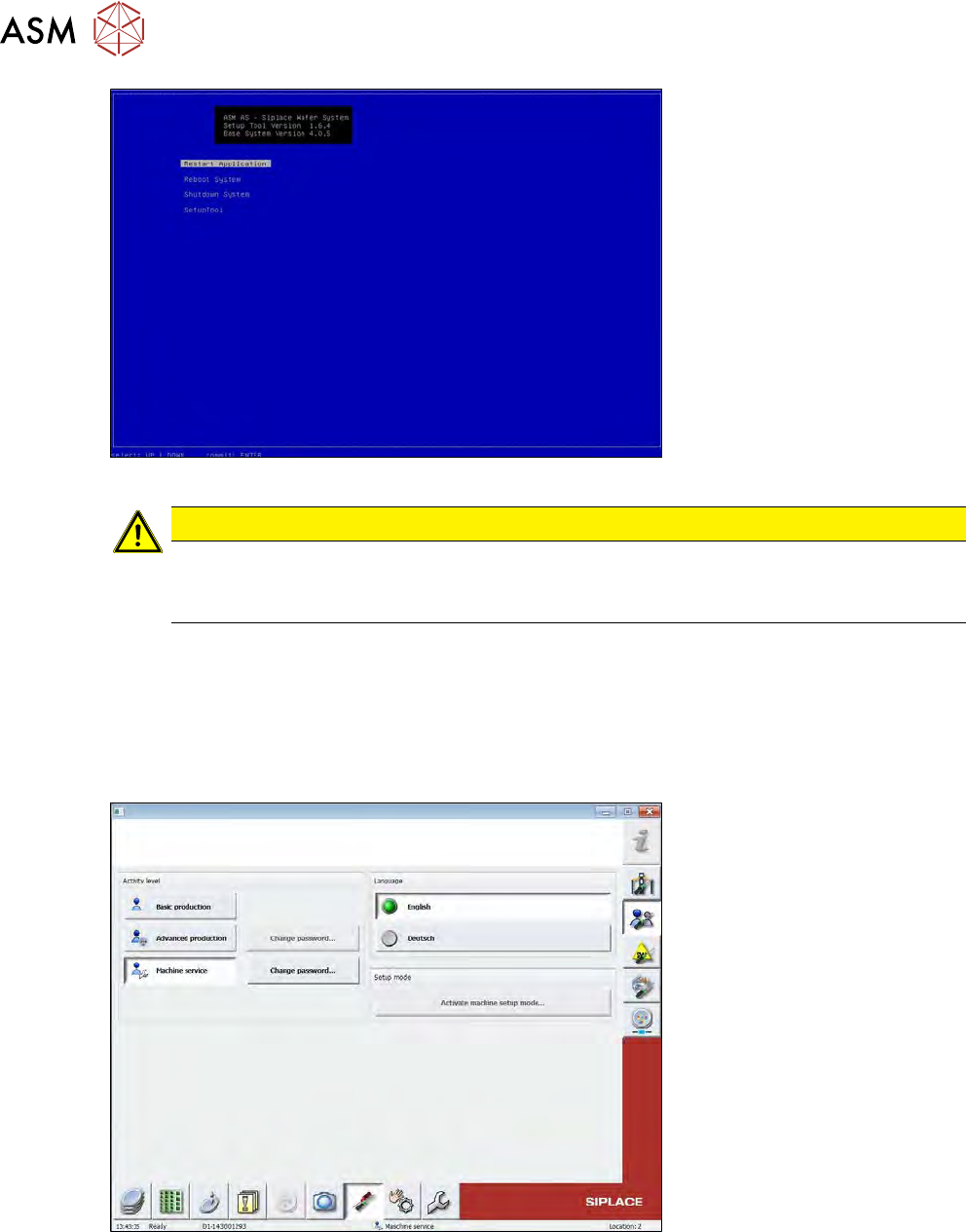
► Select Restart Applicationto start the GUI.
16 Software
16.2 Installation of operating system
442 Service Manual SIPLACE Wafer System (SWS) 11/2018
Fig.666:
CAUTION
► Press the emergency STOP button on the SWS or at the station, to prevent initializa-
tion of the SWS.
► The calibration data must always be imported before initializing the SWS.
16.2.3 Restoring the data
16.2.3.1 Restoring the Halcon license
► Switch over to the page "Settings -> User Settings" and select the activity level "Machine
service".
The password is: service1
Fig.667:
► If available, insert the USB stick with the Halcon license from the SWS software package into
the USB port behind the SWS keyboard (see below).