00195982-03_SM_SWS_EN.pdf - 第310页
12 Wafer stretcher 12.7 Wafer stretcher - configuration changes 310 Service Manual SIPLACE Wafer System (SWS) 11/2018 12.7.3.2 Preparations ► Perform the measures in accordance with section 12.3 "Preparatory measure…
12 Wafer stretcher
12.7 Wafer stretcher - configuration changes
Service Manual SIPLACE Wafer System (SWS) 11/2018 309
12.7.3 Converting wafer supports from 8" wafer stretchers to 12" wafer stretchers
In order to process the different wafer sizes (8" and 12") on the SIPLACE SWS wafer stretcher, you
need to convert the SIPLACE SWS wafer stretcher.
You can order the SIPLACE SWS wafer stretcher in the following configurations:
●
[00519717-xx] 12" wafer expander
and optional
[03079734-xx] 8" retrofit kit
or
●
[00519719-xx] 8" wafer expander
and optional
[00519720-xx] 12" retrofit kit
The conversion from an 8" to a 12" wafer support is described below (see also 12.7.3.4 "Difference
when converting the 12" to the 8"" [}319]).
12.7.3.1 Retrofit kit parts: 12" wafer expander
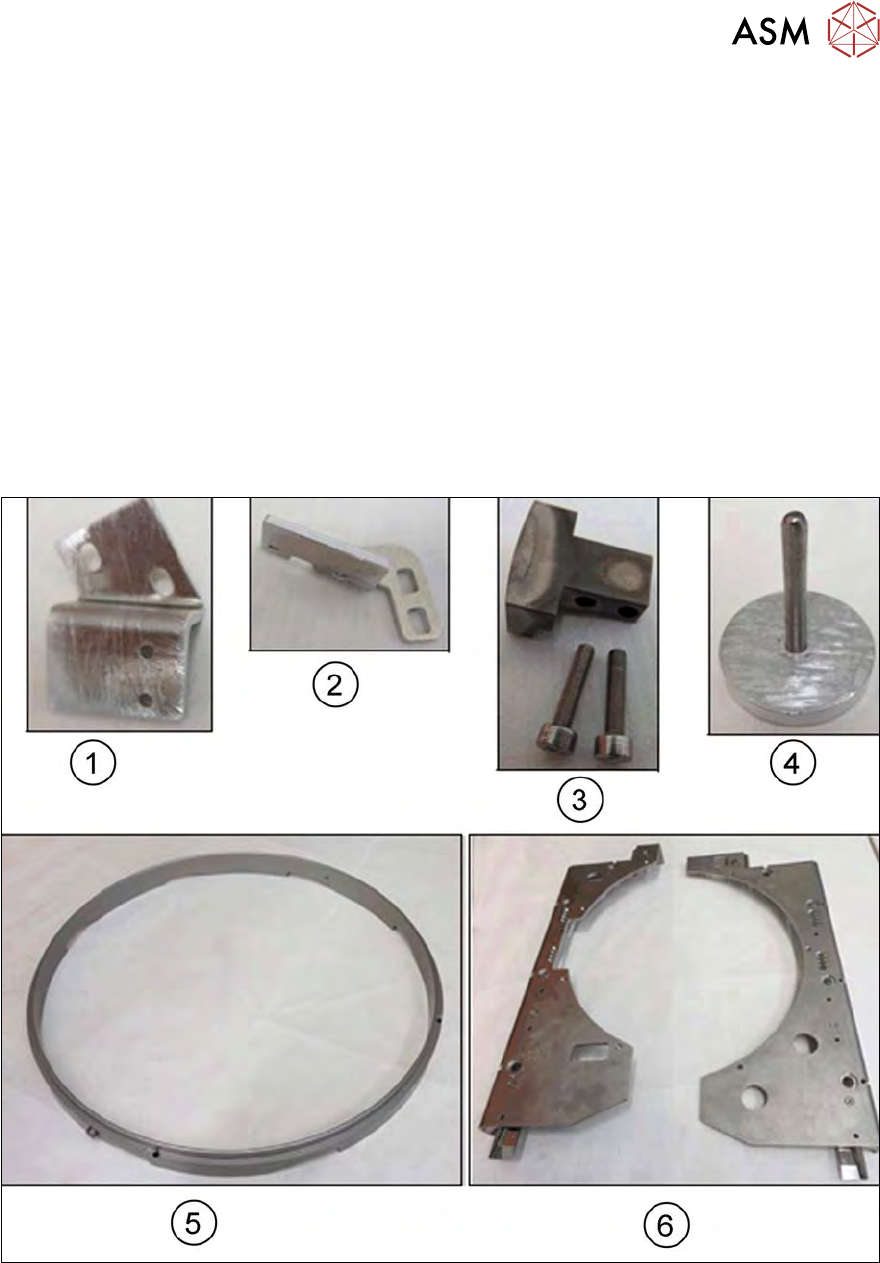
Fig.439:
1. Mounting bracket for sensor 1 (including 2 x M3x6 screws)
2. Mounting bracket for sensor 2 (including 2 x M3x6 screws)
3. Block with fastening screws for clamp
4. The auxiliary tool for fixing the lifting piston [03121551-xx] is supplied and and will in future be
included in the SWS service box.
5. Lifting ring
6. Downholder plate, right and left
12 Wafer stretcher
12.7 Wafer stretcher - configuration changes
310 Service Manual SIPLACE Wafer System (SWS) 11/2018
12.7.3.2 Preparations
► Perform the measures in accordance with section 12.3 "Preparatory measures for working on
the wafer stretcher" [}278].
► Finish all ongoing processes in the SWS module.
► Move the wafer table to the change position.
► From the view, select Manual Operation -> Wafer Handling Systems -> Go to Change Po-
sition.
► Open the clamp.
► From the view, select Manual Operation -> Wafer Handling Systems -> Open Wafer
Clamp.
ð The clamping ring will open and the expansion ring will move downwards.
► Open the expander.
► From the view, select Manual Operation -> Wafer Handling Systems -> Release Ex-
pander.
ð The downholder plate will move upwards.
► From the view, select Production -> Miscellaneous and click the red "off" button there.
ð Shut down the SWS GUI and Linux properly.
► Switch off the SWS at the main switch.
CAUTION
Avoid damage to the gripper
When working on the wafer support, the gripper could be damaged.
► Push the gripper towards the wafer lift and out of the working area for the wafer sup-
port.
12 Wafer stretcher
12.7 Wafer stretcher - configuration changes
Service Manual SIPLACE Wafer System (SWS) 11/2018 311
12.7.3.3 Removing the 8" wafer support
Removing the downholder plate
See also the sections 12.4 "Removing the wafer stretcher" [}279] and 12.6 "Fitting the wafer
stretcher" [}293].
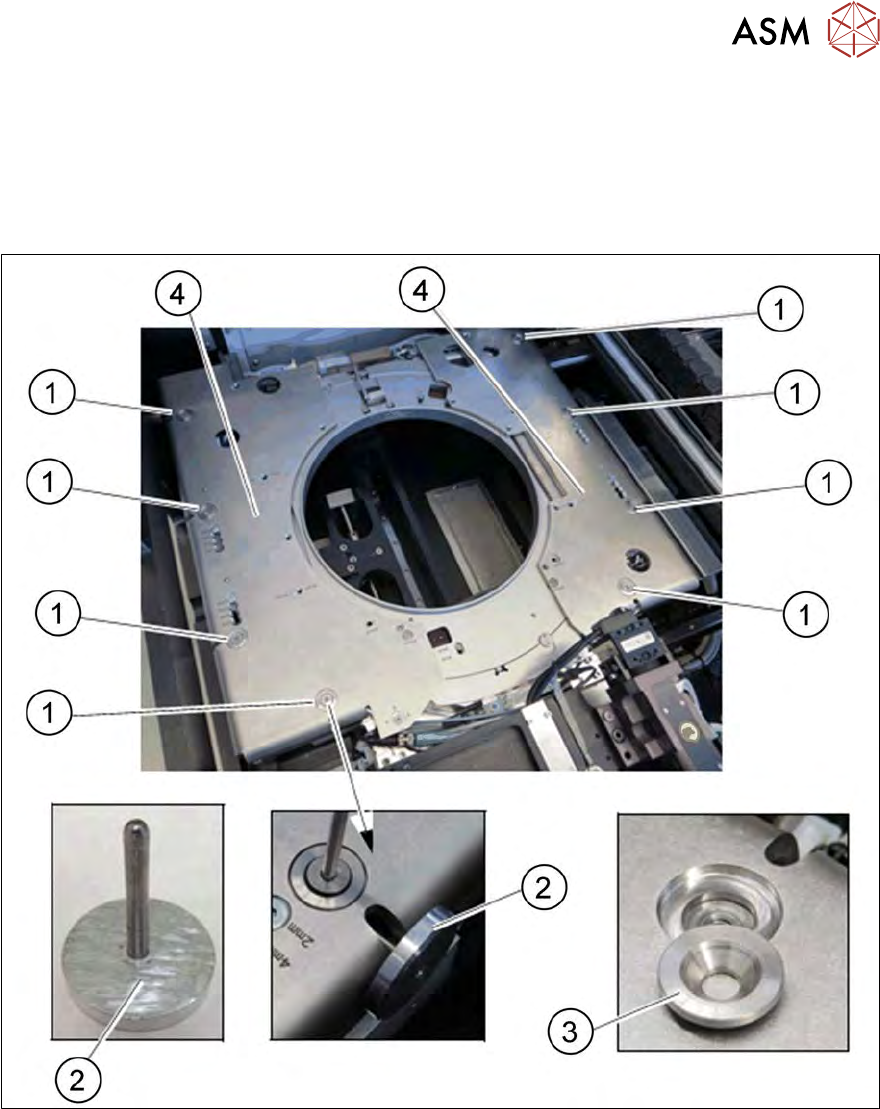
The downholder plate for the relevant wafer support needs to be replaced.
Fig.440: Wafer support - removing the downholder plate
► Insert the auxiliary tool for fixing the lifting piston (2) into the opening and fix the lifting piston
inside with it.
► Remove the four screws (1) on each of the two downholder plates(4), one after the other.
► Remove the conical fixing disk (3). Make sure that you do not lose it as you will need it later
on for refitting.
► Remove the two downholder plates (4).