00195982-03_SM_SWS_EN.pdf - 第448页
16 Software 16.2 Installation of operating system 448 Service Manual SIPLACE Wafer System (SWS) 11/2018 Fig.680: ► Press " Enter ". ð The setup tool start window will be shown. Fig.681:
16 Software
16.2 Installation of operating system
Service Manual SIPLACE Wafer System (SWS) 11/2018 447
16.2.3.3 Restoring the network addresses
The installation of the operating system resets the network address to the default addresses.
For this reason, you usually only need to restore the addresses for the eth0 interface (customer
network interface).
► Open the "Networking" menu in the setup tools as follows:
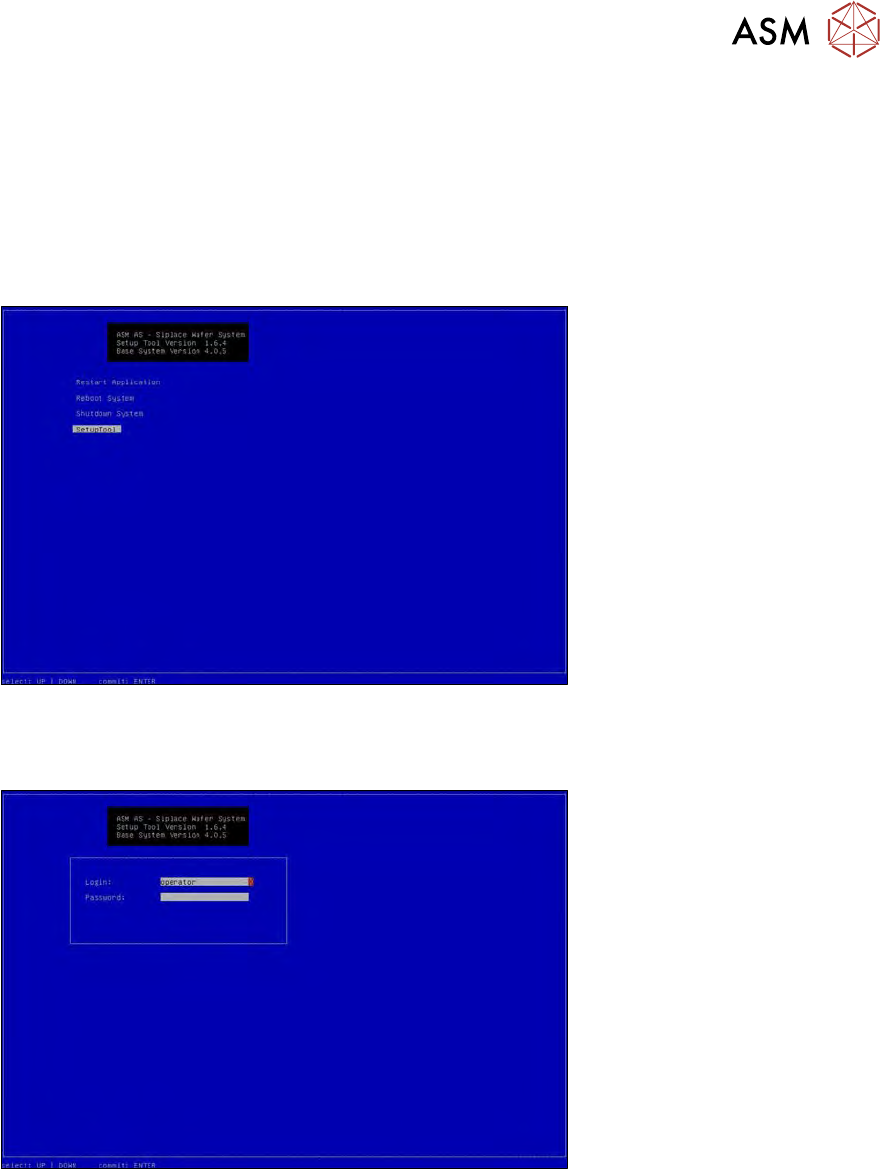
► Start the setup tool with Ctrl+Alt+Q.
ð The start screen will appear.
Fig.678:
► Select "SetupTool" and press "Enter".
ð The following login box will appear.
Fig.679:
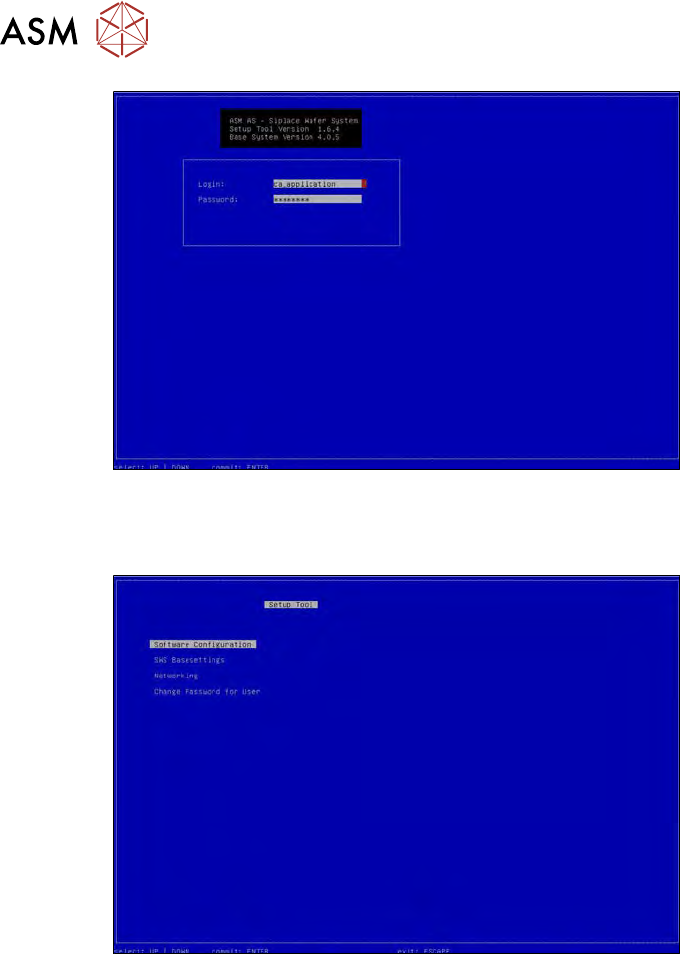
► To log in as administrator, press and hold the Ctrl+Shift keys and enter the character string
capwd (stands for CA password).
► Use the cursor keys to select the password line and enter the following character string as
password: wafer4GOD
ð The login line should now look like this:
16 Software
16.2 Installation of operating system
448 Service Manual SIPLACE Wafer System (SWS) 11/2018
Fig.680:
► Press "Enter".
ð The setup tool start window will be shown.
Fig.681:
16 Software
16.2 Installation of operating system
Service Manual SIPLACE Wafer System (SWS) 11/2018 449
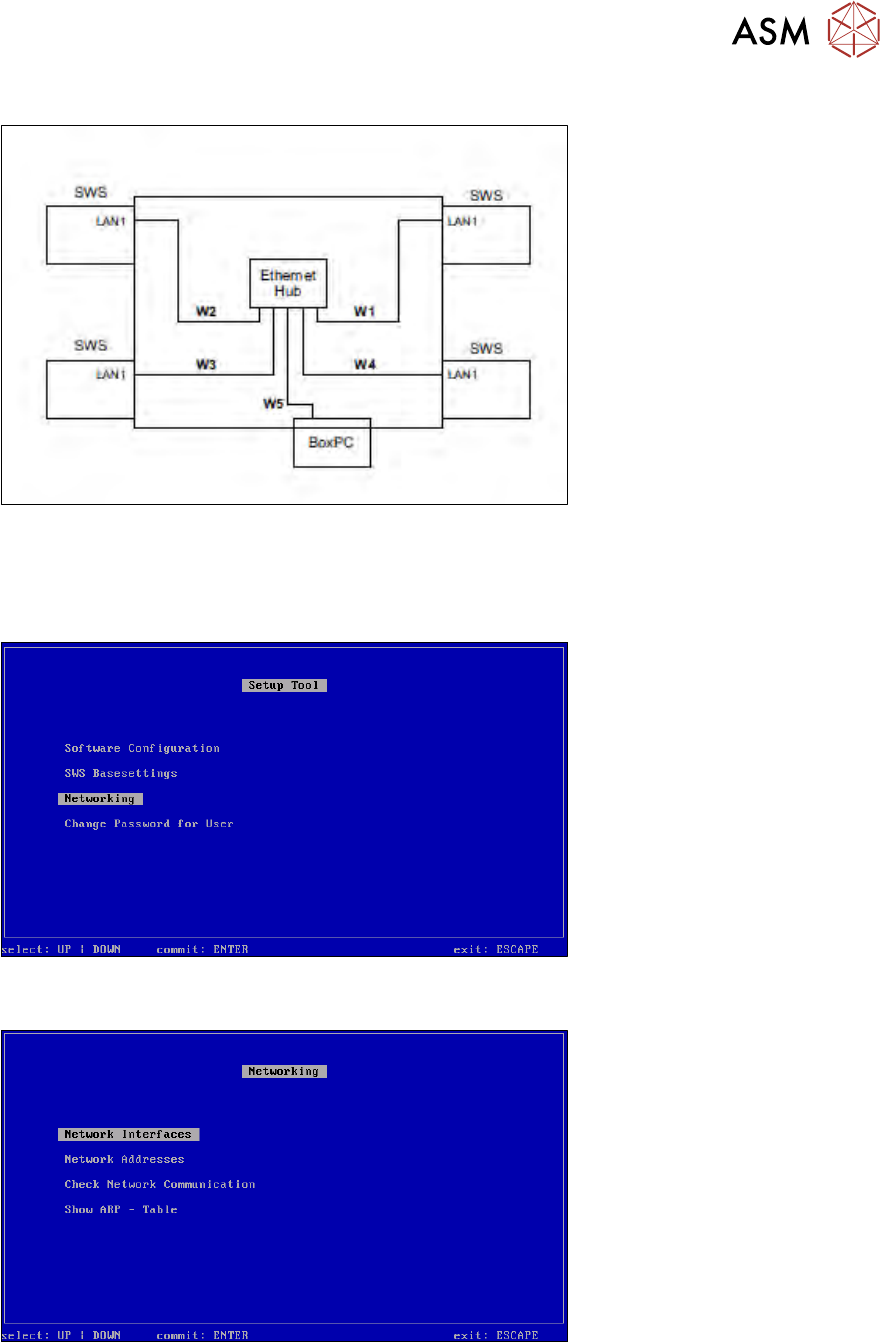
Setting the network addresses for the eth1 interface (connection to SWS station)
Fig.682: Network overview and IP addresses for SWS to station
The networks SWS => wafer map server and SWS =>station each have their own ethernet hub.
The LAN1 port can be found at the top.
► Select "Networking".
Fig.683: Setup tool menu
► Confirm Networking with Enter.
Fig.684: Networking menu
► Confirm Network Interfaces with Enter.