00195982-03_SM_SWS_EN.pdf - 第260页
11 Extension groups 11.1 Wafer supports 260 Service Manual SIPLACE Wafer System (SWS) 11/2018 11.1.3.5 Replacing the solenoid valve for the clamp Fig.354: Solenoid valve for the driver clamp The solenoid valve OUT9 (1) …
11 Extension groups
11.1 Wafer supports
Service Manual SIPLACE Wafer System (SWS) 11/2018 259
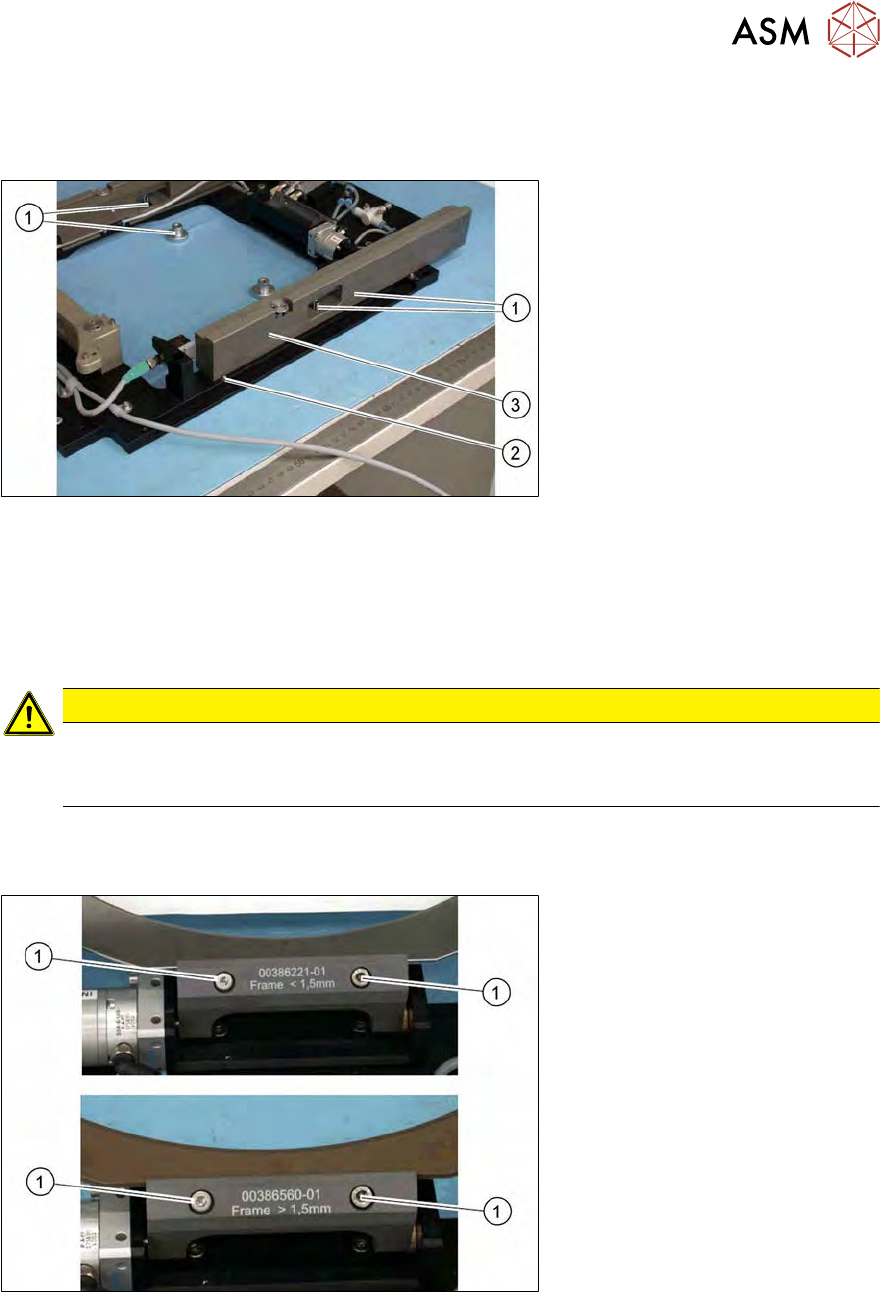
11.1.3.3 Setting the wafer support width
The width of the wafer support strips can be adjusted in accordance with the wafer frame. There
are two different positions (pin inside or pin outside).
Fig.352: Wafer support strip - adjusting the width
Both wafer support strips must be fitted in the same way. This means that both pins are either in-
side or outside. The diagram shows a wafer support strip with one pin (2) on the outside.
► Remove the knurled screw (1) from the wafer support strip (3). Remove both wafer support
strips.
The pin (2) must be either on the inside or outside of both wafer support strips.
CAUTION
Take care of the pneumatic hoses and cables
► Take care of the pneumatic hoses and cables. These may not be pinched or rubbed
against unprotected edges.
11.1.3.4 Replacing the driver on the clamp
The driver is the attachment for two different thicknesses of wafer frame and is fitted to the clamp.
Fig.353: Replacing the clamp driver
Two different drivers for metal and plastic wafer frames.
●
[00386221-xx] for thin, metal wafer frames
●
[00386560-xx] for thicker, plastic wafer frames
► Remove the two screws fastening the driver to the clamp and replace the driver.
► Align the driver with the two fastening screws so that it is centered and parallel to the wafer
frame (within the play of the drilled hole).
11 Extension groups
11.1 Wafer supports
260 Service Manual SIPLACE Wafer System (SWS) 11/2018
11.1.3.5 Replacing the solenoid valve for the clamp
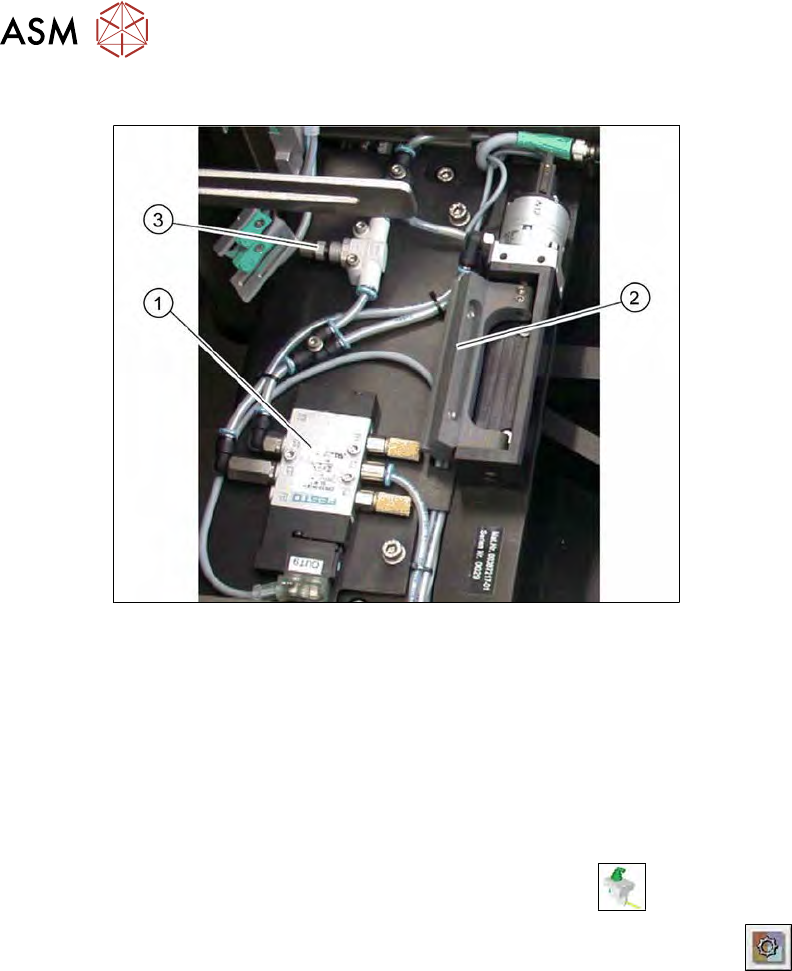
Fig.354: Solenoid valve for the driver clamp
The solenoid valve OUT9 (1) opens and closes the driver clamp (2).
► Unplug the pneumatic and electrical connections on the solenoid valve (OUT9).
► Remove the three fastening screws and then take off the solenoid valve.
► Fit the solenoid valve and restore the pneumatic and electrical connections.
► Check the solenoid valve for functionality.
– Switching on and off,
► Approach the solenoid valve.
► In the toolbar, select the button Manual Settings
.
► Go to Manual Settings and then select the Manual Subsystems
button and then se-
lect IOs (see 14.2 "Manual settings" [}358]).
► Select the Wafertabletab.
– DO09 Wafer clamp opens and closes the clamp.
► Check the input signals for the proximity switch.
– DI12 Wafer clamp open
– DI13 Wafer clamp closed
The inlet air flow restrictor (3) is used to adjust the clamp sequence. The driver must clamp first,
before the four downholders may close.
11 Extension groups
11.1 Wafer supports
Service Manual SIPLACE Wafer System (SWS) 11/2018 261
11.1.3.6 Replacing the clamp assemblies
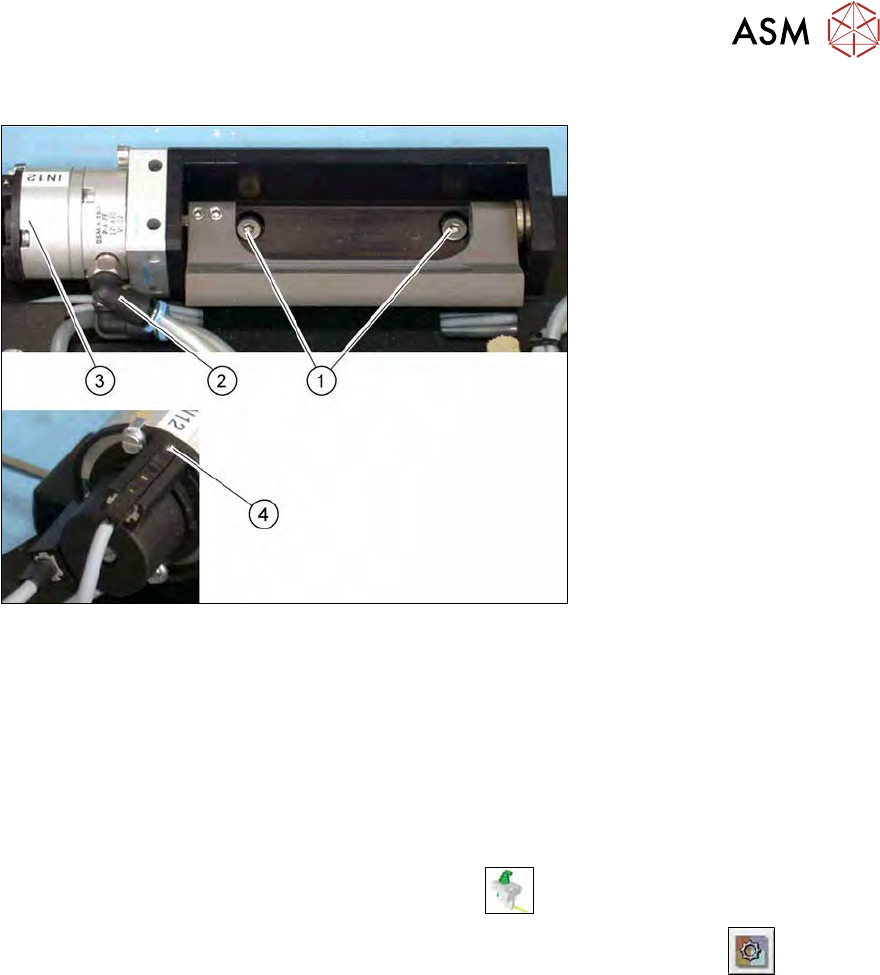
Fig.355: Replacing the clamp assemblies
► Remove the two fastening screws (1).
► Disconnect the pneumatic connections (2).
► Loosen the grub screws (4) for the two proximity switches on the swivel cylinder (3).
► Fit the driver on the new clamp, if necessary.
► Fit the new clamp assembly.
► Align the clamp parallel with the driver and center it.
► Check the input signals for the proximity switch.
► In the toolbar, select the button Manual Settings
.
► Go to the Manual Settings view and select the button Manual Subsystems
and then
select IOs (see 14.2 "Manual settings" [}358]).
► Select the Wafertabletab.
– DO09 Wafer clamp opens and closes the clamp.
► Check the input signals for the proximity switch.
– DI12 Wafer clamp open
– DI13 Wafer clamp closed