00195982-03_SM_SWS_EN.pdf - 第466页
16 Software 16.3 Installing a new software version (GUI) 466 Service Manual SIPLACE Wafer System (SWS) 11/2018 Fig.724: ► Select Yes , to start calibrating the touchscreen. ► Follow the instructions on the screen to com…
16 Software
16.2 Installation of operating system
Service Manual SIPLACE Wafer System (SWS) 11/2018 465
16.2.3.7 Restoring the data from a bug report
The data from a bug report can only be used by specially trained personnel/ASM service special-
ists to restore calibration and product data.
16.2.4 Calibrating the touchscreen
The touchscreen calibration data are lost after reinstallation of the OD.
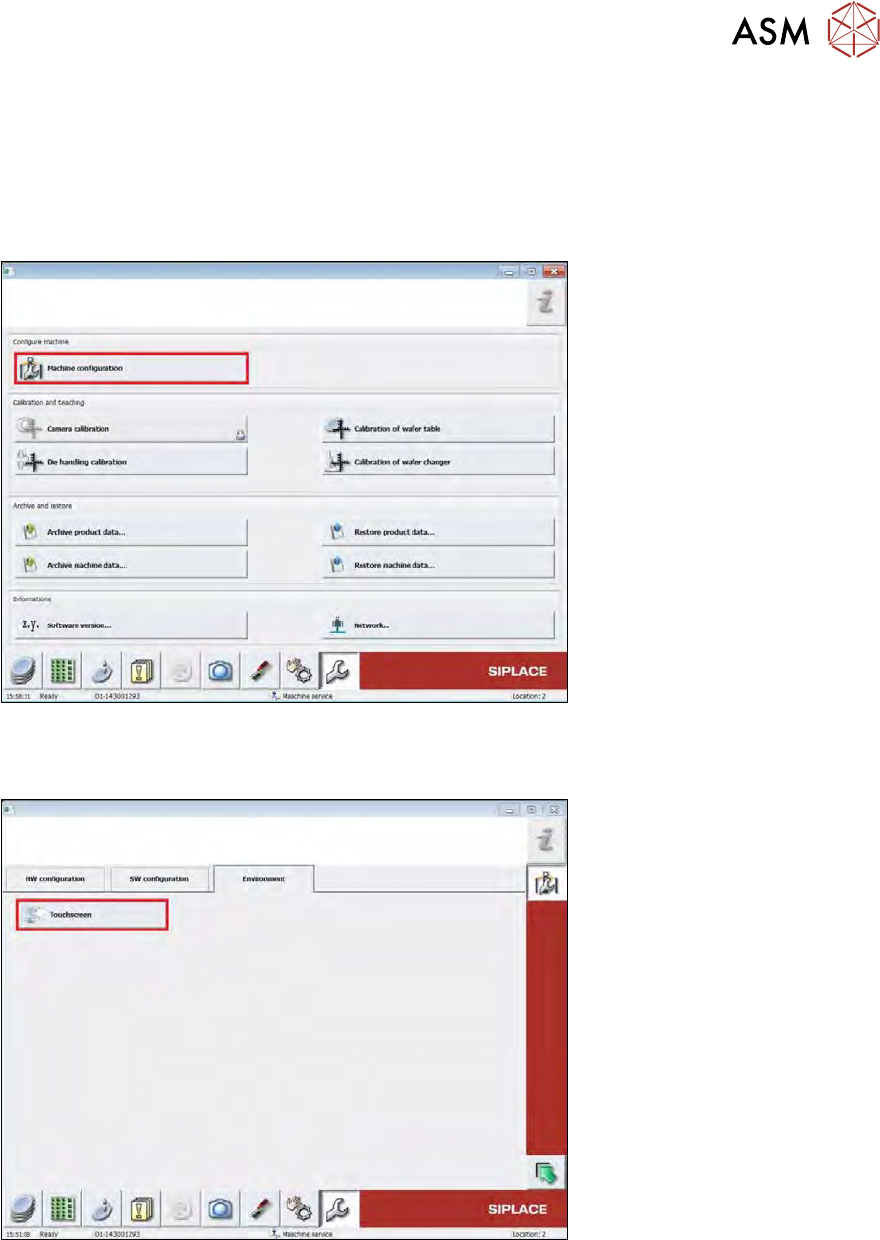
Fig.722:
► To calibrate the touchscreen, switch over to the following view: Service -> Machine configur-
ation.
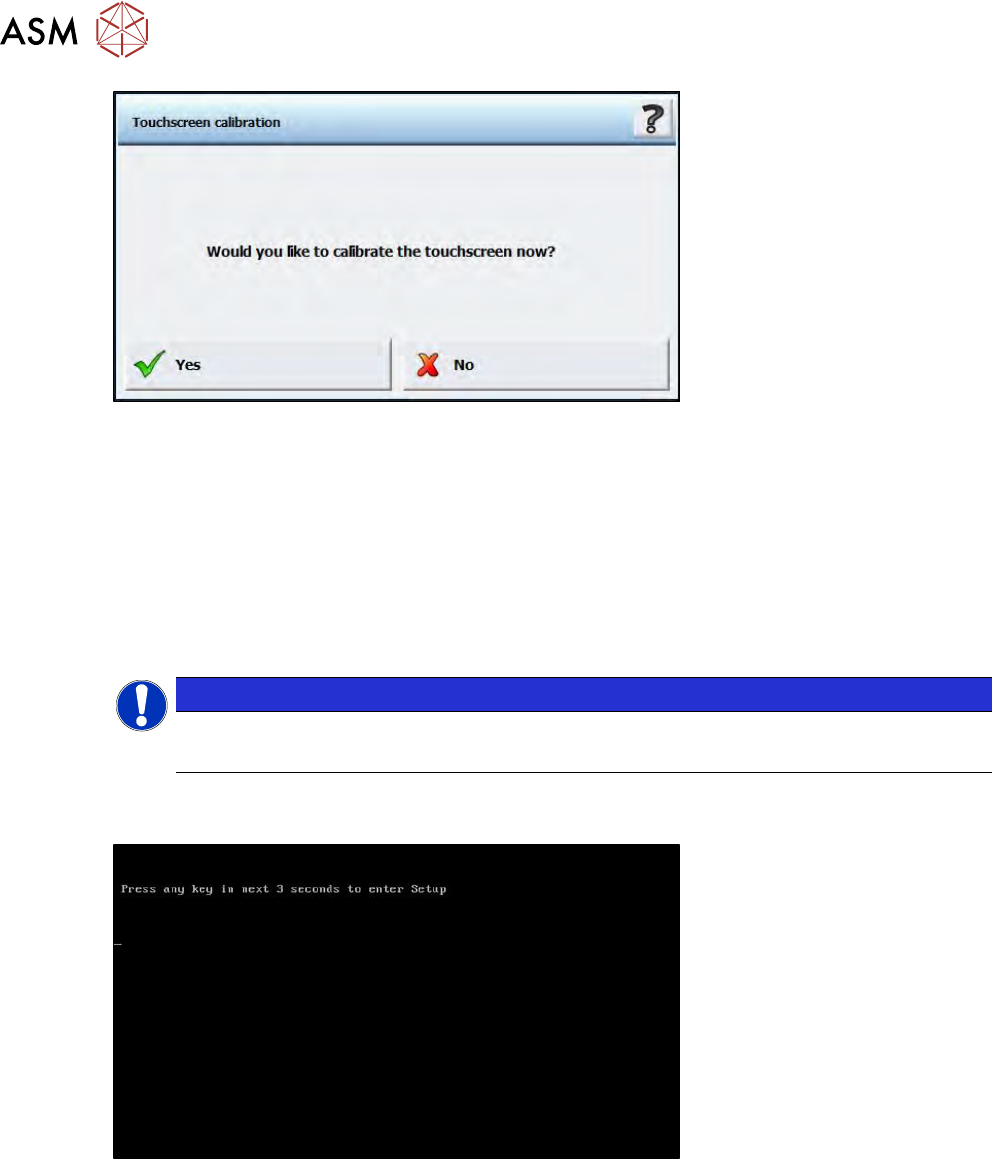
Fig.723:
► Switch over to the page Environment and select Touchscreen.
16 Software
16.3 Installing a new software version (GUI)
466 Service Manual SIPLACE Wafer System (SWS) 11/2018
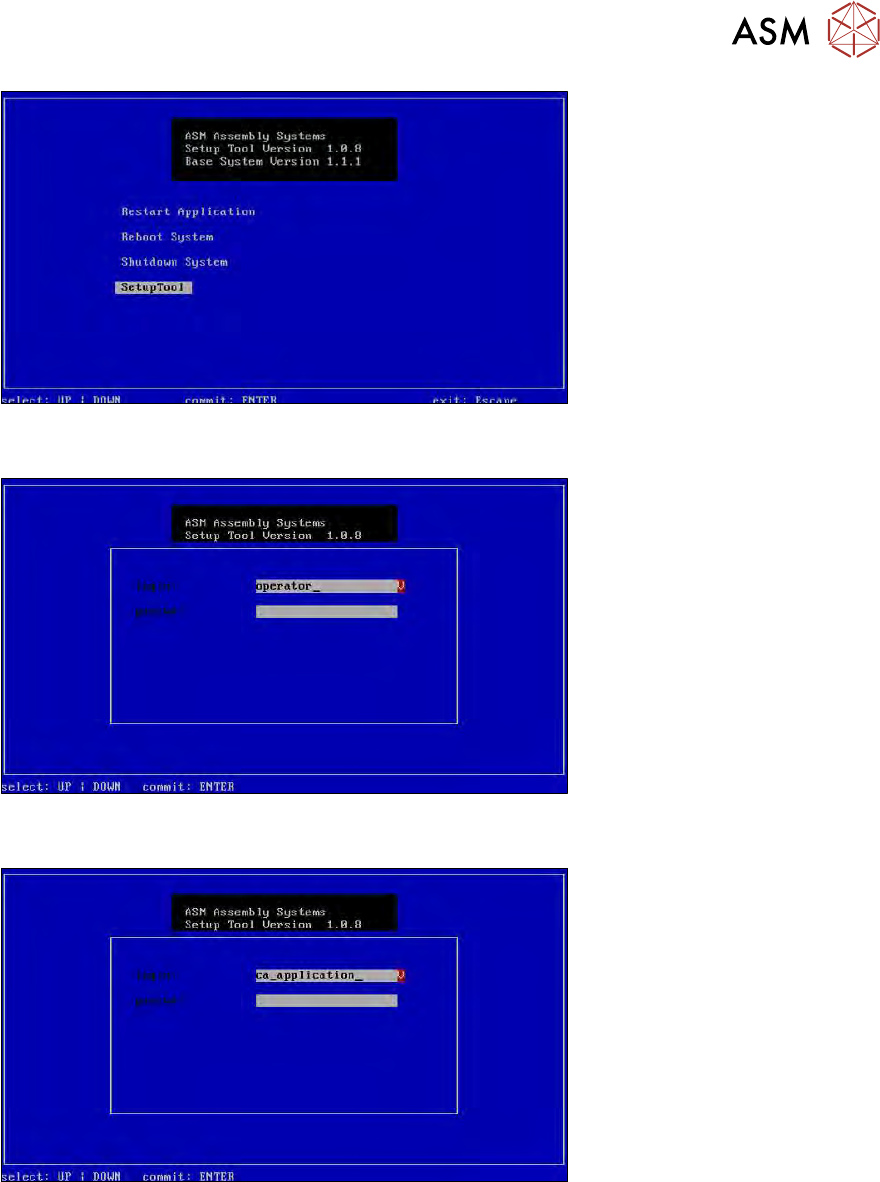
Fig.724:
► Select Yes, to start calibrating the touchscreen.
► Follow the instructions on the screen to complete the calibration process.
16.3 Installing a new software version (GUI)
► For more information, read section 16.2.2 "Installation of operating system" [}436].
16.4 Restoring an old software version (GUI)
NOTICE
You can choose between various options to restore old software versions.
► Use the arrow keys on your keyboard to switch between the options available.
► To reach the start window, select any button.
Or: Ctrl+Alt+Q if the GUI is open.
Fig.725: Select any button to go to the start window
► Navigate with the arrow keys to Setup Tool.
16 Software
16.4 Restoring an old software version (GUI)
Service Manual SIPLACE Wafer System (SWS) 11/2018 467
Fig.726: Start window
► Confirm the SetupTool with Enter.
Fig.727: Enter capwd
► Press and hold the CTRL + SHIFT keys and enter the following: capwd
Fig.728: Eingabe Passwort
► Enter your password: wafer4GOD
► Confirm with Enter.