00195982-03_SM_SWS_EN.pdf - 第438页
16 Software 16.2 Installation of operating system 438 Service Manual SIPLACE Wafer System (SWS) 11/2018 Fig.657: ► Press Enter . ð The SetupTool will then start. 16.2.2.2 Installing the GUI ► Use the cursor keys to sele…
16 Software
16.2 Installation of operating system
Service Manual SIPLACE Wafer System (SWS) 11/2018 437
16.2.2.1 Completing backup of the installed version first
WARNING
► When updating an existing system installation, first complete a backup of the installed
version (see 16.2.1.2 "Backup of Halcon license" [}416]).
► Otherwise, if you do not, you will lose the production data, calibration data and li-
censes!
► Make sure that you use the current OS version (version 8/2018: V4.0.5)
► Boot the BoxPC for the SWS.
It should be booted from the DVD. If it starts from the HDD, check the boot order in the BIOS.
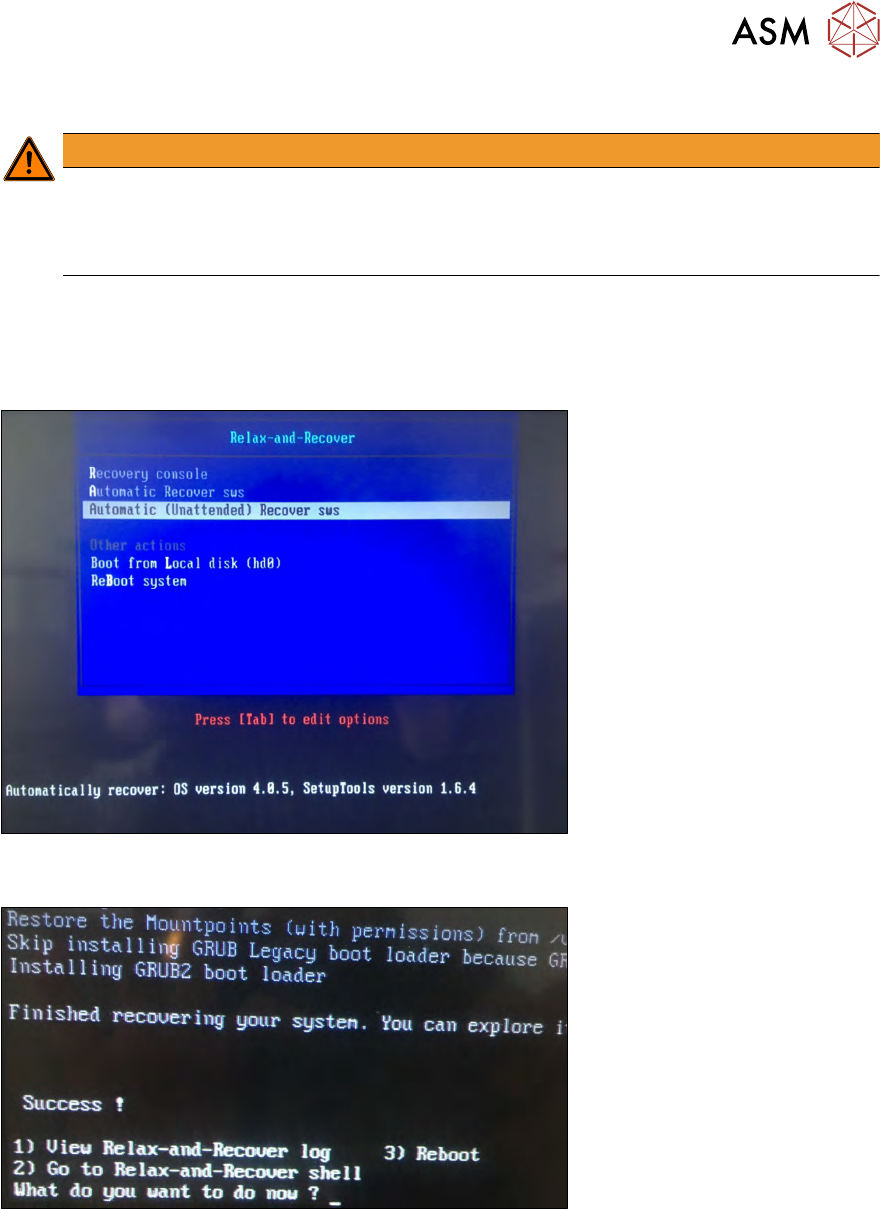
► Select the OS installation Unattended from the start menu, as shown in the diagram below.
Fig.655:
After successfully restoring the system, the following message will be shown:
Fig.656:
► Remove the installation DVD and enter 3. Press Enter.
If the DVD is still in the computer during reboot, you can also choose Boot from local disk
(hd0) as an alternative. The system will then be started from the hard drive.
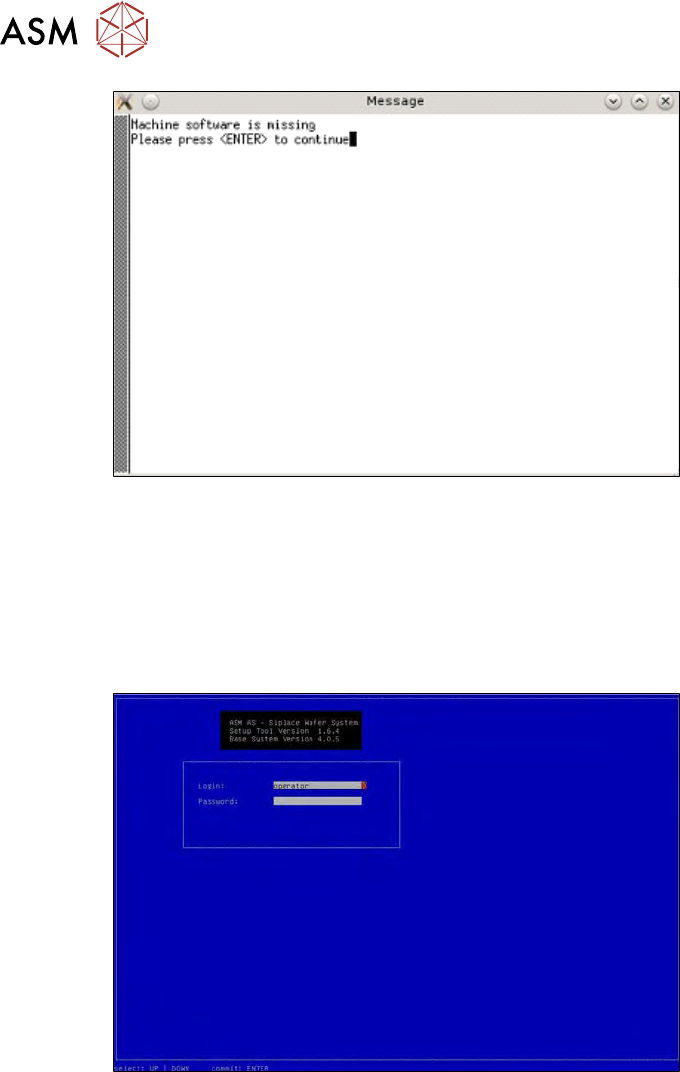
ð Since the GUI has not yet been installed, only the operating system, the message Ma-
chine software is missing will appear (see below).
16 Software
16.2 Installation of operating system
438 Service Manual SIPLACE Wafer System (SWS) 11/2018
Fig.657:
► Press Enter.
ð The SetupTool will then start.
16.2.2.2 Installing the GUI
► Use the cursor keys to select Setup Tool and then press Enter.
ð The following login box will appear.
Fig.658:
► To log in as administrator, press and hold the Ctrl+Shift keys and enter the character string
capwd (stands for CA password).
► Use the cursor keys to select the password line and enter the following character string as
password: wafer4GOD
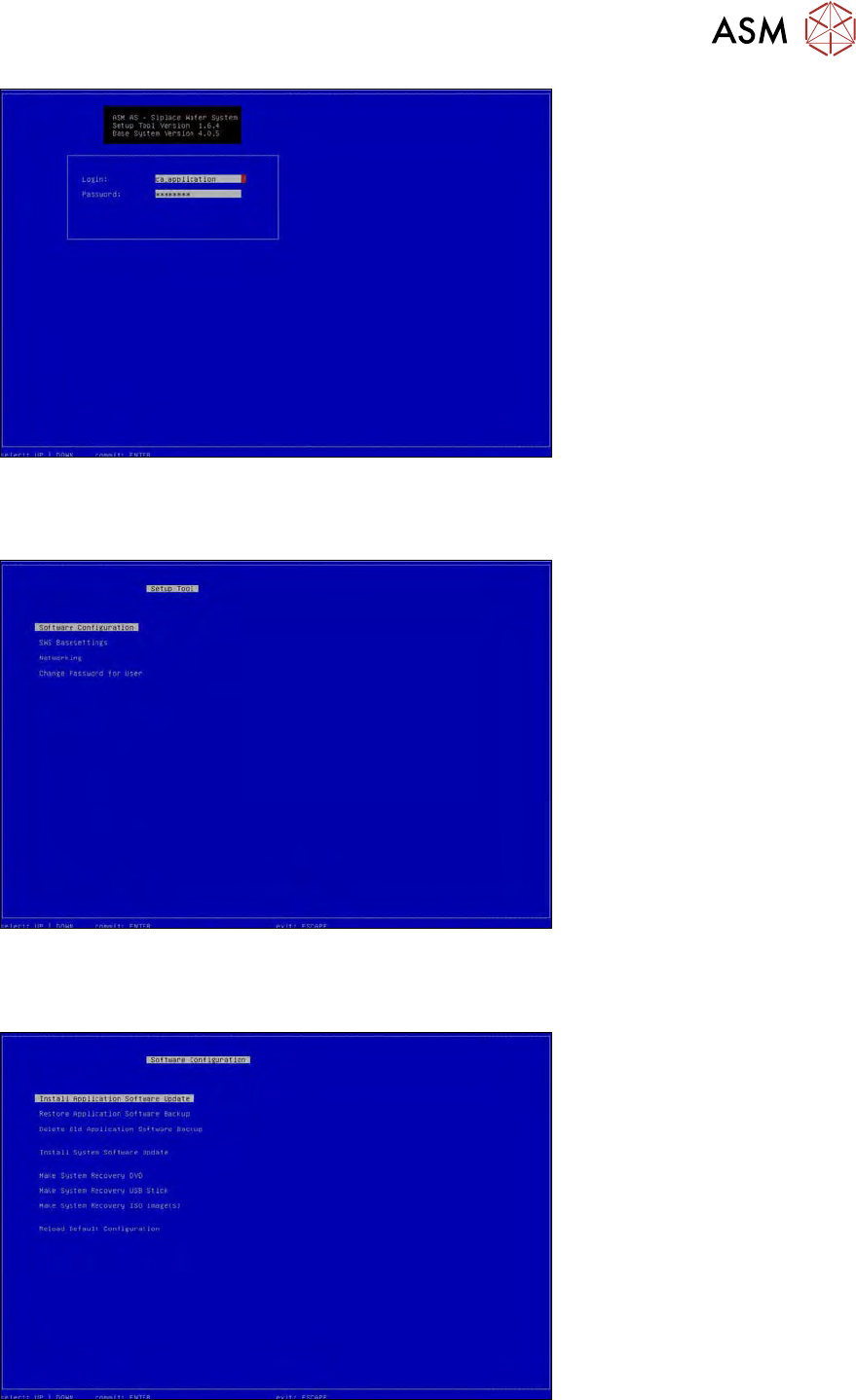
ð The login line should now look like this:
16 Software
16.2 Installation of operating system
Service Manual SIPLACE Wafer System (SWS) 11/2018 439
Fig.659:
► Press Enter.
ð The setup tool start window will be shown.
Fig.660:
► Select Software configuration.
ð The following view will appear:
Fig.661:
► Select Install Application Software Update.