00195982-03_SM_SWS_EN.pdf - 第186页
8 Flip unit 8.4 Calibration – flip unit 186 Service Manual SIPLACE Wafer System (SWS) 11/2018 8.4.4.1 Correction in X direction (segment 1) There are two options for correction in the X direction (rotation direction of f…
8 Flip unit
8.4 Calibration – flip unit
Service Manual SIPLACE Wafer System (SWS) 11/2018 185
8.4.4 Correcting the segment offsets
The offsets for segments 1 and 2 can be corrected with the parameter Offset segment 1 or Offset
segment 2 (see15.3.2.4 "Calibration – segment offset calibration in X direction" [}379]).
Alternatively:
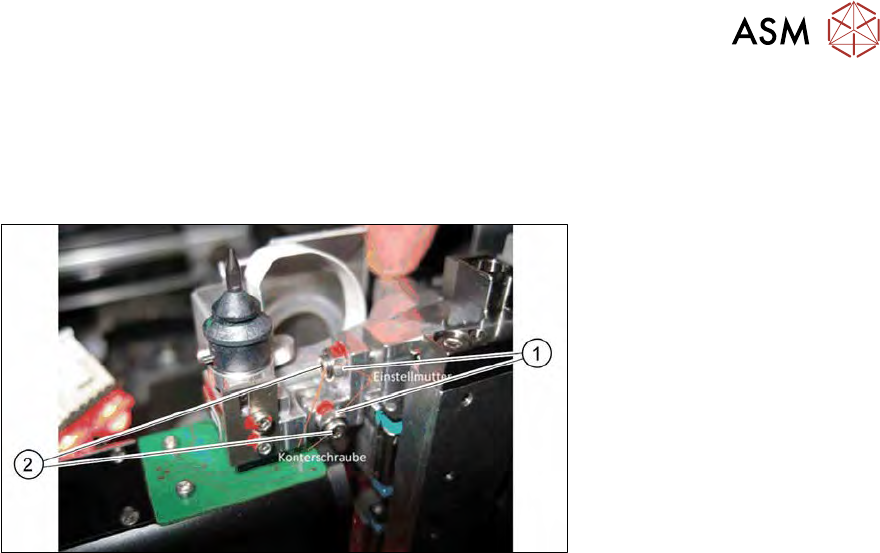
Fig.241: Adjusting nut and counternut for mechanical X and Y setting
Alternatively, the setting can be mechanically set via the adjusting nuts (1) and counternuts (2) at
the segments.
8 Flip unit
8.4 Calibration – flip unit
186 Service Manual SIPLACE Wafer System (SWS) 11/2018
8.4.4.1 Correction in X direction (segment 1)
There are two options for correction in the X direction (rotation direction of flip head):
●
(1) Correction of X offset in the SWS GUI via the parameter Offset segment 1 (see 15.3.2.4
"Calibration – segment offset calibration in X direction" [}379]).
A positive entry moves the print to the left while a negative offset entry moves the print to the
right.
●
(2) Move the print via the adjusting nut at the segment.
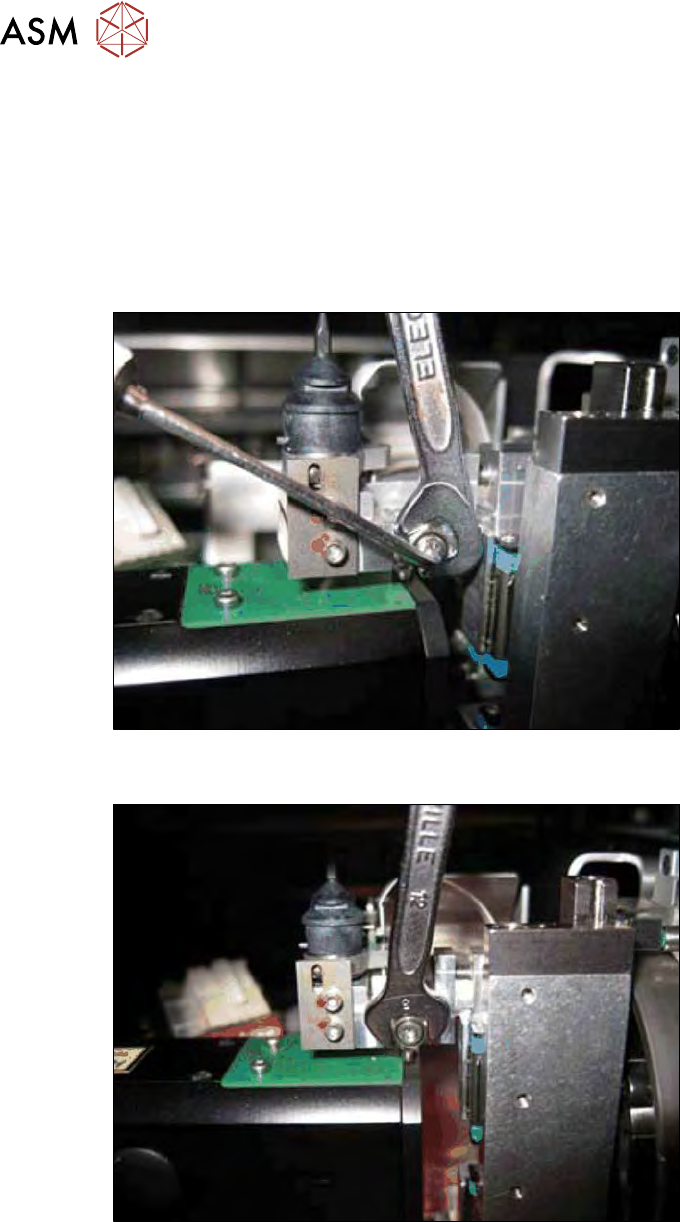
To adjust the adjusting nut, you first need to loosen the counternut (see below).
Fig.242: Segment 1 - loosening the counternut (X direction)
► Hold the adjusting nut with the fork wrench and open the counternut with the Allen key.
Fig.243: Segment 1 - turning the X adjusting nut
Turning the adjusting nut enables you to correct the segment offset:
Setting valid for segment 1:
●
Moving the print to the right -> turn the X adjusting nut clockwise.
●
Moving the print to the left -> turn the X adjusting nut anticlockwise.
8 Flip unit
8.4 Calibration – flip unit
Service Manual SIPLACE Wafer System (SWS) 11/2018 187
8.4.4.2 Correction in Y direction (segment 1)
In the Y direction, the offset can only be corrected via the adjusting nut at the relevant segment.
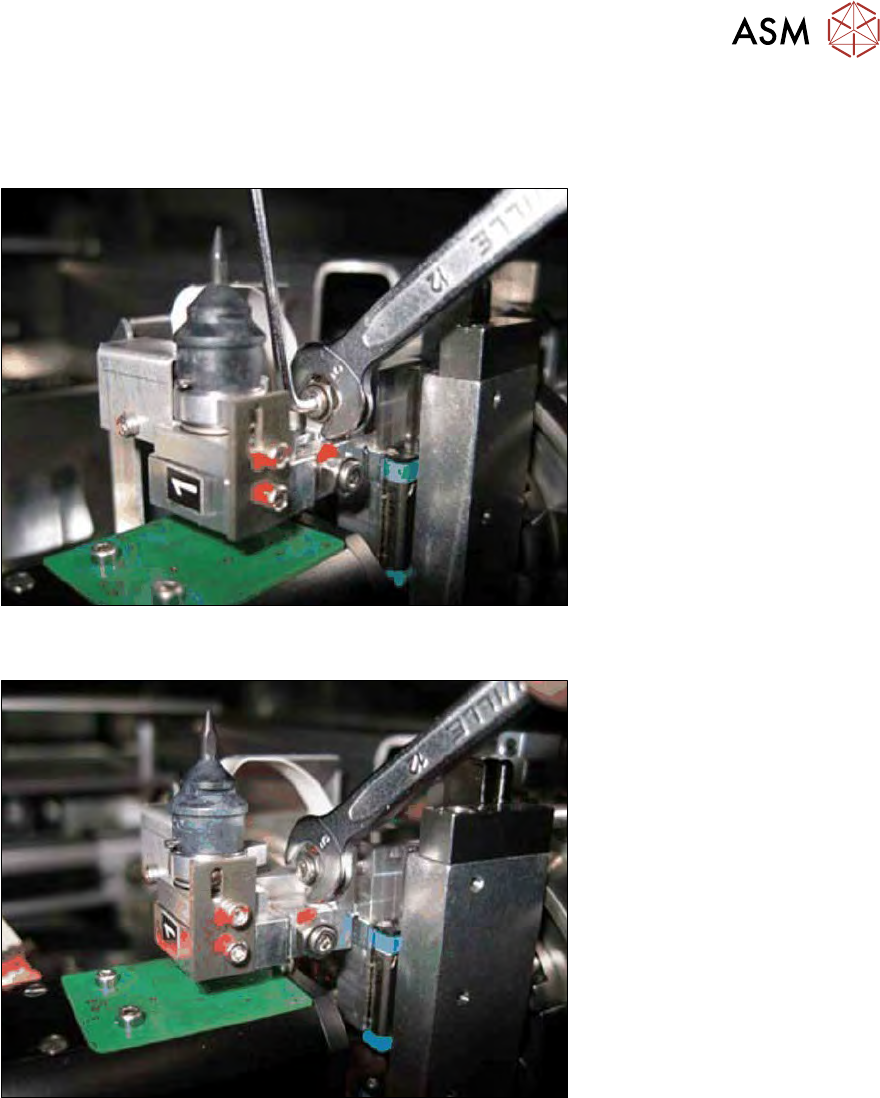
To adjust the adjusting nut, you first need to loosen the counternut (see below).
Fig.244: Segment 1 - loosening/tightening the counternut (Y direction)
► Hold the adjusting nut with the fork wrench and loosen the counternut with the Allen key.
Fig.245: Segment 1 - turn the adjustment screw (Y direction)
Effect of Y adjusting nut
●
Moving the print downwards -> turn the Y adjusting nut clockwise.
●
Moving the print upwards -> turn the Y adjusting nut anticlockwise.
► After successful correction, hold the adjusting nut in position with the fork wrench and tighten
the counternut with the Allen key.