00195982-03_SM_SWS_EN.pdf - 第435页
16 Software 16.2 Installation of operating system Service Manual SIPLACE Wafer System (SWS) 11/2018 435 Fig.653: ► Select Networking . ► Select Network Interfaces . Customer network interface ► Select Customer Network I…
16 Software
16.2 Installation of operating system
434 Service Manual SIPLACE Wafer System (SWS) 11/2018
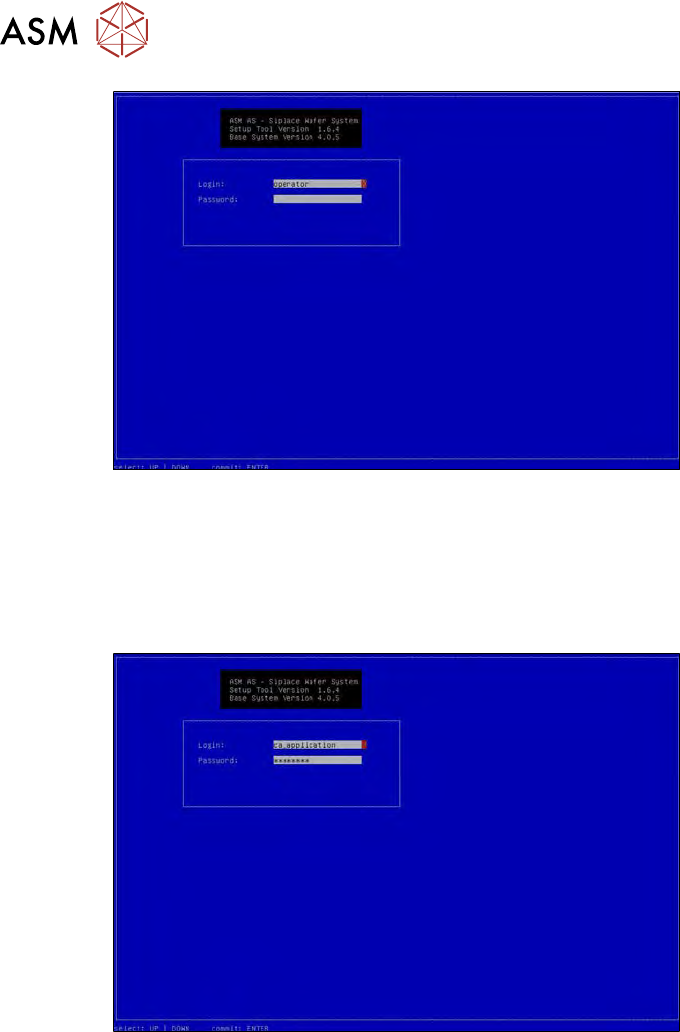
Fig.651:
► To log in as administrator, press and hold the Ctrl+Shift keys and enter the character string
capwd (stands for CA password).
► Use the cursor keys to select the password line and enter the following character string as
password: wafer4GOD
ð The login line should now look like this:
Fig.652:
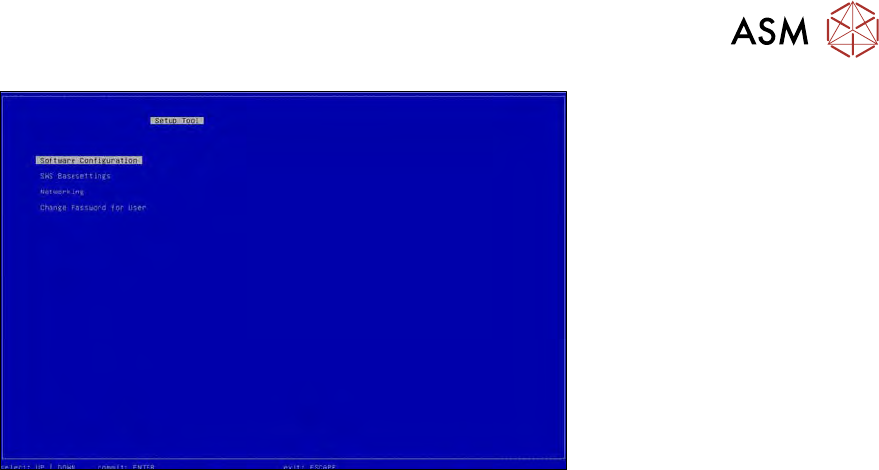
► Press Enter.
ð The setup tool start window will be shown.
16 Software
16.2 Installation of operating system
Service Manual SIPLACE Wafer System (SWS) 11/2018 435
Fig.653:
► Select Networking.
► Select Network Interfaces.
Customer network interface
► Select Customer Network Interface.
The eth0 interface will be shown. Make a note of the addresses and the interface names. The cus-
tomer interface is need, for example, for connecting to a wafer map server (Kynesis ALPS).
SWS & station network interface
► Select SWS & Station Network Interface.
●
This shows the eth1 interface, used to connect to the station.
●
This is where the address for the connection to the station is shown, for example. These ad-
dresses are fixed as a default.
Format: 192.168.255.24x
The relevant location is entered for x. At location 2, the SWS therefore has the address
192.168.255.242.
For an overview of the addresses (eth0) for all SWSs at the station, refer to Networking -> Net-
work Addresses.
16 Software
16.2 Installation of operating system
436 Service Manual SIPLACE Wafer System (SWS) 11/2018
16.2.2 Installation of operating system
NOTICE
Before the installation, you should make a note of the settings for the fixed SWS IP ad-
dresses and the relevant placement machine location (see 16.2.1.9 "Adding network ad-
dresses" [}433]).
NOTICE
You can choose between various options during the installation.
► Use the arrow keys on your keyboard to switch between the options available.
NOTICE
► To create the required effect, confirm each entry with Enter.
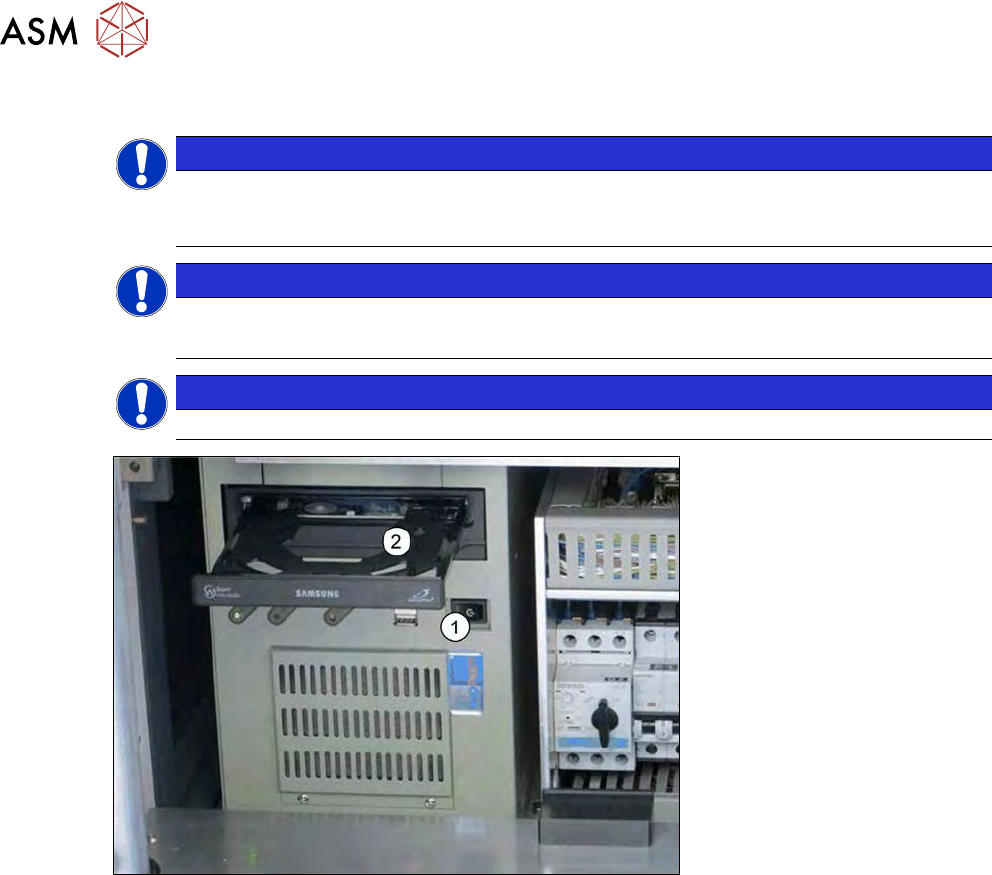
Fig.654: PC in the SWS supply unit
► Start the PC (1). The PC is located behind the front door in the SWS supply unit.
► You can change the boot order in BIOS, if needed, so that the computer can be started from
the CD/DVD drive.
► Insert the CD (2).