00195982-03_SM_SWS_EN.pdf - 第420页
16 Software 16.2 Installation of operating system 420 Service Manual SIPLACE Wafer System (SWS) 11/2018 Fig.620: ► Select the SW configuration tab. Fig.621: ► Take the USB stick shown in the diagram from the SW package…
16 Software
16.2 Installation of operating system
Service Manual SIPLACE Wafer System (SWS) 11/2018 419
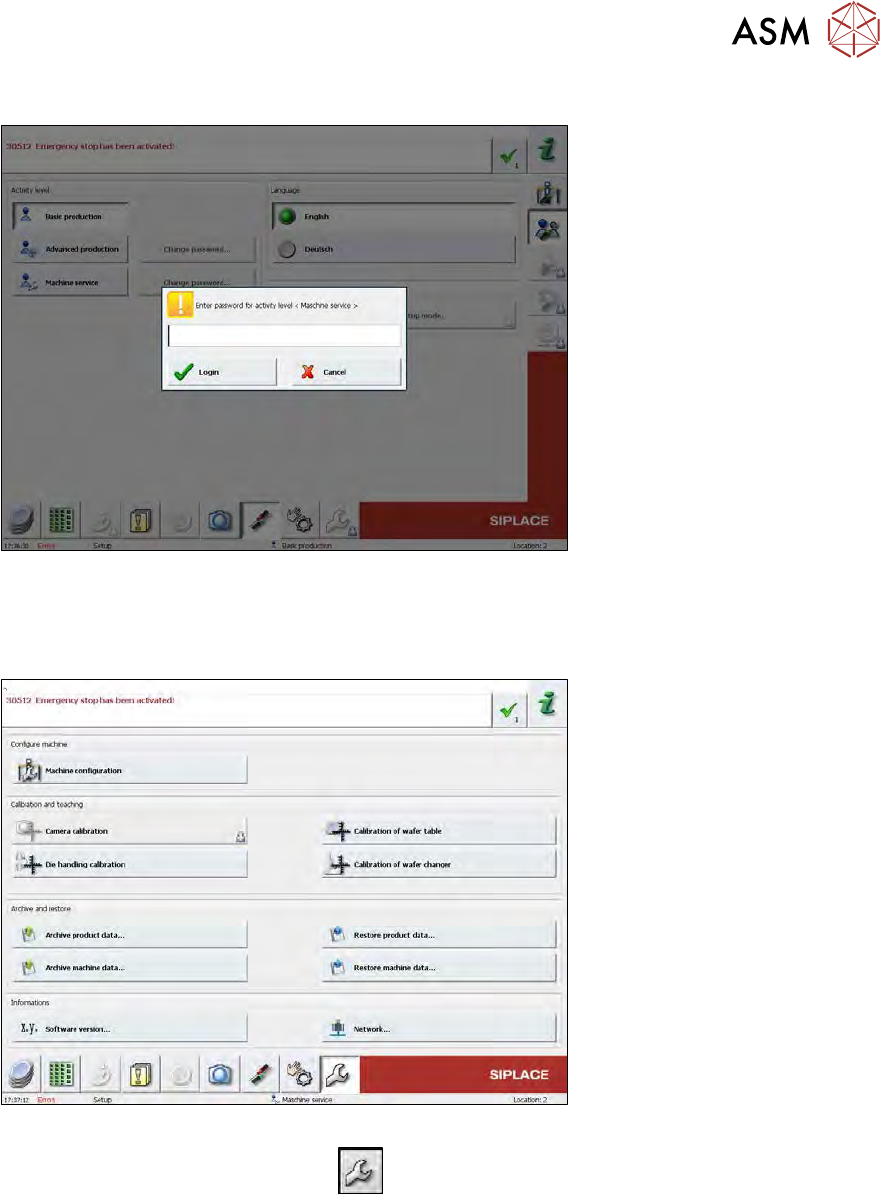
16.2.1.4 Restoring the Halcon license via the GUI
Fig.618:
► Switch over to the user level Machine service, by selecting the Machine service button and
entering the password service1.
► Select Login.
Fig.619:
► Switch over to the Service menu
.
► Select Machine configuration.
16 Software
16.2 Installation of operating system
420 Service Manual SIPLACE Wafer System (SWS) 11/2018
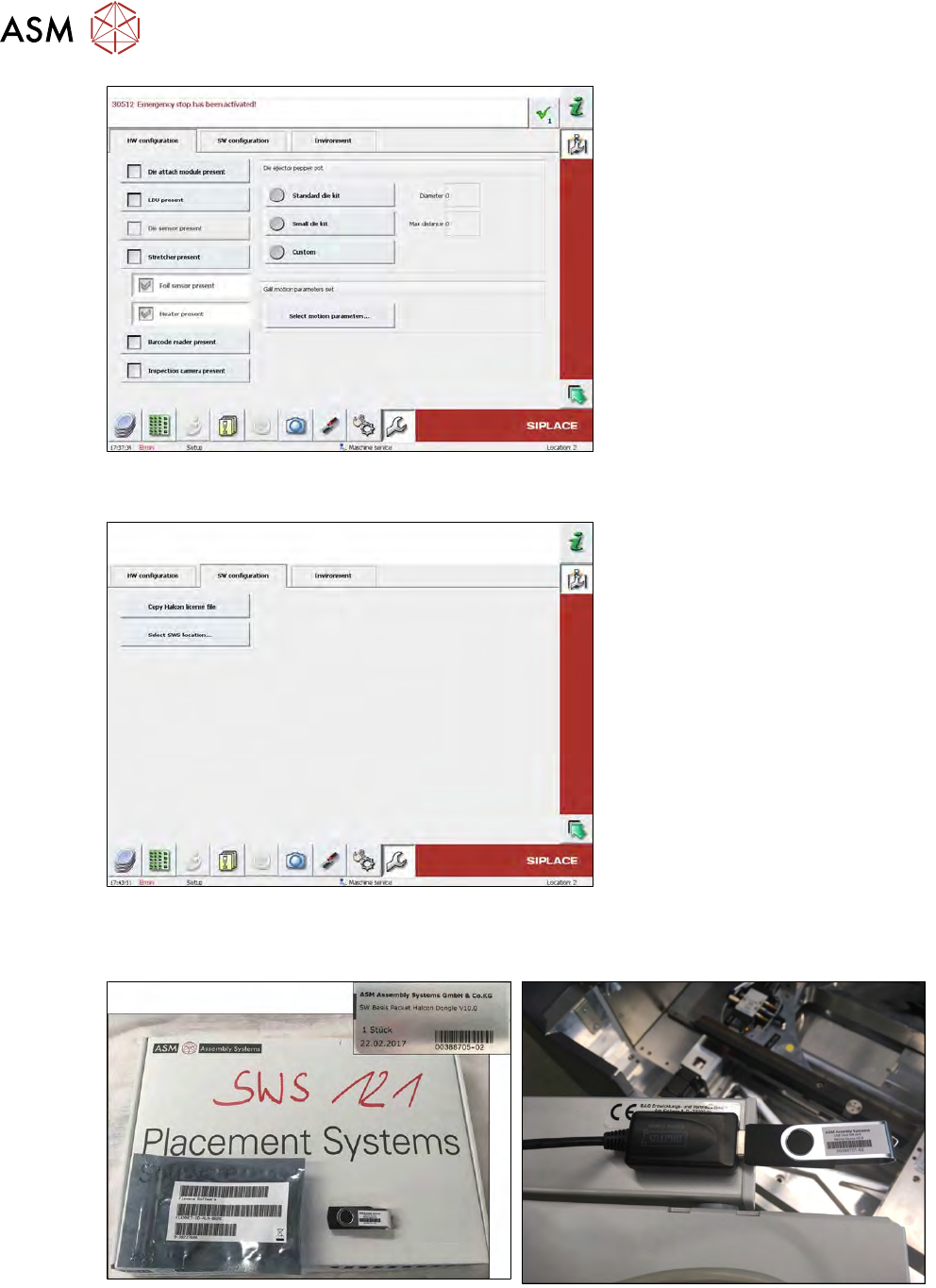
Fig.620:
► Select the SW configuration tab.
Fig.621:
► Take the USB stick shown in the diagram from the SW package delivered with the SWS and
select Copy Halcon license file.
Fig.622: Halcon dongle SW package and Halcon dongle
► Make sure that, when you replace the SWS PC, the green Halcon dongle (see photo) has
been unplugged from the old BoxPC and connected to the new one.
The SWS Vision system will not work without the dongle!
16 Software
16.2 Installation of operating system
Service Manual SIPLACE Wafer System (SWS) 11/2018 421
16.2.1.5 Backup of installed SWS software via Linux console
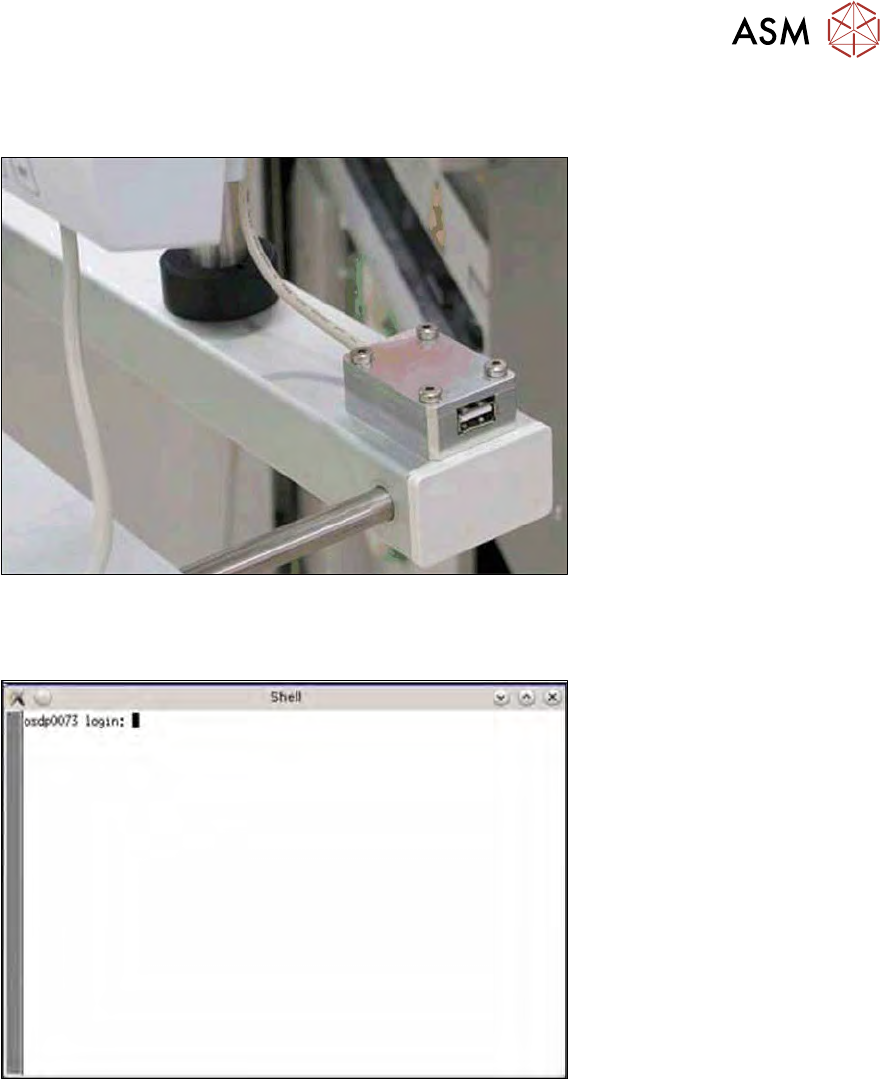
► Connect a USB stick to the port provided on the computer.
Fig.623: USB port on the SWS monitor
► To create the required effect, confirm each entry with Enter.
► Open the terminal with CTRL + ALT + X.
Fig.624: Open terminal
► Enter the following in the terminal: launch.
► Enter your password: launch.