00195982-03_SM_SWS_EN.pdf - 第332页
12 Wafer stretcher 12.8 Setting the sag sensor IN 19 332 Service Manual SIPLACE Wafer System (SWS) 11/2018 12.8.3.1 Checking the "switching threshold" function ► Lift the expansion plate slightly. ð The value f…
12 Wafer stretcher
12.8 Setting the sag sensor IN 19
Service Manual SIPLACE Wafer System (SWS) 11/2018 331
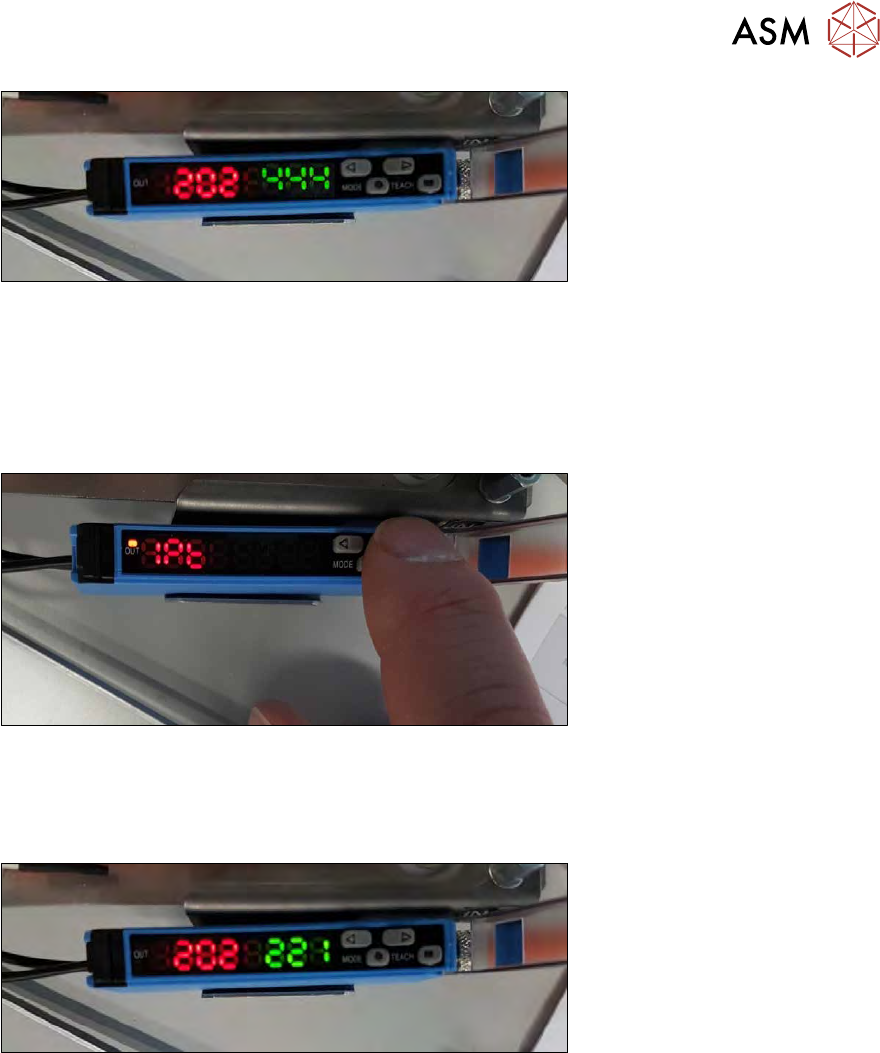
Fig.469:
●
The diagram shows the old value taught for the switching threshold 444 (green).
●
The current value for the light intensity at the receiver (R) is 202 (red).
The expansion plate with the 1 mm distance plates impairs the light emitted by the transmitter (S)
to such a degree that only a residual light intensity of 202 arrives at the receiver (R).
► Press the teach-in button for 3 seconds.
Fig.470:
► Press the arrow key until the display shows 1Pt.
ð The "1 point teach-in" calibration is now active.
► Press the teach-in button again.
Fig.471:
●
The switching threshold display (green) will flash.
●
The switching threshold (green) is calibrated to the light intensity value 202 (red).
●
After successful calibration, the display will change again to fixed values.
●
The light intensity on the receiver will still show 202 (red).
●
A value of 221 (green) will be shown for the calibrated switching threshold.
●
The switching threshold is calculated internally from the light received at the receiver (R) plus
10% → light intensity 202 + 10% (ca. 20) → 221 (green).
●
The values are calculated more accurately internally, which leads to slightly different values.
12 Wafer stretcher
12.8 Setting the sag sensor IN 19
332 Service Manual SIPLACE Wafer System (SWS) 11/2018
12.8.3.1 Checking the "switching threshold" function
► Lift the expansion plate slightly.
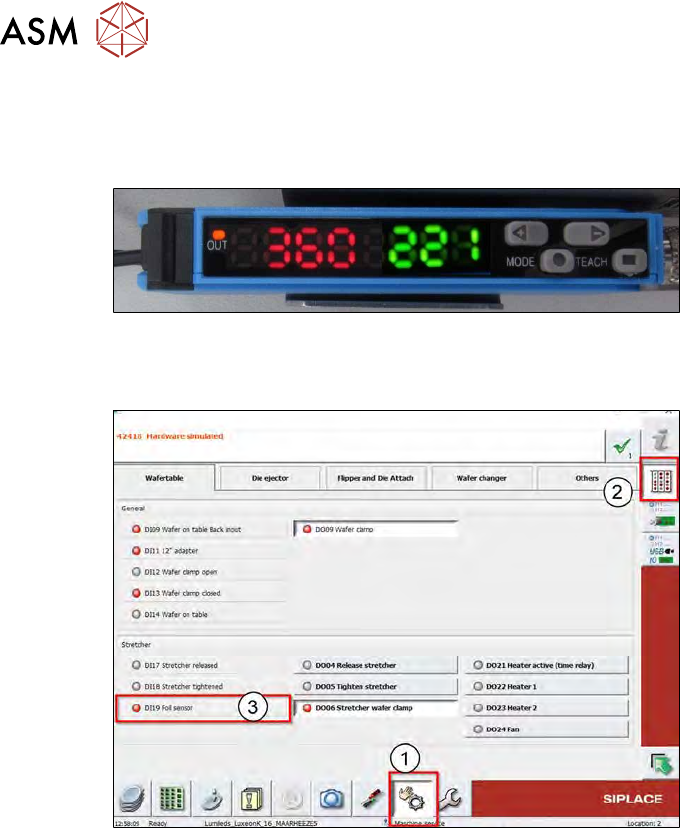
ð The value for the light intensity at the receiver (R) will increase.
Fig.472:
●
As soon as the light intensity exceeds the value for the switching threshold, the orange OUT
message should shine and the evaluation unit should send a signal to the GUI.
Fig.473:
●
This message can be checked in the I/O functions of the SWS GUI.
12.8.4 Final work
► Fit all expansion and cover plates back onto the wafer stretcher.
► Check the function of the expansion plates and the expansion ring with the help of the SWS
GUI functions.
► Shut down the SWS software.
► Switch the SWS off.
► Disconnect the SWS from the power supply.
► Fit the SWS into the CA machine and connect the SWS to the power and air supplies.
ð The SWS and the CA machine are now ready for operation again.
13 BoxPC, GALIL cards and axis control
13.1 Removing and replacing the BoxPC
Service Manual SIPLACE Wafer System (SWS) 11/2018 333
13 BoxPC, GALIL cards and axis control
13.1 Removing and replacing the BoxPC
13.1.1 Preparatory tasks
13.1.1.1 Data backup
► Create a recovery DVD for the BoxPC.
► Perform a machine data backup run.
► Run a process data backup.
► Generate a bug report.
This data, generated multiple times, are stored in case any data loss occurs.
13.1.1.2 Preparing the SWS
► Move the wafer lift to the magazine removal position (Press Remove Magazine).
► Shut down the SWS software.
► Disconnect the SWS from the mains power supply.
► Dismantle and remove the SWS from the CA machine.
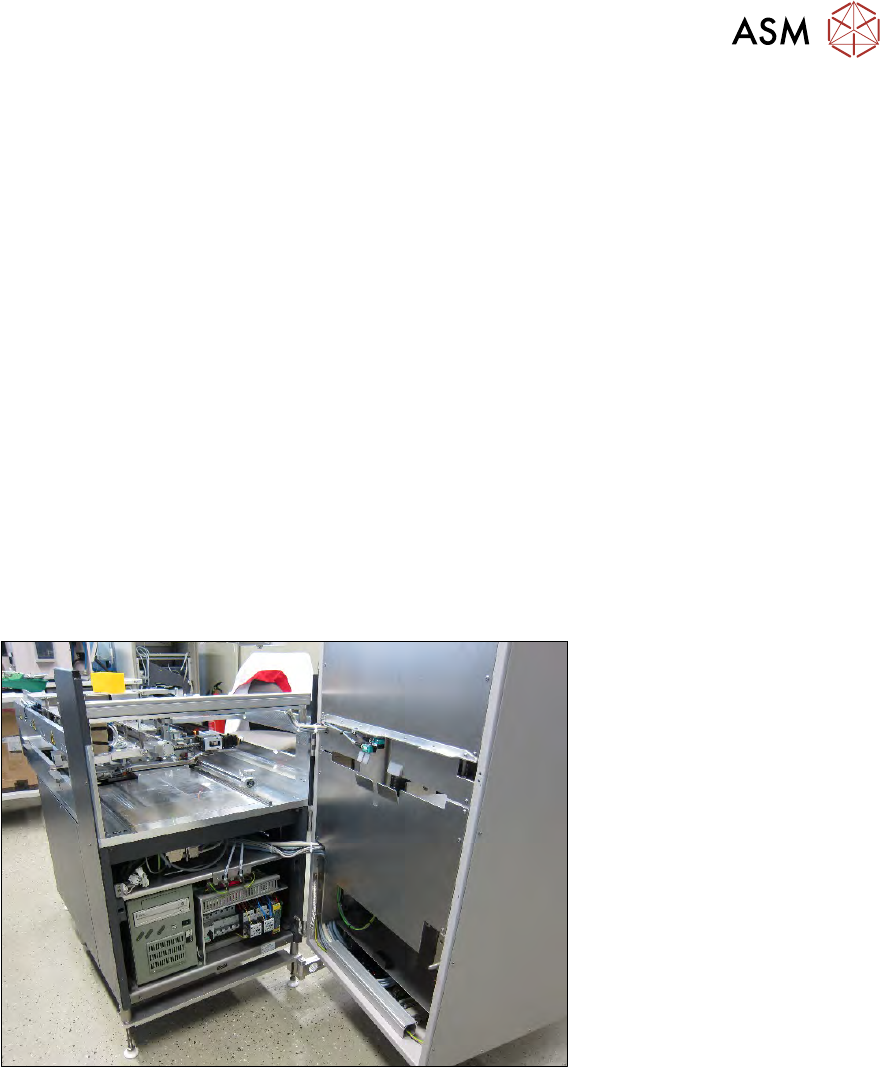
Fig.474:
► Fold the wafer lift to the side, so that you can access the BoxPC with obstructions (see also
4.3 "Swinging up the magazine lift" [}65]).