00195982-03_SM_SWS_EN.pdf - 第306页
12 Wafer stretcher 12.7 Wafer stretcher - configuration changes 306 Service Manual SIPLACE Wafer System (SWS) 11/2018 12.7.1.2 Settings Fig.437: SIPLACE SWS wafer stretcher - setting the stretch factor ► Remove the scre…
12 Wafer stretcher
12.7 Wafer stretcher - configuration changes
Service Manual SIPLACE Wafer System (SWS) 11/2018 305
12.7 Wafer stretcher - configuration changes
12.7.1 Mechanically setting the stretch factor
The stretch factor can be mechanically set in four steps on the SIPLACE SWS wafer stretcher. You
need to adjust the settings accordingly at six points.
12.7.1.1 Preparations
► Perform the measures in accordance with section 12.3 "Preparatory measures for working on
the wafer stretcher" [}278].
► Finish all ongoing processes in the SWS module.
► Move the wafer table to the change position.
► From the view, select Manual Operation -> Wafer Handling Systems -> Go to Change Po-
sition.
► Open the clamp.
► From the view, select Manual Operation -> Wafer Handling Systems -> Open Wafer
Clamp.
ð The clamping ring will open and the expansion ring will move downwards.
► Open the expander.
► From the view, select Manual Operation -> Wafer Handling Systems -> Release Ex-
pander.
ð The downholder plate will move upwards.
► From the view, select Production -> Miscellaneous and click the red "off" button there.
ð Shut down the SWS GUI and Linux properly.
► Switch off the SWS at the main switch.
CAUTION
Avoid damage to the gripper
When working on the wafer support, the gripper could be damaged.
► Push the gripper towards the wafer lift and out of the working area for the wafer sup-
port.
See also
2 1.1 "Safety instructions" [}13]
2 1.2 "Preparatory work..." [}15]
12 Wafer stretcher
12.7 Wafer stretcher - configuration changes
306 Service Manual SIPLACE Wafer System (SWS) 11/2018
12.7.1.2 Settings
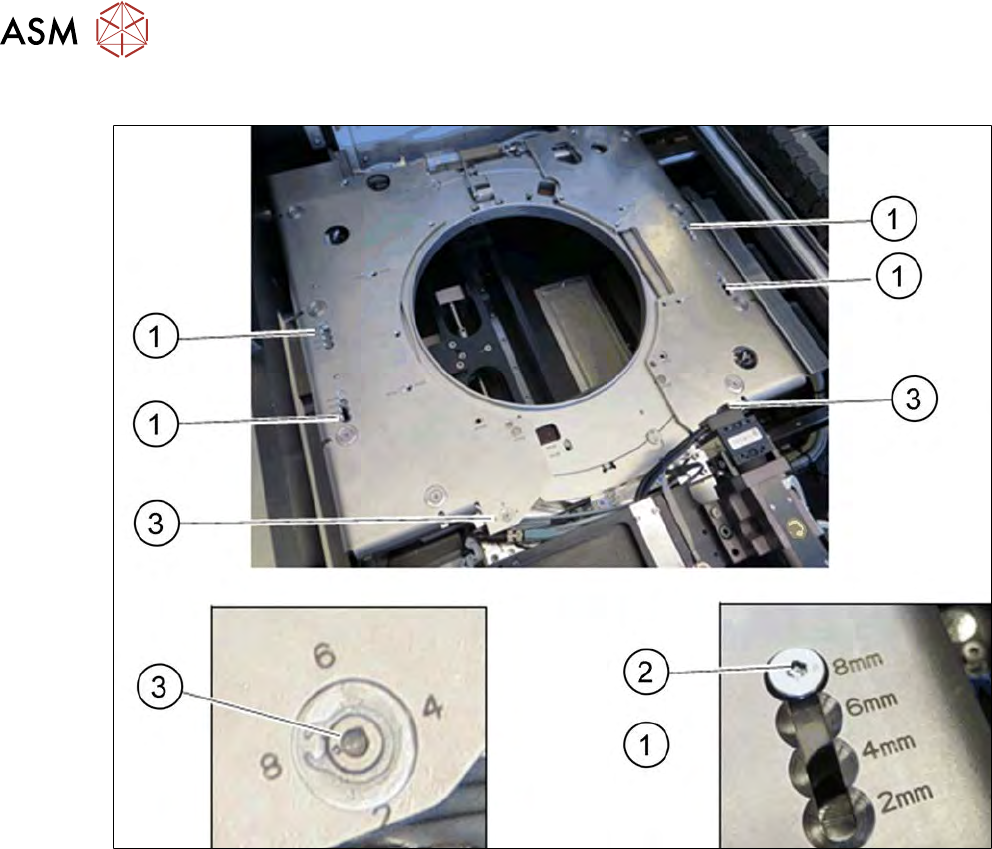
Fig.437: SIPLACE SWS wafer stretcher - setting the stretch factor
► Remove the screws (2) at the four points (1).
► Push the screw (2) to the position with the relevant stretch factor (2, 4, 6 or 8mm).
► Tighten the screw (2).
► Tighten the screw at both positions for the relevant stretch factor ( 2, 4, 6 or 8 mm) at these
two points (3).
12 Wafer stretcher
12.7 Wafer stretcher - configuration changes
Service Manual SIPLACE Wafer System (SWS) 11/2018 307
12.7.2 Setting the frame width for 8" wafer supports
You need to set the width of the wafer for 8" wafer supports. This is not required for 12" wafer sup-
ports.
Wafers with a width of 10.5" (FF 105) or 10.8" (FF 108) can be processed. Depending on the width,
you may need to adjust the mechanical settings at seven points.
12.7.2.1 Preparations
► Complete the measures in accordance with section 12.3 "Preparatory measures for working
on the wafer stretcher" [}278].
► Finish all ongoing processes in the SWS module.
► Move the wafer table to the change position.
► From the view, select Manual Operation -> Wafer Handling Systems -> Go to Change Po-
sition.
► Open the clamp.
► From the view, select Manual Operation -> Wafer Handling Systems -> Open Wafer
Clamp.
ð The clamping ring will open and the expansion ring will move downwards.
► Open the expander.
► From the view, select Manual Operation -> Wafer Handling Systems -> Release Ex-
pander.
ð The downholder plate will move upwards.
► From the view, select Production -> Miscellaneous and click the red "off" button there.
ð Shut down the SWS GUI and Linux properly.
► Switch off the SWS at the main switch.
CAUTION
Avoid damage to the gripper
When working on the wafer support, the gripper could be damaged.
► Push the gripper towards the wafer lift and out of the working area for the wafer sup-
port.
See also
2 1.1 "Safety instructions" [}13]
2 1.2 "Preparatory work..." [}15]