RS-1_instruction manual.pdf - 第108页
Part 1 B asic O peration Chapter 1 Overv iew of the Machine 1- 90 Initial direc tory f or a production progra m This comman d sets up the initial dire ctory (folder) from/to w hi ch a product ion progra m is to be read /…
Part 1 Basic Operation Chapter 1 Overview of the Machine
1-89
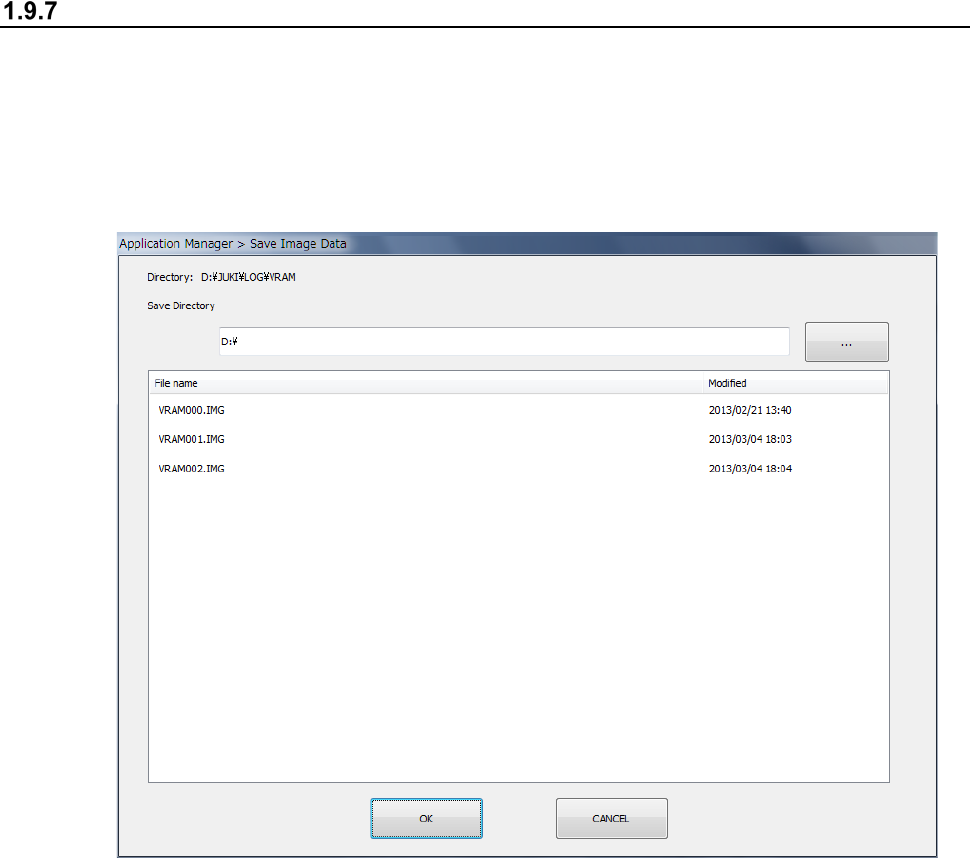
Save Image Data
This is the function for saving into a USB memory device or other device an error image file
obtained by pressing the <Get image data> button while PWB production is stopped temporarily or
that output from the “Error Detail” dialog box displayed when the system stops temporarily due to a
mark recognition error.
① When you select the “Arrange” button from the main menu, and then the [Save Image Data]
command, the “Save Image Data” dialog box appears on the screen.
② Press the <…> button to specify the destination to save a file.
③ When you press the <OK> button, the image data is saved in the specified location. The
dialog box shown above disappears automatically after the data is saved.
④ To quit the dialog box without saving any image data, press the <Cancel> button.
Part 1 Basic Operation Chapter 1 Overview of the Machine
1-90
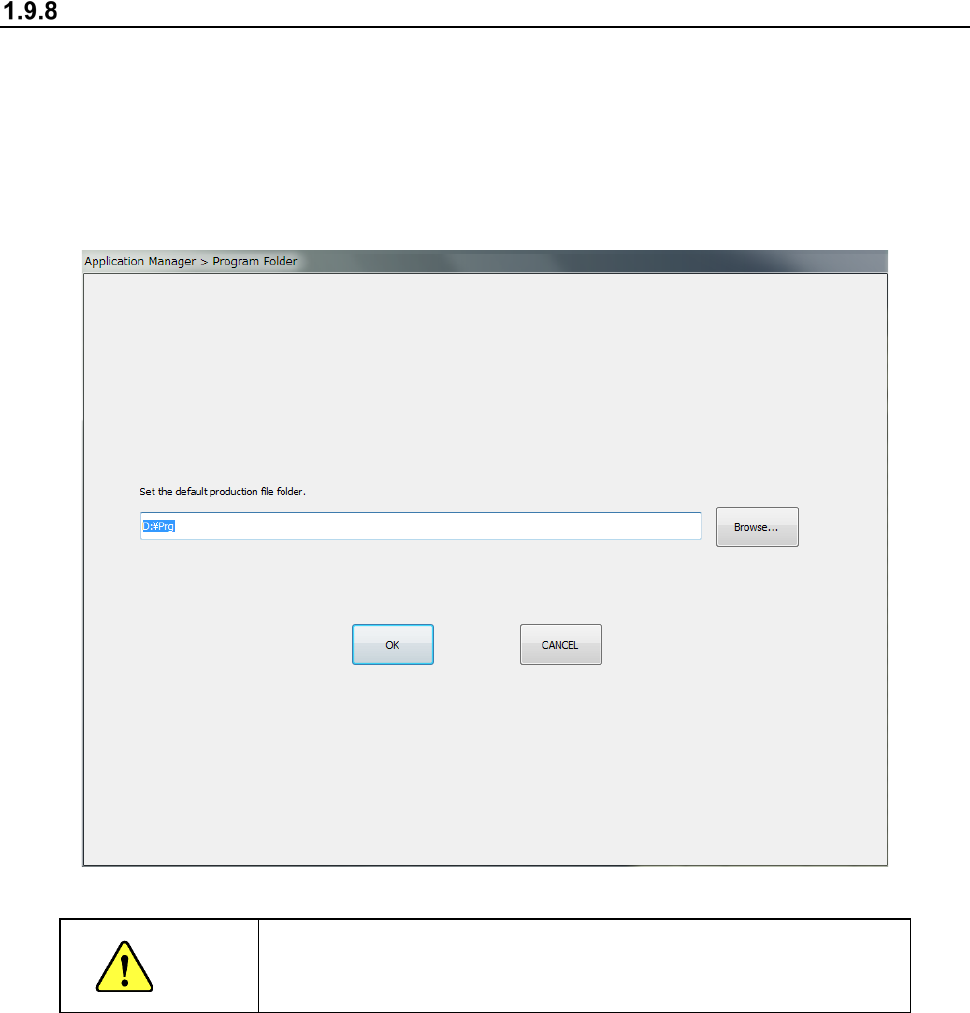
Initial directory for a production program
This command sets up the initial directory (folder) from/to which a production program is to be read /
written.
When you select the “Env Setting” button from the main menu, and then the [Default Folder]
command, the “Program Folder” dialog box appears on the screen. Click the <Browse> command
and select the initial directory from the folder list. Press the <OK> button after selecting an initial
directory.
CAUTION
Do not set any folder on the drive C.
If you set a folder on the drive C, the system displays the error.
Part 1 Basic Operation Chapter 1 Overview of the Machine
1-91
File Management
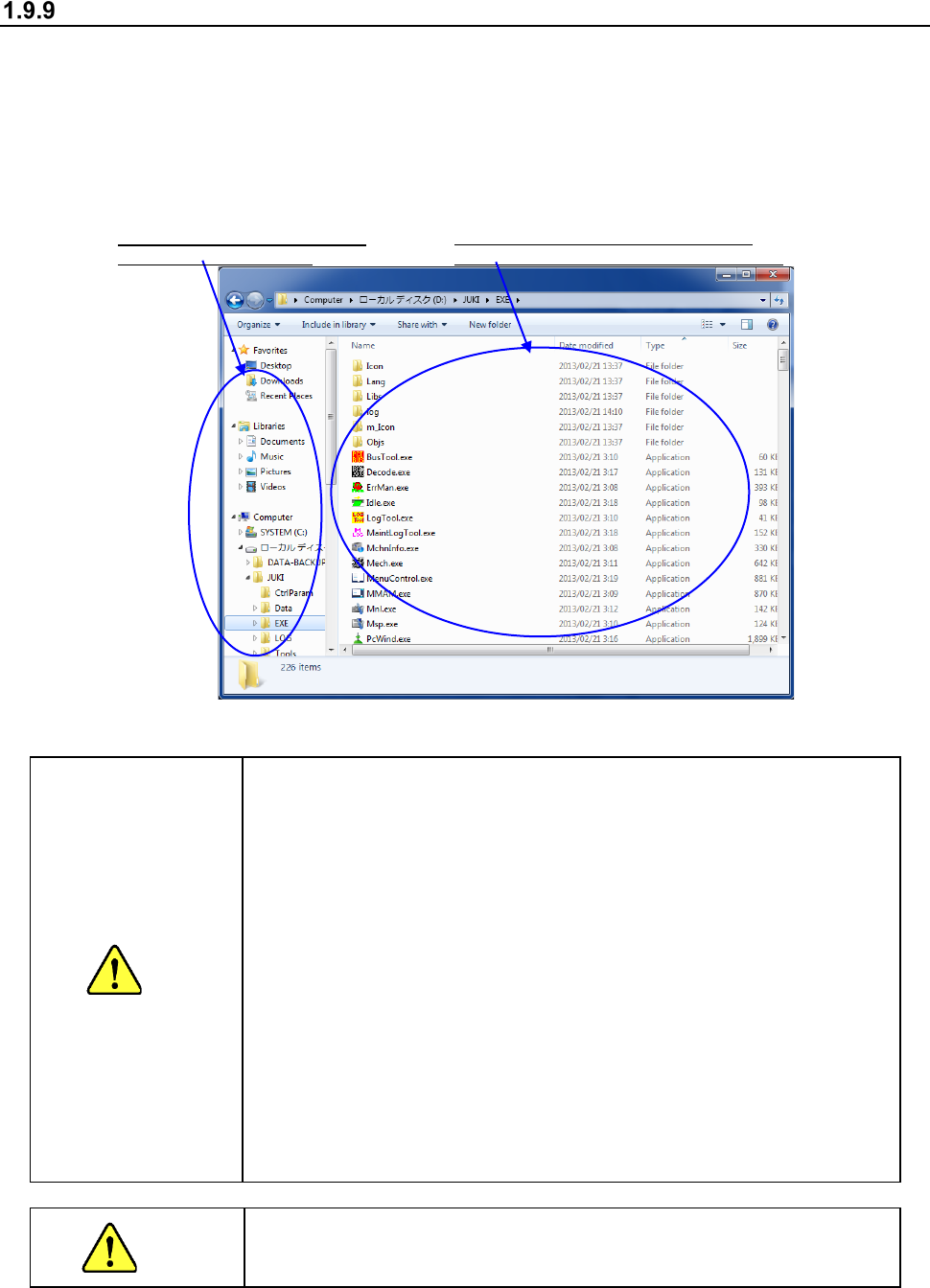
This command uses the Explorer function of Windows to handle a file.
This command allows you to create/delete a folder or create/delete a file.
1) Starting up Explorer
Press the “Startup” button from the main menu, and then the [File Management (Explorer)]
command to start up Explorer.
2) Explorer menu organization
Note: The Windows standard functions are used.
CAUTION
Do not create any folder on the drive C.
Since the drive C is set as ROM, a folder is erased at restart of
the machine even though you create it.
Do not save any file on the drive C.
When you try to save a file on the drive C that is created as ROM,
the save operation is emulated with the main memory.
Therefore, if you save a file on the drive C, the amount of the
used memory increases, and then it weighs down the system. If
you repeat saving files on the drive C, the amount of the memory
becomes insufficient, and the system displays the error. You
may have to restart the machine.
Explorer allows you to delete or move a file other than a
production program. However, if you delete or move a file other
than a production program, you may not be able to restart the
machine. Never delete nor move files other than those in the
PRG folder.
If you change the extension of a production program, the
machine cannot recognize the production program. Never
change the extension of any production program.
WARNING
Never delete or move folders other than a folder you created to save a
production program. If you delete or move any folder, the system
may not start up or be out of control.
The contents of the folder
selected on
the
left side are displayed on the right side.
The hierarchical organization is
displayed on the left side.