RS-1_instruction manual.pdf - 第713页
Part 2 D etaile d Descript ion of E ach Functi on Chapter 8 Machine S etup 8-5 8.3.1 Dev ice enable Head W hen yo u sel ec t “ Head ,” t he followi ng screen ap pears. When you clic k each ta b, you can spec ify each of …
Part 2 Detailed Description of Each Function Chapter 8 Machine Setup
8-4
8.3 Setting Items
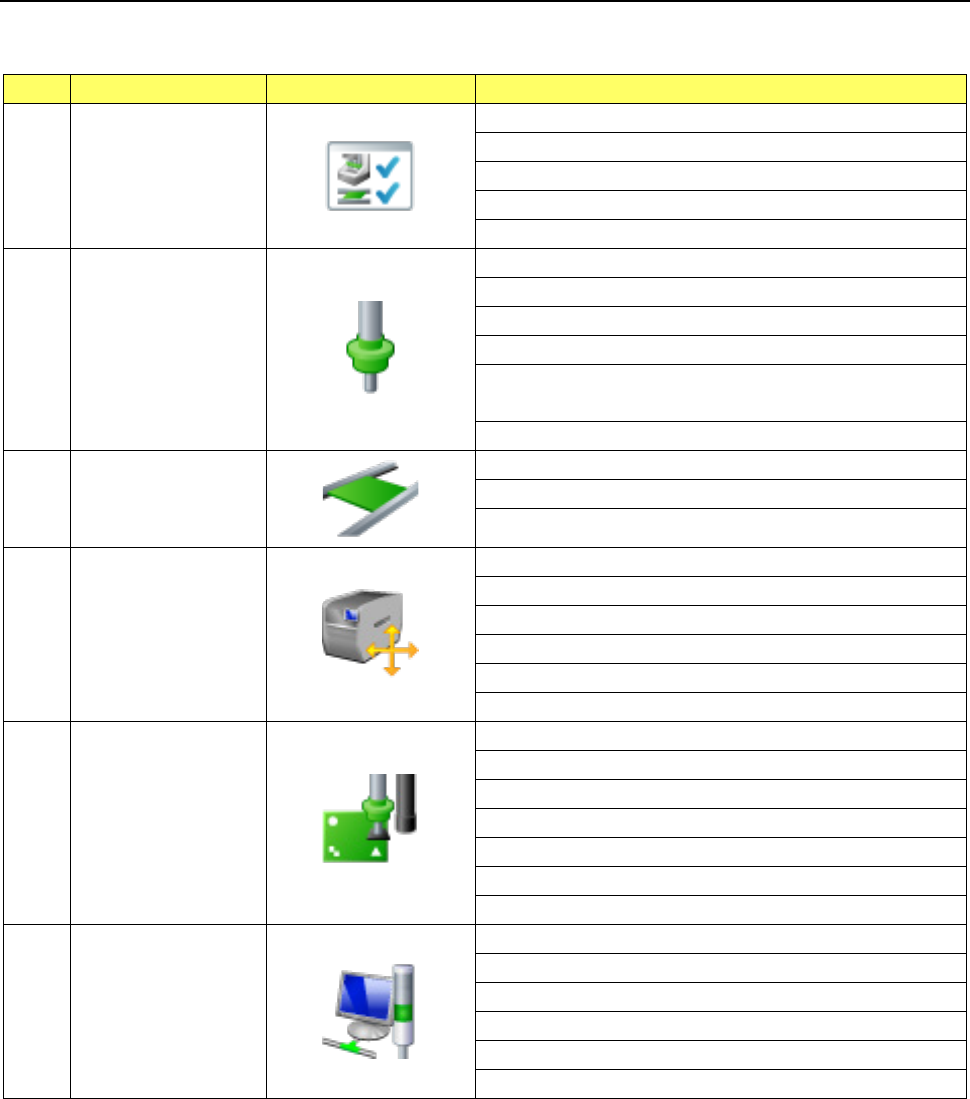
The setting items for Machine setup are divided into the following groups.
No.
Operation group
Indicated button
Setting item (operation)
1 Device enable
Head
Base
Conveyor
MTC/MTS
VCS
2 Nozzle
Registered nzl. No. table
Read nzl. data
ATC nozzle setup
Vacuum value without nozzle
Vacuum value without nozzle
* Available with an RS-1R only.
ATC Setting * Available with an RS-1R only.
3 Conveyor
Conveyor setting
Support table
Shape clamp position adjustment
4 Position setting
Component
reject position
IC collection belt position
Head wait position
MTS position offset
MTC shuttle pick position
5 Function setting
Pick error condition setting
Mark recognition speed setting
Solder Print Misalignment Correction
Pre-pick feed setting
Head height setting
Nozzle sliding fail check
Splicing setup
6 Unit setting
Signal light
Bad mark teaching
Superimpose setting
Line connection
Coplanarity
Verification
Part 2 Detailed Description of Each Function Chapter 8 Machine Setup
8-5
8.3.1 Device enable
Head
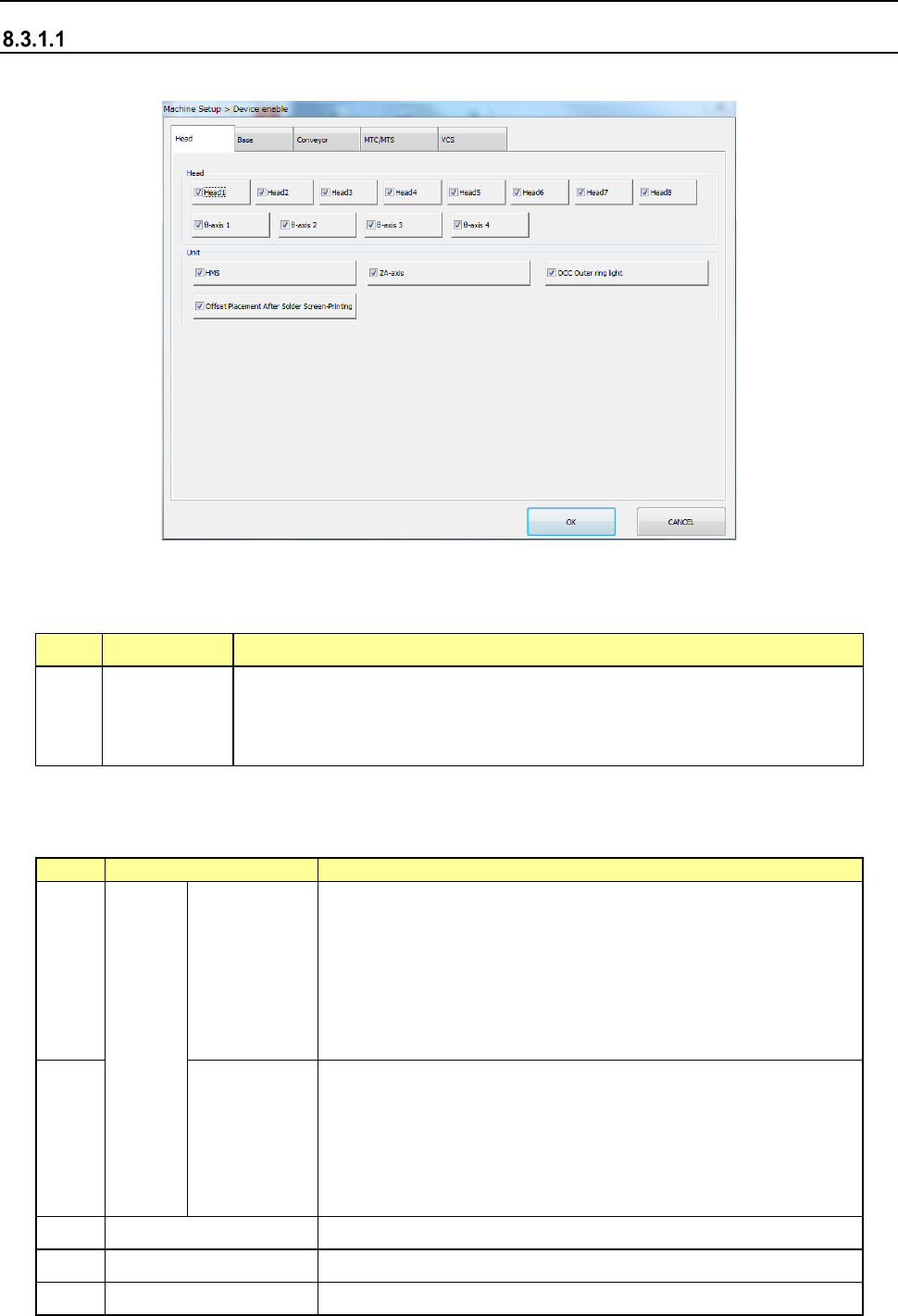
When you select “Head,” the following screen appears.
When you click each tab, you can specify each of “Head,” “Base” “Conveyor,” “MTS” and “VCS.”
(1) Setting items
No. Item Description
1 Head
Specify whether to use a device or not.
If you set one device not to be used on this tab, when it malfunctions the
system can continue picking up and placing components without
changing data of a production program.
1) For the case where the production program requires the above unit to complete placement,
the following table shows whether placement is actually performed or not.
No.
Unit
Production operation
1
Head
Head1
Head2
Head3
Head4
Head5
Head6
Head7
Head8
When there are components to be placed in these heads, the
alternate head places them if the alternate head is available
and no head is specified.
If placement cannot be performed, an error occurs at
production pre-start check, resulting in no production. Modify
the production program.
Components are not assigned to these heads by optimization.
2
θ axis 1
θ axis 2
θ axis 3
θ axis 4
The θ axes of the head are controlled every two axes.
Therefore, when any θ-axis check box is checked off, the
corresponding heads shown below cannot be used.
θ axis 1: Head1, Head2
θ axis 2: Head3, Head4
θ axis 3: Head5, Head6
θ axis 4: Head7, Head8
3 HMS This function is just deleted, and placement is executed.
4 ZA axis This function is just deleted, and placement is executed.
5 OCC Outer ring light This function is just deleted, and placement is executed.
Part 2 Detailed Description of Each Function Chapter 8 Machine Setup
8-6
6
Offset Placement After
Solder Screen-Printing
This function is just deleted, and placement is executed.
(2) How to set
1) Specify a device to be used by check button.
When a check mark is attached, this means a “Use” setting. If no check mark is
attached, this means a “No use” setting.
2) To change the no use status of the head to the usable status, release the head lock.
After releasing the head lock, make a return-to-origin for each head. When all the
heads are in the servo OFF status, make a return-to-origin for all the axes according to
instructions given in the screen.
3) To change the use status of the head to the no use status, fix the Z-axis of the head. In
this case, observe the instructions given in the screen.
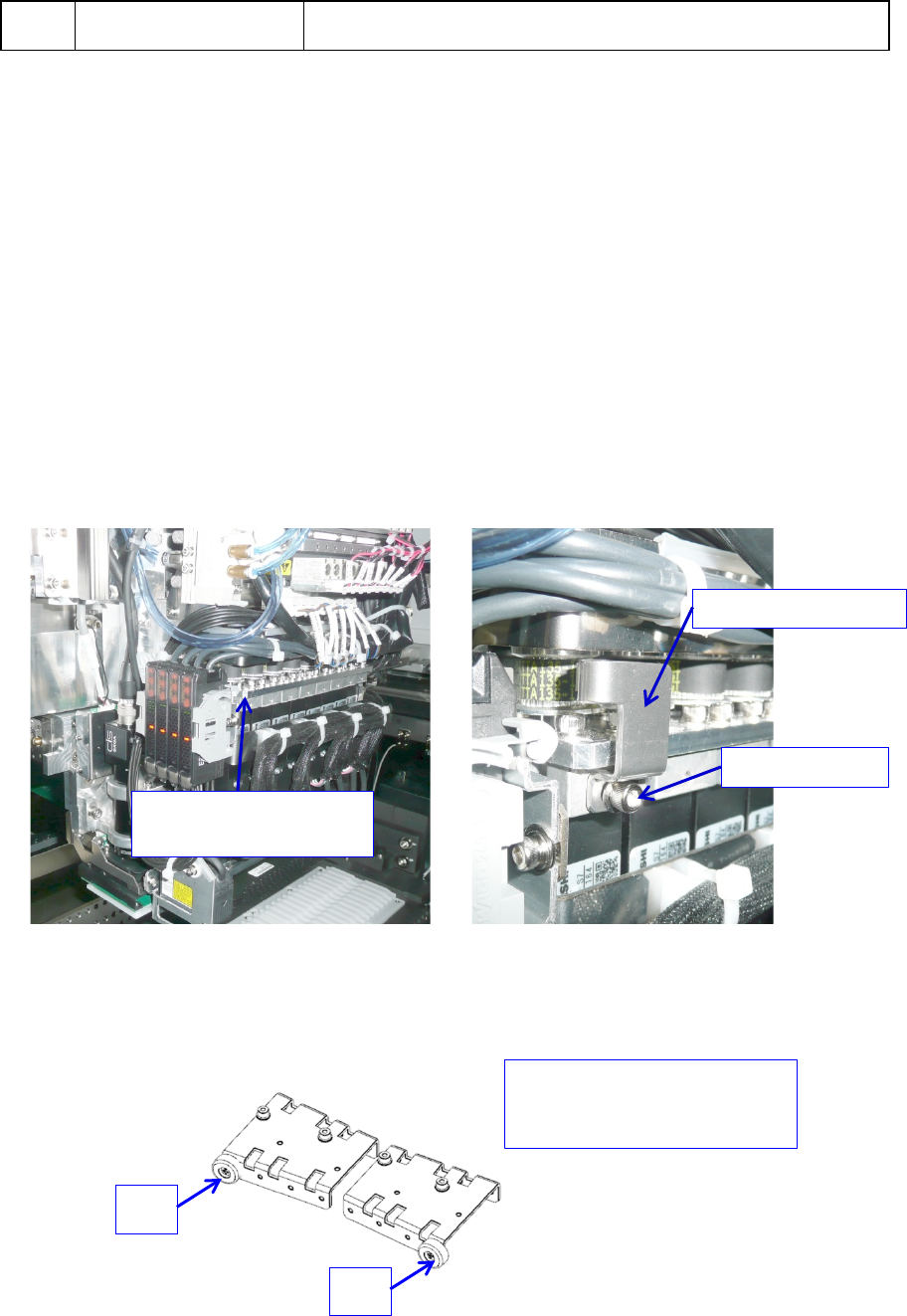
* To set the head and each axis (Z-axis) of the head to “No use”, fix the unused axes by the
following procedure.
【UNTIL HEAD Rev.A】
1. Install the ZM STOPPER ① at taps ③ on the side face of the head with set screws ②
and push it against the Z-axis pulley and then fix it with set screws ②.
2. When you change the setting of an unused axis so that it can be used, loosen the
screws ②, and remove the ZM STOPPER ① to release the fixed Z-axis.
【AFTER HEAD Rev. A】
1. Attach cover cushion ② only to the place where the axis is fixed with ZM STOPPER ①.
① ZM STOPPER
② Set screw
③
Tap on the side
face of the head
For example.
When Z8 and Z1 are fixed
Z8
Z1