RS-1_instruction manual.pdf - 第119页
Part 1 B asic O peration Chapter 2 Pr oduction 2-8 What to do at power fail ure UPS power supply This machin e i s equi pped with back - up power s uppl y with a batt ery to prevent any computer data from being dam aged …
Part 1 Basic Operation Chapter 2 Production
2-7
Shutting down the system
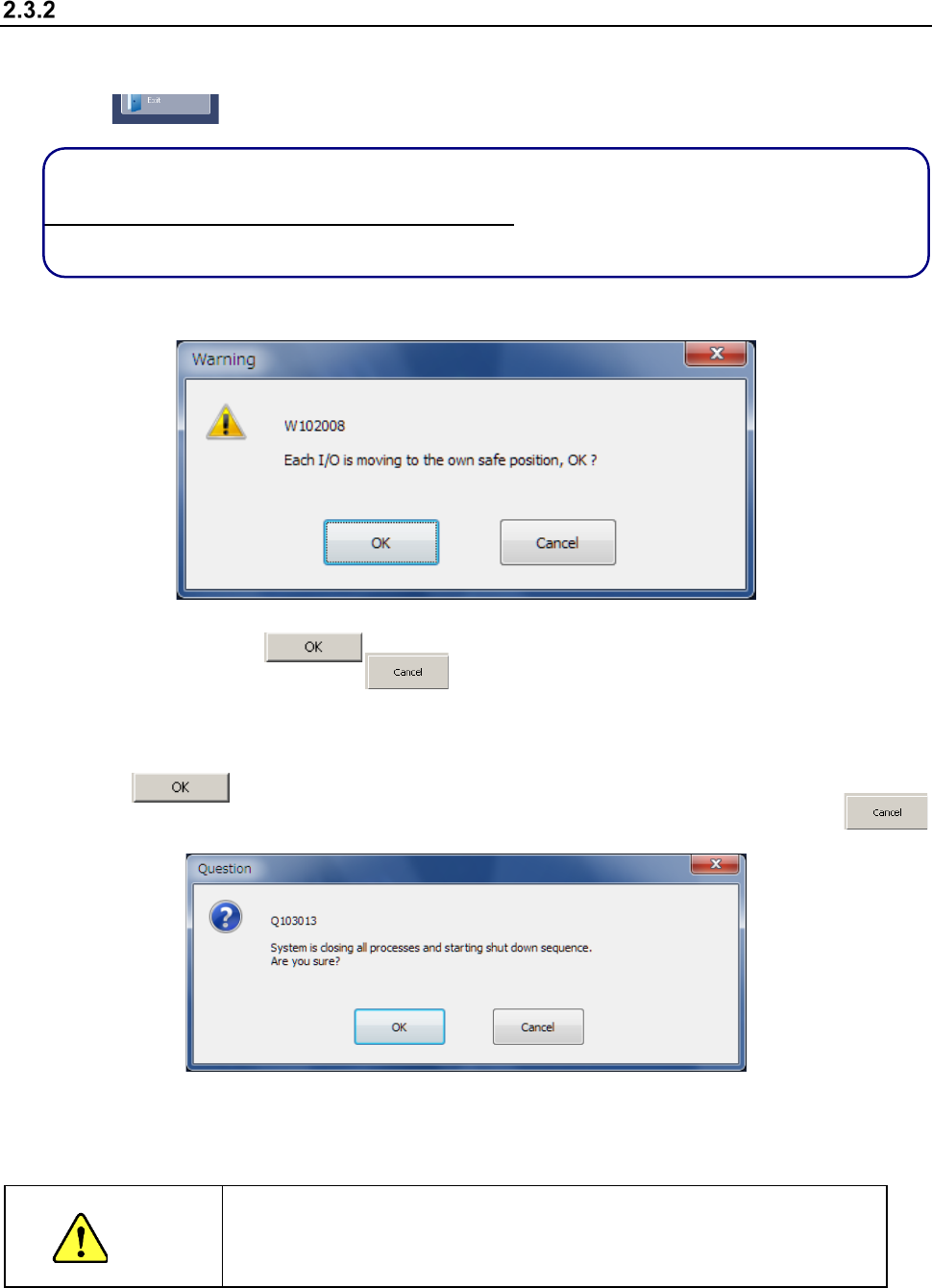
(1) Press the “Exit” button in the Information area on the right side of the desktop screen or that
displayed on the Application shortcut tab.
Press this button.
If there is any unsaved production program when you click the “Exit” command button, the
machine displays the message that informs you that the production program will be lost.
To save the production program, select <No> button. The machine aborts the exit process and
returns to the desktop screen.
(2) Before the system shuts down, the confirmation message for setting the safety direction of the
machine appears on the screen.
When you click the button, the system sets the various safety directions of the
machine. When you click the button, the system performs the next process without
setting any safety direction.
(3) The shutdown process confirmation dialog box appears on the screen.
Click the button.
The system performs the shutdown process, and shuts downs. When you click the
button on this dialog box, the system displays the main menu screen again.
(4) When the Windows finishes shutting down and the screen disappears, rotate the main switch
anticlockwise to turn off the power.
(Never use the breaker as the main switch.)
CAUTION
Be sure to perform the operations described above before turning off the
power (that is, turning the main switch anticlockwise).
If you turn off the power without performing the operations above, the
system may not start up the next time.
Part 1 Basic Operation Chapter 2 Production
2-8
What to do at power failure
UPS power supply
This machine is equipped with back-up power supply with a battery to prevent any computer data
from being damaged or lost due to a power failure. Therefore, this unit helps you securely shut
down the system even at power failure without damaging or losing any data.
Corrective action at power failure
If power cannot be supplied to the main unit normally, the power supply monitoring function of the
UPS power supply is activated.
To recover the system from this problem, you have to turn on the machine.
Save the production program, production management information, information necessary to restart
production and machine management information, shut down the system, and turn off the machine.
If you do not operate the machine for a certain period of time, the data at that time is saved and the
shutdown process of the system is executed.
Step 1. Preparation for automatic shutdown
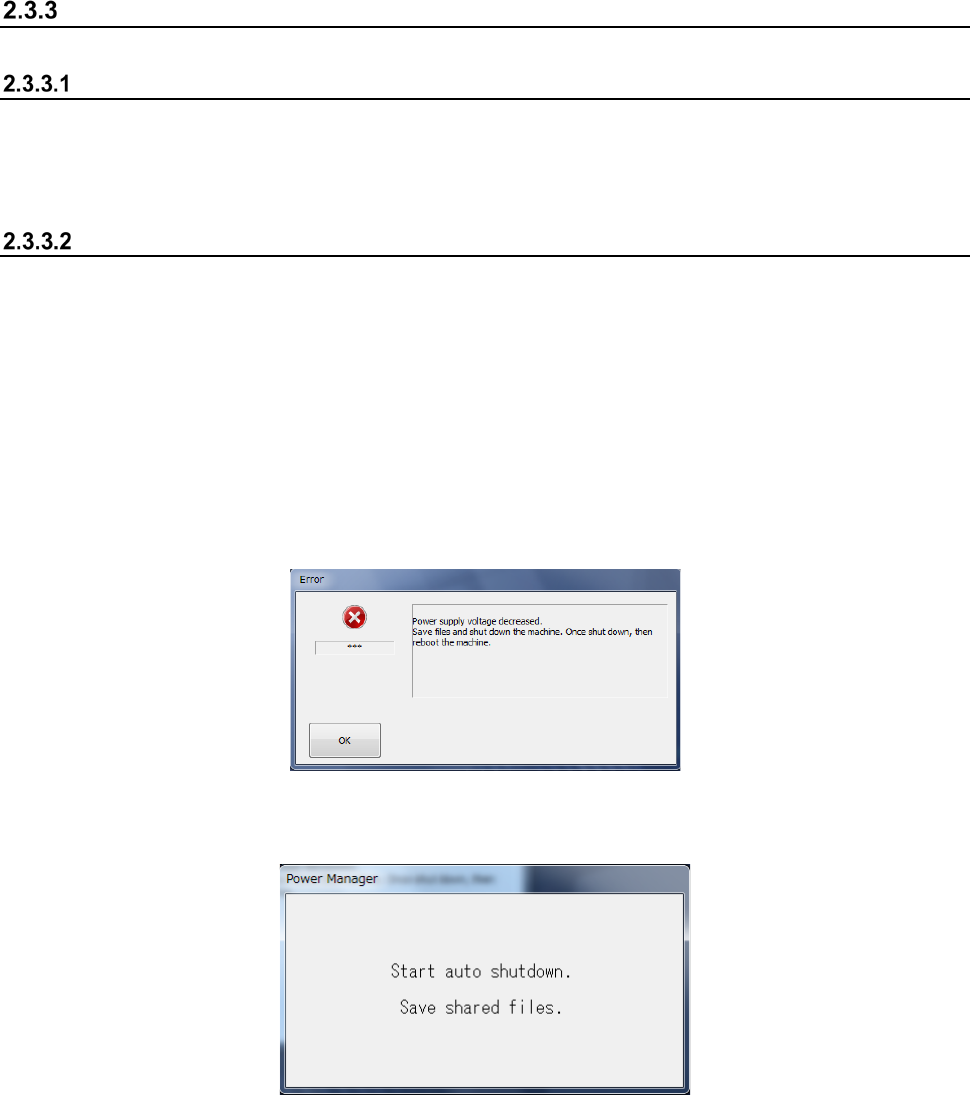
If the system detects a power failure, the following screen appears.
The UPS power supply also detects the power failure, and displays the automatic shut-down
screen.
Step 2. Shutdown process
① Preparation for power-off
After quitting the application software, you can start the Windows 7 shutdown process to turn
off the machine. Anything does not appear on the screen.
② Turning off the main power
Manually turn off the main power of the main unit.
Part 1 Basic Operation Chapter 2 Production
2-9
Recovery operation after power failure (Turning on the machine)
If you find any file at start up of the system by checking to see if there is any file that was saved at
power failure, the inquiry dialog box appears on the screen.
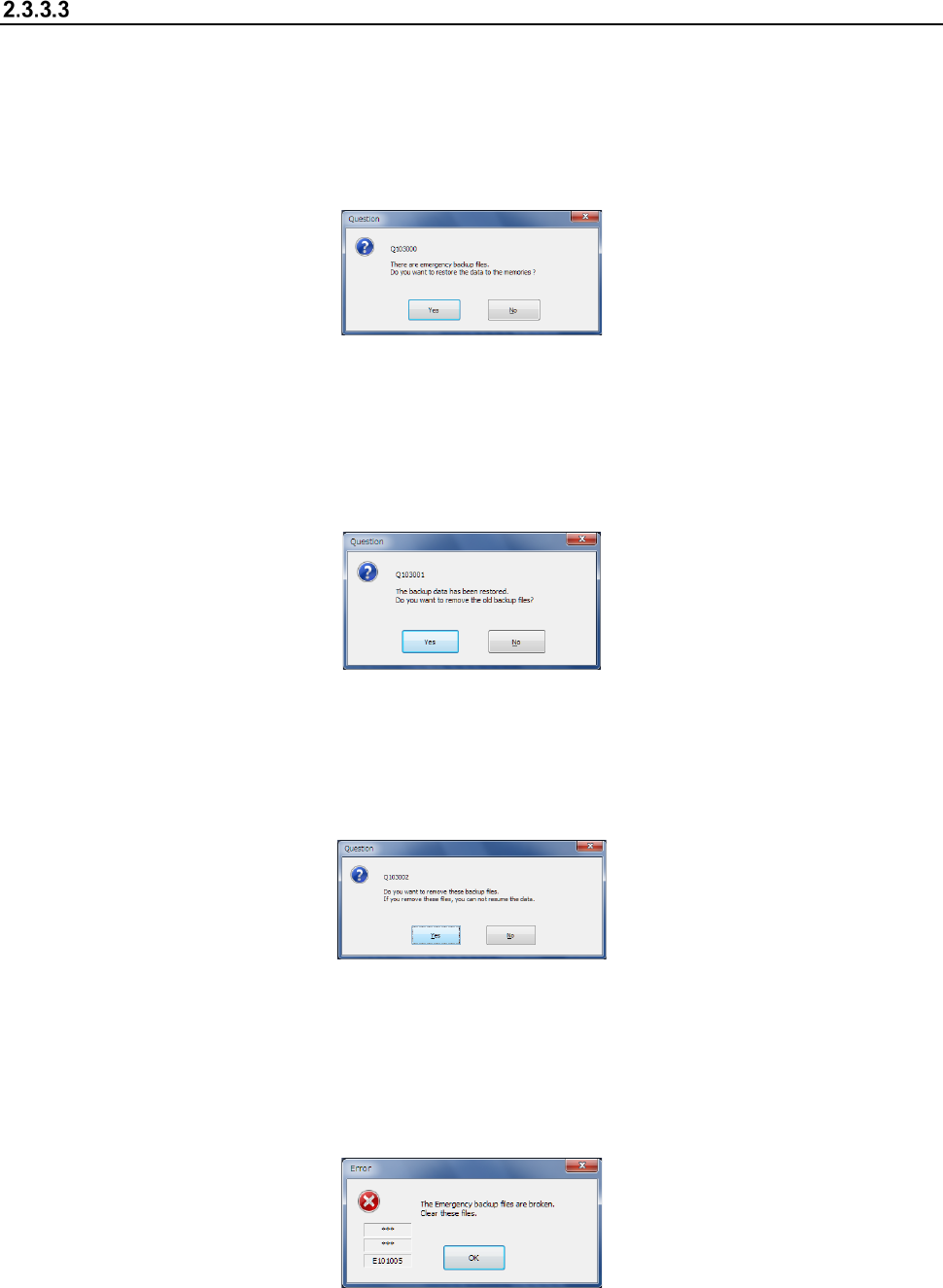
(1) Confirmation dialog box displayed when the system finds a file that was saved at power failure
1) If the system finds saved data at start-up, the following confirmation dialog box appears on
the screen.
Yes: Recovers a production program, production management information and any other
necessary information, and recovers the system as it was when a power failure
occurred.
No: Any recovery process is not executed.
2) When the recovery process is executed completely, the following inquiry dialog box appears
on the screen.
Yes: Deletes the saved data.
No: Does not delete the saved data. (The inquiry dialog box for the recovery process
appears again at start-up the next time.)
3) When you click the <No> button on the recovery inquiry dialog box, the following inquiry
dialog box appears on the screen.
Yes: Deletes the saved data.
No: Does not delete the saved data. (The inquiry dialog box for the recovery process
appears again at start-up the next time.)
4) If the system detects an error of the saved file at start-up, the following dialog box appears
on the screen. The system does not execute any recovery process and the saved data
that may be damaged is deleted.