RS-1_instruction manual.pdf - 第820页
Pa r t 2 Det ai l ed Des c r i pti on o f Ea c h Fu nc ti on Chapter 10 M ach i ne Manage m e nt Infor m ation 10 -7 10.3.3 As yn us ag e inf o rmat io n ( Async hro no us us age inf o rmat io n) W hen you sel ect [M ach…
Part 2 Detailed Description of Each Function Chapter 10 Machine Management Information
10-6
10.3.2 Application Operation Information
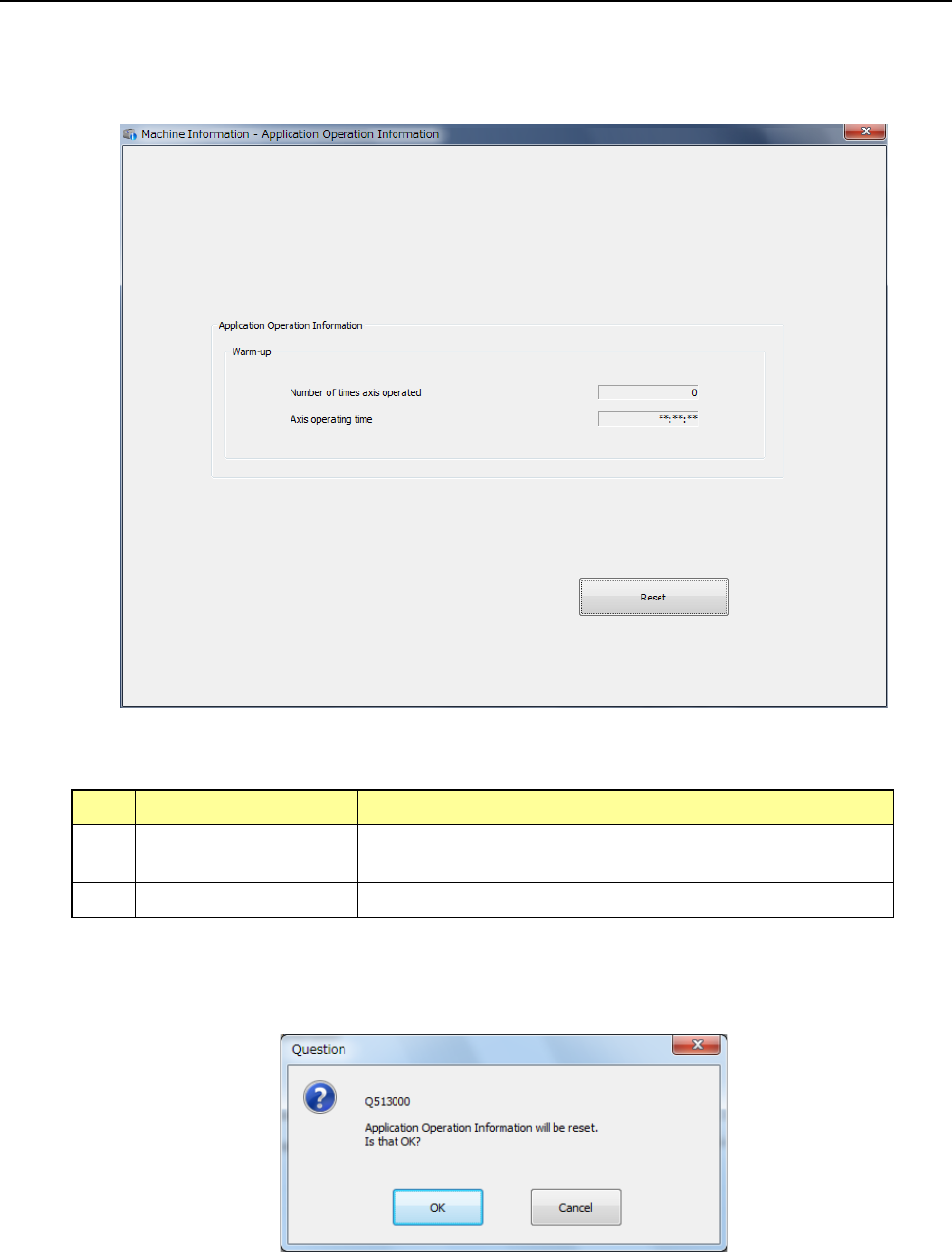
When you select the [Application Information] command from the “Window(W)” pull-down menu,
or when you select the [Application operation information] command, the “Application Operation
Information” screen appears.
(1) Application Operation Information
No.
Item
Description
1 Number of times axis
operated
Total number of times the axis operated during warm-up
2 Axis operating time Total time the axis operated during warm-up
(2) <Reset> button
When you press the <Reset> button or press [Initialize] – [Reset] in the main menu, the
following question message is displayed.
- When you press the <OK> button in the above screen, all the data of the application
operation information is reset.
- When you press the <CANCEL> button, the system does not reset any data and the
current data is still displayed.
Part 2 Detailed Description of Each Function Chapter 10 Machine Management Information
10-7
10.3.3 Asyn usage information (Asynchronous usage information)
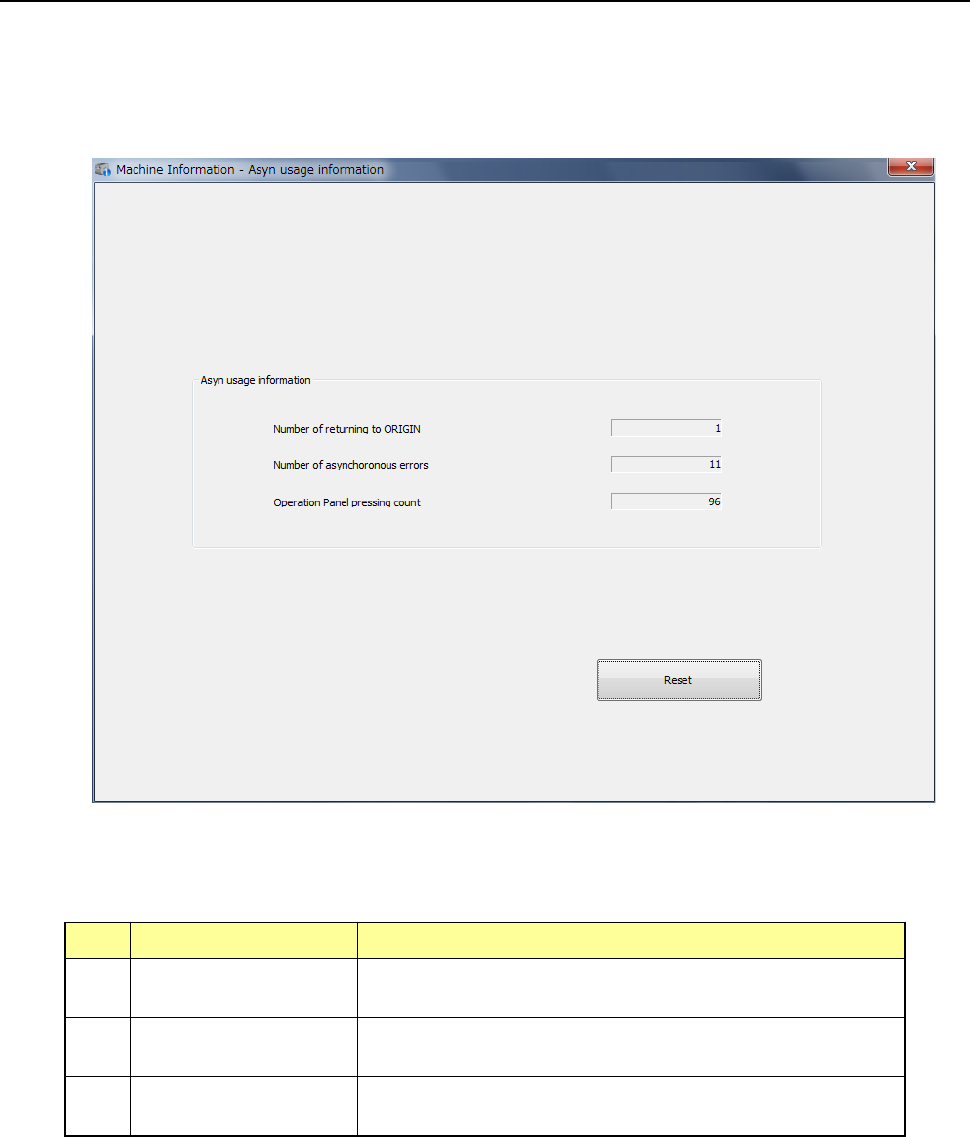
When you select [Machine] – [Asyn usage information] in the main menu, the asynchronous
usage information screen appears.
Asynchronous errors indicate an error that occurs at a driver RAM, a feeder float error, an XY
limit error and so on.
(1) Asyn usage information (Asynchronous operation information)
No. Item Description
1 Number of returning
to ORIGIN
Displays how many times the system returned each
device to its home position (ORIGIN) totally.
2 Number of
asynchronous errors
Displays how many times an asynchronous error*
occurred totally.
3 Operation Panel
pressing count
Displays how many times a switch on the operation panel
was pressed totally.
Part 2 Detailed Description of Each Function Chapter 10 Machine Management Information
10-8
(2) <Reset> button
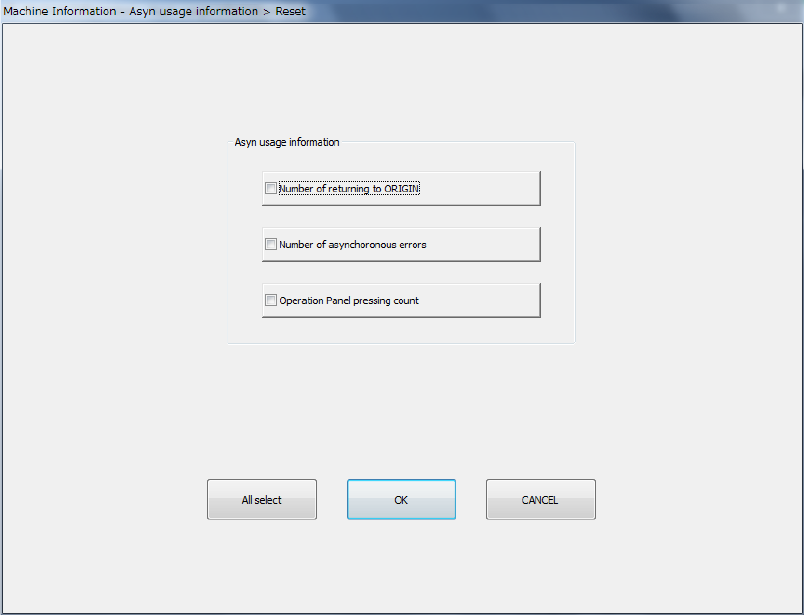
When you press the <Reset> button or press [Initialize] – [Reset] in the main menu, the
following screen appears.
This operation allows you to clear the certain data or all data displayed in the list.
- The <All select> button allows you to select all check boxes displayed on the screen.
- When you press the check box of the item whose data you want to reset, and press the
<OK> button, the “Question” dialog box for asking you whether to reset data appears on
the screen. When you press the <OK> button on this “Question” message, the system
resets the checked items of data, and closes the screen.
- When you press the <CANCEL> button, the system does not reset any data and the
current data is still displayed.