RS-1_instruction manual.pdf - 第436页
Part 1 B asic O peration Chapter 4 Cr eating a Produc tion Progra m 4- 101 <How to creat e a new bal l pattern> ① Press the <New> but ton. ② Select a pattern ty pe from the “Pattern T ype” list, an d enter th…
Part 1 Basic Operation Chapter 4 Creating a Production Program
4-100
⑨ Angle check
Specify whether to check the direction of a component.
When you select the <Yes> button, the “Vision 4” tab is enabled, and you can make the
detailed settings of the direction check.
⑩ Edit
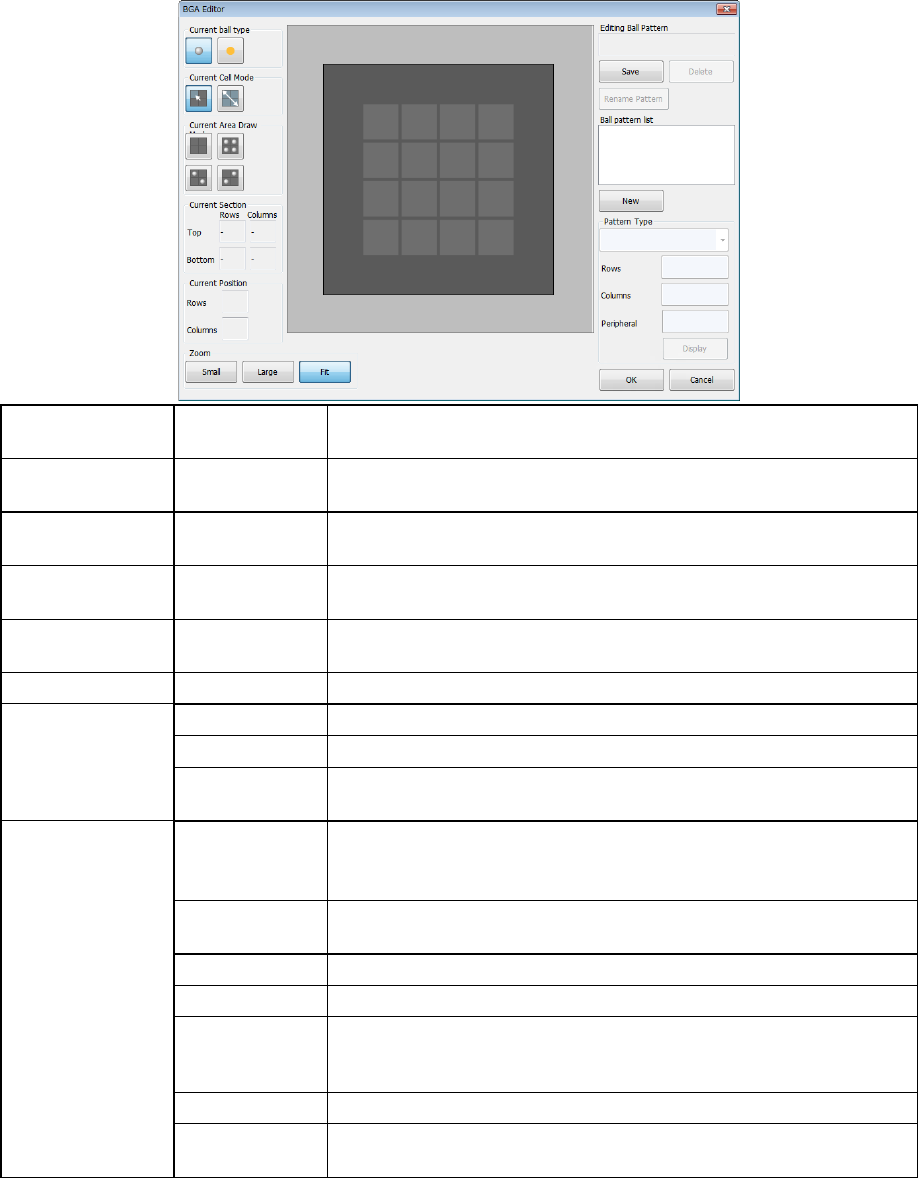
This button displays the BGA Editor, which is the ball pattern editing screen. This screen
allows you to register the desired ball pattern.
Up to 70 patterns can be registered, and the registered pattern name is added to patterns
displayed on the dialog box for setting recognition patterns.
Current ball type Ball, index
When you touch the screen, you can create a ball pattern. When you
touch it again, the ball pattern is cleared.
Current Cell Mode Point, Range
You can select whether a ball is set at each point or balls are set over
one area.
Current Area Draw Pattern setting
When you select the range for the “Current Cell Mode,” select a fill
pattern.
Current Section Rows, Columns
The coordinates of the start point and those of the end point of the
selected area are displayed here.
Current Position Rows, Columns
The cursor position is displayed with a lateral coordinate and a vertical
coordinate
Zoom Small, Large, Fit Each button changes the displayed ball size.
Pattern Type
List box Select a ball pattern type here.
Rows, Columns Set the maximum number of balls.
Peripheral
When you select a peripheral type as a ball pattern type, set the
number of peripherals here.
Other buttons
Save
Use this button to save the edited ball pattern.
If the edited ball pattern is a new one, specify the ball pattern name
before saving it
Delete
Use this button to delete a registered pattern. It deletes a ball pattern
selected from the ball pattern list box.
Rename Pattern This button allows you to change a pattern name.
Ball pattern list The registered ball patterns are displayed here.
New
This button allows you to create a new ball pattern. When you press
this button, you can enter the “Pattern Type,” “Rows” and “Columns”
displayed below.
OK Editing of a pattern is enabled.
Cancel
Editing of a pattern is disabled. Note that a registered pattern
remains.
Part 1 Basic Operation Chapter 4 Creating a Production Program
4-101
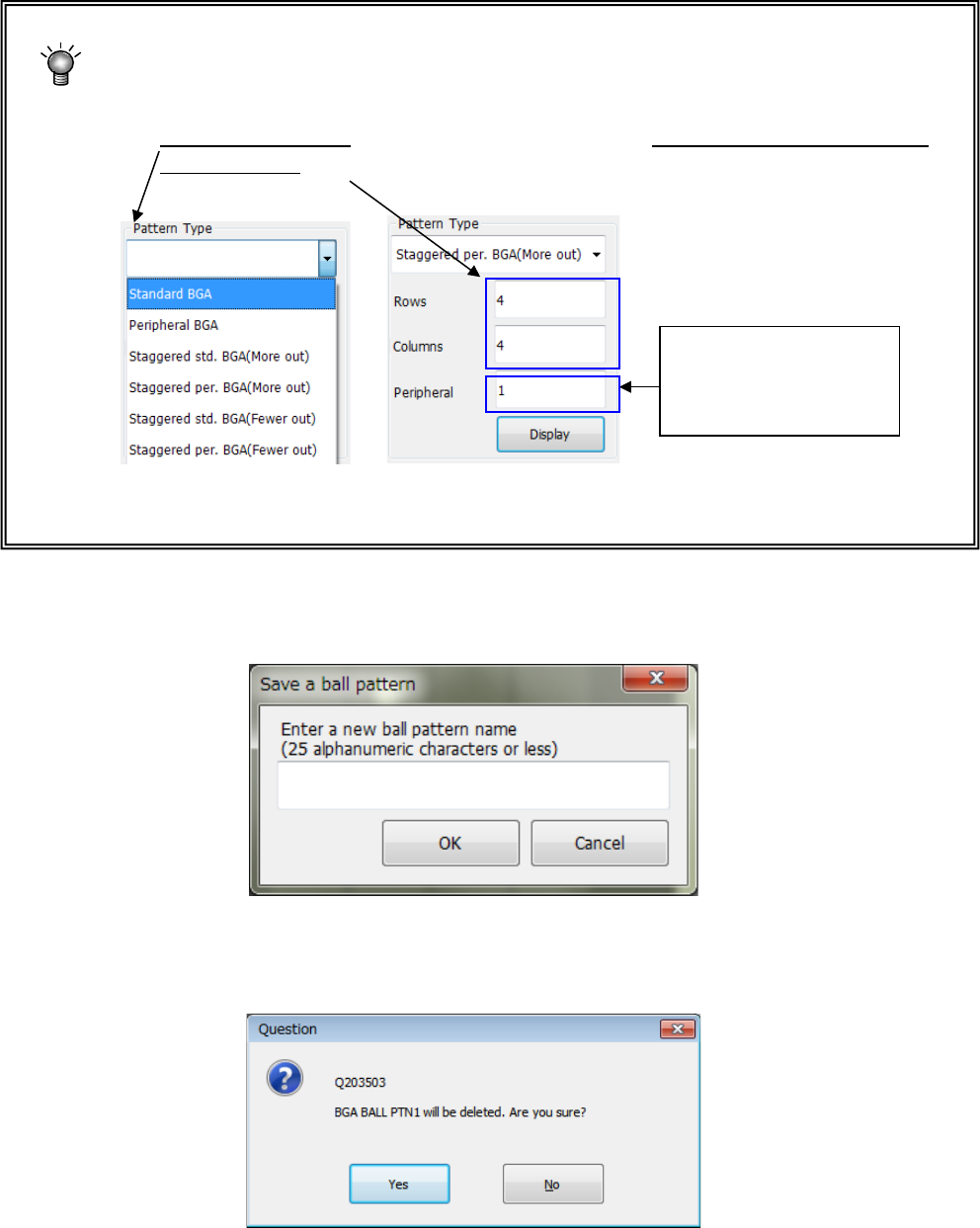
<How to create a new ball pattern>
① Press the <New> button.
② Select a pattern type from the “Pattern Type” list, and enter the number of rows and
that of columns of a new pattern in the “Rows” field and the “Columns” field
respectively.
③ When you press the <Display> button, the selected ball pattern is displayed in the “ball
pattern creating area.” Add and/or delete a ball(s) to edit the pattern.
After creating/editing a ball pattern, press the <Save> button, and then the <OK> button.
When you save a new ball pattern, the dialog box for entering a ball pattern name appears
on the screen.
If you press the <Save> button or <Delete> button, or if you press the <OK> button or the
<Cancel> button after editing the pattern, the confirmation message appears on the screen
(the message shown below appears when you press the <Delete> button).
When you select a
peripheral type, enter the
value set in the “Peripheral
Line” field.
Part 1 Basic Operation Chapter 4 Creating a Production Program
4-102
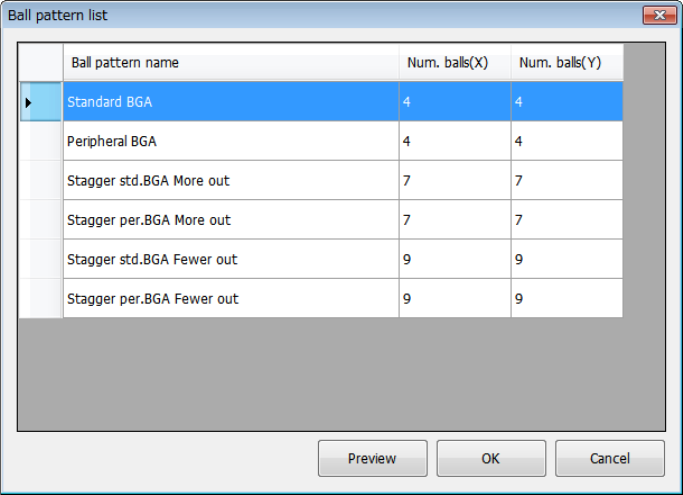
⑪ Browse
This button displays the “Ball pattern list” dialog box.
Set a ball pattern in the “Ball pattern list” dialog box.
To set it, touch the ball pattern to be set twice quickly, or touch the <OK> button after
selecting a ball pattern. The confirmation dialog box appears on the screen.