RS-1_instruction manual.pdf - 第719页
Part 2 D etaile d Descript ion of E ach Functi on Chapter 8 Machine Set up 8- 11 MTC /M TS W hen yo u sel ec t “ MTC/ MT S , ” the followi ng screen appears . When you clic k each ta b, you can spec ify each of “ Head, ”…
Part 2 Detailed Description of Each Function Chapter 8 Machine Setup
8-10
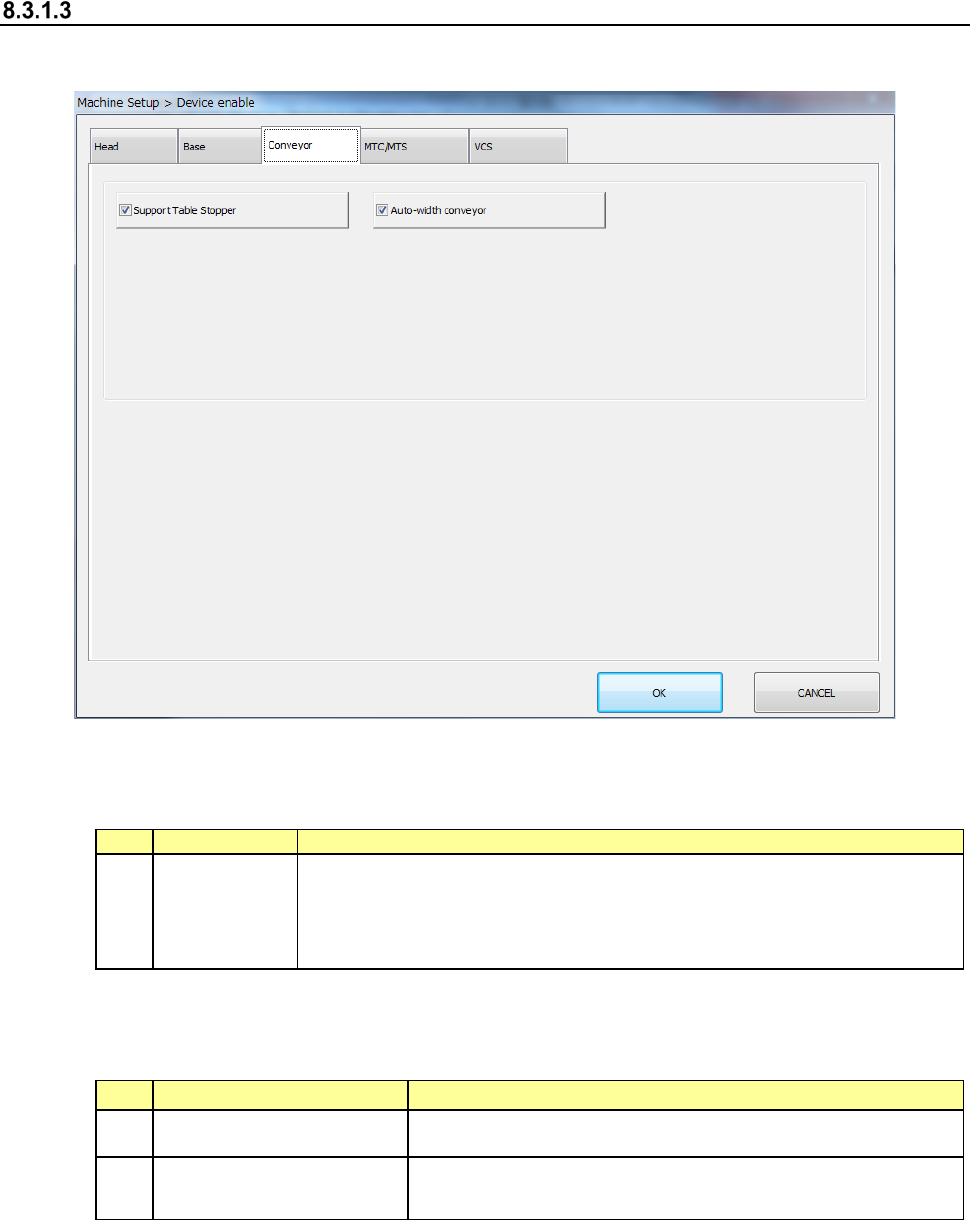
Conveyor
When you select “Conveyor,” the following screen appears.
When you click each tab, “Head,” “Base,” “Conveyor” or “VCS” can be specified.
(1) Setting item
No.
Item
Description
1
Conveyor
Specify the use of no use of the unit
When you set “No use” in this item, pick placement can be executed
without changing the production program data even if a unit failure
occurs.
The following table shows whether placement is actually performed or not when the above
function is required for the production program to complete placement.
No.
Unit
Production operation
1 Support Table Stopper The function is just deleted, and placement is executed.
2 Auto-width conveyor
Although the “Auto-width conveyor” function is just deleted,
the machine places a component on a board.
(2) Setting method
1) Specify a device unit to be used by using the check button.
When a check mark is attached, this means a “Use” setting. If no check mark is
attached, this means a “No use” setting.
Part 2 Detailed Description of Each Function Chapter 8 Machine Setup
8-11
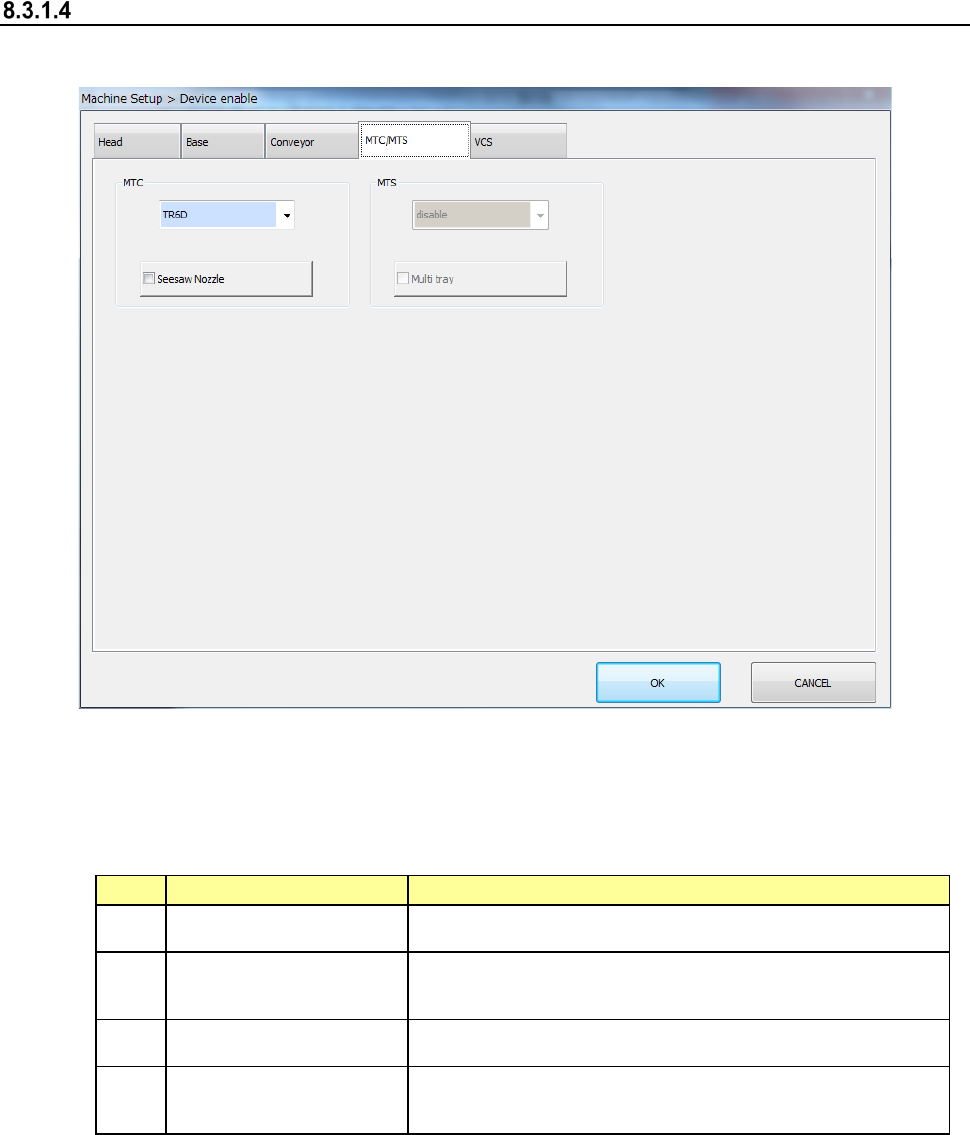
MTC/MTS
When you select “MTC/MTS,” the following screen appears.
When you click each tab, you can specify each of “Head,” “Base,” “Conveyor,” “MTS” and “VCS.”
(1) Setting items
The use setting of MTS is performed.
No.
Item
Description
1 MTC Set the use/no use of the unit and its type.
2 Seesaw Nozzle
When MTC is not unused, this item can be set.
Set whether to use a seesaw nozzle or not.
3 MTS Set the use/no use of the unit and its type.
4 Multi-tray
When MTS is not unused, this item can be set.
Set the use/no use of the multi-tray.
(2) How to set
1) Select a model name in the combo box.
2) Specify the Use/No use of the multi-tray by check button.
When a check mark is attached, this means a “Use” setting. If no check mark is
attached, this means a “No use” setting.
Part 2 Detailed Description of Each Function Chapter 8 Machine Setup
8-12
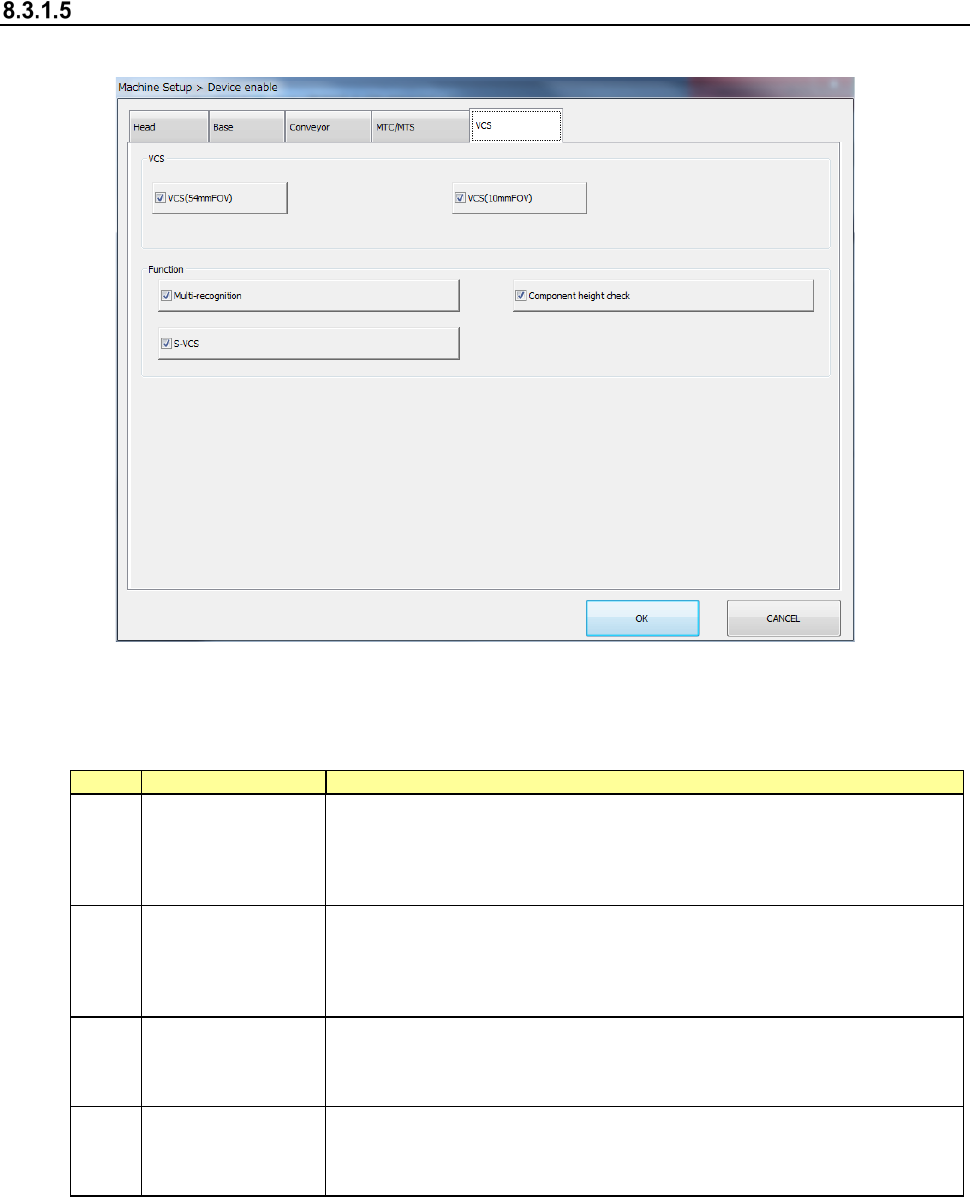
VCS
When you select “VCS,” the following screen appears.
When you click each tab, you can specify each of “Head,” “Base,” “Conveyor,” “MTS” and “VCS.”
(1) Setting item
The use setting of VCS is performed.
No.
Item
Description
1
Device enable
(VCS)
If the VCS should happen to break down, this item directs that this unit not
be used so that pick-placing can be performed without changes to the
production program.
In the case of a “No use” setting, the placement of VCS recognition
components is skipped.
2 Multi-recognition
Specify whether to use multi-recognition or not. If you set multi-recognition
not to be used without checking this check box, the machine does not
recognize a component in Non-stop mode (that is, the machine recognizes
a component in a normal way) even though multi-recognition is set to be
used with a production program.
3
Component height
check
Specify whether to check the component height when multi-recognition is
set to be performed. If you set the component height check not to be used
without checking this check box, the machine does not check the component
height during multi-recognition.
4 S-VCS
Specify whether to use an S-VCS or not. If you set an S-VCS not to be
used without checking this check box, the machine stops to recognize a
component even though an “S-VCS” is set to be used in the corresponding
production program data.
(2) How to set
1) Mark the check box to enable the device unit.
A check mark activates the setting while a blank deactivates it.