RS-1_instruction manual.pdf - 第569页
Part 1 B asic O peration Chapter 4 Cr eating a Produc tion Progra m 4- 234 2) Screen displaye d while the current com ponent i s being me asured (“ Measure Com po is being execut ed” scree n) When the sys tem is meas uri…
Part 1 Basic Operation Chapter 4 Creating a Production Program
4-233
(5) Single measurement
The system measures only the selected component.
1) Setting the conditions for Single measurement mode
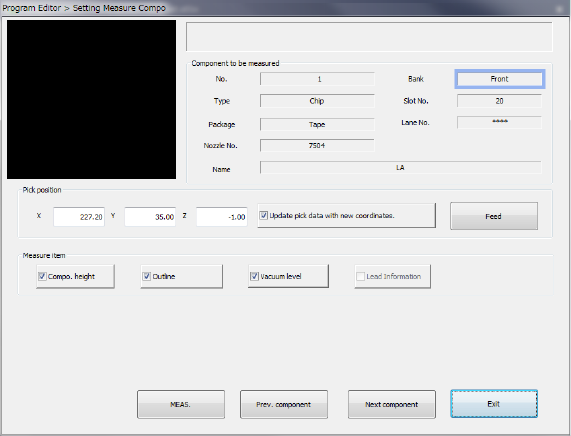
When you select the [Machine operation] command from the Program Editor menu, and
then the [Current component] command, the following screen appears.
① Component to be measured
The descriptions of a component to be measured are displayed here.
② Pick position
The component pick-up position is displayed here. You can change the pick-up position to
the previous or next alternative component. If there is no Pick data created, each menu item
is not displayed. So, you cannot change the component pick-up position, feed the
component, or perform the teaching operation.
• Change of the pick position
If the pick-up position of a component used for measurement is different from the actual
pick-up position, you can teach the coordinates of the component placement position.
You can change the pick-up position by entering it manually without teaching it also.
• Update pick data with new coordinates.
Check this box if you are to save the taught result into Pick data. When unchecked, the
displayed coordinates are used to pick up the current component only.
• <FEED> button
Every time you click this button, the system knocks the feeder once to feed the
component (not available with a 32-mm paper tape).
③ Measure Item
Select the item to be measured. By default, all items that can be measured are selected.
The items that can be measured vary depending on component types.
④ <MEAS.> button
This button measures the current component only.
⑤ <Prev. component> button/<Next component> button
These buttons display the alternate component of the component displayed at the preset if
there is.
⑥ < Exit> button
This button quits measurement of the current component, and returns to the screen from
which you invoked the screen above.
Part 1 Basic Operation Chapter 4 Creating a Production Program
4-234
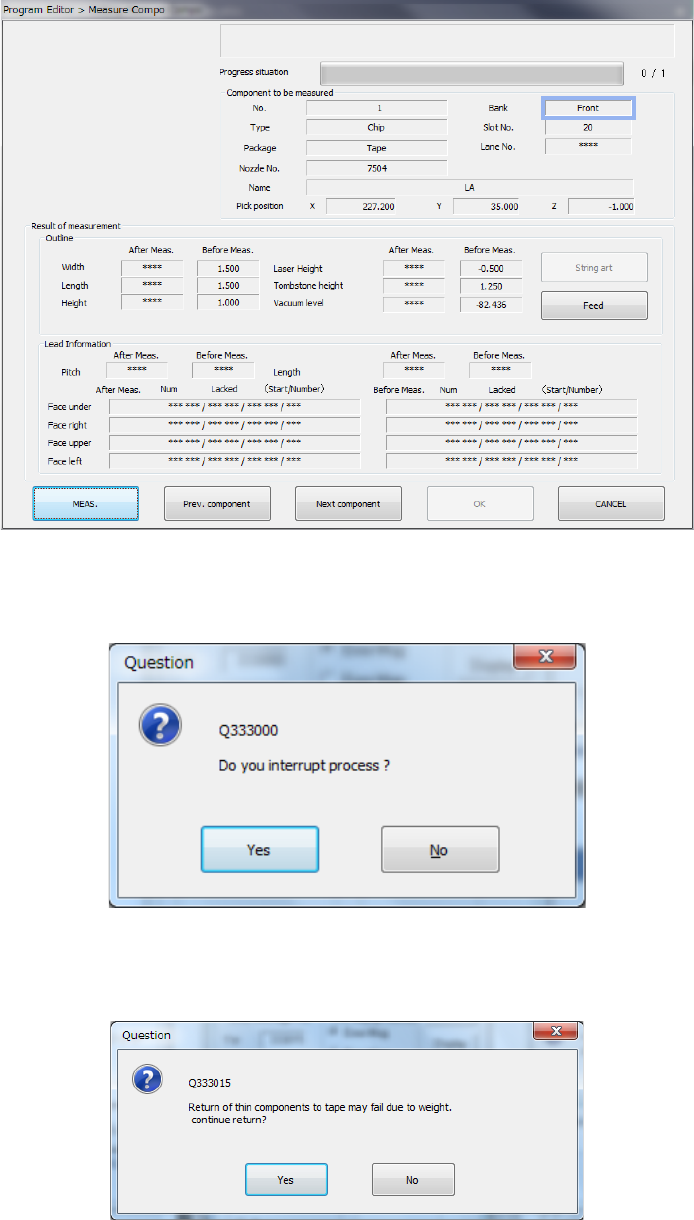
2) Screen displayed while the current component is being measured
(“Measure Compo is being executed” screen)
When the system is measuring the current component, the screen like the one shown below
appears, and it shows that the processing being executed is updated sequentially.
When you press the <STOP> switch, the system aborts measurement, and displays the
following dialog box on the screen.
Select whether to finish measurement or not.
Depending on the packaging style of a component, the dialog box which asks you whether
to return a component to its original position or discard it after measurement, may appear on
the screen if the size of a component is 1 mm or less.
Part 1 Basic Operation Chapter 4 Creating a Production Program
4-235
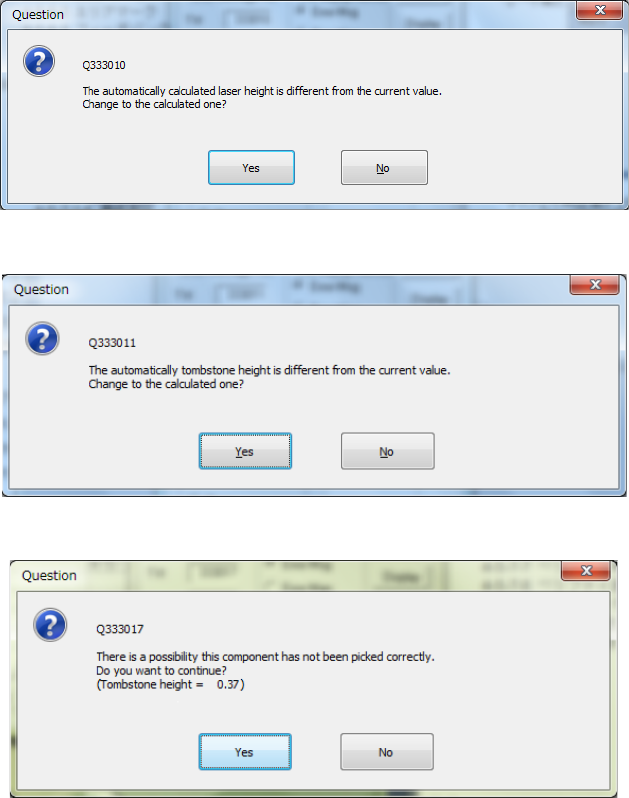
If the laser height that is calculated based on the dimensions is different from the original value, or
if the height that is calculated to judge whether a component is located on its side is different from
the original value, either of the following message appears on the screen.
- Laser height overwrite confirmation
- Tombstone error judging height overwrite confirmation dialog box
When the tombstone error is detected, the following message appears.