RS-1_instruction manual.pdf - 第94页
Part 1 B asic O peration Chapter 1 Overv iew of the Machine 1- 76 When you sp ecify the pr oductio n progr am already exist ing, the sys tem displ ays the ov erwrite conf irmation messa ge on the screen. To save the prod…
Part 1 Basic Operation Chapter 1 Overview of the Machine
1-75
③ At this point, the “Question” dialog box appears on the screen if any production program is
not saved yet.(See Section 1.9.1 “New” for the screen to be displayed.)
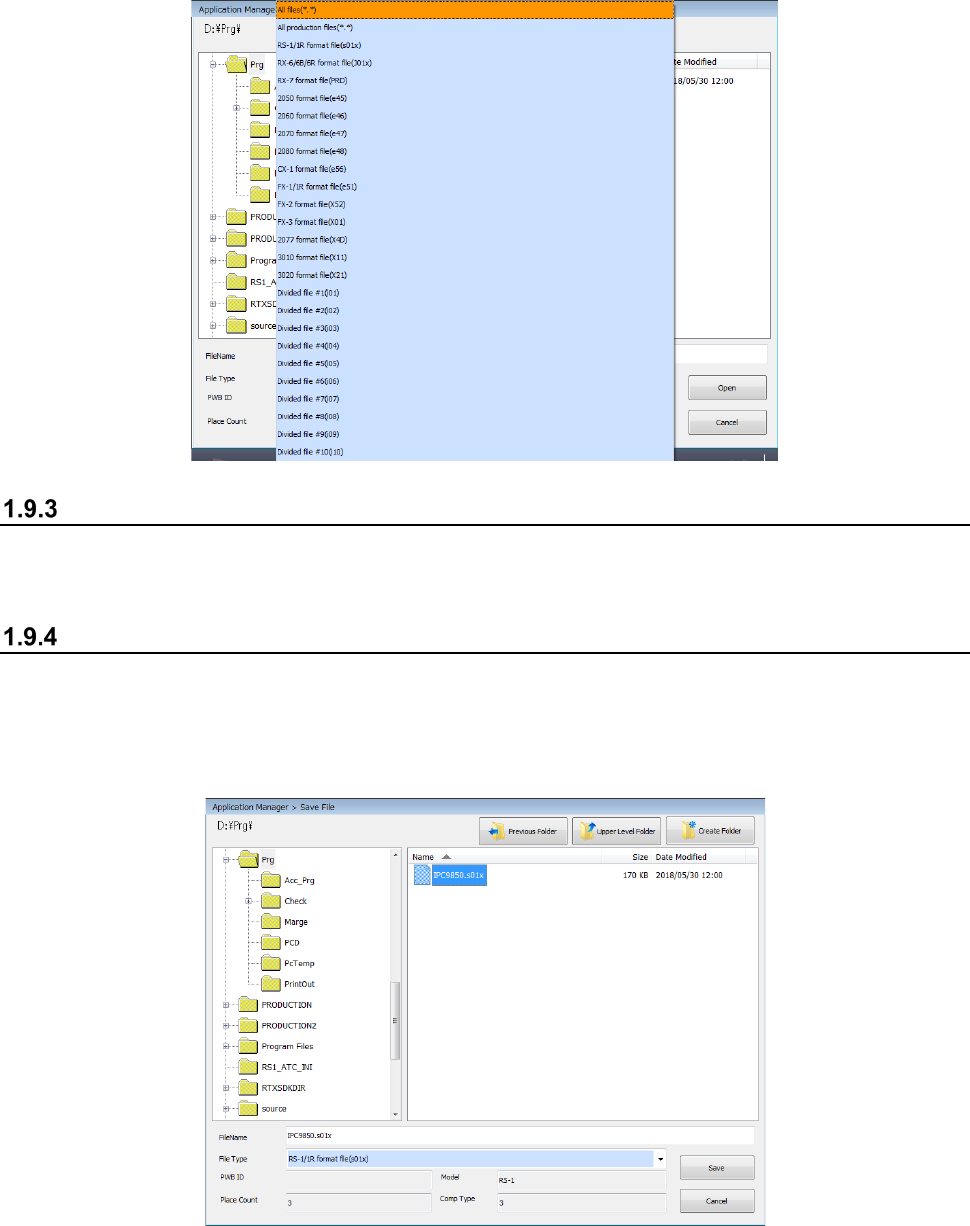
To read the production program of another model, select the "File Type," specify the file name, and
then click the <Open> button.
Save
This command overwrites a created production program.
Select the “File” button from the main menu, and then the [Save] command.
Save as
Select this command to save the edited production program in another folder or rename and save it.
<Procedure>
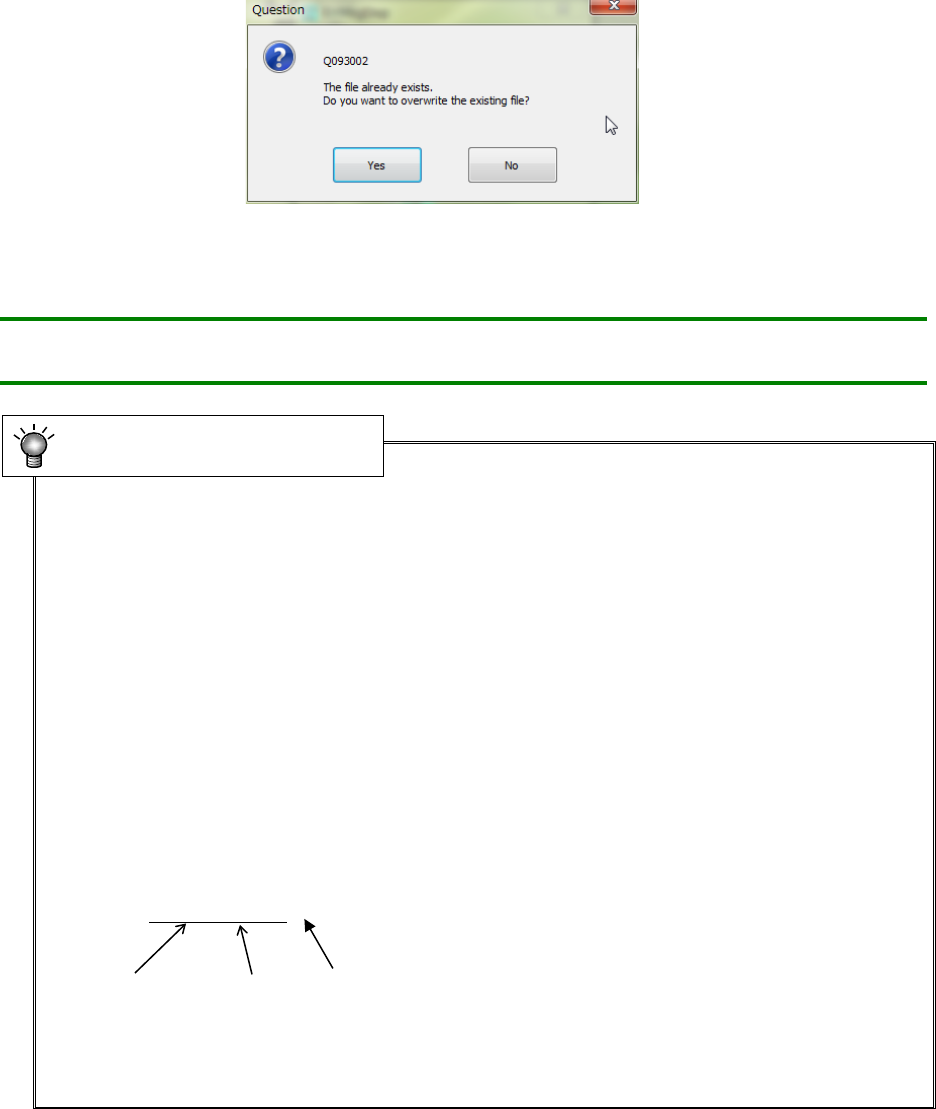
① Select the “File” button from the main menu, and then the [Save as] command.
② Specify the folder and file name on the “Save File” dialog box, and click the <Save> button.
Part 1 Basic Operation Chapter 1 Overview of the Machine
1-76
When you specify the production program already existing, the system displays the overwrite
confirmation message on the screen.
To save the production program by another model type, select the "Files Type," specify the file
name, and then click the <Open> button.
Note: You can specify a long file name or Japanese file name as long as you follow
the conventions of Windows
•
Program name
The specified program name is used to store a file in the storage device.
Therefore, specify a program name that Windows allows as a file name.
Note that extensions are reserved by each model, and automatically assigned to a file.
You cannot change the extension.
* UNTITLED
A program name “UNTITLED” is a reserved word that is automatically assigned to a program
when the Program Editor starts up. When you select the [New] command from the menu bar,
the system automatically initializes a program name to this name.
When you try to save an “UNTITLED” file, the “Save File” dialog box appears on the screen.
Name the file.
•
Extension
An extension is three alphanumeric characters appended to the end of a file name together with
a period (.) to specify the file format.
Example: JUKIPRG.S01x
File name Period Extension
The system creates an extension automatically.
For the models and types that allow file reading and saving, see Section 13.4 “File Format of a
Production Program.”
Program name and extension
Part 1 Basic Operation Chapter 1 Overview of the Machine
1-77
Save to file
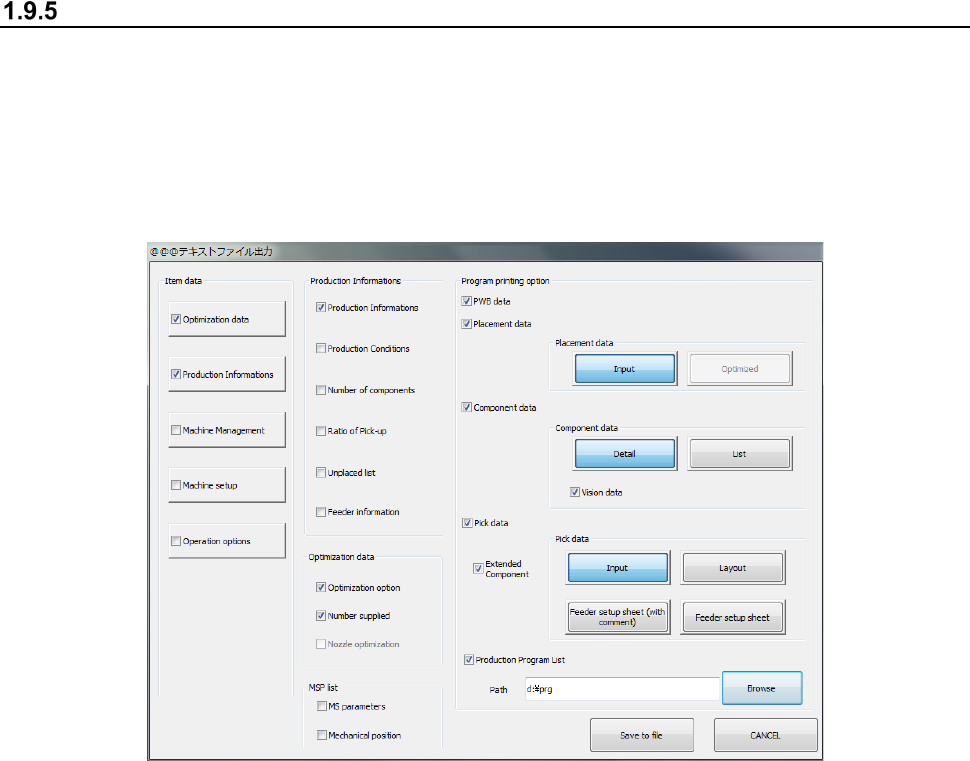
This command outputs data such as production management information, machine operation
information, machine setup state and settings of the operation options to a text file.
(1) Procedure for outputting a text file
① Select the “File” button from the main menu, and then the [Save to file] command.
② When the text file output dialog box appears on the screen, check the items to be output to a
text file.
When you press the <Browse> button, the dialog box for selecting a folder appears on the
screen.
Select a folder to be browsed. The path of the selected folder is set.