RS-1_instruction manual.pdf - 第337页
Part 1 B asic O peration Chapter 4 Cr eating a Produc tion Progra m 4-2 4.2 Environment Setti ng Y ou have to mak e settings of t he environment t o creat e/ edit a pro duction program. This Section describes sett ings o…
Part 1 Basic Operation Chapter 4 Creating a Production Program
4-1
Chapter 4 Creating a Production Program
4.1 Flowchart
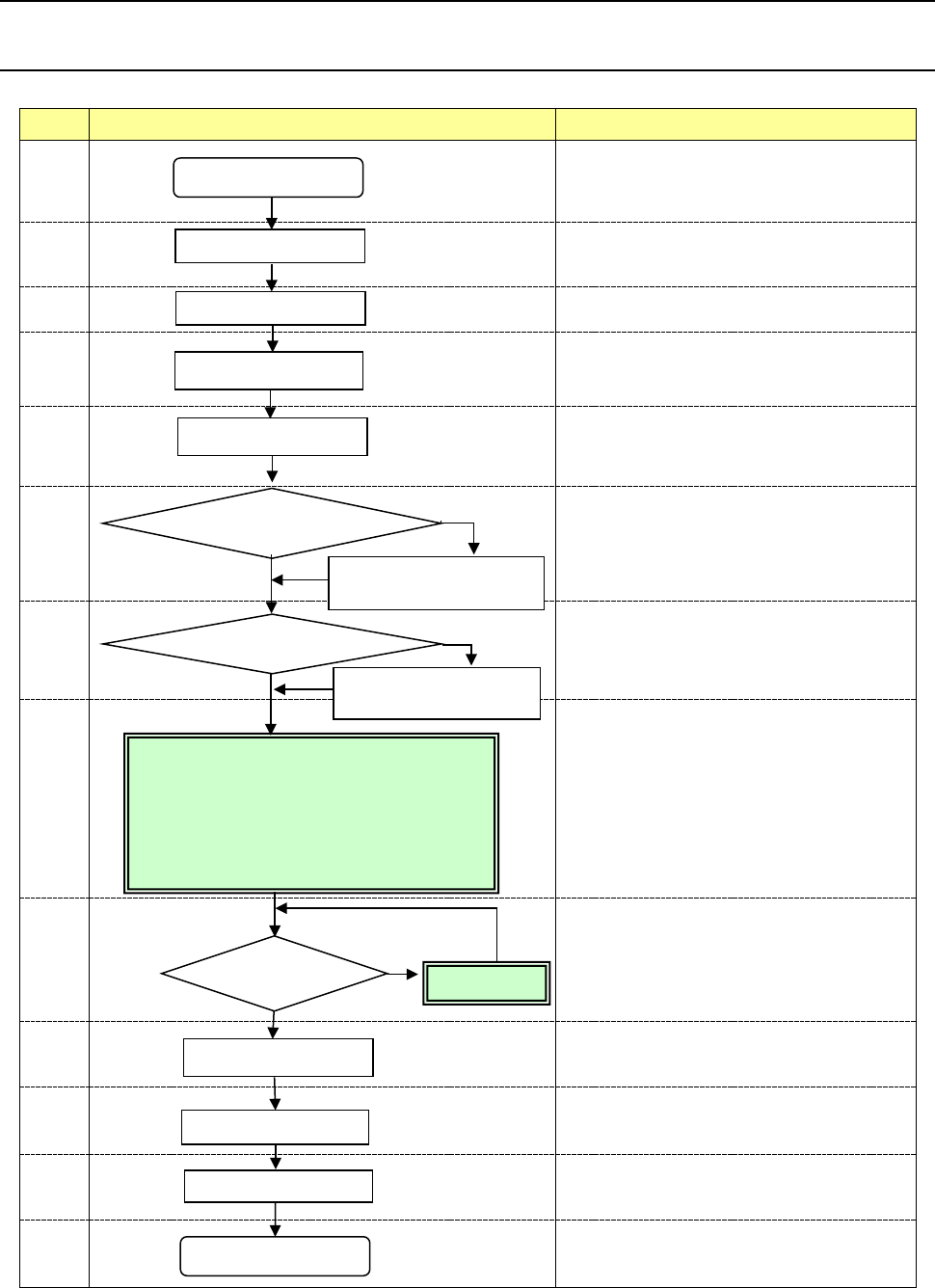
This chapter describes the operation of No.8, and only modification of No.9 basically.
No Flowchart Comment
1
Perform routine inspection including an
ATC-related check.
2
Check the main air pressure (0.5 MPa).
3
Check to see if there is no foreign substance
inside the machine before production.
4
Be sure to warm up the system after holidays or in
cold climates (it takes approximately 10 minutes).
5
6
Change the settings on the “Machine setup” menu
if you clean the nozzle or change the reference
pin position, and you have to change the initial
setup after you perform the daily inspection or set
a PWB.
(See Chapter 8 “Machine Setup.”)
7
See Chapter 5 “Database.”
8
9
If any problem occurs during PWB placement:
for example, the PWB position is shifted from the
regulated position or the centering function fails,
correct the production program on the “Program
Editor” menu. You can correct a part of
component data on the “Production” menu also.
10
11
12
13
Perform the daily inspection periodically.
(See Chapter 3 “Daily Maintenance.”)
Power ON
Inspection of system
Origin return
Warm-up
PWB setting
Change the desired settings
on the Machine setup menu.
Create component data on
the “Database” menu.
Production
End of production
Power OFF
<Creating/editing a production program>
• PWB data
• Placement data
• Component data
• Pick data
PWB placement
confirmation
No
Create the component
database?
Yes
No problem
Daily inspection
No
Modification
Problem
Yes
Change the machine
setup conditions?
Part 1 Basic Operation Chapter 4 Creating a Production Program
4-2
4.2 Environment Setting
You have to make settings of the environment to create/edit a production program.
This Section describes settings of the following items: “Change User Group,” “User Group
Settings,” “Language Selection” and “Data and Time Setting.”
4.2.1 User Group
The machine limits what an operator can operate according to his/her skill level by setting “User
groups”.
To change a user level, enter the password.
4.2.1.1 Changing the user group
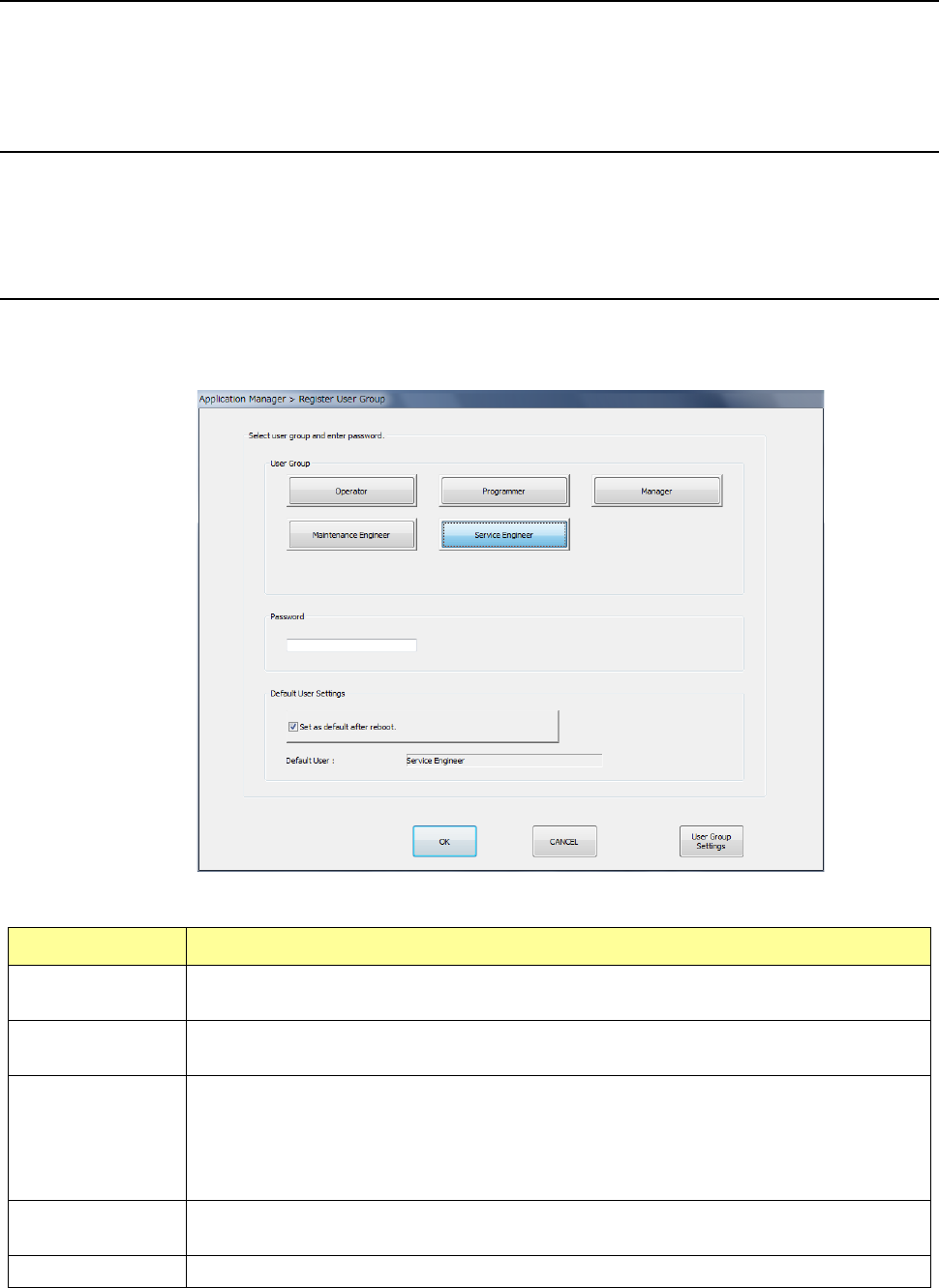
Select the “Env. Setting” button from the desktop screen, and then the [Change User Group] menu
command.
The “Register User Group” screen appears.
Select a user group, and enter the password. When you press the <OK> button, the system
changes the user group to the selected one.
User Group Overview
Operator
This user level allows an operator to perform production setup and other related operation.
Production can be executed but program editing and various settings cannot be performed.
Programmer
This user level allows a user to create a production program.
Machine operations are limited.
Manager
This user level is higher than the “programmer” level, and is provided for a manager of the
machine.
This user level allows a user to select the “Machine setup,” “Manual control” and
“Self-diagnosis” menus.
However, operations for machine repair and readjustment cannot be performed.
Maintenance
Engineer
This user level allows a user to upgrade the main unit.
We will give a user the required password when he/she upgrades the main unit.
Service Engineer Basically, this level is for a trained service engineer.
* See Section 13.3 “Functions available to each user level” for functions that can be used by each level
of user.
Part 1 Basic Operation Chapter 4 Creating a Production Program
4-3
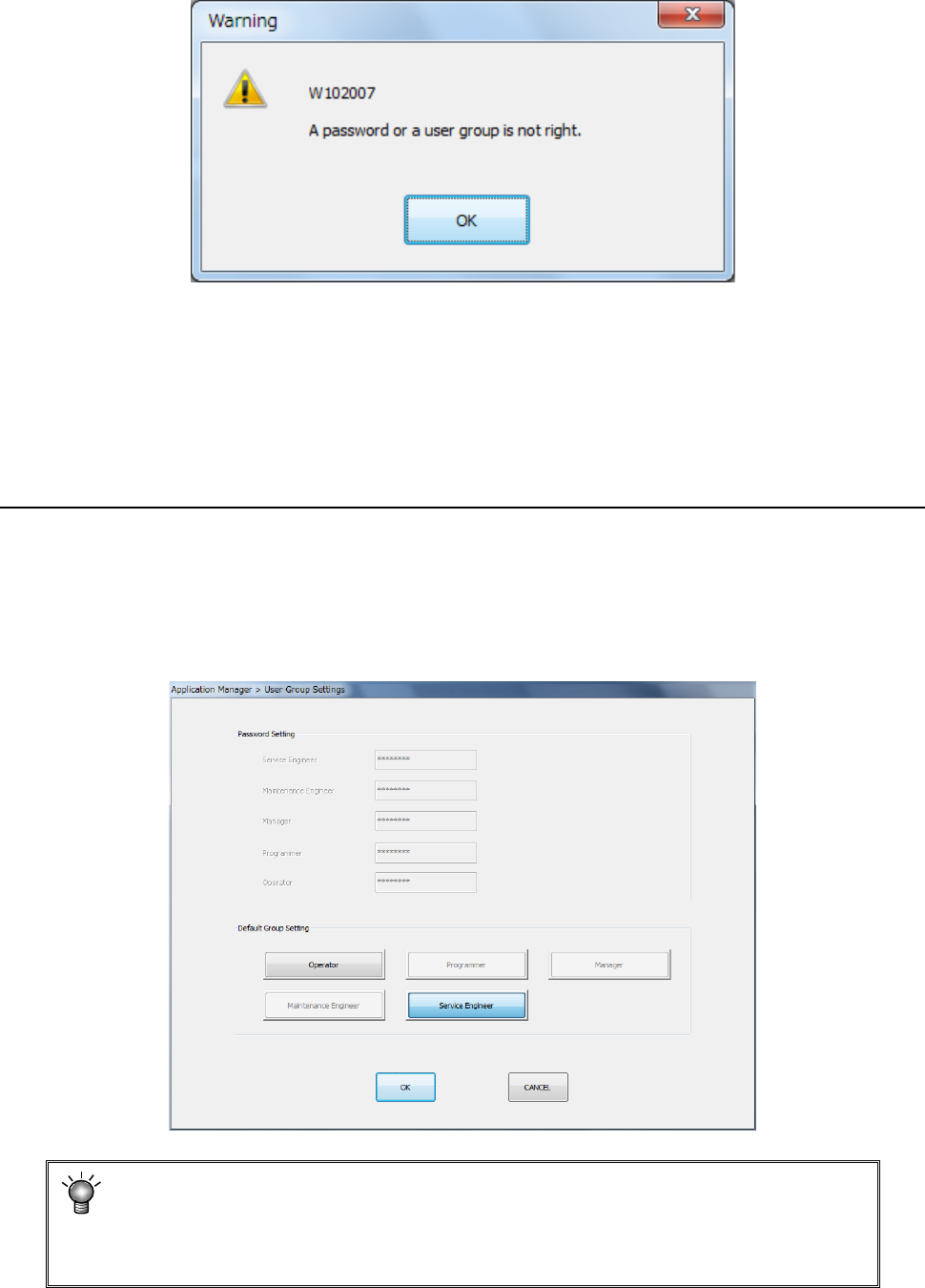
If the user group does not match the entered password, the following message appears on the
screen.
♦ Check box “Set as default after reboot”:
This check box sets the user level that is selected at first when the machine is rebooted.
If you check this check box, the user level set at the “Default user” field described under
Section 4.2.1.2 “User Grou
p Settings” is selected. Otherwise, the user level you
selected the last time is selected when the machine is rebooted.
4.2.1.2 User Group Settings
This command allows you to change each password you have to enter to change the user level, or
set the default user level (see the description of the check box “Set as default after reboot” under
Section 4.2.1.1 “Changing the user group”).
When you select the <User Group Settings> button on the “Register User Group” screen, the
dialog box appears.
The following example shows the screen displayed when you select “Service Engineer.”
• You cannot refer to or set the password for the user level higher than the user
level currently selected, and cannot change to the higher user level either.
• The default user cannot be changed to the higher user level than the present level.
• If you change the password for the user level “Manager,” do not forget it.