RS-1_instruction manual.pdf - 第185页
Part 1 B asic O peration Chapter 2 Pr oduction 2- 74 Program Che ck When you se lect the [ Program] co mmand from the “Prod uction” m enu, and t hen the [Pro gra m Check] co mmand fro m the “ Program” menu, the “Pr ogram…
Part 1 Basic Operation Chapter 2 Production
2-73
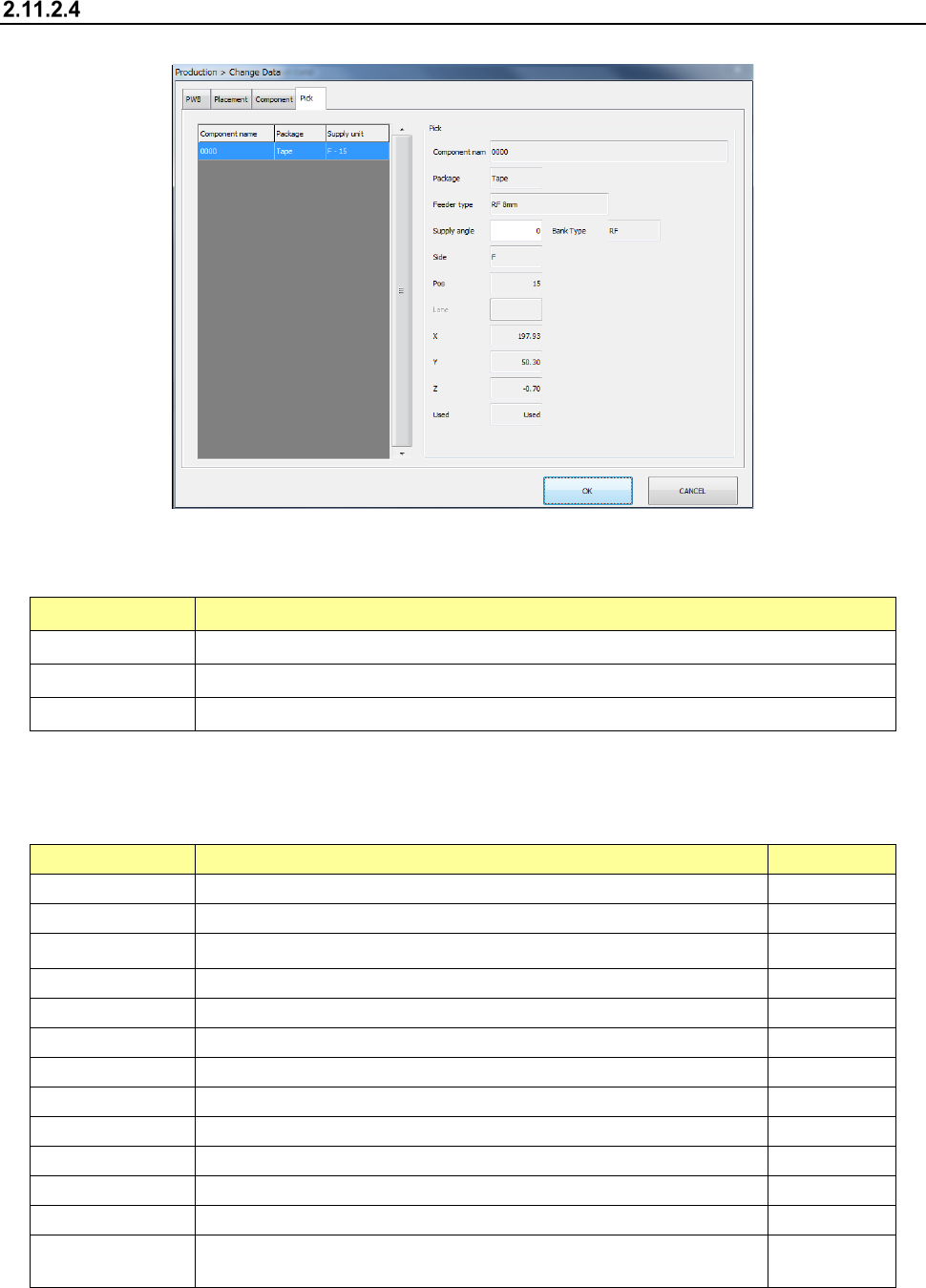
Pick
Select the “Pick” tab displayed on the top of the screen.
(1) List of the displayed menu items
Pick data is shown in the list.
Menu item Description
Component name Displays the name of a component to be picked up.
Package Displays the package style of a component to be picked up.
Supply unit Displays the supply position of a component to be picked up.
(2) Pick information
These menu items allow you to display and/or edit the information on pick operation you
selected in the list.
Menu item
Description
User level
Component name
Displays the name of a component to be picked up.
Package Displays the package style of a component to be picked up.
Supply unit Displays the supply unit.
Supply angle
Enter the component supply angle.
Programmer
Bank type
Displays the bank type of the feeder. (RF or RF/EF)
Side
Displays the bank from which a component is supplied.
Feeder type
Displays the feeder type.
Pos
Displays the pick-up number.
Lane Displays the lane number (if the component type is “Stick”).
X
Displays an X coordinate of a component pick-up position.
Y
Displays a Y coordinate of a component pick-up position.
Z
Displays a Z coordinate of a component pick-up position.
Used Select whether to pick a component based on this data to produce
PWBs.
Operator
Part 1 Basic Operation Chapter 2 Production
2-74
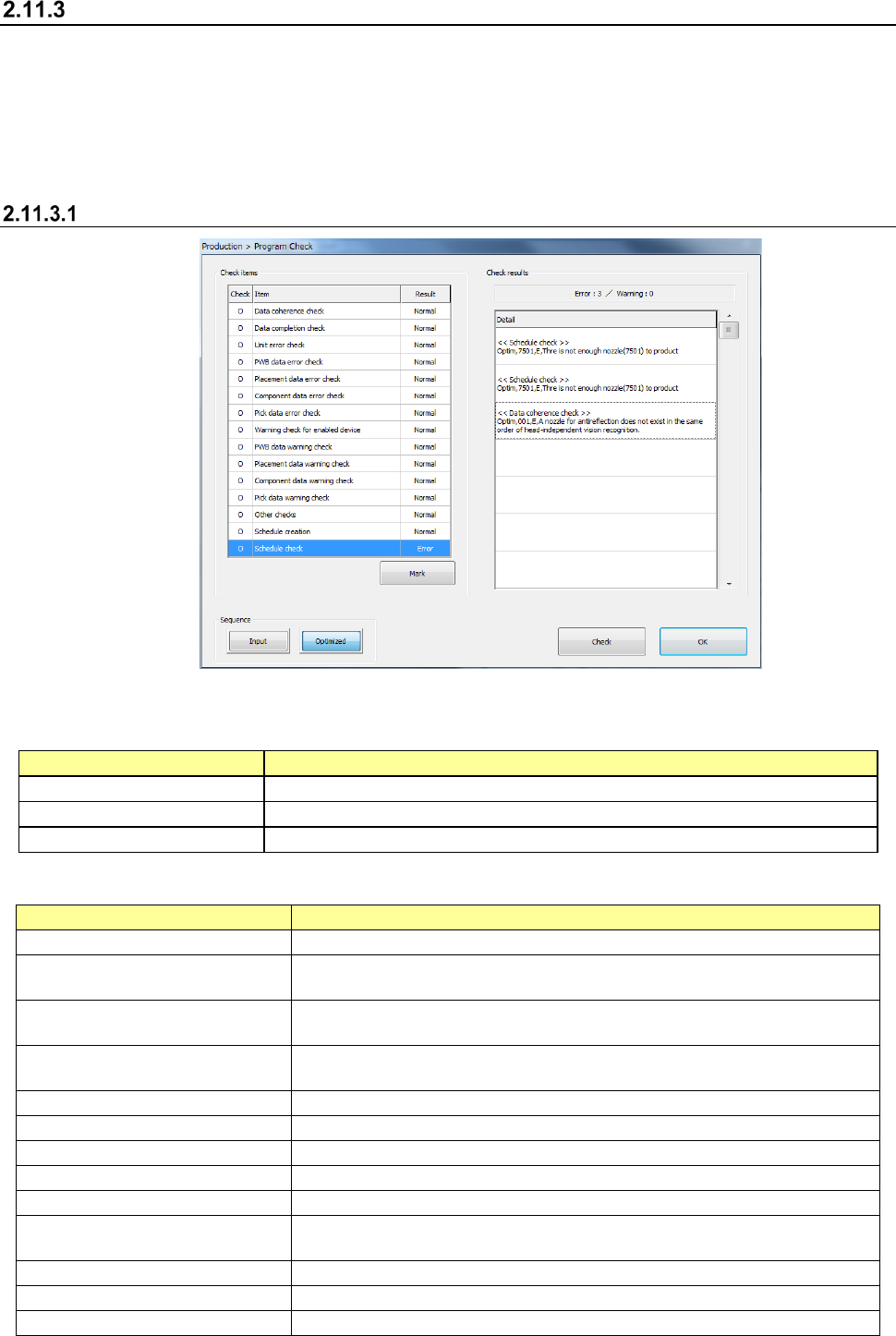
Program Check
When you select the [Program] command from the “Production” menu, and then the [Program
Check] command from the “Program” menu, the “Program Check” screen appears.
This menu command checks a production program and displays the result before PWB production
starts.
The system will not check any functions that are set to OFF with the “Edit Data” command described
in Section 2.11.2, unused data and data to be skipped.
“Program Check” screen
(1) Check Items
The items for checking a production program are displayed here.
The system checks these items from the top to the bottom.
Columns of the table
Description
Check
Displays whether to check a production program.
Item
Displays the category of the check items.
Result
Displays the check result.
The check items of a production program are listed below.
Item
Description
Data coherence check
Performs an optimized data coherence check.
Data completion check
Checks the number of PWBs, the range for placing components, and
completion and link of each type of data.
Unit error check
Checks whether heads are used or not and whether placement position marks
are used or not.
PWB data error check
Checks the reference side, the board transporting direction and the BOC mark
position.
Placement data error check
Checks the placement heads and the position of an area mark.
Component data error check
Checks the used nozzles, the centering method and component supply units.
Pick data error check
Checks Pick data of each component supply unit and the CVS dead space.
Warning check for enabled device
Checks the condition of units to be used for a production program.
PWB data warning check
Checks assignments of BOC marks and those of circuits.
Placement data warning check
Checks the component placement position, assignment of area marks and
component placement during trial production.
Component data warning check
Checks discarding of components.
Pick data warning check
Checks movement of the head to the component pick-up position.
Other checks
Checks the settings of the environment.
Part 1 Basic Operation Chapter 2 Production
2-75
Schedule creation
Creates the master schedule.
Schedule check
Checks coherence of the ATC, nozzles, Pick data and Placement data.
Checks the layers of the block, component types, banks and heads.
Checks usage, specification and movement range of heads.
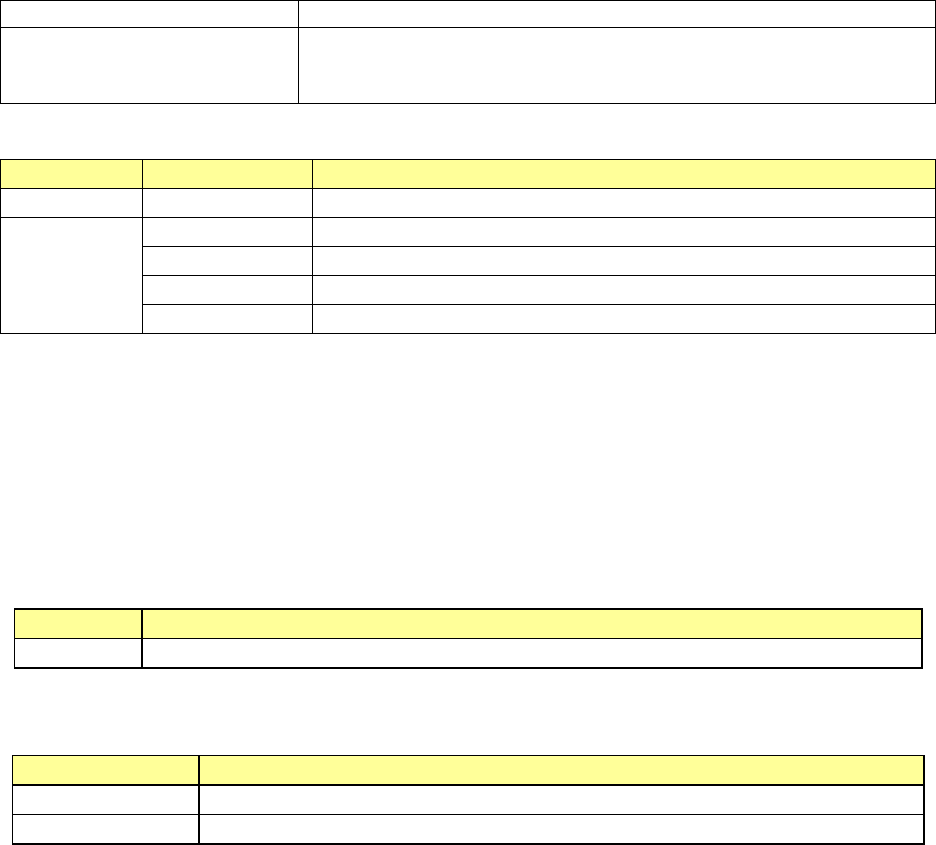
The check results are displayed as shown below.
Operation
Displayed result
Description
Before check (None) The system has not checked any items.
After check
Error
An error has occurred.
Warning A warning has been issued.
Setting
The system can produce a PWB if you change the production conditions.
Normal Data is normal.
(2) <Mark> button
When you press this button, the setting(s) of the item(s) selected on the “Check items” list is
(are) changed so that the item (items) will not be checked (○ is deleted).
When you press the button at the item set not to be checked, its setting is changed so that it is
will be checked (○ is put).
When you select two or more items in the “Check items” list and press this button, you can
change marks of those items at a time.
(3) Check results
The check results of the items selected in the “Check items” list are displayed here.
Item
Description
Detail Displays items for which an error has occurred and the detailed information on the errors.
(4) Sequence
Select the order of placement sequences to be checked, Input order or Optimized order.
Columns of the list
Description
Input
Checks a production program in input order of Placement data.
Optimized Checks a production program according to the optimization result.
(5) <Check>/<OK> button
When you press the <Check> button, the system starts checking a production program.
When you press the <OK> button, the system finishes checking a production program, and
returns to the previous screen.