RS-1_instruction manual.pdf - 第621页
Part 1 B asic O peration Chapter 4 Cr eating a Produc tion Progra m 4- 286 When you qu it the Progr am Editor , the system disp lays the following “ Quest ion ” dialog b ox. • Y es: After moving eac h axis in the safe di…
Part 1 Basic Operation Chapter 4 Creating a Production Program
4-285
4.7 Exit
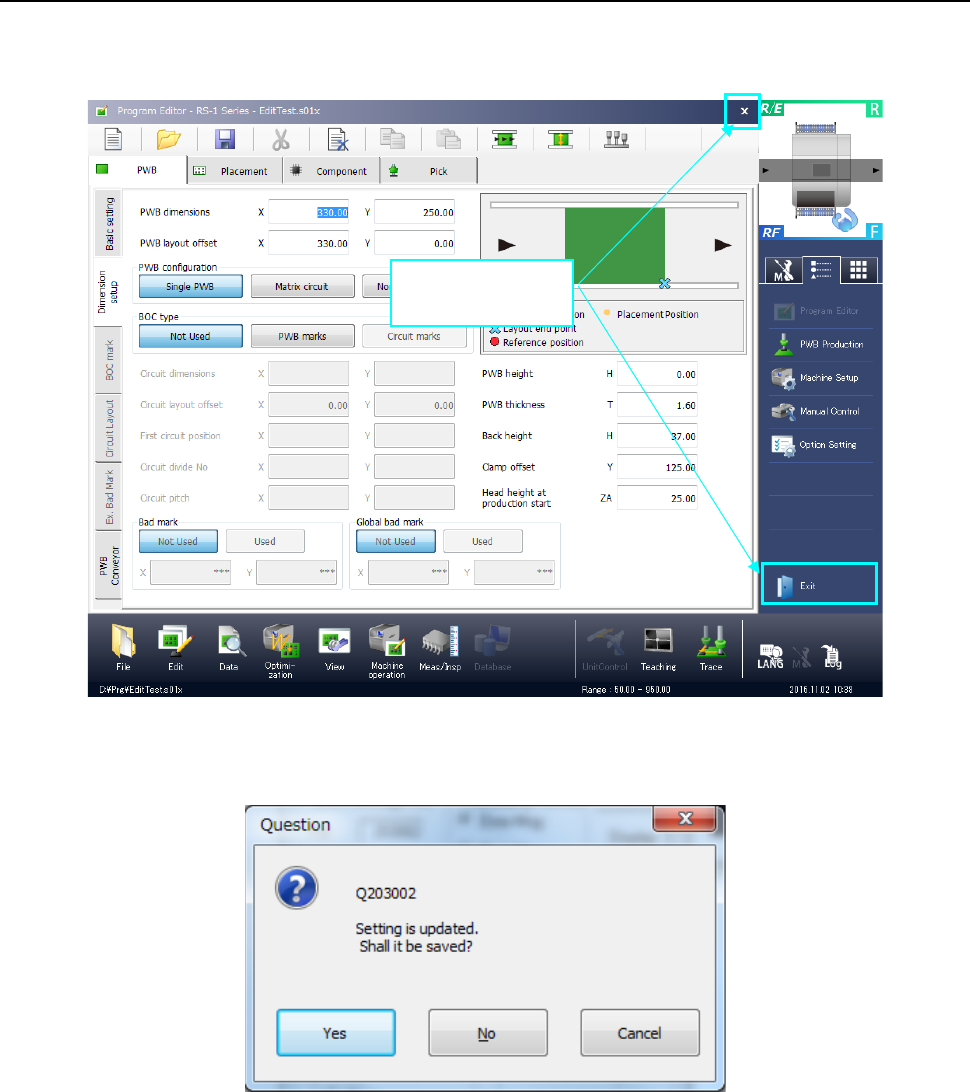
Touch the [×] button at the upper right corner of the Program Editor window or touch the “Exit”
button on the Application shortcut menu tab of the Information area.
If you have changed the program, but not saved it, the following “Information” dialog box appears
on the screen.
• Yes: the system saves the program. After saving the program, the system quits the
Program Editor.
• No: the system quits the Program Editor without saving the program.
• Cancel: the system cancels the exit process.
Touch either of
these buttons
Part 1 Basic Operation Chapter 4 Creating a Production Program
4-286
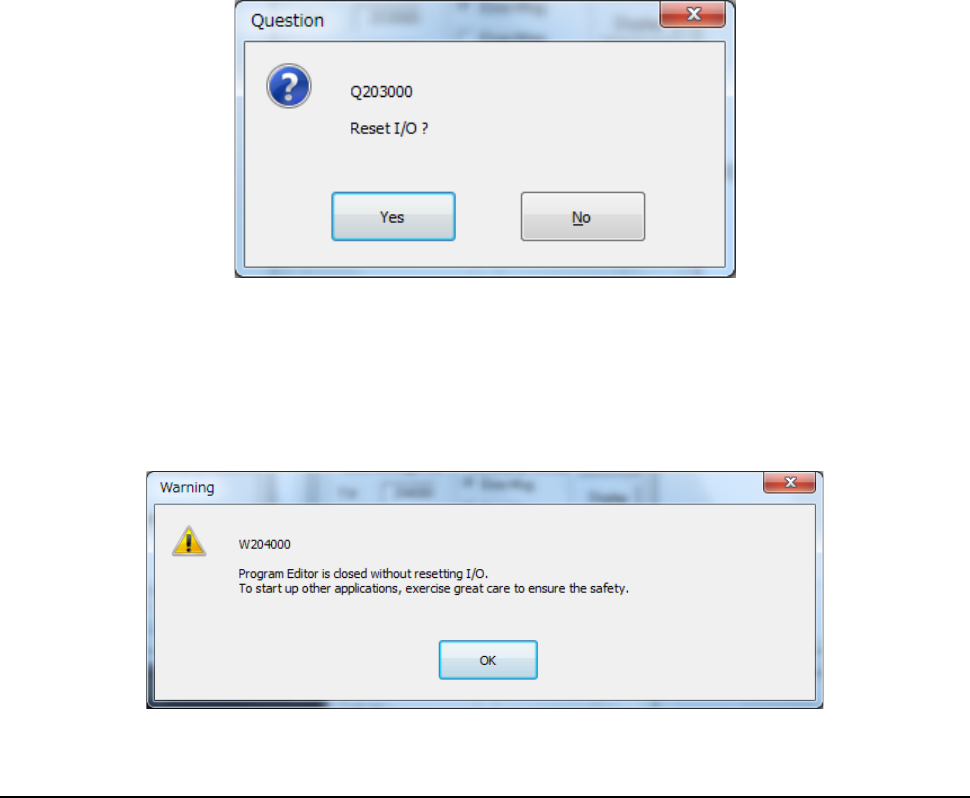
When you quit the Program Editor, the system displays the following “Question” dialog box.
• Yes: After moving each axis in the safe direction, the system quits the Program Editor.
• No: Program editing is terminated without moving each axis in the safety direction.
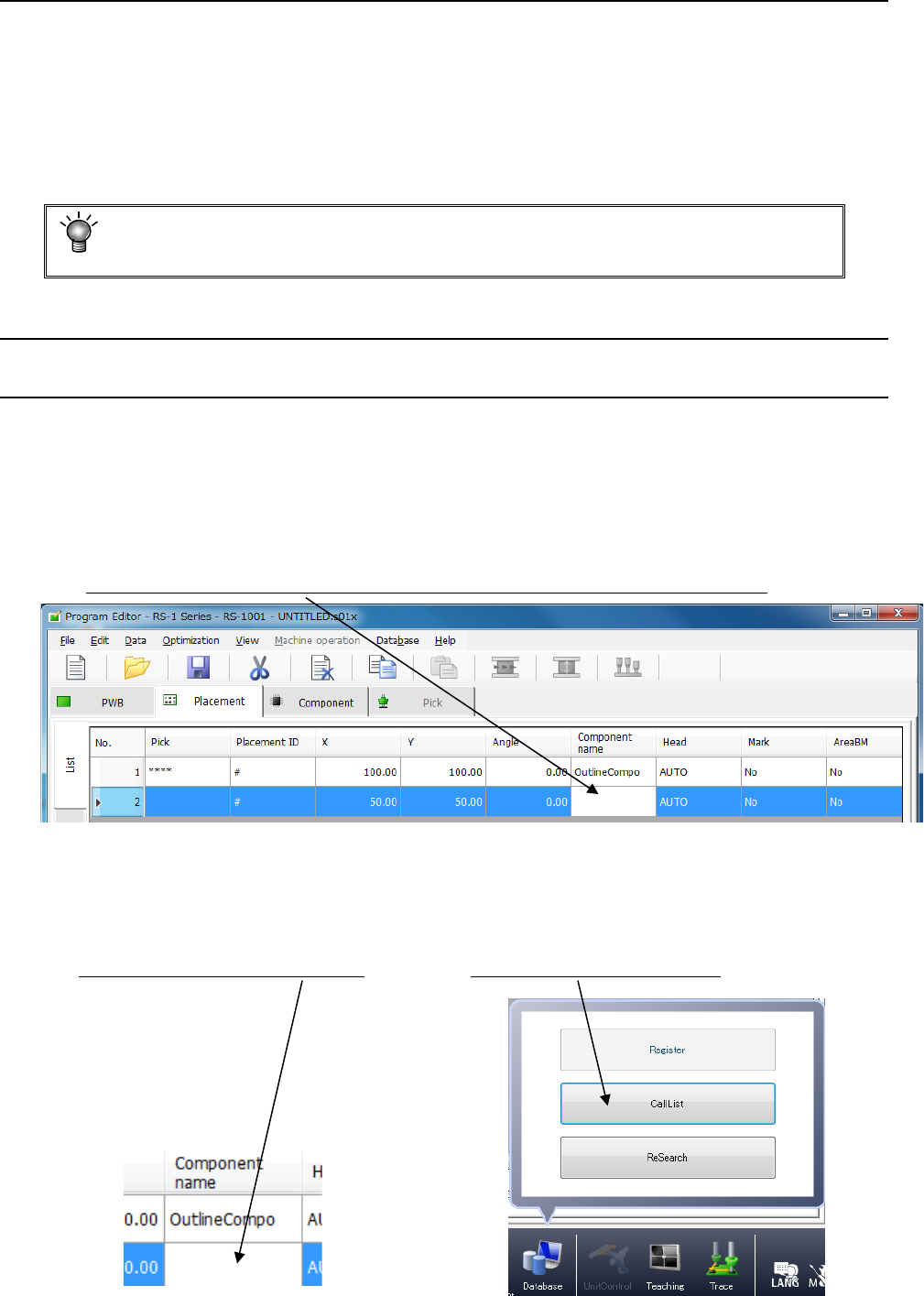
When you select "No" in the confirmation message for safety direction setting of each I/O, the
following message is displayed.
Part 1 Basic Operation Chapter 5 Database
5-1
Chapter 5 Database
A “database” is used to register and collect component data.
After you register the created component data in the “database,” the system manages the
data by component names.
Once you register component data in the database, you can easily create component data
only by specifying the component name registered in the database when creating a
production program with the Program Editor.
This chapter describes how to use a database mainly.
・ For the operations on a mounter, refer to Chapter 5.1.2.
5.1 Component Database
How to Use a Database 5.1.1
After starting up the Program Editor, use a database to create component data.
(1) If you know a component name
If the name of a component whose data you want to create is registered in the database,
enter the component name on the “Placement” data screen.
The system will register the data created for the component in the production program
that is being created.
Enter the component name here. The corresponding component data is created completely.
(2) If you do not know a component name
Display the database list, and select a component name you are to register from the list
(this is the “CallList” function).
<Procedure>
① Click a blank “Component name” field. ② Click the [Database]/[CallList] commands.