RS-1_instruction manual.pdf - 第90页
Part 1 B asic O peration Chapter 1 Overv iew of the Machine 1- 72 Unit ev ent display screen The icon of ea ch event dis played on th e top of the In formation are a shows you an event (s) that occur(s) in r eal time. Y …
Part 1 Basic Operation Chapter 1 Overview of the Machine
1-71
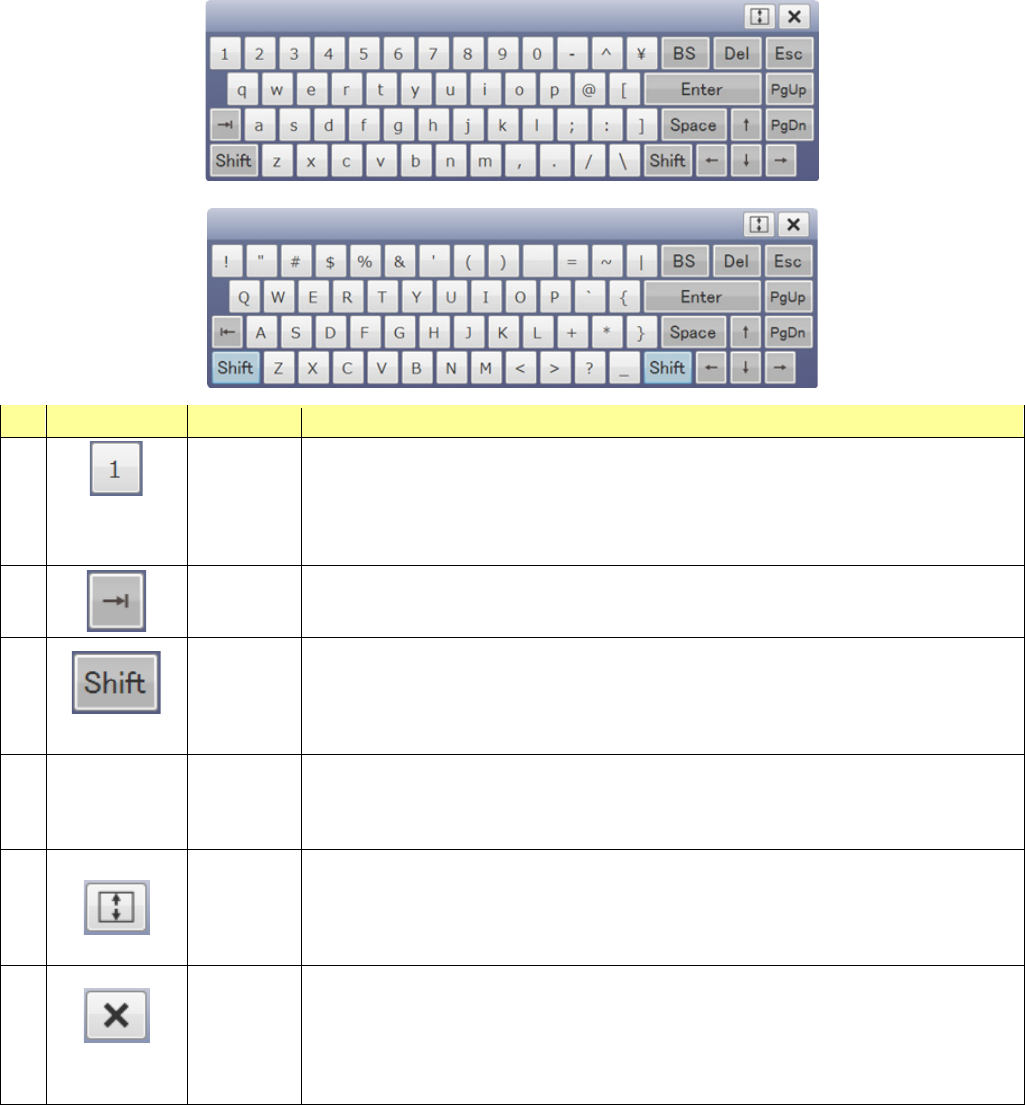
(3-2) Full keyboard
This is for displaying keys that enter alphabet characters. Invoke it from the 10-key displayed on
the information area to display it on the screen.
This window is transparent so that you can see an error message or any other message overlapped
with the full keyboard.
The corresponding button allows you to move the keyboard to the bottom or the top of the screen.
In addition, when you drag its upper section, you can move it to the desired position of the entire
screen.
<When the keyboard is displayed normally>
<When the <Shift> key is selected>
No.
Button
Name
Overview
1
Button displayed
in the standard
color
Character
keys
Buttons displayed in the standard color allow you to enter the characters displayed on the
buttons. The entered character varies depending on whether the <Shift> key is pressed
or not: for example, a numeric value is entered, the uppercase/lowercase character is
entered or a symbol is entered. “¥
” is entered as a backslash symbol. Even though you
press the “0” key when the <Shift> key is pressed, no character is entered.
2
Tab key
Performs an operation of the Tab key.
Normally, it operates in the for
ward direction. When the <Shift> key is pressed, it operates
in the reverse direction.
3
(Check box)
Shift key
When you press this key once, it is put in the pressed state, and changes the display and
function of each of the No. 1 and 2 keys.
Until you press this key again, this state is not
canceled automatically even though you press any other keys. (This is applied to when
you switch the displayed screen to another one or close it to display the same screen
again also.)
4 -
Other keys
Performs an operation of the displayed key of the keyboard.
Note that these keys are not affected by the <Shift> key operation. (You cannot select
any range.)
BS, Del, Esc key, Enter key, Space key, PgUp/PgDn key, movement keys (
↑
,
↓
,
←
,
→
)
5
Screen
movement
key
Moves the full keyboard to the top or bottom of the screen. The destination positon is
decided according to the current keyboard position.
When the keyboard is located on the top of the screen, it is moved to the default positon.
When it is
located on the bottom of the screen, it is moved to the position above the input
range displayed in the operation area.
6
Close button
Hides the full keyboard. When you display the full keyboard from the information area
again, it is moved to the position at which the keyboard was located when the keyboard
was hidden.
The full keyboard is not closed automatically when the entry is valid
ated. It is closed only
when you press the Close button, when the information area is not displayed or when the
main unit software is shut down.
Part 1 Basic Operation Chapter 1 Overview of the Machine
1-72
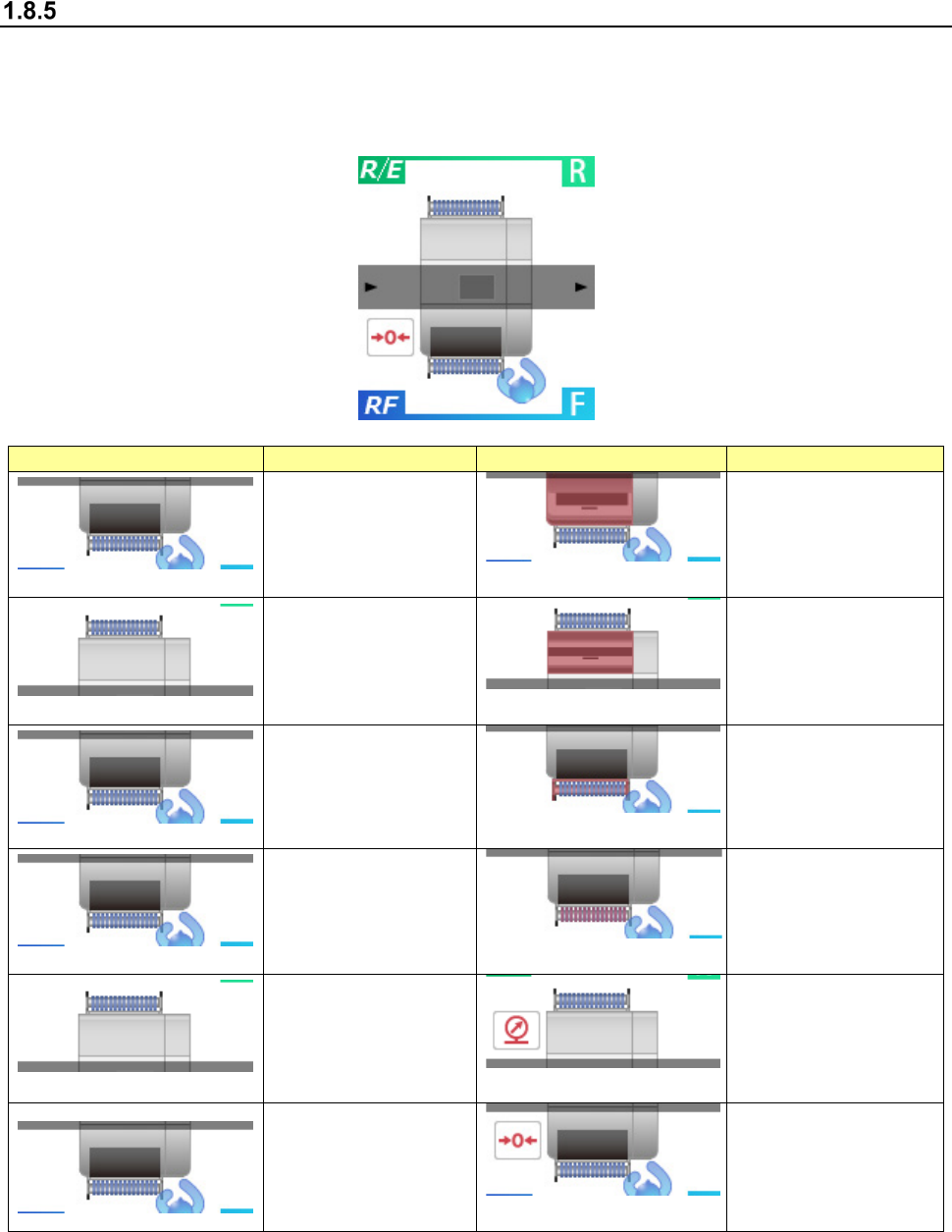
Unit event display screen
The icon of each event displayed on the top of the Information area shows you an event(s) that
occur(s) in real time. You can check the following events: cover open, bank down, feeder
float/feeder insertion error, air down, return to origin not completed/servo off, insertion error sensor
state, PWB production state, cycle stop waiting state and operation panel operating direction.
Icon
Meaning
Icon
Meaning
The cover is closed.
(Front)
The cover is opened.
(Front)
The cover is closed.
(Rear)
The cover is opened.
(Rear)
The bank is moved
up.
The bank is moved
down.
The feeder is in good
order.
The feeder floats or
the feeder has not
been inserted
normally.
The air is in the
normal state.
The air is down.
Return to the origin
has been completed
and the servomotor
is set to ON.
Return to the origin
has not performed
yet or the servomotor
is set to OFF.
Part 1 Basic Operation Chapter 1 Overview of the Machine
1-73
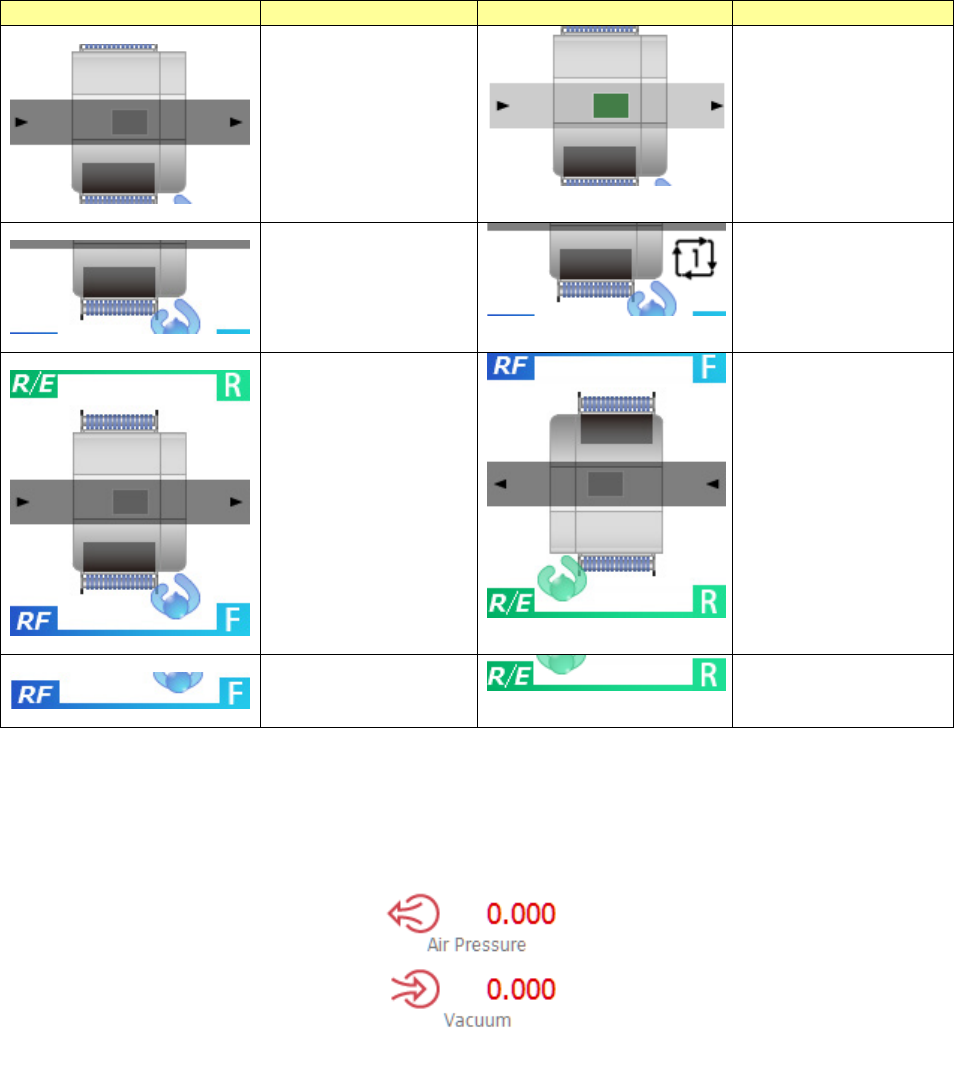
Icon
Meaning
Icon
Meaning
The machine is not
producing any PWB.
The machine is
producing a PWB.
The machine is not
waiting for a cycle
stop.
The machine is
waiting for a cycle
stop.
The operation panel
operating direction
: From the front
The operation panel
operating direction
: From the rear
RF bank is being
used.
RF/EF bank is being
used.
When you touch the event display area, the screen is switched to the air pressure monitor. When
you touch it again, the screen is switched back to the Unit event display screen.