RS-1_instruction manual.pdf - 第620页
Part 1 B asic O peration Chapter 4 Cr eating a Produc tion Progra m 4- 285 4.7 Exit T ouch the [×] butt on at the upper right corner of the Program E ditor w i ndow or touch the “Ex it” button on the A pplication shortcu…
Part 1 Basic Operation Chapter 4 Creating a Production Program
4-284
(2) Production Information
Select data on the production management information to be output.
No. Item Description
1 Production Information Outputs management information obtained during PWB production.
2 Production Conditions Outputs the production conditions.
3 Number of components Outputs the number of components.
4 Ratio of Pick-up Outputs each component pick-up ratio.
5 Unplaced list Outputs the list of unplaced feeders.
6 Feeder information Outputs information on feeders.
(3) Optimization data
Select data on optimization to be output.
No.
Item
Description
1 Optimization option Outputs a list of the optimization options.
2 Number supplied Outputs the number of each type of supplied components
3 Nozzle optimization Outputs the nozzle arrangement condition.
(4) Program printing option
Set the detailed data of a production program to be output.
No. Item Description
1 PWB data
Outputs the PWB data.
2 Placement data
- Input: Outputs the Placement data in input order.
- Optimized: Outputs the Placement data in optimized order.
3 Component data
- Detail: Outputs Component data in the detailed format.
- List: Outputs the Component data in tabular format.
- Vision data: Outputs the Vision data
4 Pick data
- Input: Outputs the Pick data in input order.
- Layout: Outputs the Pick data in the layout form.
- Feeder setup sheet (with comment):
Outputs the Pick data in the format of a feeder setup sheet (with
a comment).
- Feeder setup sheet
Outputs the Pick data in the format of a feeder setup sheet
(without a comment).
5 Production Program List
Outputs a list of production programs in the folder specified with the
path.
When you press the <Save to file> button after selecting the output conditions, you can save the
selected information as a text file in the specified folder with naming it. To cancel the saving
operation, press the <CANCEL> button.
Part 1 Basic Operation Chapter 4 Creating a Production Program
4-285
4.7 Exit
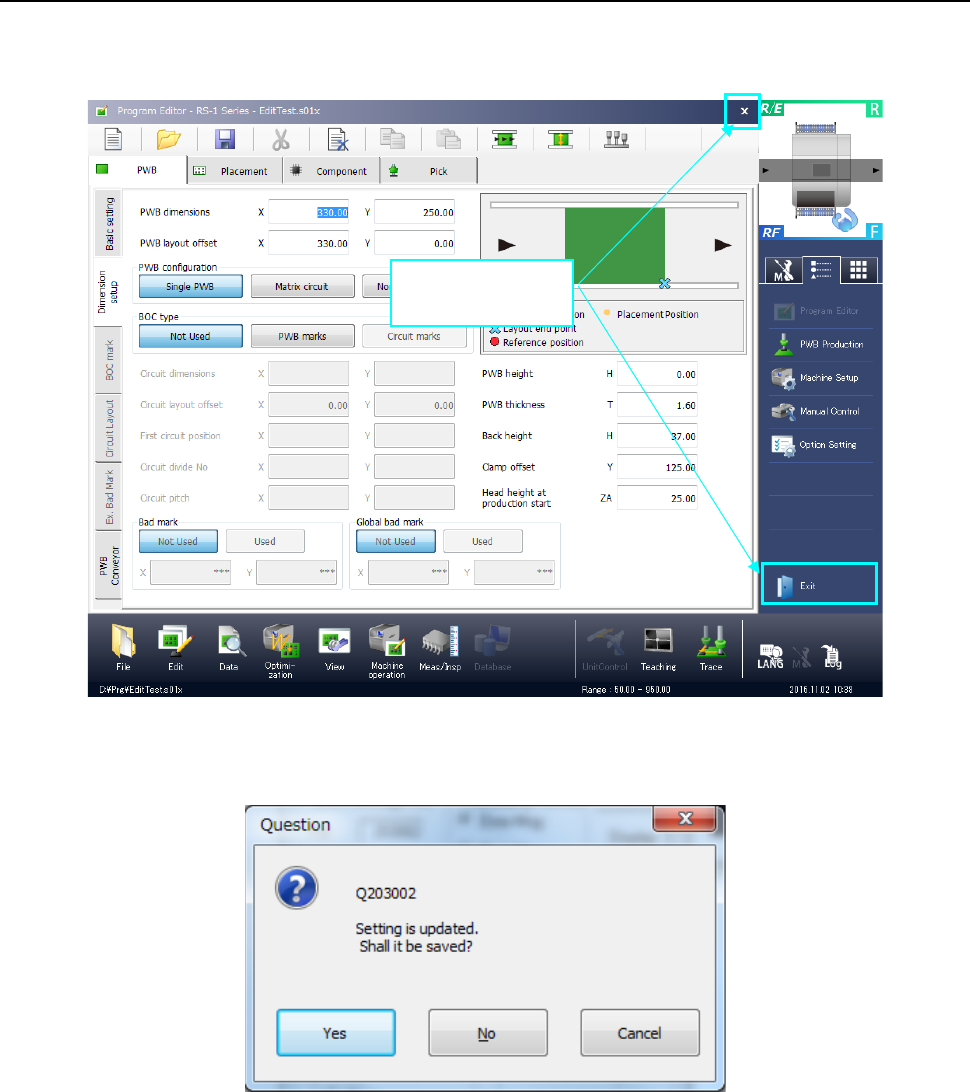
Touch the [×] button at the upper right corner of the Program Editor window or touch the “Exit”
button on the Application shortcut menu tab of the Information area.
If you have changed the program, but not saved it, the following “Information” dialog box appears
on the screen.
• Yes: the system saves the program. After saving the program, the system quits the
Program Editor.
• No: the system quits the Program Editor without saving the program.
• Cancel: the system cancels the exit process.
Touch either of
these buttons
Part 1 Basic Operation Chapter 4 Creating a Production Program
4-286
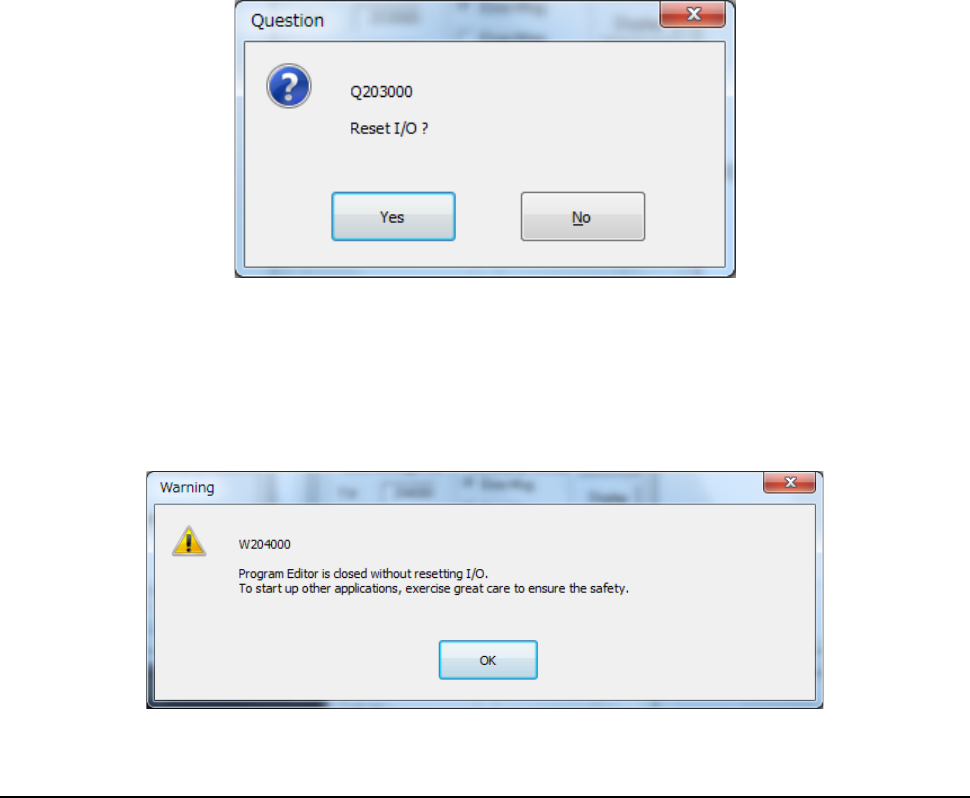
When you quit the Program Editor, the system displays the following “Question” dialog box.
• Yes: After moving each axis in the safe direction, the system quits the Program Editor.
• No: Program editing is terminated without moving each axis in the safety direction.
When you select "No" in the confirmation message for safety direction setting of each I/O, the
following message is displayed.