RS-1_instruction manual.pdf - 第537页
Part 1 B asic O peration Chapter 4 Cr eating a Produc tion Progra m 4- 202 4.5.5 Environme nt setting This section de scribes how to set the environm ent for editing a pro duction pro gram. When you se lect the [F ile] c…

Part 1 Basic Operation Chapter 4 Creating a Production Program
4-201
• Patterns registrable as a user-specified template
1) Patterns registrable as a user-specified template
① Wiring pattern
② Pad/land pattern that is not screen-printed (without solder paste)
③ PWB mark other than the JUKI standard (whole or a part)
2) What is required for registration as a user-specified template
The through-hole/pier hole pattern creating process is different from drilling process,
so that the same positional relation cannot be provided at all times. (The hole
position for the pattern is unstable.)
To register the template on the basis of the through-hole/pier hole, register this
template including peripheral wiring pattern instead of registration of itself.
3) What cannot be registered as a user-specified template
① Silk (character) printing pattern
The pattern/pad creating process is quite different from the silk printing process, so
that the placement position cannot be determined on the silk pattern.
② Screen-printed pad/land pattern
The screen-printed solder paste is granular. Accordingly, the luminous status
varies depending on the environment and conditions. Template matching is
resistant to changes of lighting conditions but cannot follow changes of polarity
(normal/reverse rotation).
③ A similar pattern exists on the recognition screen.
④ Template with a small difference between brightness and darkness
⑤ The pattern selection (size) or angle changes.
In particular, when a part of the pattern is registered as a user-specified template, the scale
change is incorporated into the recognition accuracy as it is. Register the whole pattern as
a user-specified template.
Regarding an angle change, its effect is increased (the recognizing position is shifted) as the
position of center of gravity (described before) of the template is separated from the center of
the template.
Set the user-specified template so that the center of gravity may be coincident with the center
of the template if possible.
Part 1 Basic Operation Chapter 4 Creating a Production Program
4-202
4.5.5 Environment setting
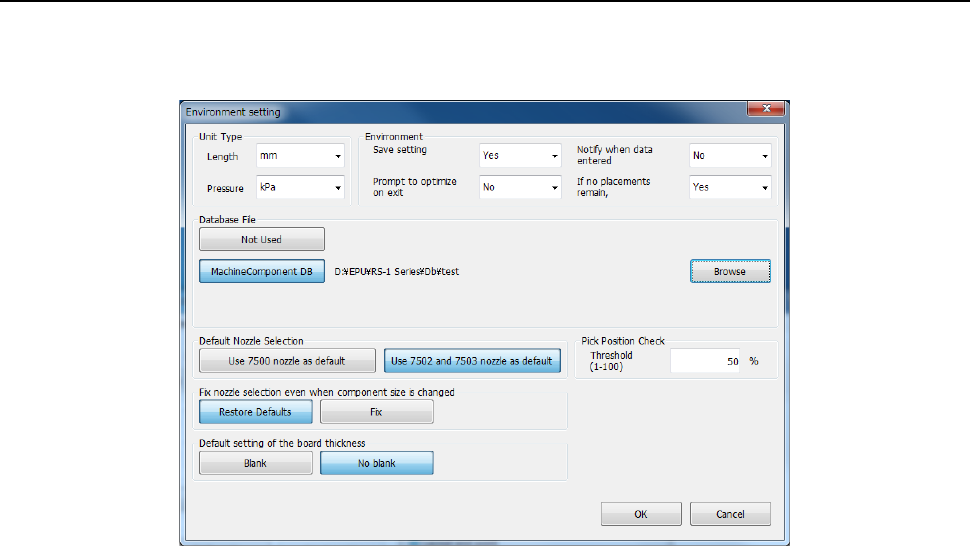
This section describes how to set the environment for editing a production program.
When you select the [File] command on the Program Editor menu, and then the [Environment
Setting] command, the “Environment setting” screen appears.
(1) Unit Type
Set units of length and pressure when you edit a program.
• Length: Select a unit among mm, 1/100 mm and inch.
• Pressure: Select a unit, either kPa or level.
(2) Environment
1) Save setting
Select whether to save the conditions under which you quit the Program Editor and replicate
it when the Program Editor starts up next time.
• Yes: The grid width of each list screen is reproduced at the next program edit launch.
• No: The grid width of each list screen is initialized when you start up the Program Editor
the next time.
2) Prompt to optimize on exit
Select whether to display the message for optimization when you quit the Program Editor.
• Yes: The system displays the inquiry dialog box that asks you whether to execute the
Optimization function if you try to quit the program although you have not executed the
optimization function.
• No: The system does not display the inquiry dialog box.
3) Notify when data entered into DB
Select whether to notify you that the system finishes registering data in the database.
• Yes: The system notifies you that it registered component data into the database when it
did.
• No: The system does not notify you.
4) If no placements remain, delete comp. record
Select whether to delete component data on a component used at the placement position
when the corresponding placement data is deleted.
• Yes : The system deletes component data when all the corresponding components
have been placed at the placement positions.
• No : The system does not delete component data.
You can delete component data that has no placement positions on the
Part 1 Basic Operation Chapter 4 Creating a Production Program
4-203
“Component” data “List” screen.
• Notification: The system displays the “Question” message that asks you whether to
delete the corresponding component data.
(3) Database file
Select a type of a database file you are to use. Note that you cannot select a database that
cannot be used.
A database is a file in which component data is registered. (For more details, see Chapter 5
"Database.")
You can use only one database with the Editor.
You can create two or more databases and operate them, but You have to specify the database
file to use according to the program.
・When you use the component database of the mounter main unit
<How to set>
① Select the <Machine Component DB> button.
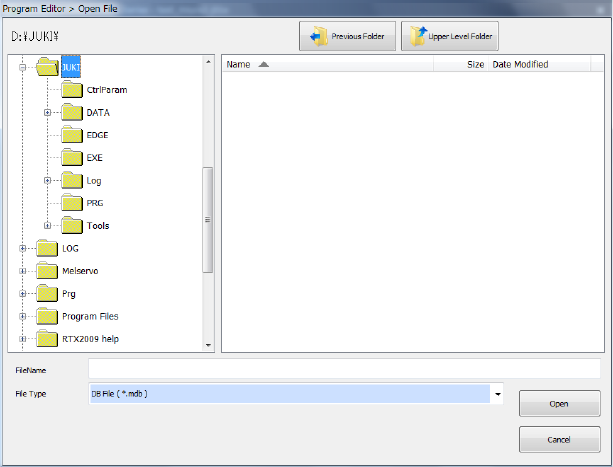
② Press the <Browse> button, and select a database file on the “Open File” dialog box.
(4) Default Nozzle Selection
Specify a nozzle to be used by pressing either of the buttons, <Use 7500 nozzle as default> or
<Use 7502 and 7503 nozzle as default>. This selection changes the nozzle number the system
automatically selects on the “Component” data screen.
Example: When you select the button <Use 7500 nozzle as default>
When you enter “2 mm × 1.2 mm” as the component dimensions on the “Component”
data screen, the system automatically selects a “No. 7500 nozzle.”
(5) Fix nozzle selection even when component size is changed
Select whether to reset the default nozzle number when you change the component dimensions.
- Restore Defaults : Sets the default nozzle number.
- Fix : Does not reset the nozzle number.
(6) Default setting of the board thickness
Select whether to set the default value in the “PWB thickness” field displayed on the “PWB” data
screen when a new production program is created.
- Blank : Does not set the default value in the “PWB thickness” field.
- Fix : Sets the default value in the “PWB thickness” field.
(7) Pick Position Check
When you are to check the component pick-up position, enter the value for judging if a pick-up