RS-1_instruction manual.pdf - 第207页
Part 1 B asic O peration Chapter 2 Pr oduction 2- 96 (2) Tr ansport path o peration state ① When the <Pwb load> but ton is selected A board is loade d to the buff er that clamp s i t, and t hen clampe d. The clampi…
Part 1 Basic Operation Chapter 2 Production
2-95
PWB conveyor
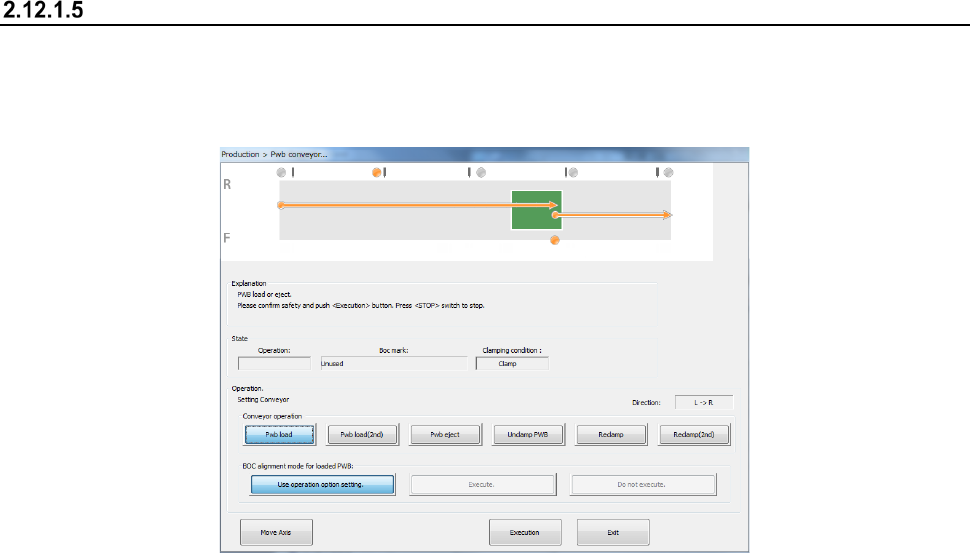
When you select the <PWB conveyor> button, the state of each sensor is displayed on the screen.
Adjust the board transport operation while loading a board, ejecting a board, releasing a fixed board,
controlling each part independently and automatically adjusting the board transport width of the
conveyor.
(1) Operation
① Conveyor operation
You can select a board transport operation with selecting one of the following buttons:
<Pwb load>, <Pwb eject>, <Unclamp PWB> <Reclamp>and <Reclamp(2nd)>.
When the machine starts up, the <Pwb load> button is selected.
② Board transport operation graphics
The board transporting condition varying depending on the specified board transport
operation and the station being operated is shown as the graphics.
③ BOC alignment mode for loaded PWB
Select whether to perform BOC alignment operation immediately after a board is loaded to
the machine.
<Use operation option setting>: The system determines whether to recognize a BOC mark
or not according to the setting of the corresponding operation option.
<Execute> : The machine always recognizes a BOC mark.
<Do not execute> : The machine does not recognize any BOC mark.
④ State
This menu item displays information obtained during board transportation.
The board transport direction, the BOC mark information and the clamping condition are
displayed here.
⑤ Move Axis
This button moves the axis to the waiting position.
⑥ Execution
When you press this button, the system executes the operation corresponding to each of the
buttons: <Pwb load>, <Pwb eject>, <Unclamp PWB> and <Reclamp>.
⑦ Exit
This button quits the “Pwb conveyor” screen.
To transport a board, press the <START> switch (or the <Execution> button).
To finish the operation, press the <Exit> button.
To abort the operation for some reason while a board is being transported, press the
<STOP> switch.
Part 1 Basic Operation Chapter 2 Production
2-96
(2) Transport path operation state
① When the <Pwb load> button is selected
A board is loaded to the buffer that clamps it, and then clamped.
The clamping position varies depending on the Setup setting or the external size of a
board.
If any board is already located at the clamping position, a new board is loaded after
the board at the clamping position is ejected.
② When the <Pwb load (2nd)> button is selected
A board is clamped for the second time.
Make the clamp using the HMS.
③ When the <Pwb eject> button is selected
A board is ejected from the clamping position.
④ When the <Unclamp PWB> button is selected
If any board is clamped, it is released.
⑤ When the <Reclamp> button is selected
If a board is located at the clamping position, the machine clamps it again.
⑥ When the <Reclamp (2 steps)> button is selected
When the board is in the clamping position, perform reclamping operation using HMS
and clamp the board.
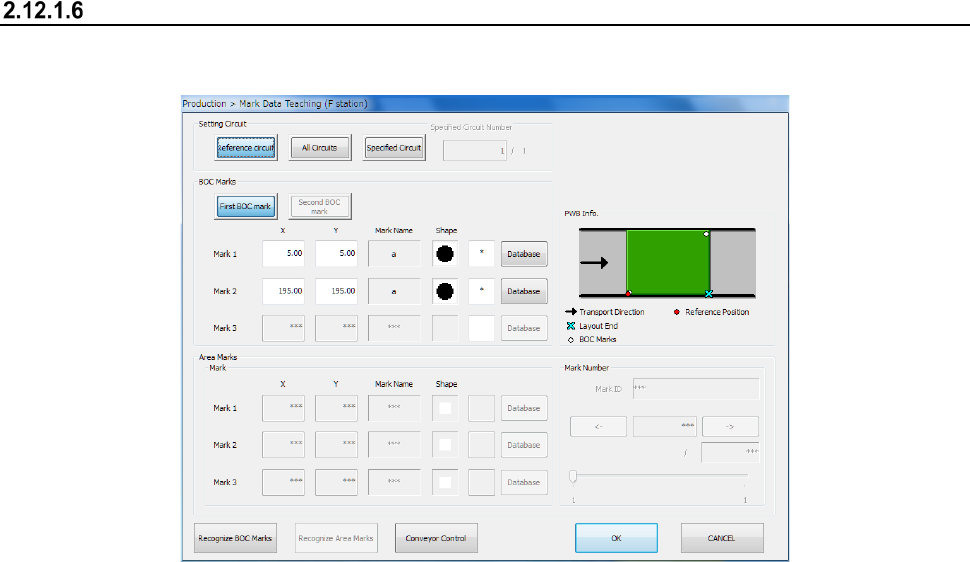
Mark Data Teaching
When you select this button, the system displays the BOC marks and area marks of the specified
station to allow you check them.
(1) Operation
① Setting Circuit
Set a circuit on which the system recognizes a BOC mark or an area mark.
For the reference circuit only, you can select whether the system is to recognize
marks on all circuits or the specified circuit only.
② BOC Marks
You can instruct the system to teach each BOC mark position.
To teach the mark actually, use the <Teaching> button of the function bar.
Part 1 Basic Operation Chapter 2 Production
2-97
In this case, the taught value is to be entered in both fields, X and Y at the same time
regardless of the position of the input focus, in the “X” field or the “Y” field.
③ Area Marks
You can instruct the system to teach each area mark position. To teach the mark
actually, use the <Teaching> button of the function bar. In this case, the taught value
is to be entered in both fields, X and Y, at the same time regardless of the position of
the input focus, in the “X” field or the “Y” field.
Specify the area mark number in the “Mark Number” field.
④ PWB Info.
The system displays the board transport direction, the stopper position, the layout end,
the board reference position and the BOC mark positions.
⑤ <Recognize BOC Marks> button
The system recognizes BOC marks under the conditions you set.
If mark data is completed temporarily, the system automatically teaches marks, and
creates mark data completely.
See Section 4.3.3.3 “Mark: BOC” of Chapter 4 “Creating a Production Program” for
details.
⑥ < Recognize Area Marks> button
The system recognizes area marks under the conditions you set.
If mark data is completed temporarily, the system automatically teaches marks, and
creates mark data completely.
See Section 4.5.6.2 “Area mark” of Chapter 5 “Creating a Production Program” for
details.
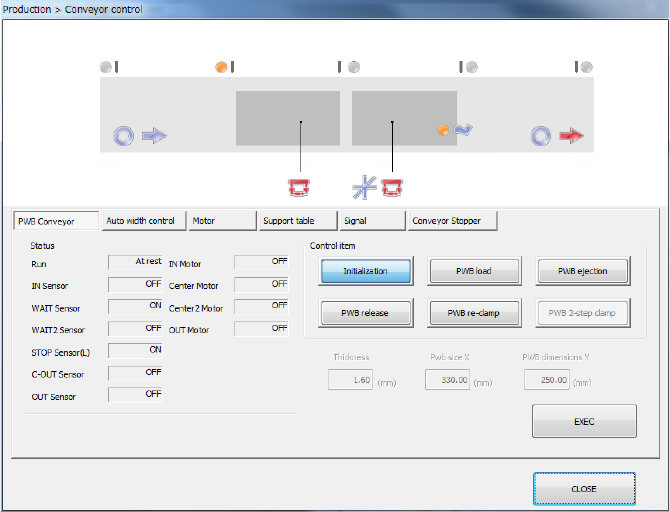
⑦ <Conveyor Control> button
This button controls transporting of a board.
See Section 9.4.1 “Control item: PWB load” of Chapter 9 “Manual Control” for details.