RS-1_instruction manual.pdf - 第274页
Part 1 B asic O peration Chapter 2 Pr oduction 2- 163 If the syst em temporar ily stops due t o a laser he ad stain error , a chip tombst one error , a laser recogniti on error or an irre gularly - shaped com ponen t err…
Part 1 Basic Operation Chapter 2 Production
2-162
Component protection
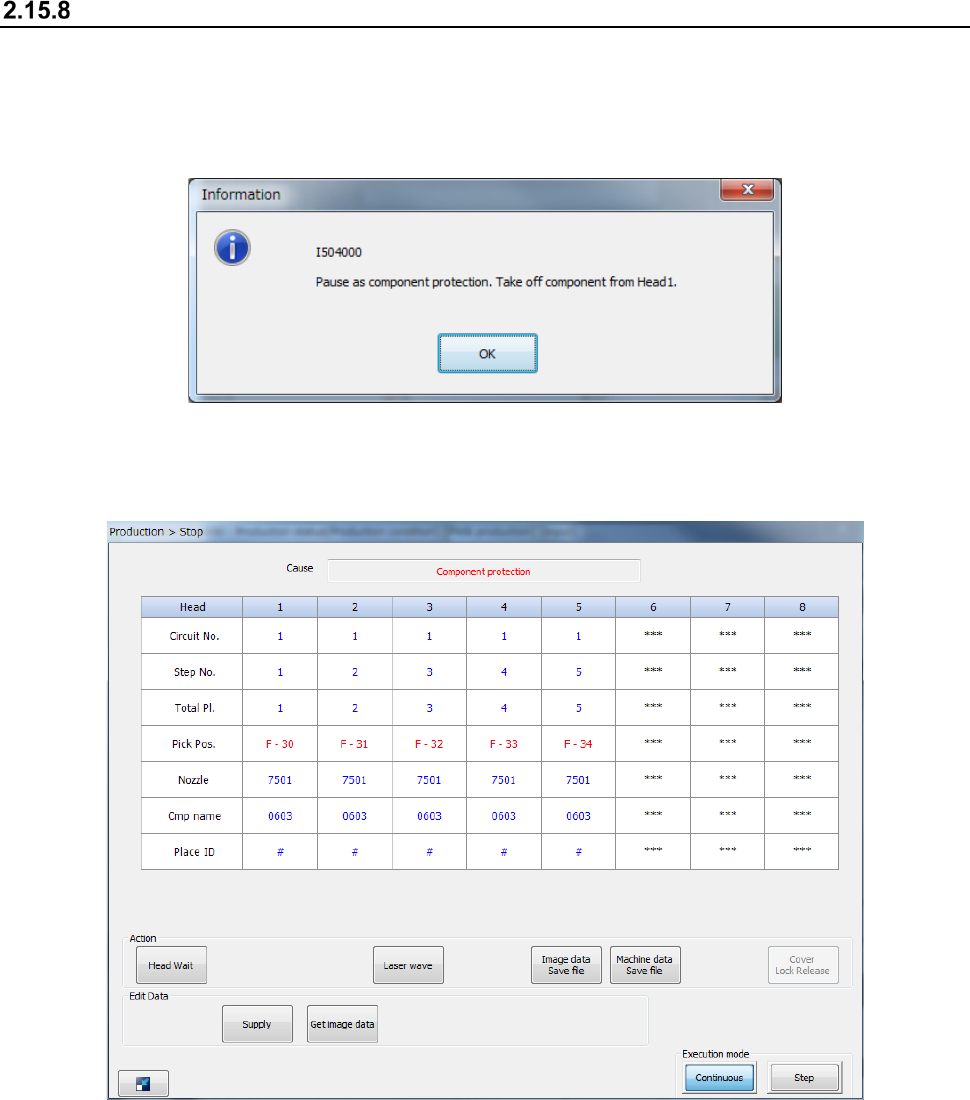
If a recognition error occurs at a component for which “Protect” is specified on the “Component data
(Packaging style)” screen of a production program, the head unit moves to the component
protection position, and then the system displays the “Information” screen on the screen and stops
production temporarily.
When you remove a component picked up with the nozzle with hands, and then press the <OK>
button, the system displays the “Stop” screen.
When you press the <START> switch, the system restarts the suspended production after
discarding the component.
When you press the <STOP> button, the system starts terminating the suspended production.
Part 1 Basic Operation Chapter 2 Production
2-163
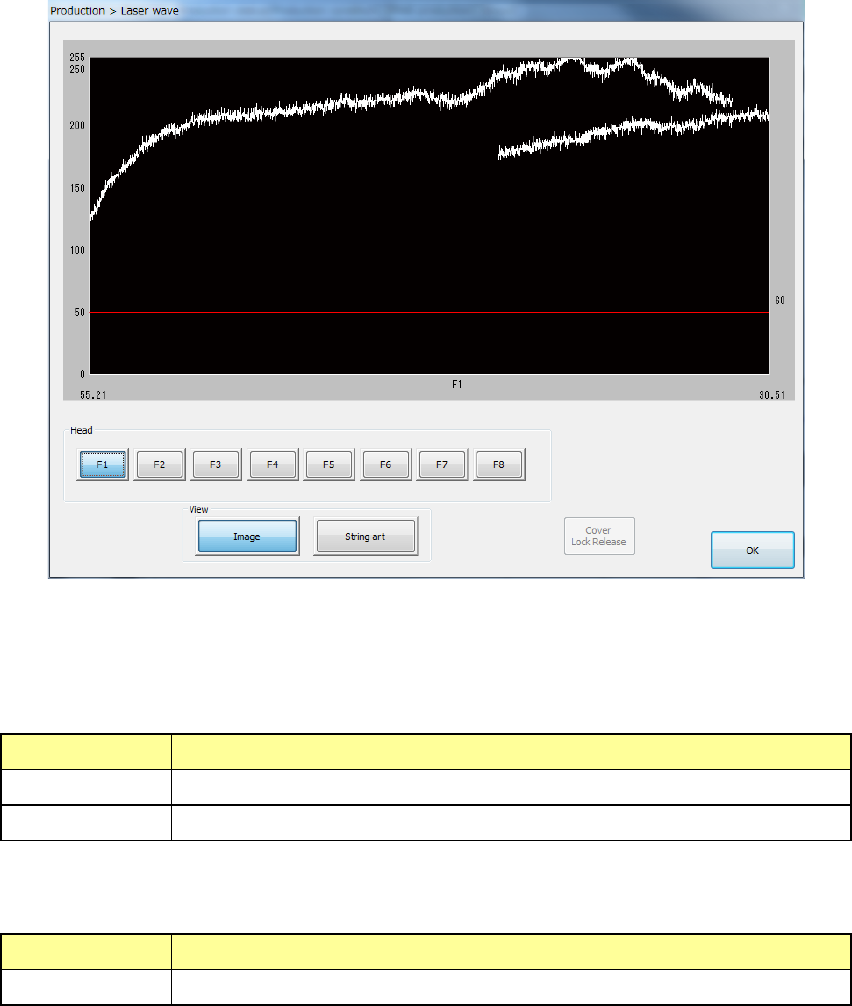
If the system temporarily stops due to a laser head stain error, a chip tombstone error, a laser
recognition error or an irregularly-shaped component error, the <Laser wave> button is displayed on
the screen.
If a similar error occurs at a head nozzle when the system temporarily stops due to any error, this
button is displayed also. When you press this button in such a case, the laser head moves up and
down to check whether the head is not stained or not. Pay attention to this head movement.
When you press the <Laser wave> button, the “Laser wave” screen appears.
(1) Laser waveform image
Image of the laser waveform is displayed here.
(2) List of “View” buttons
Select what to display on the laser waveform image.
Item Description
Image Displays the result of the image waveform.
String art Displays the result of component recognition with laser in string art.
(3) List of heads
Select a head to be displayed on the laser waveform image.
Item Description
Heads 1 through 8 Select a head to be displayed on the laser waveform image.
When you press the <OK> button, the system quits the “Laser wave” screen, and returns to the
previous screen.
See Section 2.15.1 “If an error occurs” for details.
Part 1 Basic Operation Chapter 2 Production
2-164
Function for replenishing a component supply device with components when
the system pauses
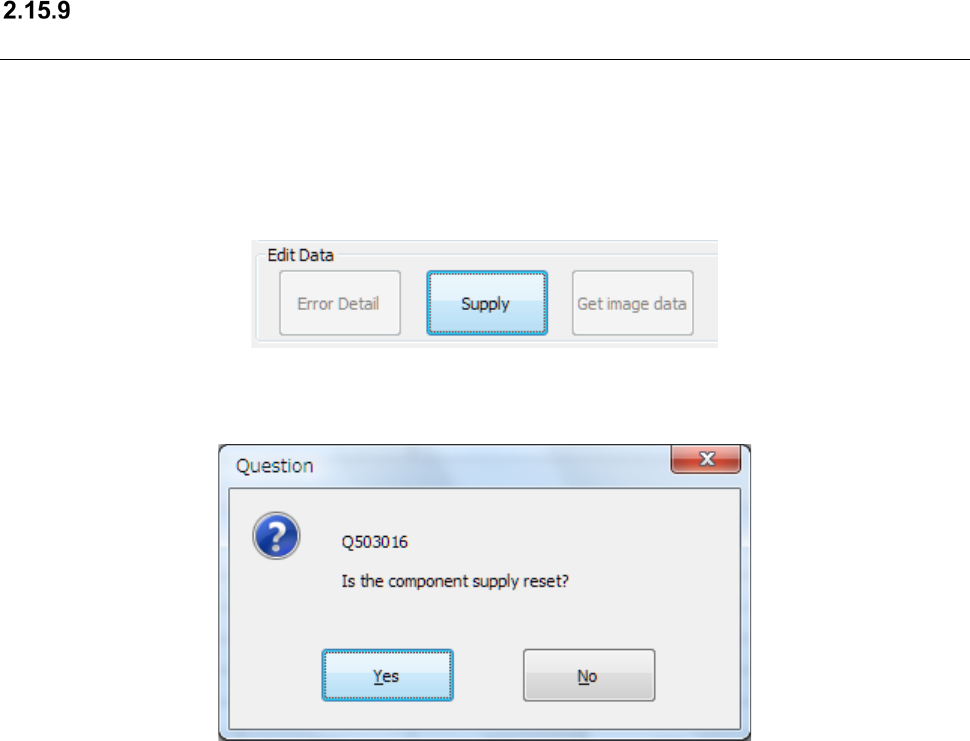
When you check the option “Display ‘Supply’ button in the pause dialog” on the “Production (Pause)”
tab invoked from the “Operation option” screen, the <Supply> button is displayed in the “Various
information” group of the “Pause” screen.
The <Supply> button is displayed when the system pauses due to an error other than a component
run-out error and a mark recognition error.
When you press the <Supply> button, the confirmation message appears on the screen.
When you press the <Yes> button, the system refills the machine with components. Components
supplied with a tape feeder are to be refilled. When the machine is refilled with components, the
system resets the menu item “Remain” to the initial value if it is set to “0” in order to cancel a
component run-out error. When the value set in the menu item “Remain” is not “0,” the system
cancels the component run-out error without changing the setting of the menu item “Remain.”
When you press the <No> button, the system closes the confirmation message without doing
anything.