RS-1_instruction manual.pdf - 第357页
Part 1 B asic O peration Chapter 4 Cr eating a Produc tion Progra m 4- 22 15) B ad mark: Select the < Not Used> button or the <Used> b utton depend ing on whether a bad mar k is used or not. When you select t…
Part 1 Basic Operation Chapter 4 Creating a Production Program
4-21
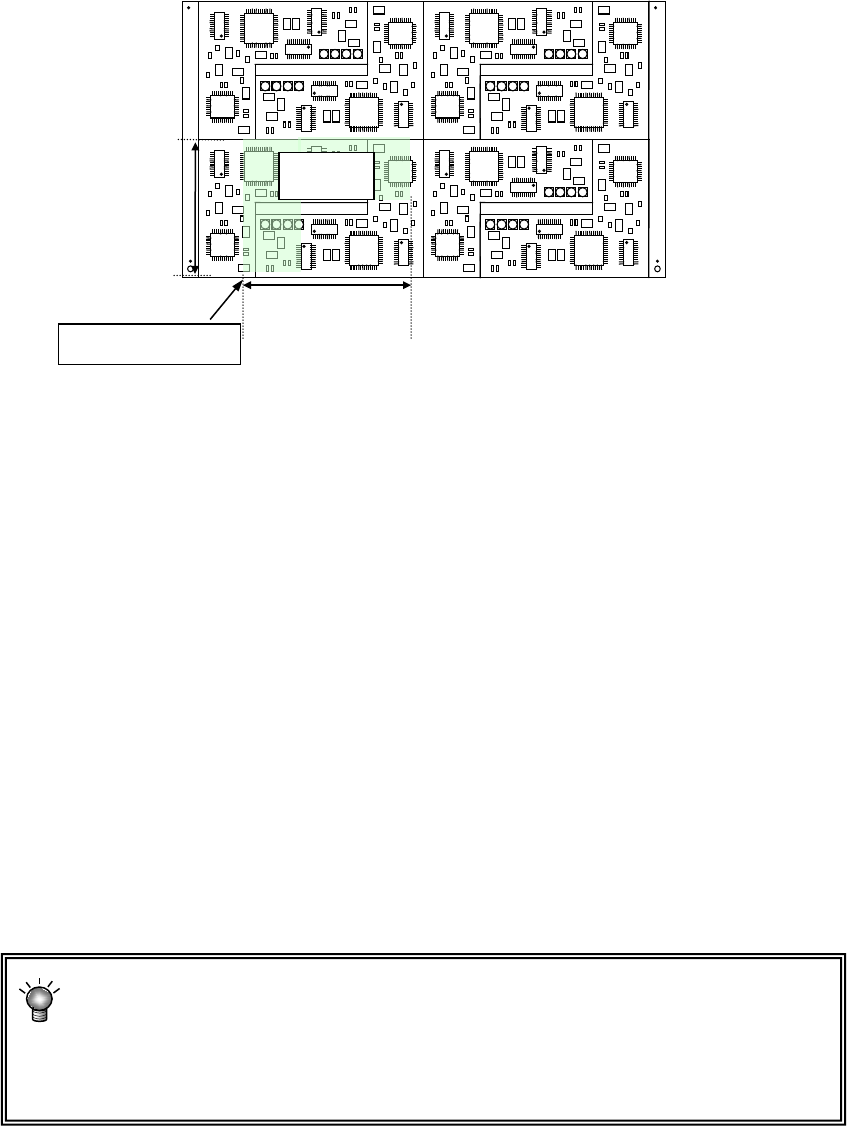
5) Circuit dimensions:
Enter the dimensions of a circuit (the dimensions that include all placement coordinates).
Example)
6) Circuit layout offset:
Enter the distance from the circuit origin of the reference circuit to the left bottom corner (this
is an always fixed point regardless of the board transport direction) of the reference circuit.
7) First circuit position
8) Circuit divide No
9) Circuit pitch
You do not have to set these items for a multi-plane non-matrix board (these items are
disabled).
10) PWB height
11) PWB thickness
12) Back height
13) Clamp offset
Enter these fields in the same manner as those for a single- circuit PWB.
14) Global Bad Mark
Enter the coordinates of a position of a global bad mark viewed from the board reference
position.
When you select the <Not Used> button, “***” is displayed in the “X” and “Y” coordinate input
fields.
The maximum number of circuits the system can create on a multi-plane
non-matrix board is shown below.
When a standard bad mark is used: 1,200 circuits
When an extended bad mark is used: 1,200 circuits
Circuit dimension Y
Circuit
dimension X
Reference
circuit
Circuit layout offset
Part 1 Basic Operation Chapter 4 Creating a Production Program
4-22
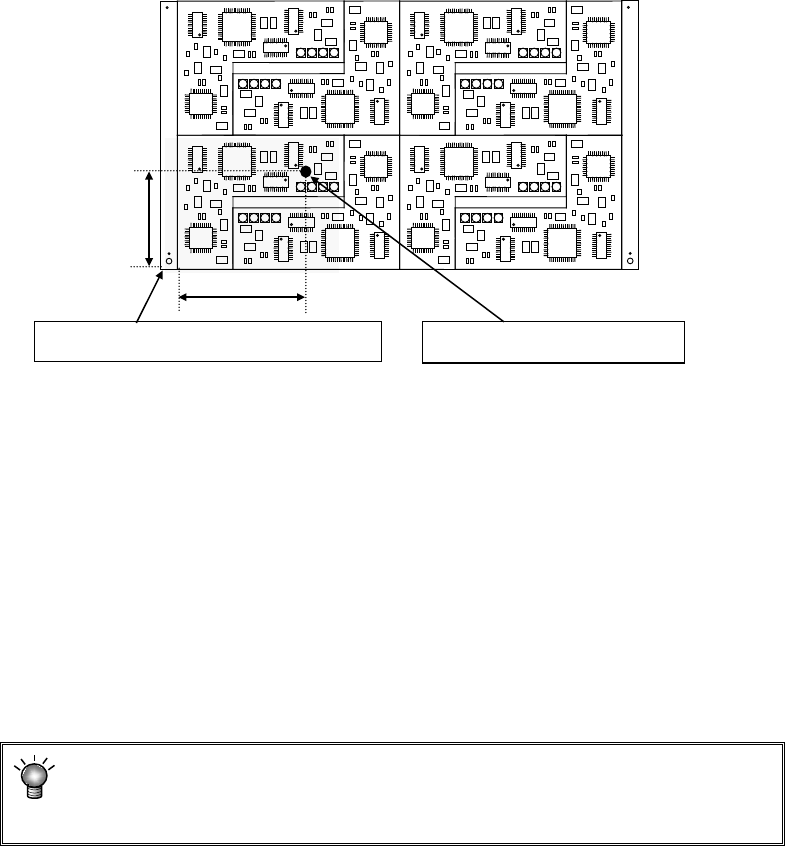
15) Bad mark:
Select the <Not Used> button or the <Used> button depending on whether a bad mark is
used or not. When you select the <Not Used> button, “***” appears in the “X” field and the
“Y” field respectively. When you select the <Used> button, enter the distance from the
circuit origin (circuit reference position) to the center of a bad mark.
* In the above case, enter X = a and Y = b.
<Usage of a bad mark and the operation flow>
i) Enter coordinates of a bad mark into PWB data (that is, to the “Bad mark position”
fields.)
ii) Before feeding a PWB, affix a bad mark at the spot specified with the bad mark
coordinates on a defective circuit.
iii) Before the start of production, the OCC or bad mark sensor reads a bad mark of
each circuit. When a bad mark is recognized, components are not placed on the
corresponding circuit.
The requirements for a bad mark: the mark must be distinct in the color
from a PWB, and its diameter must be 2.5 mm or greater. If a bad mark is
used, the production time will be longer by the mark recognition time.
* For the extended bad mark, refer to "4.3.3.5 Extended bad mark."
* If the bad mark is set out of the circuit, use an extension bad mark.
a
b
Circuit origin (circuit position reference)
Coordinates of a bad mark
Part 1 Basic Operation Chapter 4 Creating a Production Program
4-23
4.3.3.3 BOC mark
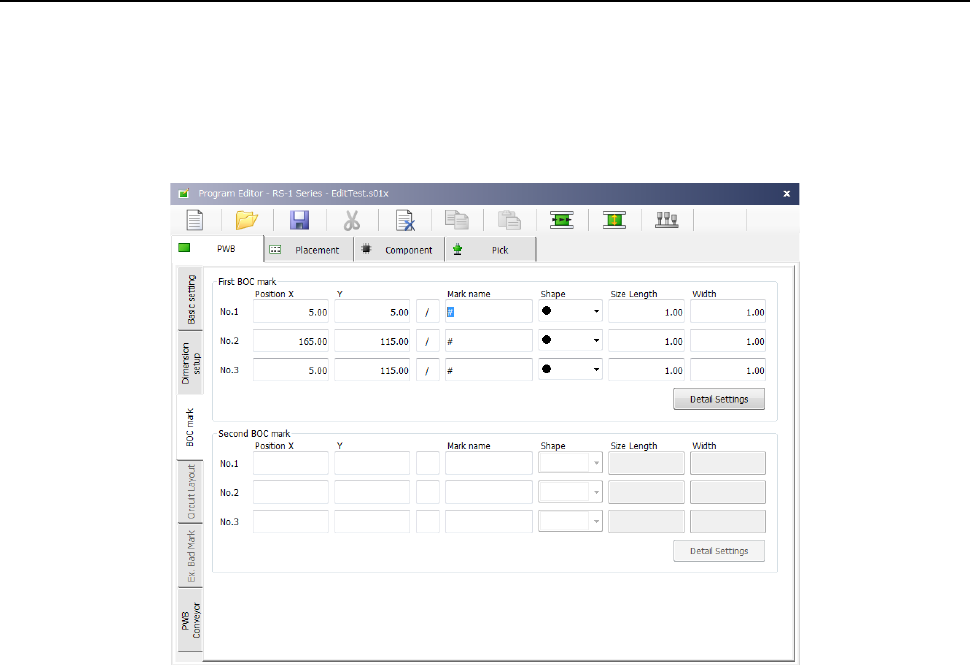
When you select the <PWB mark> button for the menu item “BOC type” on the “Basic setting”
screen, enter the coordinates of a BOC mark viewed from the board reference position in the
“Position X” and “Y” fields of a BOC mark.
When you align the cursor with the XY coordinates, and then press the <Teaching> button
displayed in the operation area on the bottom of the screen, you can invoke the teaching function
and set the XY coordinates with the teaching function also.
(1) Position X, Y
Enter the coordinates of a mark. You have to set two or three BOC marks.
When two BOC marks are used: the system can correct the difference between the
designed dimensions and the actual dimensions (measured dimensions) and the error in
the rotation direction.
Note that if there are two or more marks on a board, select two points located in a
diagonal line of the entire area for placing components.
When three BOC marks are used: In addition to the difference and the error corrected
when two BOC marks are used, the system can correct distortion of the perpendicularity
of the X-axis and that of the Y-axis.
(2) Teaching
The teaching state of a BOC mark is displayed in the field next to the “Position X, Y” fields
(1) above.
“/” indicates the “temporarily completed state,” while “*” indicates the “taught state.”
When you enter the XY coordinates, the “Mark name,” “Shape,” “Size Length” and “Width”
fields are set, and the mark setting is put in the temporarily completed state.
(3) Mark name
Enter a mark name.
(4) Shape
Select the shape of a mark.
(5) Size Length and Width
Enter the size of a mark.
(6) Detail Settings
When you select this button, the “Detail Settings” screen opens.