RS-1_instruction manual.pdf - 第275页
Part 1 B asic O peration Chapter 2 Pr oduction 2- 164 Function for reple nishing a component supply devic e with components when the system pauses When you check t he optio n “Display ‘Supp l y’ button in the paus e dial…
Part 1 Basic Operation Chapter 2 Production
2-163
If the system temporarily stops due to a laser head stain error, a chip tombstone error, a laser
recognition error or an irregularly-shaped component error, the <Laser wave> button is displayed on
the screen.
If a similar error occurs at a head nozzle when the system temporarily stops due to any error, this
button is displayed also. When you press this button in such a case, the laser head moves up and
down to check whether the head is not stained or not. Pay attention to this head movement.
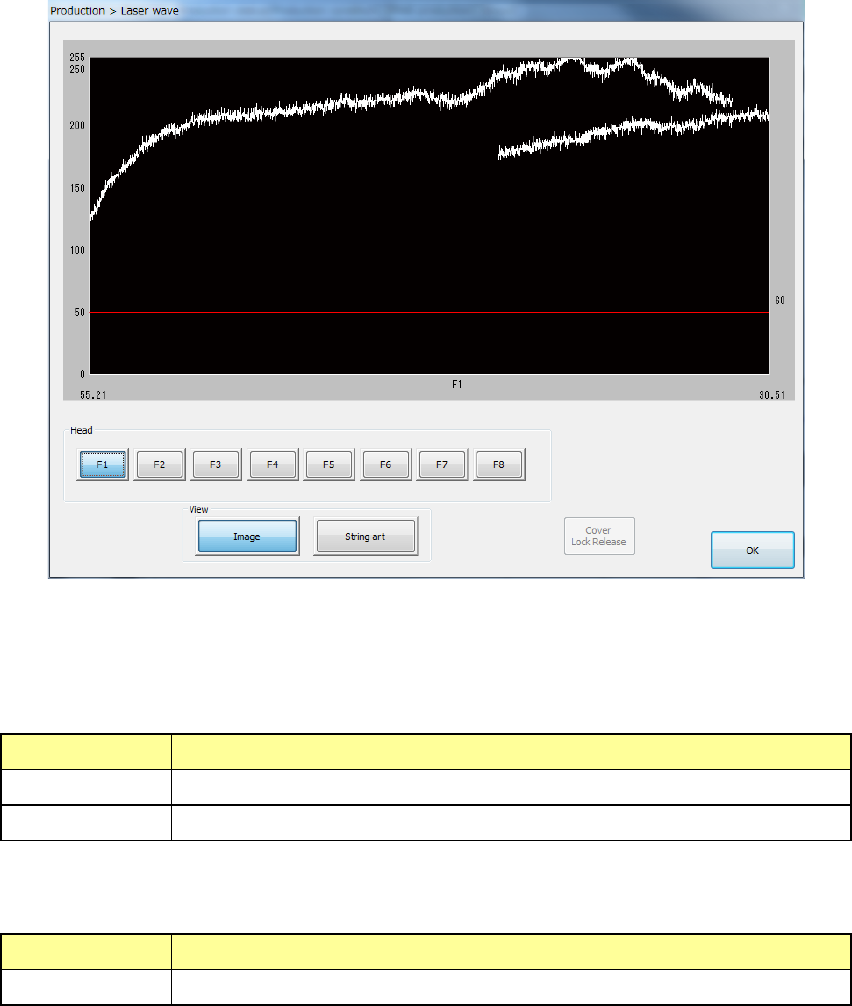
When you press the <Laser wave> button, the “Laser wave” screen appears.
(1) Laser waveform image
Image of the laser waveform is displayed here.
(2) List of “View” buttons
Select what to display on the laser waveform image.
Item Description
Image Displays the result of the image waveform.
String art Displays the result of component recognition with laser in string art.
(3) List of heads
Select a head to be displayed on the laser waveform image.
Item Description
Heads 1 through 8 Select a head to be displayed on the laser waveform image.
When you press the <OK> button, the system quits the “Laser wave” screen, and returns to the
previous screen.
See Section 2.15.1 “If an error occurs” for details.
Part 1 Basic Operation Chapter 2 Production
2-164
Function for replenishing a component supply device with components when
the system pauses
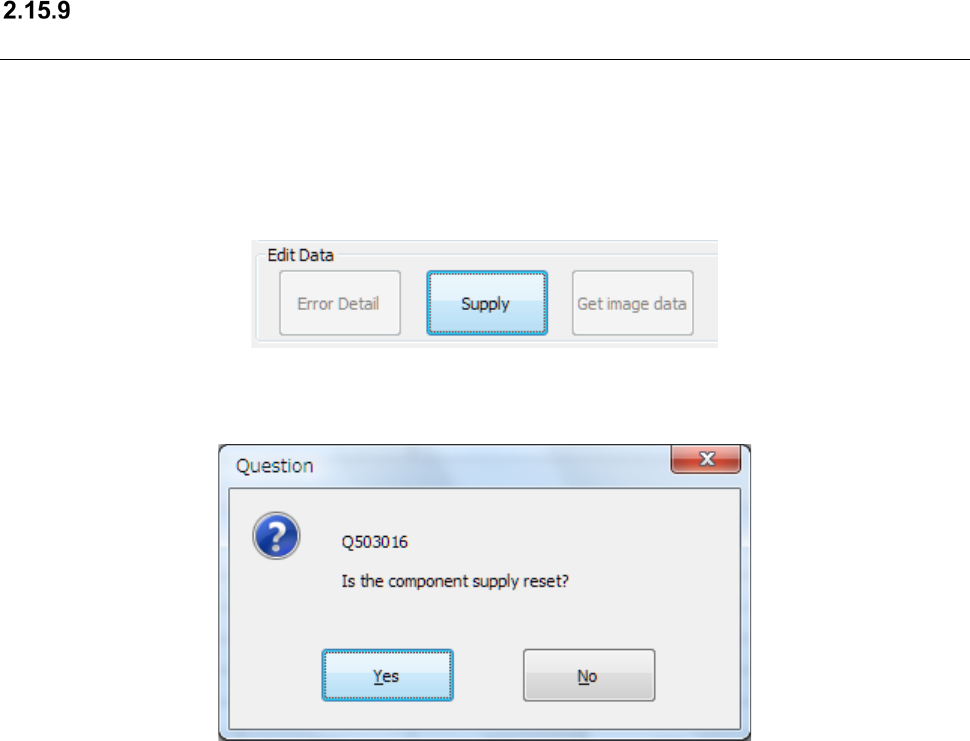
When you check the option “Display ‘Supply’ button in the pause dialog” on the “Production (Pause)”
tab invoked from the “Operation option” screen, the <Supply> button is displayed in the “Various
information” group of the “Pause” screen.
The <Supply> button is displayed when the system pauses due to an error other than a component
run-out error and a mark recognition error.
When you press the <Supply> button, the confirmation message appears on the screen.
When you press the <Yes> button, the system refills the machine with components. Components
supplied with a tape feeder are to be refilled. When the machine is refilled with components, the
system resets the menu item “Remain” to the initial value if it is set to “0” in order to cancel a
component run-out error. When the value set in the menu item “Remain” is not “0,” the system
cancels the component run-out error without changing the setting of the menu item “Remain.”
When you press the <No> button, the system closes the confirmation message without doing
anything.
Part 1 Basic Operation Chapter 2 Production
2-165
Checking before PWB production starts
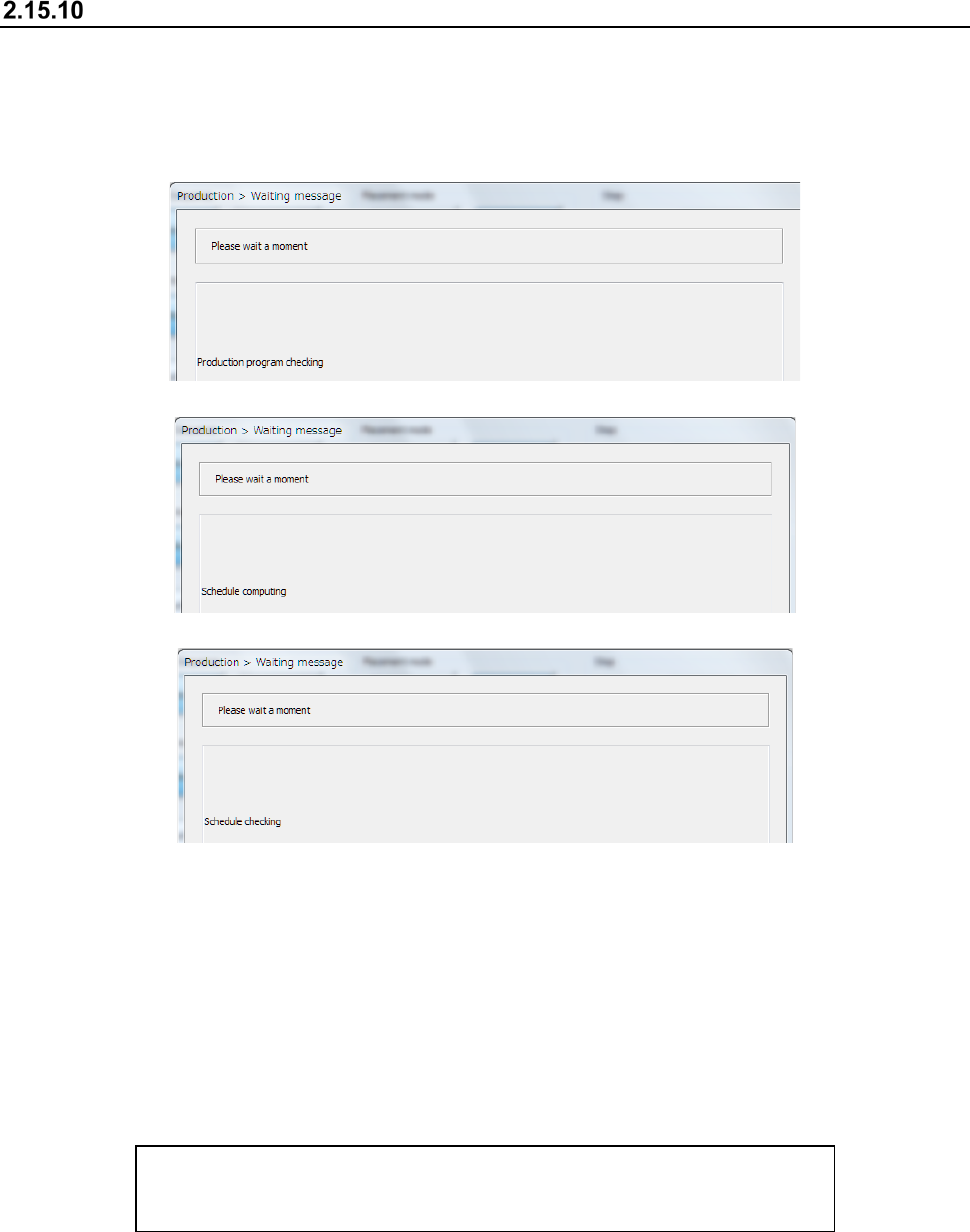
When you press the <START> switch of the operation panel to start PWB production, the system
checks a production program, creates a master schedule, and then check the master schedule in
order to judge that it can start PWB production.
- Checking a production program
- Creating a schedule
- Checking the schedule
If a warning is issued as a result of a production program check, the system displays the description
of the warning on the list. (Up to 100 warnings)
If the total number of errors and warnings such as an “incomplete production program” reaches 100,
the system aborts the check and then displays the list immediately.
If the system detects an error or the number of warnings reaches 100, the system cannot start PWB
production.
If no error occurs and the number of warnings does not reach 100 yet, you can start PWB
production by pressing the <START> switch again.
The list of errors or warnings is displayed in the following format:
Data name, error message
(Example) Component, The specified nozzle (7500) has not been set.