RS-1_instruction manual.pdf - 第409页
Part 1 B asic O peration Chapter 4 Cr eating a Produc tion Progra m 4- 74 Example 2: T aking the f ollowing c omponent as an exam ple, enter the of fset value. The unit of numerical value is "mm (mi llimeter)."…
Part 1 Basic Operation Chapter 4 Creating a Production Program
4-73
3) Place Offset X, Y, Ө
When the system centers a component with laser, it holds the center of the component
based on the outline of the component observed with laser.
In CAD data or similar type of data, the center of the component-mounted pattern (called
“pad”) is regarded as the coordinates of the component placement position.
This difference may cause leads of a component to be shifted from the pad of a PWB.
Therefore, when you enter this difference in this “Place Offset,” the system can place a
component at the correct position.
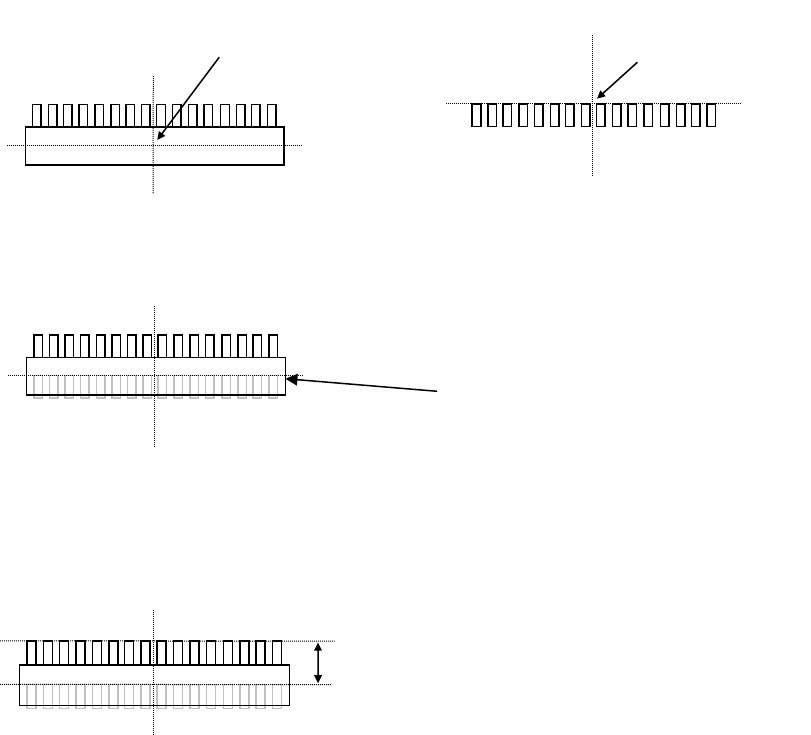
Example 1: One-direction lead connector
* Placement angle is 0°.
If the placement offset is not entered, components will be placed as shown below.
In the condition shown in the figure above (placement angle of 0º and placement offset of 0),
the system measures the distance from the coordinates of the component placement
position as the start point to the relative position of the component placement position
coordinates, and enters this distance into the “Place Offset” field.
To place two or more components of the same name, enter the placement offset in this
manner, and the placement position will be automatically changed and the component will
be placed on the correct position even if each placement angle is other than 0°.
Placement offset -Y (X is 0)
Center position of a component
centered with laser
Placement coordinate
position
Top view of a component
Pad on a PWB
Pad on a PWB
Part 1 Basic Operation Chapter 4 Creating a Production Program
4-74
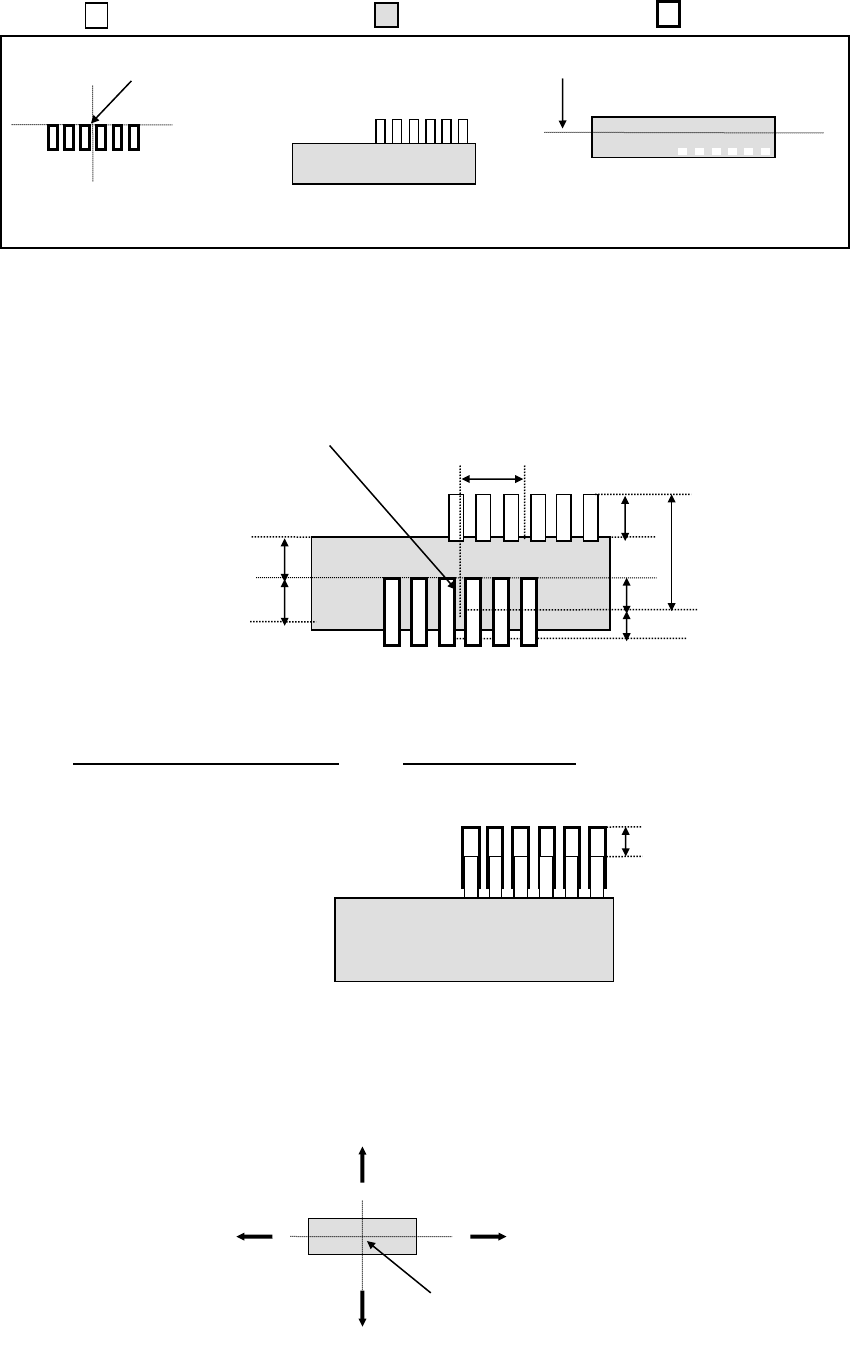
Example 2: Taking the following component as an example, enter the offset value. The unit of
numerical value is "mm (millimeter)."
( (no color) ⇒ Lead section, (colored) ⇒ Mold section, (bold line) ⇒ Pad)
Since the coordinates of the component placement position are different from the center
position of the component centered with laser, the system will not place a component at the
correct position. Therefore, enter this difference into the “Place Offset” field as the offset
value.
If any offset is not entered, components will be placed as shown below.
In this case, enter an offset value so that the tip of the lead will come on the center of the
pad.
If "X = -5.5, Y = -10" is entered in the "Place Offset" field, components will be placed as
shown below.
Note 1: Enter the length from the center position of a component centered with laser to the
coordinates of the component placement position in the “Place Offset” field. For the
sign of the value, see the figure below (the arrow mark means the length to the
coordinates of the component placement position).
Coordinates of the component placement position
Laser height
Pad on a PWB
Top view of a component
Lateral view of a component
(from the front)
2
Center position of a component
centered with laser
−Y
+Y
+X
−X
Center position of a component centered with laser
3
5.5
10
2
2
5
5

Part 1 Basic Operation Chapter 4 Creating a Production Program
4-75
Example 3: To place a component as shown below, enter "X = 0, Y = +3" into the "Place
Offset" field.
Note 2: Enter the offset value with regarding the placement angle as "0".
Example 4: If the placement angle of a component is "90," enter the "Place Offset" field by
assuming the placement angle to be "0." In the case shown below (placement
angle of "90"), enter "X = 0, Y = 2."
Note 3: To enter an offset value, we have two methods: One is to enter the offset value into
the "Place Offset" field on the "Component" screen and the other is to add or subtract
the offset value to or from "X" and "Y" fields on the "Placement" screen.
For entry of placement data, however, an offset value must be adjusted one by one for
each placement position. Therefore, in the case of placing components of the same
type on a number of positions, or if you do not want to change the placement data,
then enter the offset value in the "Place Offset" field on the "Component" screen.
Note 4: If you change a value in the “Laser position” field of some components on the
“Centering” tab of the “Component” data screen, the center position of the component
centered with laser may be changed. Therefore, you may be able to adjust the
component placement position by changing the value in the “Laser position” field
without entering any value in the “Place Offset” field. However, in this case, you
have to set the “Laser position” field so that the system can center a component
stably.
Center position of a component
centered with laser
Coordinates points of the component placement position
3
2
Coordinates of the component
placement position
Center position of a component
centered with laser