RS-1_instruction manual.pdf - 第626页
Part 1 B asic O pera t ion Chapter 5 Database 5-5 I f you s elect “ Ye s ” for th e me nu it em “ No t if y whe n dat a in to D B ” on the “ Envir on men t settin g ” sc re en, t he f ollow ing m ess age a ppears o n t h…
Part 1 Basic Operation Chapter 5 Database
5-4
Register 5.1.2
This command registers component data of a production program in the database record by
record on the “Program Editor” screen.
<Procedure>
1) Open the “Component” data screen with the “Program Editor.”
2) Select a component to be registered (with clicking a line of the desired component on the
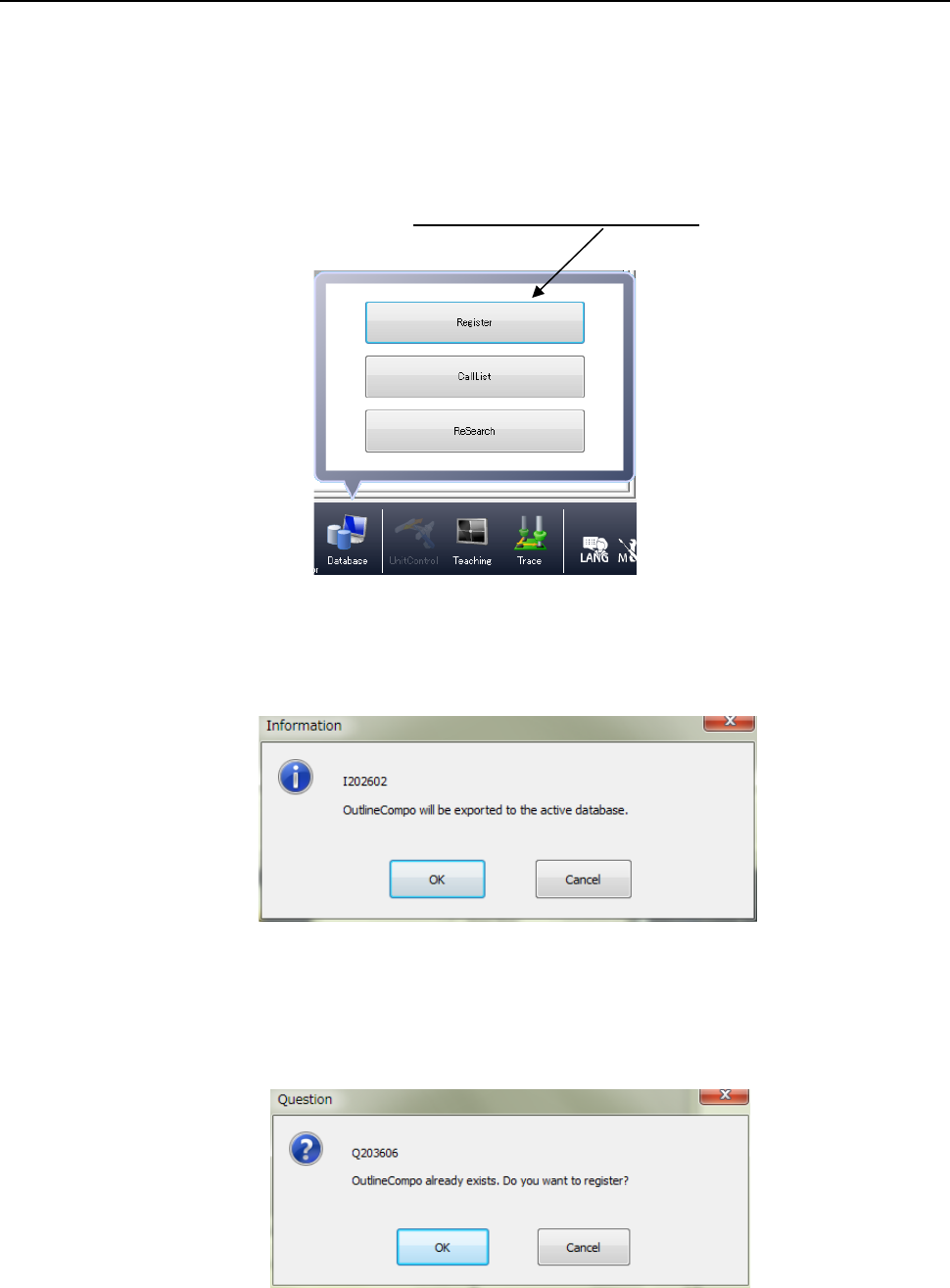
“List” screen, for example), and click the [Database]/[Register] commands.
3) The following dialog box appears on the screen.
When you press the <OK> button, the system registers data in the database.
When a component with the same name is already registered, the following message
dialog appears.
Click <OK> to overwrite the component data; click <Cancel> not to overwrite it.
Part 1 Basic Operation Chapter 5 Database
5-5
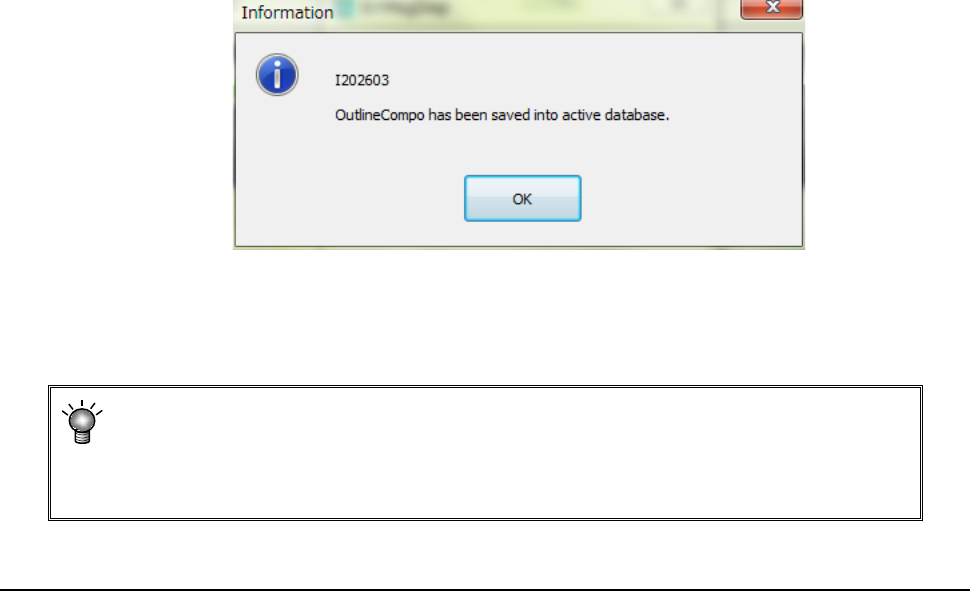
If you select “Yes” for the menu item “Notify when data into DB” on the “Environment
setting” screen, the following message appears on the screen when the system finishes
registering data into the database.
If you select “No” for the menu item “Notify when data into DB” on the “Environment
setting” screen, the “Information” message shown above does not appear on the screen.
• The system registers component data in the database sequentially according to
each component name.
• The database in which the system registers data is the database specified with the
“Environment Setting” (See Section 4.5.5 “Environment setting”).
Call List 5.1.3
When you select the [Database] command from the “Placement data” screen (if any
component name is not entered in the Placement data) or the “Component data” screen, you
can select the [Call List] command. If any component name is entered in the Placement
data, you cannot execute this command.
In this case, this command is dimmed on the “Database” menu.
See Section 5.1.1 “How to Use a Database” for how to execute this command.
Part 1 Basic Operation Chapter 5 Database
5-6
Search 5.1.3.1
You can search the component database for data.
<Procedure>
①
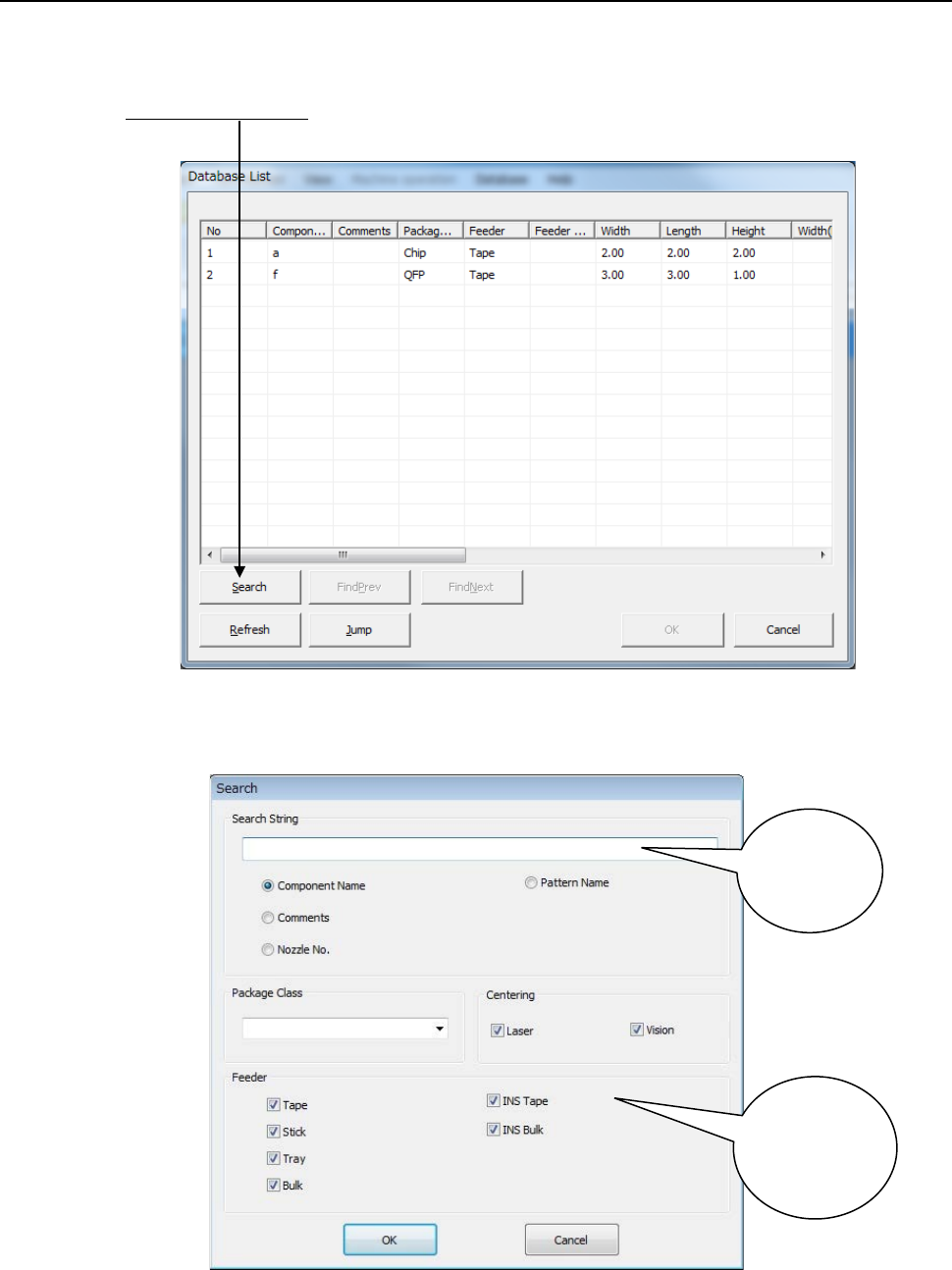
Click the <Search> button on the database list screen.
② The following dialog box appears on the screen.
Specify the search conditions, and click the <OK> button.
To narrow a search, specify the “Package Class,” “Feeder,” and/or “Centering” fields.
③ When the system finishes searching, it displays the “Database List” on which the first
matched component data registered in the database is highlighted.
Enter your
search
keyword.
Select one
from among
these search
options.