RS-1_instruction manual.pdf - 第650页
Pa r t 2 D et ai l ed Des c r i pt i o n of Ea c h F unc t i o n Chapte r 6 G e neral - Purpose Vision Co mpone nt 6- 19 Screen exam p le The ex te nde d arr ay dat a ar rang em ent im age i s s how n bel o w. W hen you …
Part 2 Detailed Description of Each Function Chapter 6 General-Purpose Vision Component
6-18
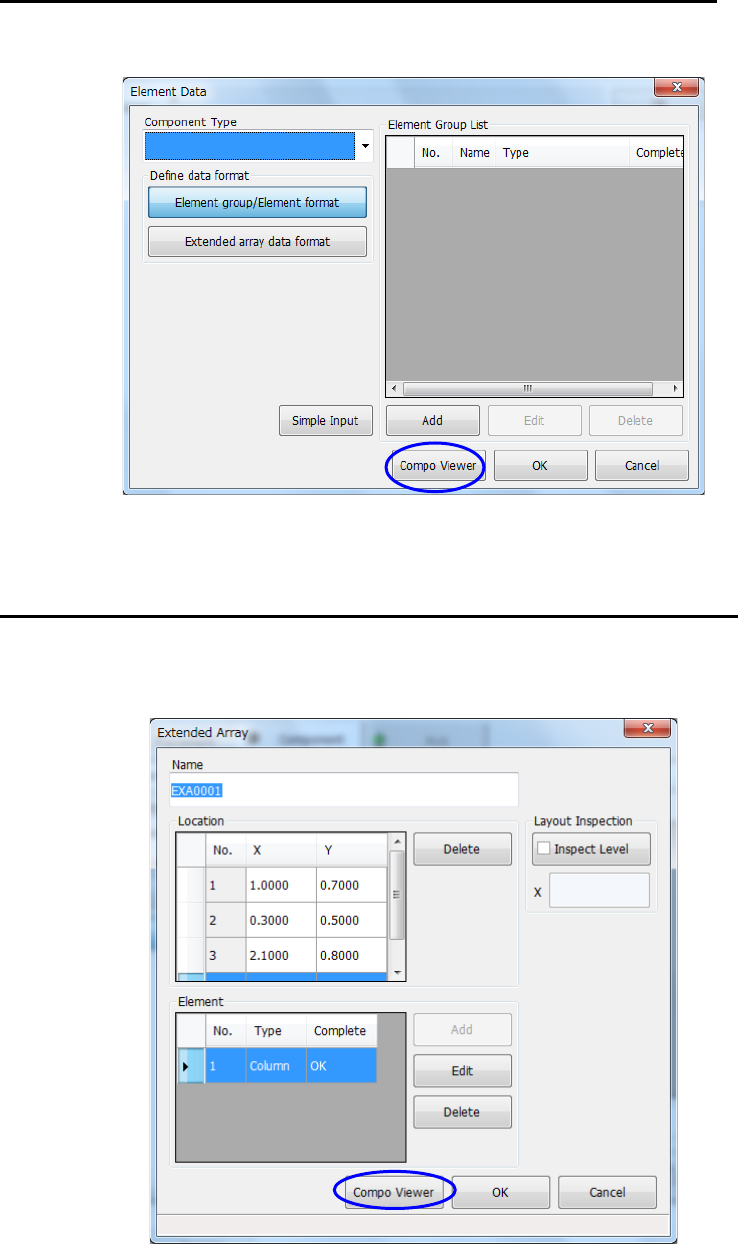
Invoking the Component Viewer screen from the “Element Data” screen
To u c h the <Compo Viewer> button on the “Element Data” screen.
Invoking the Component Viewer screen from the “Extended Array” screen
To u c h the <Compo Viewer> button on the “Extended Array” screen.
Part 2 Detailed Description of Each Function Chapter 6 General-Purpose Vision Component
6-19
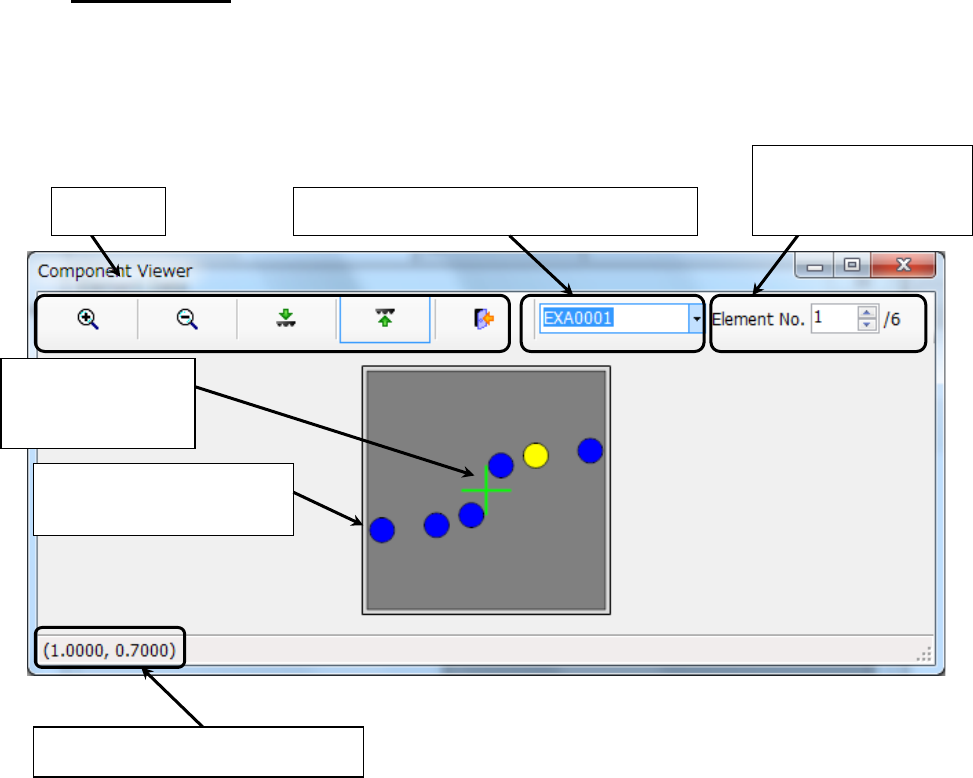
Screen example
The extended array data arrangement image is shown below. When you change the value
in the “Element No.” field with the speed control or when you touch an element displayed on
the screen, the selected element is displayed in yellow. (Elements not selected are
displayed in blue.)
Cross line indicating
the center of a
component
Component outline input in
the Component data
Extended array data group list (display only)
Coordinates of the selected element
Element number of the
selected element and
total number
Tool bar
Part 2 Detailed Description of Each Function Chapter 6 General-Purpose Vision Component
6-20
Simple Input: Quick Entry of Vision Data on a General-Purpose 6.4
Vision Component
This data entry method, “Simple Input” allows you to enter the minimum menu items required to
create vision data thanks to graphics.
Element data to be entered with Simple Input 6.4.1
Simple Input allows you to enter general element data, but you have to enter the complicated
component definition on the “Element Group” screen.).
Data type
Lead component Component whose element groups are all located on one of its sides.
Gull-wing or flat and outer lead
Elements of all element groups are placed in a line respectively.
Outline recognition
component
Corner or side element
(You cannot enter a mark element with Simple Input.)
All elements are “points.”
Ball component You cannot enter any data.
* You cannot create data on an extended array component with Simple Input.
Note: When you select the <Add> or <Edit> button on the “Element Data” screen, and create
or edit data on the “Element Group” or “Element” screen, you cannot use this Simple
Input function to enter the data created or edited.
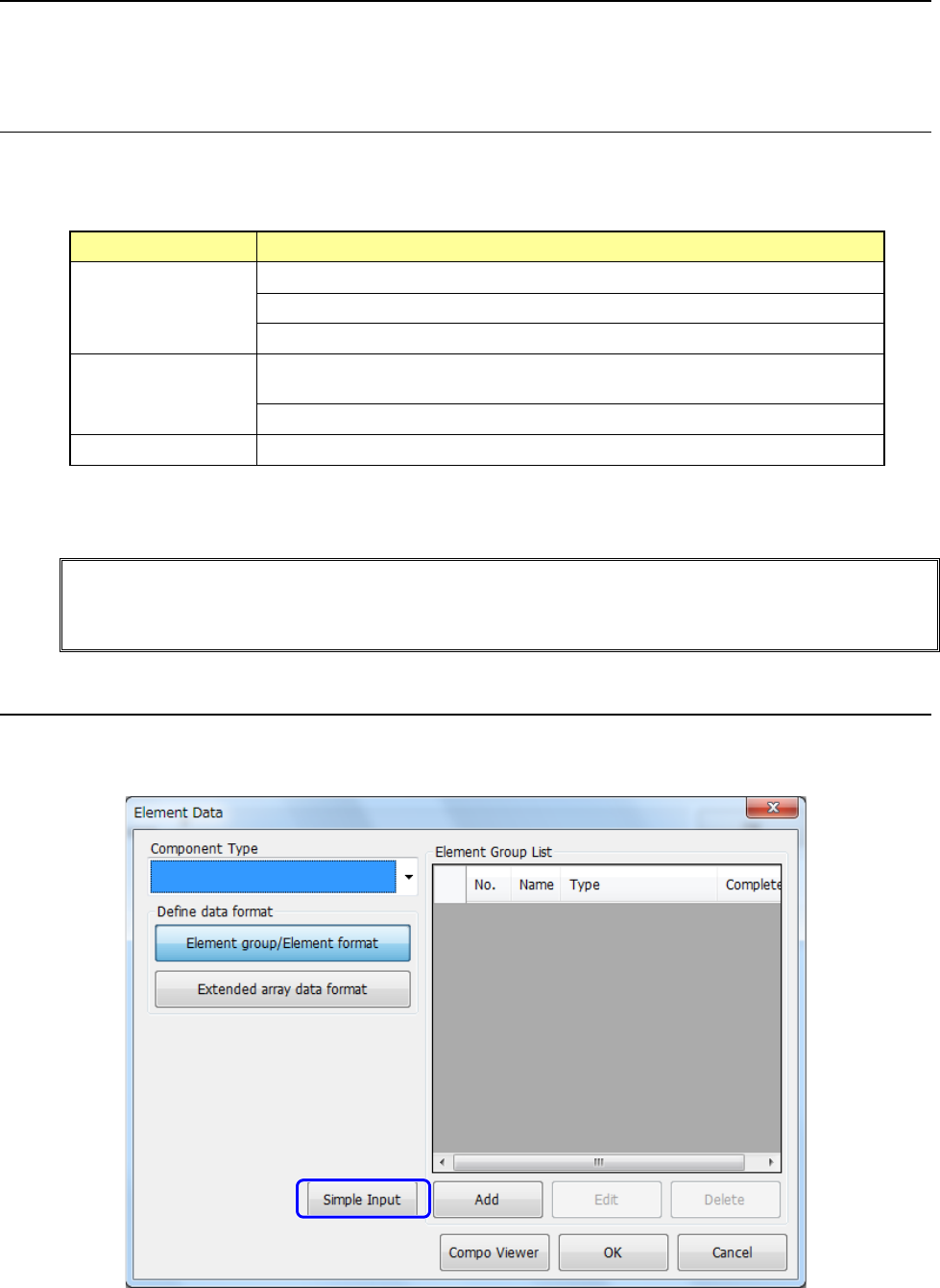
Opening the “Simple Input” screen 6.4.2
When you click the <Simple Input> button after selecting an element in the “Component Type”
field on the “Element Data” screen, the element group definition screen appears.